
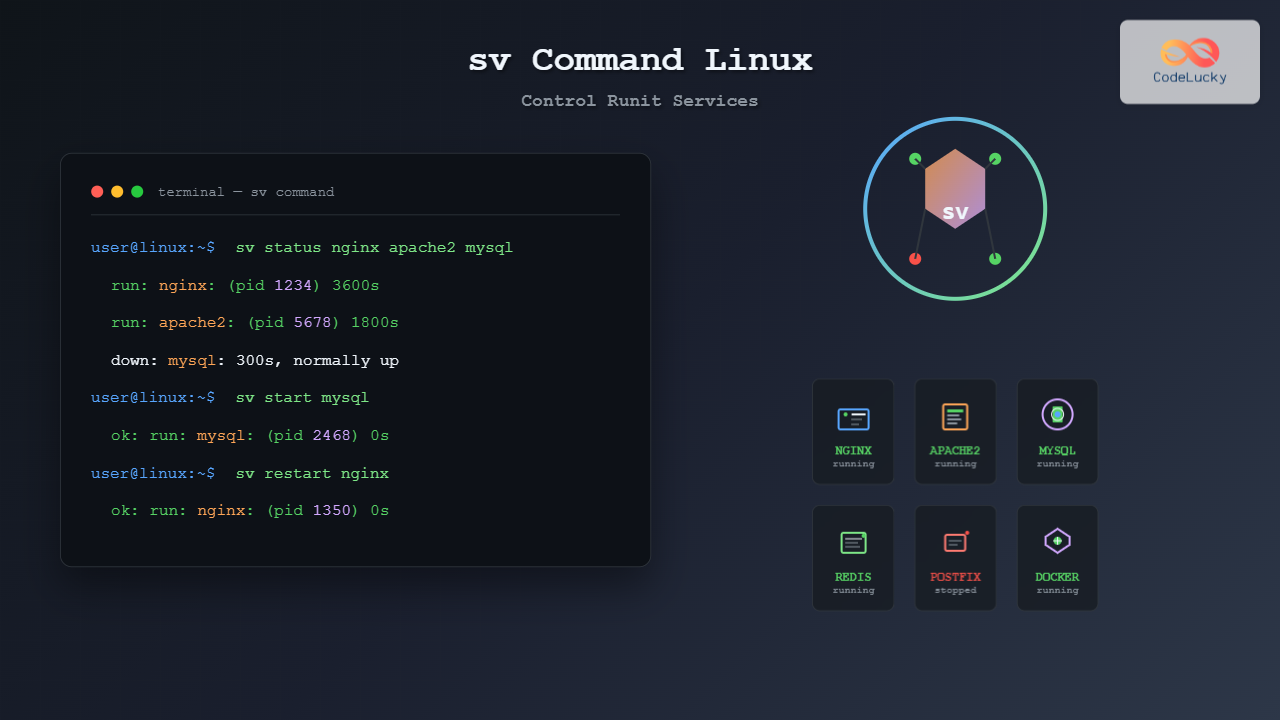
The sv command is a powerful utility in Linux systems that serves as the primary interface for controlling services managed by the Runit supervision system. Unlike traditional SysV init or systemd, Runit provides a lightweight, reliable service supervision framework, and the sv command is your gateway to managing these services effectively.
What is the sv Command?
The sv command (short for “supervise”) is the control interface for Runit’s service supervision system. It allows you to start, stop, restart, and monitor services that are managed by the runsvdir and runsv processes. This command provides a simple yet powerful way to manage system services without the complexity often associated with other init systems.
Basic Syntax and Structure
The general syntax of the sv command follows this pattern:
sv [options] command [services...]Where:
- options: Optional flags that modify command behavior
- command: The action you want to perform
- services: One or more service names or paths
Essential sv Command Options
Here are the most commonly used options with the sv command:
| Option | Description |
|---|---|
-v |
Verbose output – provides detailed information |
-w sec |
Wait up to ‘sec’ seconds for the command to complete |
-V |
Display version information |
Core sv Commands
1. Starting Services
To start a service using the sv command:
sv start service-nameExample:
$ sv start nginx
ok: run: nginx: (pid 1234) 0s
The output shows that nginx started successfully with process ID 1234.
2. Stopping Services
To stop a running service:
sv stop service-nameExample:
$ sv stop nginx
ok: down: nginx: 1s, normally up
3. Restarting Services
The restart command stops and then starts a service:
sv restart service-nameExample:
$ sv restart apache2
ok: run: apache2: (pid 5678) 0s
4. Checking Service Status
To check the current status of services:
sv status service-nameExample output for running service:
$ sv status mysql
run: mysql: (pid 2468) 3600s
Example output for stopped service:
$ sv status postgresql
down: postgresql: 120s, normally up
Advanced sv Commands
Reload Configuration
Send a HUP signal to reload service configuration without stopping:
sv reload service-nameExample:
$ sv reload nginx
ok: run: nginx: (pid 1234) 3661s
Force Restart
Force kill and restart a service:
sv force-restart service-nameOnce Command
Start a service once (don’t restart if it dies):
sv once service-nameWorking with Multiple Services
The sv command can handle multiple services simultaneously:
$ sv status nginx apache2 mysql
run: nginx: (pid 1234) 3600s
run: apache2: (pid 5678) 1800s
down: mysql: 300s, normally up
Start multiple services at once:
$ sv start nginx apache2 mysql
ok: run: nginx: (pid 1234) 0s
ok: run: apache2: (pid 5679) 0s
ok: run: mysql: (pid 2469) 0s
Service Directory Management
Runit services are typically located in /etc/service/ or /var/service/. You can reference services by name or by their full path:
# By service name
sv start nginx

# By full path
sv start /etc/service/nginx
Understanding Service States
When checking service status, sv command returns different states:
- run: Service is running normally
- down: Service is stopped
- finish: Service’s finish script is running
- fail: Service failed to start
Practical Examples and Use Cases
Web Server Management
Managing a web server stack:
# Start web services
$ sv start nginx php-fpm mysql
ok: run: nginx: (pid 1001) 0s
ok: run: php-fpm: (pid 1002) 0s
ok: run: mysql: (pid 1003) 0s

# Check all web services
$ sv status nginx php-fpm mysql
run: nginx: (pid 1001) 120s
run: php-fpm: (pid 1002) 120s
run: mysql: (pid 1003) 120s
Graceful Configuration Reload
# Reload nginx configuration without dropping connections
$ sv reload nginx
ok: run: nginx: (pid 1001) 3661s

# Restart if reload is not sufficient
$ sv restart nginx
ok: run: nginx: (pid 1105) 0s
Service Monitoring Script
Here’s a practical bash script using sv command for monitoring:
#!/bin/bash
# Service monitoring script

SERVICES="nginx mysql redis"

for service in $SERVICES; do
    status=$(sv status $service 2>/dev/null)
    if echo "$status" | grep -q "^run:"; then
        echo "✓ $service is running"
    else
        echo "✗ $service is down - attempting restart"
        sv start $service
    fi
done
Troubleshooting Common Issues
Service Won’t Start
If a service fails to start, check the service log:
# Most Runit services log to /var/log/
tail -f /var/log/service-name/current
Permission Issues
Ensure you have proper permissions to control services:
# Run with sudo if needed
sudo sv status nginx
Service Directory Not Found
Verify the service directory exists:
ls -la /etc/service/nginx
# or
ls -la /var/service/nginx
Comparison with Other Init Systems
| Action | sv (Runit) | systemctl (systemd) | service (SysV) |
|---|---|---|---|
| Start | sv start nginx |
systemctl start nginx |
service nginx start |
| Stop | sv stop nginx |
systemctl stop nginx |
service nginx stop |
| Status | sv status nginx |
systemctl status nginx |
service nginx status |
| Restart | sv restart nginx |
systemctl restart nginx |
service nginx restart |
Best Practices
1. Use Descriptive Service Names
Name your services clearly to avoid confusion when managing multiple services.
2. Monitor Service Logs
Regularly check service logs to catch issues early:
sv status all-services | grep down3. Graceful Shutdowns
Always try sv stop before using sv force-stop to allow proper cleanup.
4. Batch Operations
Use sv with multiple service names for efficient management:
sv restart web-server database cache-serverCreating Custom Service Scripts
To create a new Runit service, you need a run script in the service directory:
# Create service directory
sudo mkdir -p /etc/service/myapp

# Create run script
sudo cat << 'EOF' > /etc/service/myapp/run
#!/bin/sh
exec /usr/local/bin/myapp
EOF

# Make executable
sudo chmod +x /etc/service/myapp/run

# Start the service
sv start myapp
Performance Benefits
The sv command and Runit system offer several performance advantages:
- Fast startup: Services start quickly due to Runit’s simple design
- Low memory usage: Minimal overhead compared to systemd
- Reliable supervision: Automatic restart of failed services
- Easy debugging: Clear, simple log output
Integration with System Monitoring
The sv command integrates well with monitoring systems:
# Check if any services are down (useful for monitoring scripts)
sv status /etc/service/* | grep "^down:" | wc -l
This command returns the number of services that are currently down, which can be used in monitoring dashboards or alerting systems.
Conclusion
The sv command is an essential tool for anyone working with Runit-managed systems. Its simplicity, reliability, and efficiency make it an excellent choice for service management in environments where resource usage and system predictability are important. Whether you’re managing a single service or orchestrating complex multi-service applications, mastering the sv command will significantly improve your system administration capabilities.
By understanding the various commands, options, and best practices outlined in this guide, you’ll be well-equipped to effectively manage services using the sv command in your Linux environment. Remember to always check service logs when troubleshooting and use the verbose option when you need detailed output for debugging purposes.
Related Posts

s6-svc Command Linux: Complete Guide to Managing s6 Services
The s6-svc command is a powerful utility in the s6 process supervision suite that allows system administrators to control and...
runit Linux: Complete Guide to Unix Init Scheme with Service Supervision
runit is a lightweight, cross-platform Unix init scheme with service supervision that provides a reliable alternative to traditional init systems....
service Command Linux: Complete Guide to Managing System Services
The service command is a fundamental tool in Linux system administration that allows you to manage system services and daemons...

systemd Linux: Complete Guide to System and Service Manager
systemd is a powerful system and service manager that has become the default init system for most modern Linux distributions....
systemctl Command Linux: Complete Guide to Control Systemd Services
The systemctl command is the primary tool for controlling systemd services in modern Linux distributions. As the central management utility...

init Command Linux: Complete Guide to Process Control and System Initialization
The init command in Linux serves as the cornerstone of system initialization and process control. As the first process started...
s6 Linux: Complete Guide to Small and Secure Service Manager
The s6 service manager represents a revolutionary approach to Linux process supervision, offering a lightweight and secure alternative to traditional...

launchd Linux: Understanding the Service Management Framework for System Administrators
The launchd service management framework has become an essential tool for Linux system administrators who need robust process and service...

sysvinit Linux: Complete Guide to System V Initialization System
The System V initialization system (sysvinit) is a traditional init system that has been the backbone of Unix and Linux...

rc-update Command Linux: Complete Guide to Managing OpenRC Services
The rc-update command is a powerful utility in Linux systems that use OpenRC as their init system, primarily found in...
runlevel Command Linux: Complete Guide to Display Current and Previous System States
The runlevel command is a fundamental system administration tool in Linux that displays the current and previous system runlevels. Understanding...
telinit Command Linux: Complete Guide to System Runlevel Management
The telinit command is a powerful Linux utility that allows system administrators to change the current runlevel of a Linux...





