
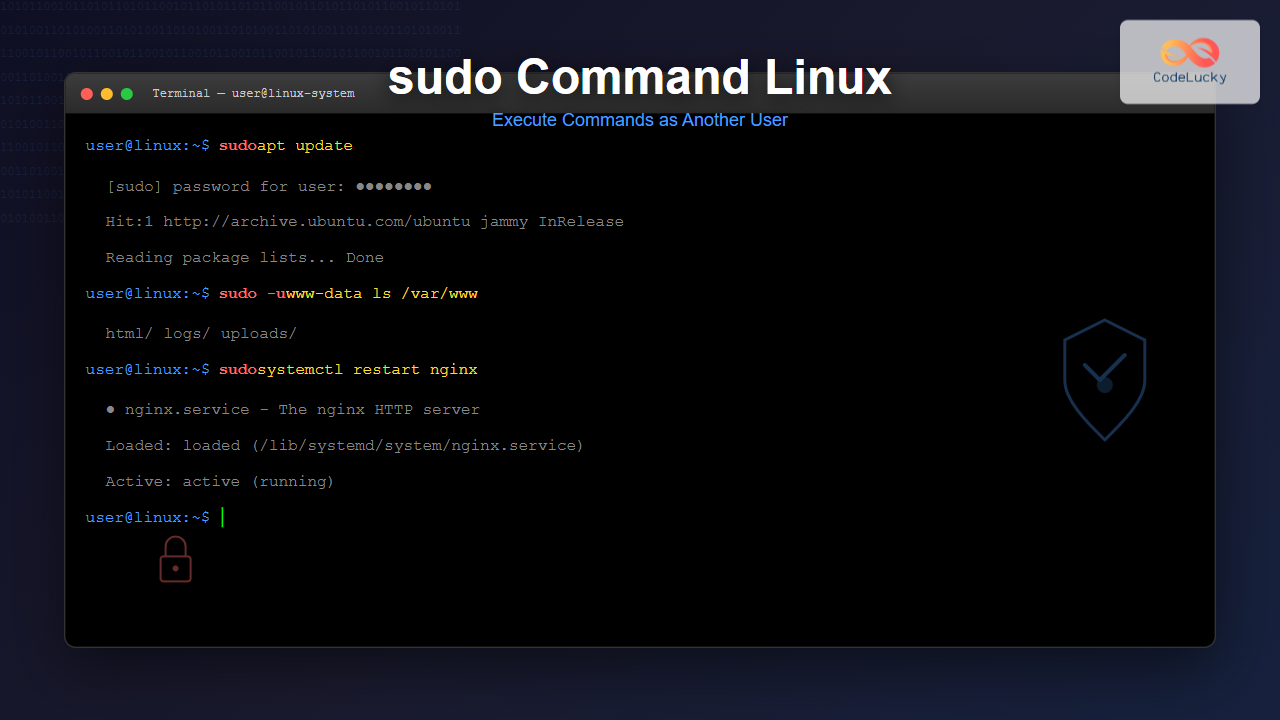
The sudo command is one of the most powerful and essential tools in Linux system administration. Short for “superuser do” or “substitute user do,” it allows authorized users to execute commands as another user, typically the root user, without needing to know their password. This comprehensive guide will explore everything you need to know about the sudo command, from basic usage to advanced configurations.
What is the sudo Command?
The sudo command provides a secure way to grant administrative privileges to regular users without sharing the root password. It acts as a security layer between users and system-critical operations, logging all executed commands and providing fine-grained control over user permissions.
Key Benefits of Using sudo
- Enhanced Security: No need to share root passwords
- Accountability: All sudo commands are logged
- Granular Control: Specific commands can be allowed or denied
- Temporary Privileges: Administrative access is granted only when needed
- User Authentication: Uses the user’s own password for verification
Basic sudo Syntax
The basic syntax of the sudo command is straightforward:
sudo [OPTIONS] COMMAND [ARGUMENTS]Common sudo Options
| Option | Description |
|---|---|
-u USER |
Execute command as specified user |
-g GROUP |
Execute command as specified group |
-i |
Simulate initial login (interactive shell) |
-s |
Run shell as target user |
-l |
List allowed commands for current user |
-k |
Invalidate timestamp (force password prompt) |
-v |
Validate timestamp (extend timeout) |
Basic sudo Examples
1. Running Commands as Root
The most common use of sudo is to execute commands with root privileges:
$ sudo apt update
[sudo] password for username:
Hit:1 http://archive.ubuntu.com/ubuntu jammy InRelease
Get:2 http://archive.ubuntu.com/ubuntu jammy-updates InRelease [119 kB]
Reading package lists... Done
2. Installing Software
$ sudo apt install nginx
Reading package lists... Done
Building dependency tree... Done
The following NEW packages will be installed:
  nginx nginx-common nginx-core
Do you want to continue? [Y/n] y
3. Editing System Files
$ sudo nano /etc/hosts
# This opens the hosts file with root privileges for editing
4. Managing Services
$ sudo systemctl start apache2
$ sudo systemctl status apache2
● apache2.service - The Apache HTTP Server
   Loaded: loaded (/lib/systemd/system/apache2.service; enabled)
   Active: active (running) since Mon 2025-08-25 12:30:15 IST
Advanced sudo Usage
1. Running Commands as Different Users
You can execute commands as any user (not just root) using the -u option:
$ sudo -u www-data ls -la /var/www/html
total 12
drwxr-xr-x 2 www-data www-data 4096 Aug 25 12:30 .
drwxr-xr-x 3 root     root     4096 Aug 25 12:29 ..
-rw-r--r-- 1 www-data www-data  612 Aug 25 12:30 index.html
2. Running Commands as a Specific Group
$ sudo -g developers touch /shared/project/newfile.txt
$ ls -la /shared/project/newfile.txt
-rw-r--r-- 1 username developers 0 Aug 25 12:35 /shared/project/newfile.txt
3. Starting an Interactive Shell
$ sudo -i
root@hostname:~# pwd
/root
root@hostname:~# whoami
root
4. Running Shell Commands
$ sudo -s
# whoami
root
# exit
$
Checking sudo Privileges
List Available Commands
To see what commands you can run with sudo:
$ sudo -l
Matching Defaults entries for username on hostname:
    env_reset, mail_badpass, secure_path=/usr/local/sbin:/usr/local/bin:/usr/sbin:/usr/bin:/sbin:/bin

User username may run the following commands on hostname:
    (ALL : ALL) ALL
Validate sudo Privileges
$ sudo -v
[sudo] password for username:
# Extends the sudo timeout without running a command
sudo Configuration and /etc/sudoers
The sudo command’s behavior is controlled by the /etc/sudoers file. This file defines which users can run which commands and under what conditions.
Editing the sudoers File
Always use visudo to edit the sudoers file:
$ sudo visudoThe visudo command provides syntax checking to prevent configuration errors that could lock you out of sudo access.
Common sudoers File Entries
# Allow user to run all commands as any user
username ALL=(ALL:ALL) ALL

# Allow user to run specific commands
username ALL=(root) /bin/systemctl, /usr/bin/apt

# Allow group members to run all commands
%sudo ALL=(ALL:ALL) ALL

# Allow commands without password prompt
username ALL=(ALL) NOPASSWD: /bin/systemctl restart apache2
sudoers File Syntax Breakdown
| Component | Description | Example |
|---|---|---|
| User/Group | Who can run commands | john or %admin |
| Host | On which machines | ALL or webserver |
| Run As | As which user/group | (root) or (ALL:ALL) |
| Commands | Which commands allowed | ALL or /bin/ls |
sudo Security Best Practices
1. Use Specific Command Lists
Instead of granting ALL privileges, specify exact commands:
webmaster ALL=(root) /usr/bin/systemctl restart nginx, /usr/bin/systemctl reload nginx2. Implement Command Aliases
# Define command aliases
Cmnd_Alias WEBSERVICES = /usr/bin/systemctl restart nginx, /usr/bin/systemctl reload nginx
Cmnd_Alias PACKAGE_MGR = /usr/bin/apt update, /usr/bin/apt upgrade

# Use aliases in rules
webmaster ALL=(root) WEBSERVICES
sysadmin ALL=(root) PACKAGE_MGR
3. Set Timeout Policies
# Set sudo timeout to 5 minutes
Defaults timestamp_timeout=5

# Require password for each sudo command
Defaults timestamp_timeout=0
4. Enable Logging
# Log all sudo commands
Defaults logfile="/var/log/sudo.log"
Defaults log_input, log_output
Troubleshooting Common sudo Issues
1. “User is not in the sudoers file” Error
Problem: User doesn’t have sudo privileges
Solution: Add user to sudo group or edit sudoers file:
# Add user to sudo group
$ su -
# usermod -aG sudo username

# Or edit sudoers file
$ sudo visudo
# Add: username ALL=(ALL:ALL) ALL
2. Forgotten sudo Password
Solution: Boot into single-user mode or use recovery mode to reset password or modify sudoers file.
3. sudo Command Not Found
Solution: Install sudo package:
# On Debian/Ubuntu
$ su -
# apt update && apt install sudo

# On CentOS/RHEL
$ su -
# yum install sudo
sudo vs su: Key Differences
| Feature | sudo | su |
|---|---|---|
| Password Required | User’s own password | Target user’s password |
| Session Duration | Single command (default) | Until exit |
| Logging | All commands logged | Limited logging |
| Granular Control | Command-specific permissions | Full user access |
| Security | Higher (no password sharing) | Lower (password sharing required) |
Advanced sudo Features
1. Environment Variable Handling
# Preserve specific environment variables
Defaults env_keep += "HOME EDITOR"

# Reset environment (security)
Defaults env_reset
2. sudo with stdin
$ echo "mypassword" | sudo -S apt update
# -S flag reads password from stdin
3. Running GUI Applications
$ sudo -E gedit /etc/fstab
# -E preserves environment variables for GUI apps
Monitoring and Auditing sudo Usage
1. Check sudo Logs
$ sudo tail /var/log/auth.log | grep sudo
Aug 25 12:45:23 hostname sudo: username : TTY=pts/0 ; PWD=/home/username ; USER=root ; COMMAND=/usr/bin/apt update
2. Real-time sudo Monitoring
$ sudo tail -f /var/log/auth.log | grep sudo3. Generate sudo Usage Reports
$ sudo grep "COMMAND" /var/log/auth.log | awk '{print $1, $2, $3, $6, $NF}' | sort | uniq -cPerformance and Optimization
1. Optimize sudo Performance
# Disable DNS lookups for faster authentication
Defaults !fqdn

# Use faster hashing algorithm
Defaults passwd_timeout=5
2. Reduce Password Prompts
# Extend timeout for convenience
Defaults timestamp_timeout=15
Integration with System Tools
1. Using sudo in Scripts
#!/bin/bash
# Check if script is run with sudo
if [ "$EUID" -ne 0 ]; then
    echo "Please run with sudo"
    exit 1
fi

# Script content here
systemctl restart apache2
2. sudo in Service Management
$ sudo systemctl enable nginx
$ sudo systemctl start nginx
$ sudo systemctl status nginx
Conclusion
The sudo command is an indispensable tool for Linux system administration, providing secure, logged, and controlled access to elevated privileges. By understanding its syntax, configuration options, and best practices, you can effectively manage user permissions while maintaining system security.
Key takeaways:
- Always use
visudoto edit the sudoers file - Grant minimal necessary privileges to users
- Regularly audit sudo usage through logs
- Implement proper timeout and authentication policies
- Use command aliases for better organization
Master these sudo concepts and practices to enhance your Linux administration skills while maintaining robust security standards. Regular practice with different sudo scenarios will help you become proficient in managing user privileges effectively.
Related Posts
su Command in Linux: Complete Guide to Switch User Accounts in Terminal
The su command (substitute user or switch user) is one of the most fundamental commands in Linux system administration. It...
passwd Command Linux: Complete Guide to Password Management from Terminal
The passwd command is one of the most essential utilities in Linux system administration, allowing users and administrators to change...
useradd Command Linux: Complete Guide to Add New User Accounts
The useradd command is one of the most essential tools in Linux system administration for creating new user accounts. Whether...
usermod Command Linux: Complete Guide to Modify User Account Properties
The usermod command is a powerful Linux utility that allows system administrators to modify existing user account properties without deleting...

Linux Commands Tutorial: Complete Beginner’s Guide to Terminal Basics
The Linux terminal is a powerful command-line interface that gives you direct control over your operating system. While it might...
groups Command Linux: Complete Guide to Display User Group Memberships
The groups command is a fundamental Linux utility that displays the group memberships of users on your system. Understanding how...

chown Command Linux: Master File and Directory Ownership Management
The chown command is one of the most fundamental tools in Linux system administration, allowing users to change file and...
chmod Command in Linux: Complete File Permissions Tutorial with Examples
The chmod command is one of the most essential Linux commands for managing file and directory permissions. Whether you're a...
userdel Command Linux: Complete Guide to Safely Delete User Accounts
The userdel command is a crucial system administration tool in Linux that allows you to safely remove user accounts from...
chgrp Command in Linux: Complete Guide to Change Group Ownership
The chgrp command is an essential Linux utility that allows you to change the group ownership of files and directories....
whoami Command Linux: Display Current Username and Identity Information
The whoami command is one of the most fundamental and frequently used commands in Linux systems. This simple yet powerful...
ruby Command Linux: Complete Guide to Running Ruby Scripts and Programs
The ruby command is a powerful tool for executing Ruby scripts and programs directly from the Linux command line. Whether...





