
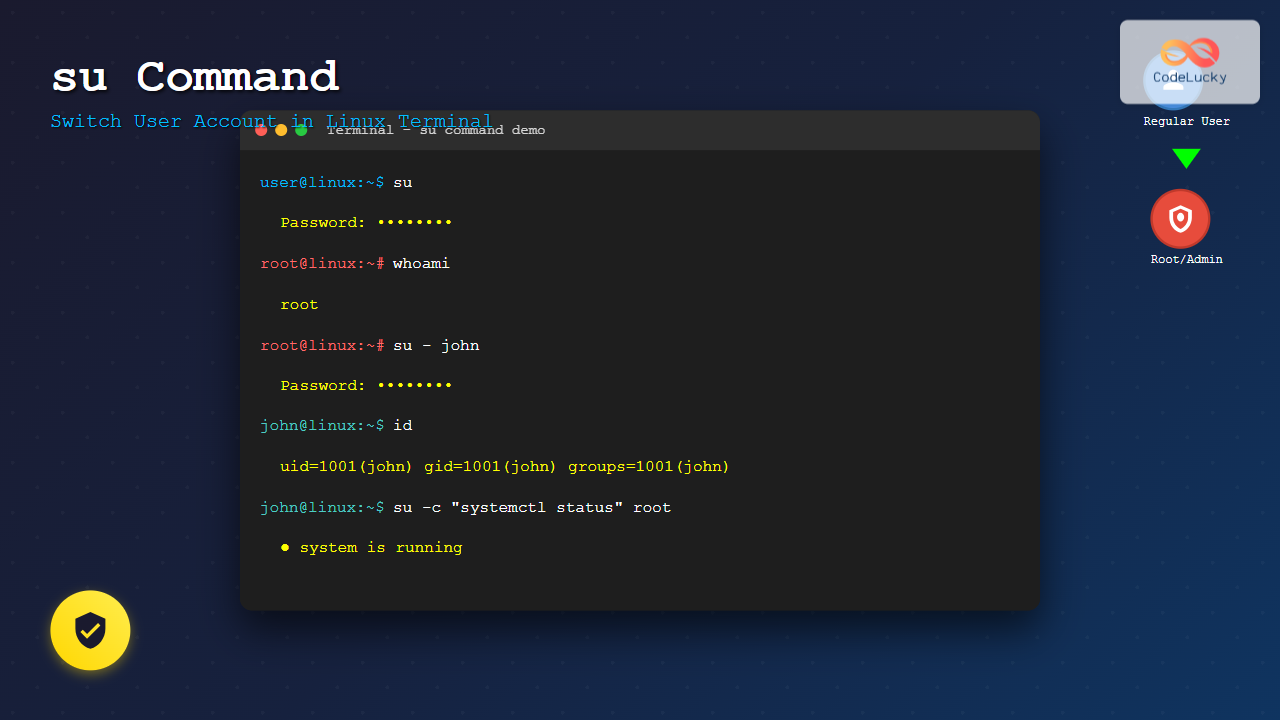
The su command (substitute user or switch user) is one of the most fundamental commands in Linux system administration. It allows you to switch from your current user account to another user account without logging out of your current session. This powerful command is essential for system administrators, developers, and power users who need to perform tasks with different privilege levels.
What is the su Command?
The su command enables users to assume the identity of another user account, most commonly the root (superuser) account. When you execute the su command, it starts a new shell session under the specified user’s credentials, inheriting their permissions, environment variables, and access rights.
Unlike sudo, which executes individual commands with elevated privileges, su creates an entirely new shell session as the target user. This makes it particularly useful for performing multiple administrative tasks without repeatedly entering passwords.
Basic Syntax and Usage
The basic syntax of the su command follows this pattern:
su [options] [username]If no username is specified, the command defaults to switching to the root user. Here are some fundamental usage examples:
Switching to Root User
$ su
Password:
#
When you run su without any arguments, the system prompts for the root password. After successful authentication, your shell prompt typically changes from $ to #, indicating you now have root privileges.
Switching to a Specific User
$ su john
Password:
$ whoami
john
This command switches to the user account “john”. You’ll need to enter john’s password to complete the switch.
Common su Command Options
The su command offers several options to modify its behavior:
The Login Shell Option (-l or -)
$ su - john
Password:
$ pwd
/home/john
Using su - or su -l creates a login shell, which:
- Loads the target user’s complete environment
- Changes to the user’s home directory
- Executes the user’s login scripts (.bashrc, .profile, etc.)
- Sets environment variables as if the user logged in directly
Preserving Environment (-m or -p)
$ export CUSTOM_VAR="myvalue"
$ su -m john
Password:
$ echo $CUSTOM_VAR
myvalue
The -m or -p option preserves your current environment variables when switching users, which can be useful for maintaining specific configurations.
Executing Commands (-c)
$ su -c "ls -la /root" root
Password:
total 32
drwx------  5 root root 4096 Aug 25 10:30 .
drwxr-xr-x 23 root root 4096 Aug 20 14:15 ..
The -c option allows you to execute a single command as another user without starting an interactive shell session.
Practical Examples and Use Cases
System Administration Tasks
System administrators frequently use su to perform maintenance tasks:
$ su -
Password:
# systemctl restart apache2
# tail -f /var/log/apache2/error.log
# exit
logout
$
This example shows switching to root, restarting the Apache web server, monitoring logs, and then returning to the original user account.
File Operations with Different Permissions
$ ls -la /etc/shadow
-rw-r----- 1 root shadow 1234 Aug 25 10:15 /etc/shadow
$ cat /etc/shadow
cat: /etc/shadow: Permission denied
$ su -c "head -3 /etc/shadow"
Password:
root:$6$randomhash...:18500:0:99999:7:::
daemon:*:18375:0:99999:7:::
bin:*:18375:0:99999:7:::
This demonstrates accessing files that require elevated privileges using the su command.
Development Environment Setup
$ su developer -c "cd /var/www && git pull origin main"
Password:
Already up to date.
$ su developer -l
Password:
developer@server:~$ npm install
developer@server:~$ npm run build
developer@server:~$ exit
logout
$
Developers often use su to switch to deployment users for application updates and builds.
Security Considerations and Best Practices
Password Security
When using su, you must know the target user’s password. This creates several security implications:
- Password sharing: Multiple users knowing root passwords can be a security risk
- Audit trail: su doesn’t log individual commands executed after switching
- Session management: Long-running root sessions increase security exposure
Limiting Root Access
Many systems restrict direct root access for security. Check your system’s configuration:
$ grep "^root:" /etc/passwd
root:x:0:0:root:/root:/bin/bash
$ su -c "passwd -S root"
Password:
root P 08/25/2025 0 99999 7 -1
Using sudo vs su
Consider these factors when choosing between su and sudo:
| Feature | su | sudo |
|---|---|---|
| Password Required | Target user’s password | Current user’s password |
| Session Type | New shell session | Single command execution |
| Logging | Login/logout events | Individual commands logged |
| Granular Control | Full user access | Specific commands/permissions |
Troubleshooting Common Issues
Authentication Failures
$ su john
Password:
su: Authentication failure
$
Common causes and solutions:
- Incorrect password: Verify the password is correct
- Account locked: Check if the account is disabled
- Shell restrictions: Ensure the user has a valid shell assigned
Environment Issues
$ su john
Password:
$ echo $HOME
/home/originaluser
$ echo $PATH
/usr/local/bin:/usr/bin:/bin
If environment variables aren’t set correctly, use the login option:
$ su - john
Password:
$ echo $HOME
/home/john
Permission Problems
$ su -c "mkdir /root/testdir"
Password:
mkdir: cannot create directory '/root/testdir': Permission denied
Ensure you’re switching to a user with appropriate permissions for the task.
Advanced su Command Features
Shell Specification
$ su -s /bin/zsh john
Password:
john@server% echo $SHELL
/bin/zsh
The -s option allows you to specify which shell to use for the session.
Group Switching
$ su -g wheel john
Password:
$ id
uid=1001(john) gid=10(wheel) groups=10(wheel),1001(john)
Use -g to specify the primary group for the session.
Scripting with su
While su can be used in scripts, it’s generally not recommended for automated processes due to password requirements. However, here’s an example of how it might be used:
#!/bin/bash
# backup-script.sh

echo "Starting backup process..."
su -c "tar -czf /backup/$(date +%Y%m%d).tar.gz /home /etc" root << EOF
password_here
EOF
echo "Backup completed"
Warning: This approach exposes passwords in scripts and is not secure. Consider using sudo with NOPASSWD configuration for automated tasks instead.
Alternatives to su Command
sudo Command
$ sudo systemctl restart nginx
[sudo] password for user:
$ sudo -i  # Interactive root shell
# exit
pkexec for GUI Applications
$ pkexec gedit /etc/hostsMonitoring su Usage
System administrators should monitor su usage for security purposes:
$ grep "su:" /var/log/auth.log
Aug 25 10:30:15 server su: pam_unix(su:auth): authentication failure; logname=user uid=1000 euid=0 tty=pts/1 ruser=user rhost=  user=root
Aug 25 10:30:20 server su: pam_unix(su:session): session opened for user root by user(uid=1000)
Conclusion
The su command is an essential tool for Linux system administration and user management. While powerful, it should be used thoughtfully with proper security considerations. Understanding when to use su versus alternatives like sudo can help maintain system security while providing necessary administrative access.
Remember these key points:
- Use
su -for a complete login environment - Always exit su sessions when finished
- Monitor su usage through system logs
- Consider sudo for better audit trails and granular control
- Never share passwords or hardcode them in scripts
By mastering the su command and following security best practices, you’ll be better equipped to manage Linux systems effectively and securely.
Related Posts
sudo Command Linux: Execute Commands as Another User with Full Administrative Control
The sudo command is one of the most powerful and essential tools in Linux system administration. Short for "superuser do"...
usermod Command Linux: Complete Guide to Modify User Account Properties
The usermod command is a powerful Linux utility that allows system administrators to modify existing user account properties without deleting...
useradd Command Linux: Complete Guide to Add New User Accounts
The useradd command is one of the most essential tools in Linux system administration for creating new user accounts. Whether...
passwd Command Linux: Complete Guide to Password Management from Terminal
The passwd command is one of the most essential utilities in Linux system administration, allowing users and administrators to change...
whoami Command Linux: Display Current Username and Identity Information
The whoami command is one of the most fundamental and frequently used commands in Linux systems. This simple yet powerful...
userdel Command Linux: Complete Guide to Safely Delete User Accounts
The userdel command is a crucial system administration tool in Linux that allows you to safely remove user accounts from...

Linux Commands Tutorial: Complete Beginner’s Guide to Terminal Basics
The Linux terminal is a powerful command-line interface that gives you direct control over your operating system. While it might...
groups Command Linux: Complete Guide to Display User Group Memberships
The groups command is a fundamental Linux utility that displays the group memberships of users on your system. Understanding how...

bash Command Linux: Start New Shell Sessions and Execute Scripts Efficiently
The bash command is one of the most fundamental tools in Linux systems, serving as both a command-line interpreter and...
who Command in Linux: Complete Guide to Display Logged in Users
The who command is one of the most fundamental system administration tools in Linux, designed to display information about currently...
chgrp Command in Linux: Complete Guide to Change Group Ownership
The chgrp command is an essential Linux utility that allows you to change the group ownership of files and directories....
loginctl Command Linux: Master Session Management with Practical Examples
The loginctl command is a powerful systemd utility that allows system administrators to introspect and control the systemd login manager...





