The strip command is a powerful Linux utility that removes symbols, debugging information, and other metadata from executable files, object files, and libraries. This process significantly reduces file sizes and is commonly used in production environments to optimize binary distributions while maintaining functionality.
What is the strip Command?
The strip command is part of the GNU Binutils package and serves as a post-compilation tool for removing unnecessary information from compiled binaries. When you compile a program with debugging information, the resulting executable contains symbol tables, line number information, and other metadata that developers use for debugging but aren’t required for normal program execution.
Key Benefits of Using strip
- Reduced file size: Removes debugging symbols and metadata, often reducing file sizes by 50-90%
- Faster loading: Smaller binaries load more quickly into memory
- Security enhancement: Removes symbol names that could reveal internal function names
- Distribution optimization: Creates leaner packages for software distribution
Basic Syntax and Usage
The basic syntax of the strip command is straightforward:
strip [options] file1 file2 ...Let’s start with a simple example. First, create a basic C program:
// hello.c
#include <stdio.h>

int main() {
    printf("Hello, World!\n");
    return 0;
}
Compile it with debugging information:
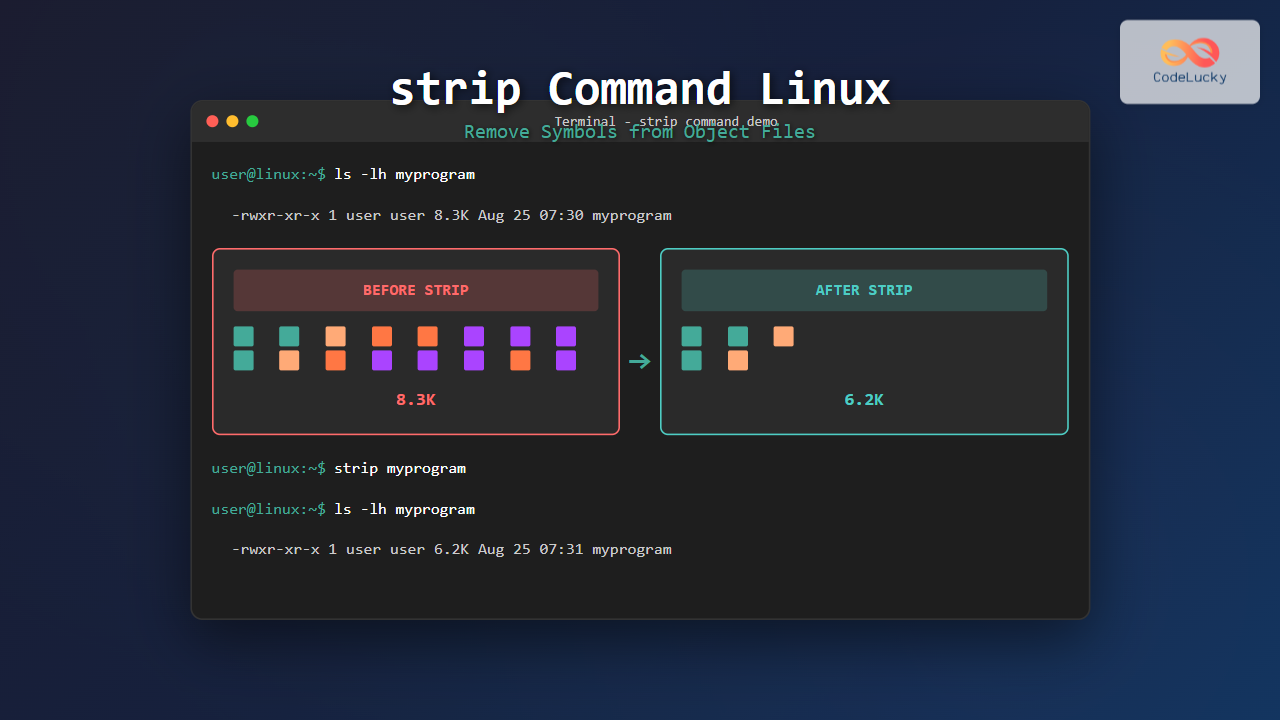
$ gcc -g -o hello hello.cCheck the file size before stripping:
$ ls -lh hello
-rwxr-xr-x 1 user user 8.3K Aug 25 07:30 hello
Now apply the strip command:
$ strip hello
$ ls -lh hello
-rwxr-xr-x 1 user user 6.2K Aug 25 07:31 hello
As you can see, the file size decreased from 8.3K to 6.2K, a reduction of about 25%.
Common Options and Flags
–strip-debug (-g)
Removes only debugging symbols while preserving other symbols:
$ strip --strip-debug hello
# or
$ strip -g hello
This option is useful when you want to keep function names for profiling tools while removing debugging information.
–strip-unneeded
Removes all symbols that are not needed for relocation processing:
$ strip --strip-unneeded helloThis is often the most aggressive stripping option that still maintains functionality.
–strip-all (-s)
Removes all symbols (this is the default behavior):
$ strip --strip-all hello
# or
$ strip -s hello
–preserve-dates
Preserves the access and modification dates of the file:
$ strip --preserve-dates hello–output-file (-o)
Creates a stripped copy without modifying the original file:
$ strip --output-file=hello_stripped hello
$ ls -lh hello*
-rwxr-xr-x 1 user user 8.3K Aug 25 07:30 hello
-rwxr-xr-x 1 user user 6.2K Aug 25 07:32 hello_stripped
Practical Examples
Example 1: Stripping Multiple Files
You can strip multiple files simultaneously:
# Create multiple test programs
$ gcc -g -o prog1 hello.c
$ gcc -g -o prog2 hello.c
$ gcc -g -o prog3 hello.c

# Check sizes before stripping
$ ls -lh prog*
-rwxr-xr-x 1 user user 8.3K Aug 25 07:33 prog1
-rwxr-xr-x 1 user user 8.3K Aug 25 07:33 prog2
-rwxr-xr-x 1 user user 8.3K Aug 25 07:33 prog3

# Strip all files at once
$ strip prog1 prog2 prog3

# Check sizes after stripping
$ ls -lh prog*
-rwxr-xr-x 1 user user 6.2K Aug 25 07:34 prog1
-rwxr-xr-x 1 user user 6.2K Aug 25 07:34 prog2
-rwxr-xr-x 1 user user 6.2K Aug 25 07:34 prog3
Example 2: Working with Libraries
The strip command also works on shared libraries:
# Create a simple shared library
$ gcc -shared -fPIC -g -o libexample.so hello.c

# Check size before stripping
$ ls -lh libexample.so
-rwxr-xr-x 1 user user 8.1K Aug 25 07:35 libexample.so

# Strip the library
$ strip libexample.so

# Check size after stripping
$ ls -lh libexample.so
-rwxr-xr-x 1 user user 6.0K Aug 25 07:36 libexample.so
Example 3: Selective Symbol Removal
Sometimes you want to remove specific symbols while keeping others. Create a more complex program:
// complex.c
#include <stdio.h>

static void internal_function() {
    printf("Internal function\n");
}

void public_function() {
    printf("Public function\n");
    internal_function();
}

int main() {
    public_function();
    return 0;
}
Compile and examine symbols:
$ gcc -g -o complex complex.c
$ nm complex | grep function
0000000000401126 t internal_function
000000000040113a T public_function
Strip only debugging symbols:
$ strip -g complex
$ nm complex | grep function
0000000000401126 t internal_function
000000000040113a T public_function
Notice that function symbols remain, but debugging information is removed.
Using strip in Build Systems
Makefile Integration
You can integrate strip into your build process:
# Makefile
CC=gcc
CFLAGS=-g -Wall
TARGET=myprogram
SOURCES=main.c utils.c

$(TARGET): $(SOURCES)
	$(CC) $(CFLAGS) -o $(TARGET) $(SOURCES)

debug: $(TARGET)

release: $(TARGET)
	strip $(TARGET)

install: release
	cp $(TARGET) /usr/local/bin/

clean:
	rm -f $(TARGET)
Automated Stripping Script
Create a script to strip all executables in a directory:
#!/bin/bash
# strip_binaries.sh

DIRECTORY=${1:-.}

find "$DIRECTORY" -type f -executable -exec file {} \; | \
grep -E "ELF.*executable|ELF.*shared object" | \
cut -d: -f1 | \
while read binary; do
    echo "Stripping: $binary"
    strip "$binary"
done
Make it executable and run:
$ chmod +x strip_binaries.sh
$ ./strip_binaries.sh /path/to/binaries
Checking What Was Stripped
Using file Command
The file command can show whether a binary has been stripped:
$ gcc -g -o hello_debug hello.c
$ gcc -g -o hello_stripped hello.c
$ strip hello_stripped

$ file hello_debug
hello_debug: ELF 64-bit LSB executable, x86-64, version 1 (SYSV), dynamically linked, interpreter /lib64/ld-linux-x86-64.so.2, for GNU/Linux 3.2.0, BuildID[sha1]=abc123..., with debug_info, not stripped

$ file hello_stripped
hello_stripped: ELF 64-bit LSB executable, x86-64, version 1 (SYSV), dynamically linked, interpreter /lib64/ld-linux-x86-64.so.2, for GNU/Linux 3.2.0, BuildID[sha1]=def456..., stripped
Using nm Command
The nm command lists symbols in object files:
# Before stripping
$ nm hello_debug | wc -l
45

# After stripping
$ nm hello_stripped
nm: hello_stripped: no symbols
Using readelf Command
For detailed analysis of what sections were removed:
$ readelf -S hello_debug | grep debug
  [27] .debug_aranges    PROGBITS         0000000000000000  00001040
  [28] .debug_info       PROGBITS         0000000000000000  00001070
  [29] .debug_abbrev     PROGBITS         0000000000000000  00001099
  [30] .debug_line       PROGBITS         0000000000000000  000010c8

$ readelf -S hello_stripped | grep debug
# No output - debug sections removed
Advanced Usage Scenarios
Cross-Platform Stripping
When working with cross-compilation, use the appropriate strip tool:
# For ARM binaries
$ arm-linux-gnueabihf-strip arm_binary

# For Windows PE files (using mingw)
$ i686-w64-mingw32-strip windows_binary.exe
Conditional Stripping
Strip only if not already stripped:
#!/bin/bash
check_and_strip() {
    if file "$1" | grep -q "not stripped"; then
        echo "Stripping $1"
        strip "$1"
    else
        echo "$1 is already stripped"
    fi
}

check_and_strip myprogram
Best Practices
Development vs. Production
- Development: Keep debug symbols for troubleshooting
- Testing: Use
--strip-debugto reduce size while keeping some symbols - Production: Use full stripping for maximum optimization
Backup Strategy
Always keep unstripped versions for debugging:
# Build process
$ gcc -g -o myapp myapp.c
$ cp myapp myapp.debug
$ strip myapp
Package Distribution
Many Linux distributions separate debug symbols into separate packages:
# Create debug info package
$ objcopy --only-keep-debug myapp myapp.dbg
$ strip --strip-debug --strip-unneeded myapp
$ objcopy --add-gnu-debuglink=myapp.dbg myapp
Troubleshooting Common Issues
Permission Denied
Ensure you have write permissions to the file:
$ chmod u+w myprogram
$ strip myprogram
File Format Not Recognized
Strip only works with object files, executables, and libraries:
$ file suspicious_file
suspicious_file: ASCII text
$ strip suspicious_file
strip: suspicious_file: file format not recognized
Preserving Functionality
Some programs depend on symbol information at runtime. Test thoroughly after stripping:
# Test the stripped binary
$ ./myprogram
# If it works correctly, stripping was successful
Performance Considerations
The impact of stripping on file sizes varies by program complexity:
| Program Type | Typical Size Reduction |
|---|---|
| Simple programs | 20-40% |
| Complex applications | 50-70% |
| Libraries with debug info | 60-90% |
Security Implications
Stripping binaries provides security benefits by:
- Removing function names that could aid reverse engineering
- Eliminating file paths that might reveal directory structures
- Reducing attack surface by removing unnecessary metadata
However, remember that stripping is not a substitute for proper security practices and determined attackers can still analyze stripped binaries.
Conclusion
The strip command is an essential tool for Linux developers and system administrators. It effectively reduces binary sizes, improves loading times, and enhances security by removing debugging symbols and unnecessary metadata. Whether you’re preparing software for distribution, optimizing embedded systems, or simply cleaning up development binaries, understanding and properly using strip will improve your workflow and final products.
Remember to always test stripped binaries thoroughly and maintain unstripped versions for debugging purposes. The small investment in learning strip’s various options pays dividends in creating more efficient and secure software distributions.
Related Posts
strings Command Linux: Extract and Analyze Text from Binary Files
The strings command is a powerful Linux utility that extracts printable character sequences from binary files. Whether you're analyzing executables,...
nm Command Linux: Complete Guide to Display Symbol Tables from Object Files
The nm command is a powerful utility in Linux that displays the symbol table of object files, executables, shared libraries,...

size Command Linux: Display Section Sizes of Object Files and Executables
The size command is a powerful utility in Linux systems that displays the section sizes of object files, executables, and...
unset Command Linux: Complete Guide to Remove Variables and Functions Efficiently
The unset command in Linux is a powerful built-in shell utility that allows you to remove variables and functions from...
objdump Command Linux: Complete Guide to Display Object File Information
The objdump command is a powerful utility in Linux systems that allows developers and system administrators to examine the contents...
wipe Command Linux: Complete Guide to Secure File Deletion and Data Wiping
The wipe command in Linux is a powerful utility designed for secure file deletion that goes far beyond the standard...
readelf Command Linux: Complete Guide to ELF File Analysis and Debugging
The readelf command is an essential tool for Linux developers, system administrators, and security analysts who need to examine Executable...
rm Command in Linux: Complete Guide to Delete Files and Directories Safely
The rm command is one of the most powerful and potentially dangerous commands in Linux. It stands for "remove" and...

file Command Advanced Linux: Master Detailed File Type Analysis and Detection
The file command is one of the most powerful and underutilized utilities in Linux for determining file types and analyzing...
hexdump Command Linux: Complete Guide to Display File Contents in Hexadecimal Format
The hexdump command is a powerful Linux utility that displays the contents of files in hexadecimal format, making it an...
ranlib Command Linux: Complete Guide to Generate Archive Index Files
The ranlib command is a crucial utility in Linux systems for managing static library archives. It generates an index for...
od Command Linux: Complete Guide to Octal Dump File Contents and Binary Analysis
The od (octal dump) command is a powerful Linux utility that displays file contents in various formats including octal, hexadecimal,...