
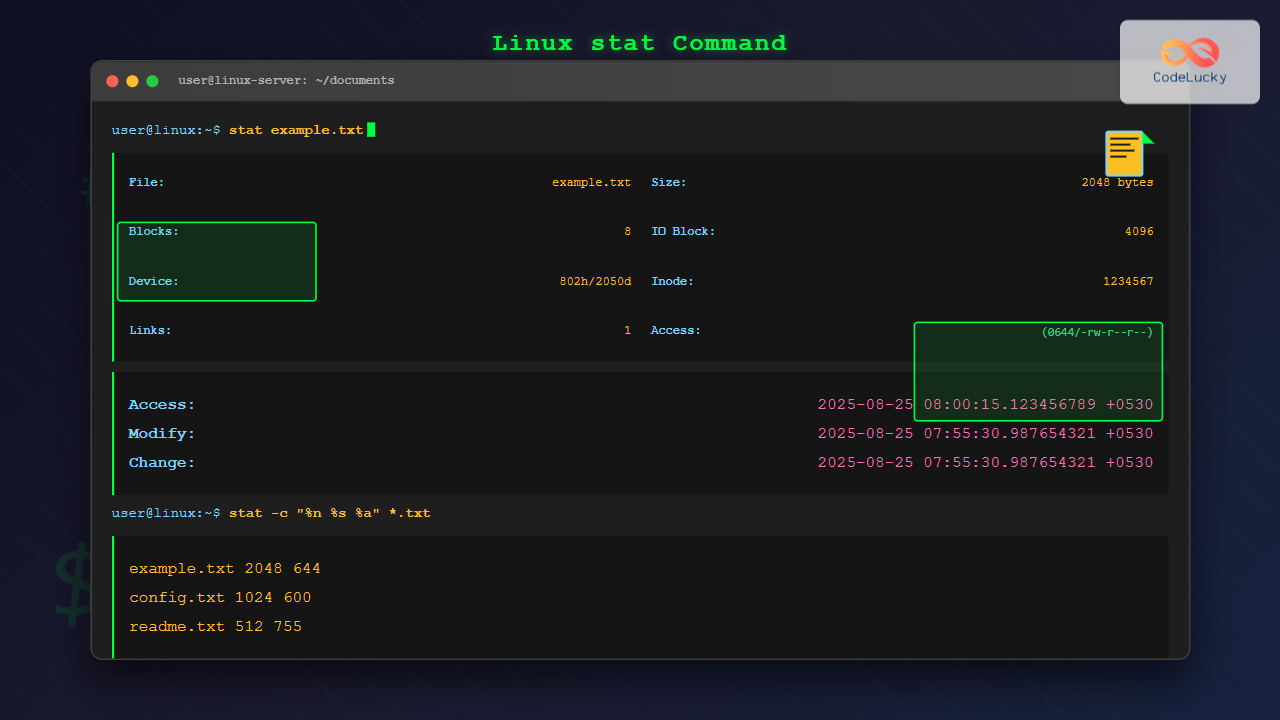
The stat command is a powerful Linux utility that displays detailed information about files and filesystems. Unlike basic commands like ls, stat provides comprehensive metadata including file permissions, ownership, timestamps, size, and filesystem details. This command is essential for system administrators, developers, and anyone who needs in-depth file analysis.
Understanding the stat Command
The stat command reads the inode information of a file or filesystem and displays it in a human-readable format. It accesses the same information that other commands use but presents it comprehensively in one place.
Basic Syntax
stat [OPTION]... FILE...The simplest usage involves specifying a filename:
stat filename.txtDefault stat Output Explanation
When you run stat on a file, it displays several pieces of information. Let’s examine each component:
$ stat example.txt
  File: example.txt
  Size: 1024        Blocks: 8          IO Block: 4096   regular file
Device: 802h/2050d  Inode: 1234567     Links: 1
Access: (0644/-rw-r--r--)  Uid: (1000/username)   Gid: (1000/username)
Access: 2025-08-25 08:00:15.123456789 +0530
Modify: 2025-08-25 07:55:30.987654321 +0530
Change: 2025-08-25 07:55:30.987654321 +0530
 Birth: 2025-08-25 07:55:30.987654321 +0530
Output Fields Breakdown
- File: The filename or path
- Size: File size in bytes
- Blocks: Number of filesystem blocks allocated
- IO Block: Optimal I/O block size
- Device: Device ID in hexadecimal and decimal
- Inode: Inode number
- Links: Number of hard links
- Access: File permissions and ownership
- Access time: Last access timestamp
- Modify time: Last modification timestamp
- Change time: Last status change timestamp
- Birth: File creation time (if supported)
Essential stat Command Options
Format Output (-c, –format)
The -c option allows custom formatting using format sequences:
$ stat -c "%n %s %U %G" example.txt
example.txt 1024 username username
Common format sequences:
%n– File name%s– Total size in bytes%U– User name of owner%G– Group name of owner%a– Access rights in octal%A– Access rights in human readable form%x– Time of last access%y– Time of last modification%z– Time of last change
Filesystem Information (-f, –file-system)
Display filesystem information instead of file information:
$ stat -f /home
  File: "/home"
    ID: 1234567890abcdef Namelen: 255     Type: ext4
Block size: 4096       Fundamental block size: 4096
Blocks: Total: 10485760   Free: 5242880    Available: 4718592
Inodes: Total: 2621440    Free: 2097152
Terse Output (-t, –terse)
Generate machine-readable output:
$ stat -t example.txt
example.txt 1024 8 81a4 1000 1000 802 1234567 1 0 0 1724555415 1724555130 1724555130 1724555130 4096
Practical Examples and Use Cases
Checking File Permissions
Display only permissions in octal format:
$ stat -c "%a %n" /etc/passwd
644 /etc/passwd
Show detailed permission information:
$ stat -c "%A %n" /usr/bin/sudo
-rwsr-xr-x /usr/bin/sudo
Monitoring File Changes
Compare modification times of multiple files:
$ stat -c "%y %n" file1.txt file2.txt file3.txt
2025-08-25 08:00:15.123456789 +0530 file1.txt
2025-08-25 07:30:22.987654321 +0530 file2.txt
2025-08-25 08:15:45.456789123 +0530 file3.txt
Finding File Size Information
Display file sizes in a readable format:
$ stat -c "%s bytes - %n" *.log
2048 bytes - access.log
4096 bytes - error.log
1024 bytes - debug.log
Identifying File Types
Determine file types using stat:
$ stat -c "%F %n" /dev/sda1 /tmp /etc/passwd
block special file /dev/sda1
directory /tmp
regular file /etc/passwd
Advanced stat Usage
Scripting with stat
Create a script to monitor file changes:
#!/bin/bash
# File monitoring script

file="$1"
if [[ -f "$file" ]]; then
    echo "File: $(stat -c "%n" "$file")"
    echo "Size: $(stat -c "%s" "$file") bytes"
    echo "Modified: $(stat -c "%y" "$file")"
    echo "Permissions: $(stat -c "%a" "$file")"
else
    echo "File not found: $file"
fi
Comparing Files
Compare two files’ metadata:
$ stat -c "%n: Size=%s, Inode=%i, Links=%h" file1.txt file2.txt
file1.txt: Size=1024, Inode=1234567, Links=1
file2.txt: Size=2048, Inode=1234568, Links=1
Filesystem Analysis
Analyze filesystem usage and capacity:
$ stat -f -c "Filesystem: %n | Type: %T | Block size: %s | Total blocks: %b | Free blocks: %f" /
Filesystem: / | Type: ext4 | Block size: 4096 | Total blocks: 10485760 | Free blocks: 5242880
Understanding Timestamps
The Three Timestamps
Linux tracks three different timestamps for each file:
- Access time (atime): Last time file was read
- Modify time (mtime): Last time file content was modified
- Change time (ctime): Last time file metadata was changed
Timestamp Examples
$ stat -c "Access: %x | Modify: %y | Change: %z" document.pdf
Access: 2025-08-25 08:00:15.123456789 +0530 | Modify: 2025-08-24 15:30:22.987654321 +0530 | Change: 2025-08-24 15:30:22.987654321 +0530
Common stat Command Combinations
Finding Recently Modified Files
Combine with find to locate recently changed files:
$ find /home/user -type f -exec stat -c "%y %n" {} \; | sort -r | head -10Backup Verification
Verify file integrity after backup:
$ stat -c "%n %s %Y" original.txt backup.txt
original.txt 1024 1724555130
backup.txt 1024 1724555130
stat vs Other Commands
stat vs ls
| Feature | stat | ls -l |
|---|---|---|
| Detailed timestamps | Yes (nanosecond precision) | Limited |
| Inode information | Yes | With -i option |
| Block information | Yes | No |
| Device information | Yes | No |
| Custom formatting | Yes | Limited |
Troubleshooting Common Issues
Permission Denied
When stat fails with permission errors:
$ stat /root/private.txt
stat: cannot stat '/root/private.txt': Permission denied
Solution: Use sudo or check file permissions:
$ sudo stat /root/private.txtFile Not Found
For non-existent files:
$ stat nonexistent.txt
stat: cannot stat 'nonexistent.txt': No such file or directory
Symbolic Links
By default, stat follows symbolic links. To examine the link itself:
$ stat -L symlink.txt    # Follow the link
$ stat symlink.txt       # Examine the link itself
Performance Considerations
The stat command is generally fast as it reads inode information directly. However, when processing many files, consider:
- Use terse format (
-t) for machine processing - Specify only needed format sequences with
-c - Avoid unnecessary filesystem access for large directory trees
Best Practices
Security Analysis
Use stat for security auditing:
$ stat -c "%a %U:%G %n" /etc/shadow
640 root:shadow /etc/shadow
System Monitoring
Monitor critical system files:
$ stat -c "%z %n" /etc/passwd /etc/shadow /etc/group
2025-08-24 10:30:15.123456789 +0530 /etc/passwd
2025-08-24 10:30:15.234567890 +0530 /etc/shadow
2025-08-24 10:30:15.345678901 +0530 /etc/group
Backup Scripts
Include metadata verification in backup scripts:
#!/bin/bash
# Backup verification script
original="$1"
backup="$2"

orig_size=$(stat -c "%s" "$original")
back_size=$(stat -c "%s" "$backup")

if [[ "$orig_size" == "$back_size" ]]; then
    echo "Backup verified: sizes match"
else
    echo "Backup failed: size mismatch"
fi
Conclusion
The stat command is an indispensable tool for Linux system administration and file management. Its ability to provide comprehensive file and filesystem information makes it valuable for troubleshooting, monitoring, and automation tasks. Whether you’re checking permissions, analyzing timestamps, or writing system scripts, mastering stat will enhance your Linux command-line proficiency.
Practice using different options and format strings to become proficient with this powerful utility. The detailed information provided by stat often reveals insights that other commands cannot provide, making it an essential addition to any Linux user’s toolkit.
Related Posts

file Command Advanced Linux: Master Detailed File Type Analysis and Detection
The file command is one of the most powerful and underutilized utilities in Linux for determining file types and analyzing...

du Command Linux: Display Directory Size and Disk Usage Explained with Examples
The du (disk usage) command in Linux is a powerful tool that allows users to measure directory size, analyze disk...
df Command in Linux: Complete Guide to Check Disk Space Usage
The df command is one of the most essential tools in a Linux system administrator's toolkit. Standing for "disk free,"...
Inode in File System: Complete Guide to Structure and File Metadata
What is an Inode? An inode (index node) is a fundamental data structure in Unix-like file systems that stores metadata...

ls Command in Linux: Complete Guide to List Files and Directories with Examples
The ls command is one of the most fundamental and frequently used commands in Linux and Unix-like operating systems. It...
file Command in Linux: Complete Guide to Determine File Types and Formats
The file command is one of the most essential utilities in Linux for determining file types and formats. Unlike relying...

lsattr Command Linux: Complete Guide to List and Manage File Attributes
The lsattr command is a powerful Linux utility that displays the extended attributes of files and directories on ext2, ext3,...
lsof Command Linux: Complete Guide to List Open Files and Running Processes
The lsof command (List Open Files) is one of the most powerful and versatile utilities in Linux systems. It provides...
hexdump Command Linux: Complete Guide to Display File Contents in Hexadecimal Format
The hexdump command is a powerful Linux utility that displays the contents of files in hexadecimal format, making it an...
xattr Command Linux: Complete Guide to Extended File Attributes Management
Extended file attributes in Linux provide a powerful mechanism to store additional metadata beyond traditional file permissions and ownership. The...
xfs_info Command Linux: Complete Guide to Display XFS Filesystem Information
The xfs_info command is a powerful utility in Linux systems that provides comprehensive information about XFS filesystems. This command is...
ls Command Advanced Linux: Complete Guide to File Listing Mastery
The ls command is one of the most fundamental and frequently used commands in Linux and Unix-like operating systems. While...





