
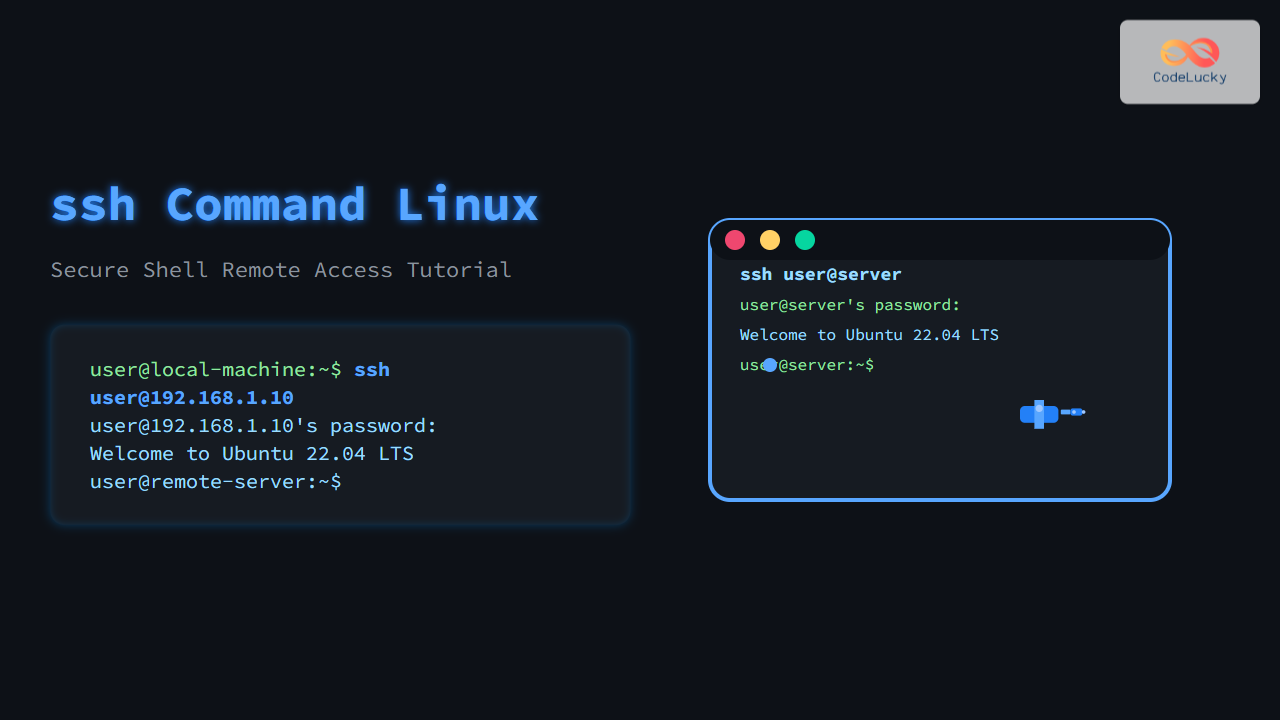
The ssh command in Linux, short for Secure Shell, is one of the most essential tools for system administrators, developers, and anyone managing remote servers. It allows encrypted communication between two machines over a network, ensuring security and reliability. In this tutorial, we’ll cover the ssh command in depth, from basic usage to advanced configurations.
What is the ssh Command in Linux?
The ssh command provides secure, encrypted remote login from one computer to another. Unlike older protocols such as Telnet or rlogin, SSH encrypts both data and authentication details, preventing unauthorized access and sniffing.
Key Features of SSH:
- Encrypted communication between client and server.
- Secure authentication methods (password or key based).
- Port forwarding and tunneling capabilities.
- Remote command execution.
- File transfer via
scpandsftp.
ssh Command Syntax
ssh [options] user@hostnameParameters:
user: The username used to log in to the remote host.hostname: The remote server’s domain name or IP address.[options]: Optional flags for custom SSH behavior.
Basic Examples of ssh Command
1. Connect to a Remote Server
$ ssh [email protected]
Example Output:
[email protected]'s password:
Welcome to Ubuntu 22.04 LTS
user@server:~$
2. Connect Using a Hostname
$ ssh [email protected]3. Specify a Different Port
By default, SSH runs on port 22. If your server runs SSH on a non-standard port, use the -p option.
$ ssh -p 2222 [email protected]Password vs. Key-based Authentication
Password Authentication
The simplest way to log in. However, it is less secure compared to SSH keys.
Key-based Authentication
With key-based authentication, you generate a public and private key pair and install the public key on the server. The private key remains with you and allows authentication without entering passwords manually.
$ ssh-keygen -t rsa -b 4096
$ ssh-copy-id user@remote-server
$ ssh user@remote-server
The above commands create keys, copy them to the server, and allow login without password prompts.
Commonly Used ssh Options
| Option | Description |
|---|---|
-p PORT |
Specify custom remote port. |
-i identity_file |
Use a specific private key file for authentication. |
-v |
Enable verbose mode for debugging connectivity issues. |
-C |
Enable compression for faster data transfer. |
-L |
Local port forwarding. |
-R |
Remote port forwarding. |
Remote Command Execution with ssh
Instead of opening an interactive shell, you can execute commands remotely with SSH:
$ ssh [email protected] "ls -l /var/www"
Sample Output:
-rw-r--r--  1 root root  1024 Aug 21  index.html
-rw-r--r--  1 root root   512 Aug 21  style.css
SSH Config File for Easier Connections
You can simplify connections by creating an SSH configuration file at ~/.ssh/config:
Host myserver
    HostName myserver.example.com
    User myuser
    Port 2222
    IdentityFile ~/.ssh/id_rsa
This allows you to connect using:
$ ssh myserverPort Forwarding and Tunneling with ssh
Local Port Forwarding
Forward a local port to a remote service:
$ ssh -L 8080:localhost:80 user@remote-serverNow http://localhost:8080 will forward traffic to the remote host’s port 80.
Remote Port Forwarding
Allow a remote machine to access a service running on your local system:
$ ssh -R 9090:localhost:3000 user@remote-serverSecurity Tips for SSH
- Disable password authentication and use keys.
- Change the default SSH port (22) to a custom port.
- Configure
~/.ssh/configwith proper access restrictions. - Use
fail2banor firewall rules to prevent brute-force attacks. - Keep OpenSSH updated to the latest version.
Interactive Example: Testing Your SSH Setup
You can test your SSH connection interactively:
$ ssh -v user@your-serverThis shows a detailed debug log of the connection process, helping troubleshoot issues like wrong hostname, incorrect key permissions, or port mismatches.
Conclusion
The ssh command is a cornerstone of Linux system administration, enabling secure remote communication and management. From basic login to key-based authentication, command execution, and tunneling, SSH is a versatile tool that should be part of every Linux user’s toolkit. By following best security practices, you can ensure safe and efficient server management with SSH.
Next Steps: Explore related commands such as scp and sftp for file transfers, and practice SSH configuration for streamlined daily usage.
Related Posts
ssh-keygen Linux: Complete Guide to Generate SSH Key Pairs Securely
SSH key authentication is one of the most secure methods for connecting to remote servers. The ssh-keygen command is a...
scp Command Linux: Complete Guide to Secure File Transfer Over SSH
The scp (Secure Copy Protocol) command is one of the most essential tools in Linux for securely transferring files between...
sftp Command Linux: Complete Guide to Secure File Transfer Protocol
The sftp command (Secure File Transfer Protocol) is a powerful Linux utility that provides secure file transfer capabilities over an...
ssh-copy-id Linux: Complete Guide to Copying SSH Keys to Remote Servers
The ssh-copy-id command is an essential Linux utility that simplifies the process of copying your SSH public key to remote...
denyhosts Linux: Complete SSH Brute Force Attack Prevention Guide
SSH brute force attacks are among the most common security threats facing Linux servers today. Attackers continuously attempt to gain...

vncserver Command Linux: Complete Guide to VNC Server Setup and Management
The vncserver command is a powerful tool in Linux that enables remote desktop access by starting a Virtual Network Computing...

Linux Commands Tutorial: Complete Beginner’s Guide to Terminal Basics
The Linux terminal is a powerful command-line interface that gives you direct control over your operating system. While it might...
passwd Command Linux: Complete Guide to Password Management from Terminal
The passwd command is one of the most essential utilities in Linux system administration, allowing users and administrators to change...
openssl Command Linux: Complete Guide to Cryptography and SSL Certificate Management
The openssl command is one of the most powerful and versatile cryptographic tools available in Linux systems. This comprehensive toolkit...

curl Command Linux: Complete Guide to Transfer Data from Servers with Examples
The curl command is one of the most powerful and versatile tools in the Linux command-line arsenal for transferring data...
who Command in Linux: Complete Guide to Display Logged in Users
The who command is one of the most fundamental system administration tools in Linux, designed to display information about currently...

gpg Command Linux: Complete Guide to GNU Privacy Guard Encryption and Digital Signatures
GNU Privacy Guard (GPG) is a powerful encryption tool that implements the OpenPGP standard, providing cryptographic privacy and authentication for...





