
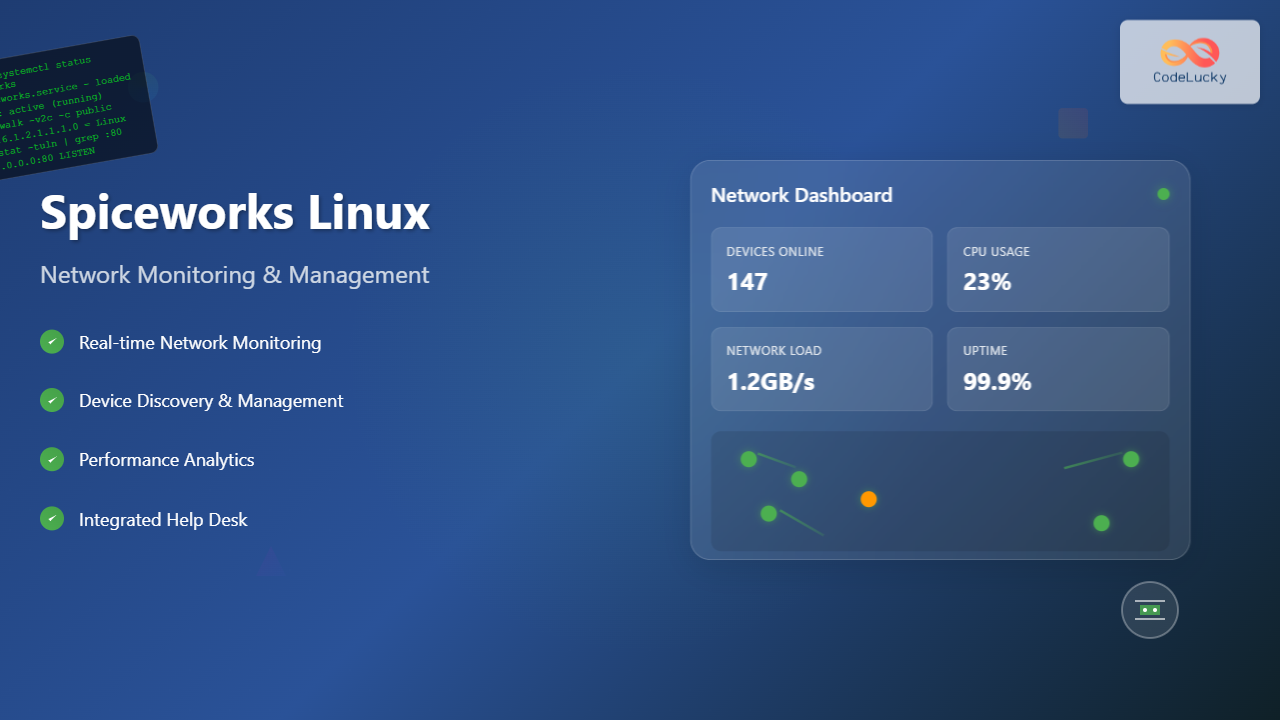
Spiceworks is a powerful, free IT network monitoring and management platform that has revolutionized how system administrators handle their infrastructure. When combined with Linux’s robust capabilities, it creates an exceptional solution for comprehensive network oversight and device management.
What is Spiceworks?
Spiceworks is a comprehensive IT management suite that provides network monitoring, help desk functionality, and inventory management capabilities. Originally designed for Windows environments, it has evolved to support Linux systems, making it an attractive option for mixed-environment networks.
Key Features of Spiceworks
- Network Discovery: Automatic detection of network devices and systems
- Real-time Monitoring: Continuous surveillance of network performance and device health
- Inventory Management: Comprehensive tracking of hardware and software assets
- Help Desk Integration: Built-in ticketing system for IT support
- Reporting and Analytics: Detailed insights into network performance and trends
- Mobile Access: Remote monitoring capabilities through mobile applications
Installing Spiceworks on Linux
While Spiceworks doesn’t have native Linux support, you can run it effectively using Wine or virtualization technologies. Here’s how to set it up:
Method 1: Using Wine (Recommended)
First, install Wine on your Linux system:
# For Ubuntu/Debian
sudo apt update
sudo apt install wine winetricks

# For CentOS/RHEL/Fedora
sudo dnf install wine winetricks

# For Arch Linux
sudo pacman -S wine winetricks
Configure Wine for optimal Spiceworks performance:
winecfgSet the Windows version to “Windows 10” and ensure the following components are installed:
winetricks vcrun2019 dotnet48 corefontsDownload and install Spiceworks:
# Download Spiceworks installer
wget https://www.spiceworks.com/free-pc-network-software/network-monitoring-management-software/
wine SpiceworksSetup.exe
Method 2: Virtual Machine Approach
For better stability, consider running Spiceworks in a Windows VM:
# Install VirtualBox
sudo apt install virtualbox virtualbox-ext-pack

# Create a new VM with Windows 10
# Allocate at least 4GB RAM and 50GB storage
# Install Spiceworks directly in the Windows guest
Initial Configuration and Setup
Once Spiceworks is installed, configure it for your Linux environment:
Network Discovery Configuration
Configure network scanning parameters to discover Linux devices:
# Enable SNMP on Linux systems for better discovery
sudo apt install snmpd snmp-mibs-downloader

# Configure SNMP community string
sudo nano /etc/snmp/snmpd.conf

# Add the following line:
rocommunity public 192.168.1.0/24
Restart SNMP service:
sudo systemctl restart snmpd
sudo systemctl enable snmpd
Credential Configuration
Set up scanning credentials for Linux systems in Spiceworks:
- Navigate to Settings → Scanning → Credentials
- Add SSH credentials for Linux devices
- Configure SNMP community strings
- Set up WMI credentials for Windows devices
Network Monitoring Features
Real-time Device Monitoring
Spiceworks provides comprehensive monitoring capabilities for Linux systems:
CPU and Memory Monitoring
Monitor system resources through SNMP or SSH connections:
# Example SNMP query for CPU usage
snmpwalk -v2c -c public 192.168.1.100 1.3.6.1.4.1.2021.11.9.0

# Memory usage monitoring
snmpwalk -v2c -c public 192.168.1.100 1.3.6.1.4.1.2021.4.5.0
Network Traffic Analysis
Track bandwidth utilization and network performance:
# Enable interface monitoring
sudo nano /etc/snmp/snmpd.conf

# Add interface monitoring
interface eth0
interface lo
Service Monitoring
Monitor critical services on Linux systems:
# Configure service monitoring in SNMP
extend apache-status /usr/local/bin/check_apache.sh
extend mysql-status /usr/local/bin/check_mysql.sh
Create monitoring scripts:
#!/bin/bash
# /usr/local/bin/check_apache.sh
if systemctl is-active --quiet apache2; then
    echo "Apache: Running"
    exit 0
else
    echo "Apache: Stopped"
    exit 1
fi
Advanced Network Management
Automated Discovery and Scanning
Configure automatic network scanning for dynamic environments:
- Scheduled Scans: Set up regular network discovery schedules
- Custom Scan Ranges: Define specific IP ranges for scanning
- Device Grouping: Organize devices by location, type, or function
Alert Configuration
Set up intelligent alerting for critical events:
# Example alert conditions
- Device Down: Ping failure for > 5 minutes
- High CPU Usage: > 90% for 10 minutes
- Disk Space: < 10% free space
- Service Failure: Critical service stopped
Custom Monitoring Scripts
Integrate custom monitoring scripts with Spiceworks:
#!/bin/bash
# Custom disk space monitoring script
THRESHOLD=90
USAGE=$(df / | awk 'NR==2 {print $5}' | sed 's/%//')

if [ $USAGE -gt $THRESHOLD ]; then
    echo "CRITICAL: Disk usage at ${USAGE}%"
    exit 2
else
    echo "OK: Disk usage at ${USAGE}%"
    exit 0
fi
Integration with Linux Tools
SNMP Integration
Enhance monitoring capabilities with comprehensive SNMP configuration:
# Advanced SNMP configuration
sudo nano /etc/snmp/snmpd.conf

# System information
syslocation "Data Center Room A1"
syscontact "[email protected]"

# Process monitoring
proc httpd
proc mysqld
proc sshd

# Disk monitoring
disk / 10%
disk /var 15%
disk /home 20%
Log File Integration
Configure log monitoring for proactive issue detection:
# Install and configure rsyslog
sudo apt install rsyslog

# Configure remote logging
echo "*.* @@spiceworks-server:514" >> /etc/rsyslog.conf
sudo systemctl restart rsyslog
Performance Optimization
Database Optimization
Optimize Spiceworks database performance:
- Regular database maintenance and cleanup
- Archive old monitoring data
- Optimize scan frequencies
- Implement data retention policies
Network Optimization
Improve scanning performance:
# Optimize SNMP timeout settings
snmp_timeout = 5
snmp_retries = 3

# Reduce scan frequency for stable devices
stable_device_scan_interval = 24h
critical_device_scan_interval = 5m
Reporting and Analytics
Custom Reports
Generate comprehensive network reports:
- Device Inventory Reports: Hardware and software asset tracking
- Performance Trends: Historical performance analysis
- Availability Reports: Uptime and downtime statistics
- Security Reports: Vulnerability and compliance tracking
Dashboard Customization
Create custom dashboards for different stakeholder needs:
- Executive dashboards with high-level metrics
- Technical dashboards with detailed performance data
- Department-specific views for focused monitoring
Security Considerations
Access Control
Implement proper security measures:
# Secure SNMP configuration
rwcommunity private 127.0.0.1
rocommunity public 192.168.1.0/24

# Disable SNMP v1/v2c if possible and use v3
createUser monitoring SHA "secure_password" AES "encryption_key"
Network Segmentation
Isolate monitoring traffic:
- Use dedicated VLAN for monitoring traffic
- Implement firewall rules for SNMP access
- Regular security audits and updates
Troubleshooting Common Issues
Connection Problems
Diagnose and resolve connectivity issues:
# Test SNMP connectivity
snmpwalk -v2c -c public target_host system

# Verify SSH access
ssh -p 22 user@target_host "echo 'Connection successful'"

# Check firewall settings
sudo ufw status
sudo iptables -L
Performance Issues
Address common performance bottlenecks:
- Reduce scan frequencies for non-critical devices
- Optimize database queries and indexes
- Monitor Spiceworks server resource usage
- Implement caching strategies
Best Practices and Recommendations
Implementation Guidelines
- Start Small: Begin with critical devices and expand gradually
- Document Everything: Maintain comprehensive documentation
- Regular Backups: Implement automated backup procedures
- Update Regularly: Keep Spiceworks and system components updated
Monitoring Strategy
- Establish baseline performance metrics
- Define clear alerting thresholds
- Implement escalation procedures
- Regular review and optimization of monitoring rules
Conclusion
Spiceworks on Linux provides a powerful, cost-effective solution for comprehensive network monitoring and management. While it requires some additional setup compared to native Windows deployment, the benefits of running it in a Linux environment—including stability, security, and integration capabilities—make it an excellent choice for organizations seeking robust IT infrastructure management.
By following the guidelines and best practices outlined in this article, you can successfully implement Spiceworks on Linux to create a comprehensive monitoring solution that meets your organization’s needs while maintaining the flexibility and reliability that Linux environments are known for.
Remember to regularly review and update your monitoring configuration as your network grows and evolves, ensuring that your Spiceworks deployment continues to provide valuable insights into your IT infrastructure’s health and performance.
Related Posts

ManageEngine Linux: Complete Network Monitoring Solutions Guide
Network monitoring is crucial for maintaining optimal performance and security in Linux environments. ManageEngine provides powerful network monitoring solutions specifically...
Groundwork Linux: Complete Guide to IT Infrastructure Monitoring and System Health Management
What is Groundwork Linux? Groundwork Linux is a comprehensive open-source IT infrastructure monitoring platform built specifically for Linux environments. It...
Zenoss Linux: Complete Guide to IT Infrastructure Monitoring and Management
What is Zenoss and Why Use it on Linux? Zenoss is a powerful, open-source IT infrastructure monitoring platform that provides...
nagiosxi Linux: Complete Enterprise Network Monitoring Guide with Commands and Configuration
NagiosXI represents the pinnacle of enterprise network monitoring solutions on Linux systems, offering comprehensive infrastructure oversight with advanced alerting, reporting,...
LibreNMS Linux: Complete Network Monitoring System Setup and Configuration Guide
LibreNMS is a powerful, open-source network monitoring platform that provides comprehensive visibility into network infrastructure. Built on PHP and MySQL,...
SolarWinds Linux: Complete Network Performance Monitor Guide for System Administrators
SolarWinds Network Performance Monitor (NPM) is a powerful network monitoring solution that provides comprehensive visibility into network infrastructure performance. While...
observium Linux: Complete Network Management and Monitoring Platform Guide
Observium is a powerful, auto-discovering network monitoring platform designed for Linux systems that provides comprehensive visibility into network infrastructure. This...
thruk Linux: Comprehensive Monitoring Web Interface for Network Infrastructure
Thruk is a powerful web-based monitoring interface designed primarily for Nagios and compatible monitoring systems. As a comprehensive frontend solution,...

whatsup Linux: Complete Network Monitoring and System Administration Guide
whatsup is a powerful network monitoring and system administration tool for Linux that provides real-time insights into network connectivity, system...
nagios Linux: Complete Infrastructure Monitoring System Setup Guide
Introduction to Nagios Nagios is one of the most popular open-source infrastructure monitoring systems available for Linux environments. Originally developed...
op5 Linux: Complete Network Monitoring Solution Guide
op5 Linux is a comprehensive network monitoring solution built on top of the proven Nagios monitoring engine. This enterprise-grade platform...
icinga Linux: Complete Network Monitoring System Guide for System Administrators
Icinga is a powerful open-source network monitoring system that helps system administrators monitor network resources, notify users of outages, and...





