
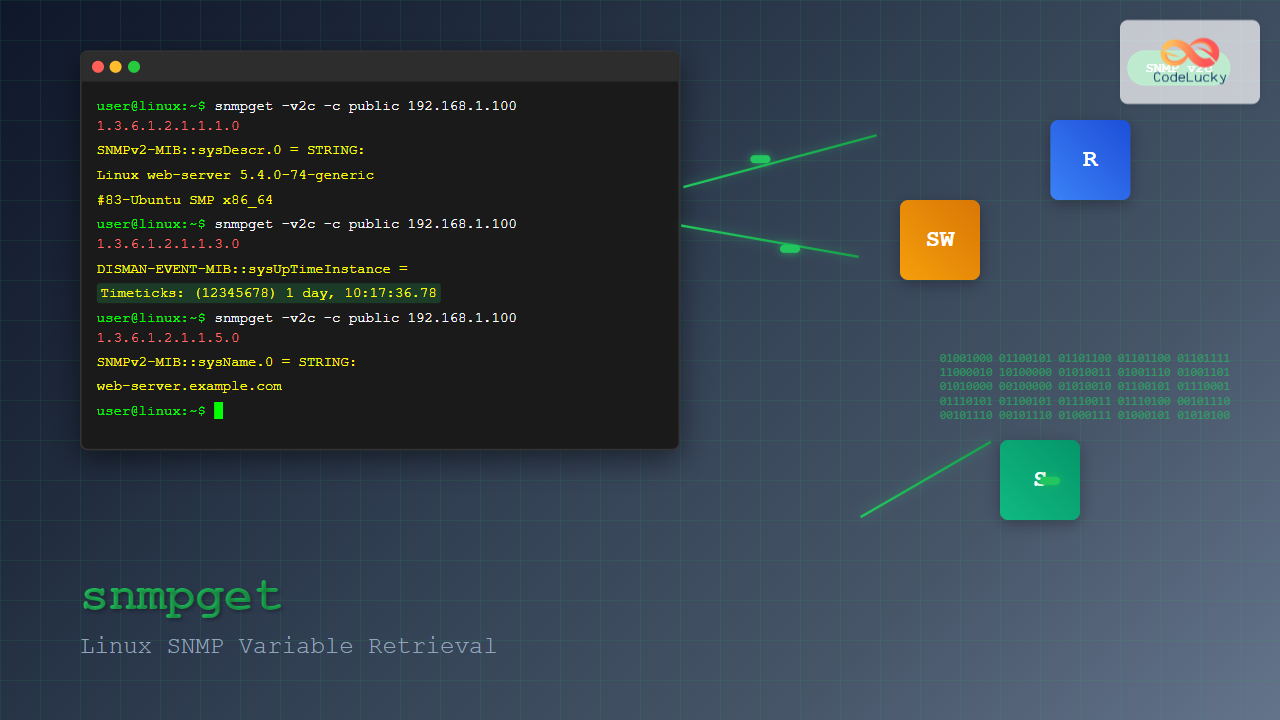
The snmpget command is a powerful Linux utility that allows network administrators to retrieve specific SNMP (Simple Network Management Protocol) variables from network devices. Whether you’re monitoring server performance, checking network interface statistics, or gathering system information from remote devices, snmpget provides a straightforward way to query SNMP-enabled devices and extract valuable management data.
What is SNMP and snmpget?
SNMP is a widely-used protocol for network management and monitoring. It enables network administrators to collect information about network devices, monitor their status, and configure them remotely. The snmpget command is part of the Net-SNMP suite and specifically designed to retrieve individual SNMP variables or a small set of variables from SNMP agents running on network devices.
Unlike snmpwalk which retrieves entire subtrees of SNMP data, snmpget is optimized for fetching specific Object Identifiers (OIDs), making it ideal for targeted monitoring and quick status checks.
Installing snmpget on Linux
Before using snmpget, you need to install the Net-SNMP utilities package on your Linux system:
Ubuntu/Debian:
sudo apt update
sudo apt install snmp snmp-mibs-downloader
CentOS/RHEL/Fedora:
# For CentOS/RHEL 7
sudo yum install net-snmp-utils

# For CentOS/RHEL 8+ and Fedora
sudo dnf install net-snmp-utils
Arch Linux:
sudo pacman -S net-snmpBasic snmpget Syntax
The basic syntax for the snmpget command follows this pattern:
snmpget [OPTIONS] AGENT [COMMUNITY] OID [OID...]Where:
- OPTIONS: Various command-line options to modify behavior
- AGENT: Target device’s IP address or hostname
- COMMUNITY: SNMP community string (for SNMP v1/v2c)
- OID: Object Identifier(s) to retrieve
Essential snmpget Options
Understanding the key options available with snmpget is crucial for effective usage:
| Option | Description |
|---|---|
-v [1|2c|3] |
Specify SNMP version (default is 1) |
-c COMMUNITY |
Set community string for SNMP v1/v2c |
-u USERNAME |
Set username for SNMP v3 |
-l LEVEL |
Set security level for SNMP v3 (noAuthNoPriv, authNoPriv, authPriv) |
-a PROTOCOL |
Authentication protocol for SNMP v3 (MD5, SHA) |
-A PASSWORD |
Authentication password for SNMP v3 |
-x PROTOCOL |
Privacy protocol for SNMP v3 (DES, AES) |
-X PASSWORD |
Privacy password for SNMP v3 |
-O OPTIONS |
Output format options |
-t TIMEOUT |
Set timeout in seconds |
-r RETRIES |
Set number of retries |
Common SNMP OIDs for System Monitoring
Here are some frequently used OIDs that you’ll encounter when using snmpget:
| OID | Description |
|---|---|
1.3.6.1.2.1.1.1.0 |
System description |
1.3.6.1.2.1.1.3.0 |
System uptime |
1.3.6.1.2.1.1.5.0 |
System name |
1.3.6.1.2.1.25.1.1.0 |
Host uptime |
1.3.6.1.2.1.25.2.2.0 |
Memory size |
1.3.6.1.2.1.25.3.2.1.3.1 |
CPU usage |
Basic snmpget Examples
Example 1: Get System Description
Retrieve basic system information using SNMP v2c:
snmpget -v2c -c public 192.168.1.100 1.3.6.1.2.1.1.1.0Expected Output:
SNMPv2-MIB::sysDescr.0 = STRING: Linux web-server 5.4.0-74-generic #83-Ubuntu SMP Sat May 8 02:35:39 UTC 2021 x86_64Example 2: Get System Uptime
snmpget -v2c -c public 192.168.1.100 1.3.6.1.2.1.1.3.0Expected Output:
DISMAN-EVENT-MIB::sysUpTimeInstance = Timeticks: (12345678) 1 day, 10:17:36.78Example 3: Multiple OIDs in Single Command
Retrieve multiple values simultaneously:
snmpget -v2c -c public 192.168.1.100 1.3.6.1.2.1.1.1.0 1.3.6.1.2.1.1.3.0 1.3.6.1.2.1.1.5.0Expected Output:
SNMPv2-MIB::sysDescr.0 = STRING: Linux web-server 5.4.0-74-generic
DISMAN-EVENT-MIB::sysUpTimeInstance = Timeticks: (12345678) 1 day, 10:17:36.78
SNMPv2-MIB::sysName.0 = STRING: web-server.example.com
Advanced snmpget Usage
SNMP v3 with Authentication
For secure SNMP communication using version 3:
snmpget -v3 -u admin -l authNoPriv -a MD5 -A mypassword 192.168.1.100 1.3.6.1.2.1.1.1.0SNMP v3 with Authentication and Encryption
snmpget -v3 -u admin -l authPriv -a SHA -A myauthpass -x AES -X myprivpass 192.168.1.100 1.3.6.1.2.1.1.1.0Custom Output Formatting
Control output format using the -O option:
# Numeric OIDs only
snmpget -v2c -c public -On 192.168.1.100 1.3.6.1.2.1.1.1.0

# Values only (no OID names)
snmpget -v2c -c public -Oq 192.168.1.100 1.3.6.1.2.1.1.1.0

# Brief output
snmpget -v2c -c public -Os 192.168.1.100 1.3.6.1.2.1.1.1.0
Practical Monitoring Examples
Monitor Network Interface Status
Check the operational status of network interface 1:
snmpget -v2c -c public 192.168.1.100 1.3.6.1.2.1.2.2.1.8.1Output:
IF-MIB::ifOperStatus.1 = INTEGER: up(1)Monitor Memory Usage
Get total physical memory:
snmpget -v2c -c public localhost 1.3.6.1.4.1.2021.4.5.0Output:
UCD-SNMP-MIB::memTotalReal.0 = INTEGER: 8388608 kBMonitor CPU Load
Retrieve 1-minute load average:
snmpget -v2c -c public localhost 1.3.6.1.4.1.2021.10.1.3.1Output:
UCD-SNMP-MIB::laLoad.1 = STRING: 0.15Error Handling and Troubleshooting
Common Error Messages and Solutions
Timeout Error
Timeout: No Response from 192.168.1.100Solutions:
- Verify the target device is reachable:
ping 192.168.1.100 - Check if SNMP service is running on the target
- Verify firewall settings (SNMP uses UDP port 161)
- Increase timeout:
snmpget -t 10 ...
Authentication Failure
snmpget: Authentication failure (incorrect password, community or key)Solutions:
- Verify community string is correct
- Check SNMP version compatibility
- For SNMP v3, verify username and authentication credentials
No Such Object
SNMPv2-SMI::iso.3.6.1.2.1.1.1.0 = No Such Object available on this agent at this OIDSolutions:
- Verify the OID exists on the target device
- Use
snmpwalkto explore available OIDs - Check if the required MIB is loaded
Integration with Scripts and Automation
Shell Script Example
Create a monitoring script that checks multiple system parameters:
#!/bin/bash

HOST="192.168.1.100"
COMMUNITY="public"

echo "=== System Monitoring Report ==="
echo "Date: $(date)"
echo

# Get system description
SYSDESC=$(snmpget -v2c -c $COMMUNITY -Oqv $HOST 1.3.6.1.2.1.1.1.0)
echo "System: $SYSDESC"

# Get uptime
UPTIME=$(snmpget -v2c -c $COMMUNITY -Oqv $HOST 1.3.6.1.2.1.1.3.0)
echo "Uptime: $UPTIME"

# Get load average
LOAD=$(snmpget -v2c -c $COMMUNITY -Oqv $HOST 1.3.6.1.4.1.2021.10.1.3.1 2>/dev/null)
if [ $? -eq 0 ]; then
    echo "Load Average (1min): $LOAD"
fi

echo "=== End Report ==="
Parsing Output with awk
Extract only the value from snmpget output:
snmpget -v2c -c public -Oqv 192.168.1.100 1.3.6.1.2.1.1.3.0 | awk '{print $1}'Performance Optimization Tips
1. Use Appropriate Timeout and Retry Values
snmpget -t 5 -r 2 -v2c -c public 192.168.1.100 1.3.6.1.2.1.1.1.02. Batch Multiple OIDs
Instead of multiple snmpget calls, retrieve multiple OIDs in one command:
# Efficient - single command
snmpget -v2c -c public host 1.3.6.1.2.1.1.1.0 1.3.6.1.2.1.1.3.0 1.3.6.1.2.1.1.5.0

# Inefficient - multiple commands
snmpget -v2c -c public host 1.3.6.1.2.1.1.1.0
snmpget -v2c -c public host 1.3.6.1.2.1.1.3.0
snmpget -v2c -c public host 1.3.6.1.2.1.1.5.0
3. Use SNMP v2c Over v1
SNMP v2c provides better error handling and supports 64-bit counters:
snmpget -v2c -c public 192.168.1.100 1.3.6.1.2.1.1.1.0Security Considerations
1. Use SNMP v3 for Production
Always use SNMP v3 with authentication and encryption in production environments:
snmpget -v3 -u secureuser -l authPriv -a SHA -A strongauth -x AES -X strongpriv 192.168.1.100 1.3.6.1.2.1.1.1.02. Restrict Community Strings
If using SNMP v1/v2c, avoid default community strings like “public” and use complex, unique strings.
3. Network Segmentation
Place SNMP-enabled devices in dedicated management networks and use firewalls to restrict access.
Comparison with Related Commands
| Command | Purpose | Use Case |
|---|---|---|
snmpget |
Retrieve specific OID values | Targeted monitoring, specific value queries |
snmpwalk |
Traverse SNMP tree | Discovery, exploring available OIDs |
snmpgetnext |
Get next OID in sequence | Iterating through SNMP tree |
snmpbulkget |
Efficiently retrieve multiple values | Bulk data retrieval (SNMP v2c/v3 only) |
Real-World Use Cases
1. Network Device Monitoring
Monitor router interface utilization:
# Check input octets on interface 2
snmpget -v2c -c public router.example.com 1.3.6.1.2.1.2.2.1.10.2

# Check output octets on interface 2
snmpget -v2c -c public router.example.com 1.3.6.1.2.1.2.2.1.16.2
2. Server Health Monitoring
Monitor server resources:
# Check disk usage for root partition
snmpget -v2c -c public server.example.com 1.3.6.1.4.1.2021.9.1.9.1

# Check number of running processes
snmpget -v2c -c public server.example.com 1.3.6.1.4.1.2021.2.1.5.0
3. Printer Monitoring
Monitor printer status and supply levels:
# Check printer status
snmpget -v2c -c public printer.example.com 1.3.6.1.2.1.25.3.5.1.1.1

# Check toner level
snmpget -v2c -c public printer.example.com 1.3.6.1.2.1.43.11.1.1.9.1.1
Best Practices
- Always test with localhost first to ensure SNMP is working before querying remote devices
- Use meaningful variable names when incorporating into scripts
- Implement proper error handling in automated scripts
- Document your OIDs and their meanings for team reference
- Monitor SNMP agent performance to avoid overwhelming target devices
- Use configuration files for complex SNMP v3 setups to avoid exposing credentials in command history
- Test thoroughly before deploying in production environments
Conclusion
The snmpget command is an essential tool for network administrators and system engineers who need to retrieve specific SNMP variables from network devices. Its ability to query individual OIDs makes it perfect for targeted monitoring, troubleshooting, and automated health checks.
By mastering the various options, understanding common OIDs, and implementing proper security practices, you can effectively use snmpget to maintain visibility into your network infrastructure. Whether you’re monitoring server performance, checking network device status, or gathering specific system information, snmpget provides the precision and flexibility needed for professional network management.
Remember to always consider security implications, use appropriate SNMP versions for your environment, and implement proper error handling in your monitoring scripts. With these fundamentals in place, snmpget becomes a powerful addition to your Linux command-line toolkit for network and system administration.
Related Posts
snmpwalk Command Linux: Complete Guide to SNMP Management Information Retrieval
The snmpwalk command is a powerful Linux utility that allows you to retrieve management information from SNMP-enabled devices on your...
SNMP Command Linux: Complete Guide to Simple Network Management Protocol Configuration and Usage
Introduction to SNMP Command in Linux Simple Network Management Protocol (SNMP) is a fundamental protocol used for monitoring and managing...
snmpset Command Linux: Complete Guide to Setting SNMP Variables
The snmpset command is a powerful Linux utility that allows network administrators to modify SNMP (Simple Network Management Protocol) variables...
net-snmp Linux: Complete Guide to SNMP Implementation and Management
Simple Network Management Protocol (SNMP) is a cornerstone of network management, and net-snmp is the most widely used open-source implementation...

SolarWinds Linux: Complete Network Performance Monitor Guide for System Administrators
SolarWinds Network Performance Monitor (NPM) is a powerful network monitoring solution that provides comprehensive visibility into network infrastructure performance. While...

netstat Command Linux: Complete Guide to Network Connection Monitoring
The netstat command is one of the most essential network monitoring tools in Linux systems. It provides comprehensive information about...

mibs Linux: Complete Guide to Management Information Base Files and SNMP Monitoring
Management Information Base (MIB) files are essential components in Linux system administration and network monitoring. These structured databases define the...

intermapper Linux: Complete Network Monitoring and Mapping Guide
What is InterMapper for Linux? InterMapper is a powerful network monitoring and mapping tool that provides real-time visibility into network...
ss Command Linux: Complete Guide to Modern Socket Statistics and Network Analysis
The ss command is a powerful and modern utility for investigating sockets and network connections in Linux systems. As the...

whatsup Linux: Complete Network Monitoring and System Administration Guide
whatsup is a powerful network monitoring and system administration tool for Linux that provides real-time insights into network connectivity, system...
Wireshark Command Linux: Complete Network Protocol Analyzer Guide
Wireshark is the world's most popular network protocol analyzer, providing deep visibility into network traffic and communication protocols. While most...

ManageEngine Linux: Complete Network Monitoring Solutions Guide
Network monitoring is crucial for maintaining optimal performance and security in Linux environments. ManageEngine provides powerful network monitoring solutions specifically...





