
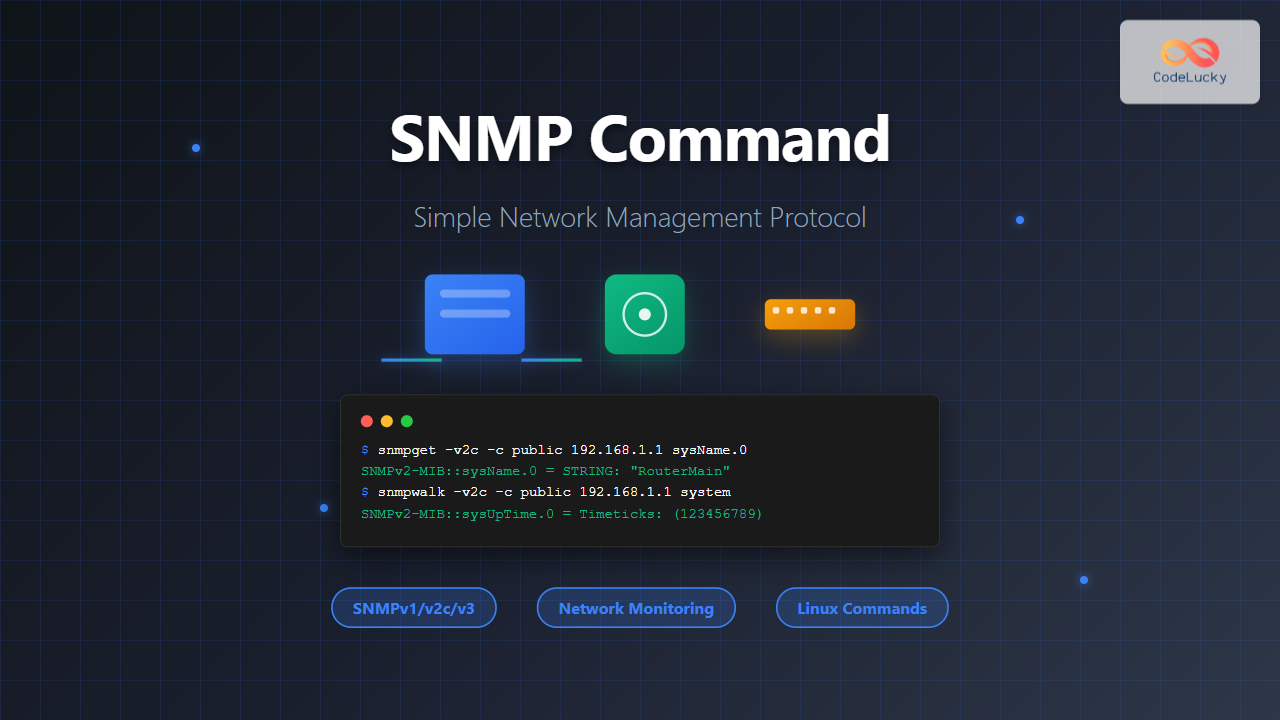
Introduction to SNMP Command in Linux
Simple Network Management Protocol (SNMP) is a fundamental protocol used for monitoring and managing network devices in IP networks. In Linux environments, SNMP commands provide administrators with powerful tools to collect performance data, configure network equipment, and troubleshoot connectivity issues across diverse network infrastructures.
SNMP operates on a client-server model where network management stations (NMS) communicate with SNMP agents running on managed devices. This protocol enables centralized monitoring of routers, switches, servers, printers, and other network-connected devices through a standardized interface.
Understanding SNMP Architecture and Components
SNMP Versions
SNMP has evolved through several versions, each offering enhanced security and functionality:
- SNMPv1: Original version with basic functionality and community-based security
- SNMPv2c: Enhanced version with improved error handling and bulk operations
- SNMPv3: Most secure version with authentication and encryption capabilities
SNMP Components
The SNMP ecosystem consists of several key components:
- SNMP Manager: Software that monitors and controls network devices
- SNMP Agent: Software running on managed devices that responds to requests
- MIB (Management Information Base): Database defining available monitoring parameters
- OID (Object Identifier): Unique identifiers for specific data points
Installing SNMP Tools on Linux
Before using SNMP commands, you need to install the appropriate packages on your Linux system.
Installation on Ubuntu/Debian
sudo apt update
sudo apt install snmp snmp-mibs-downloader snmpd
Installation on CentOS/RHEL/Fedora
sudo yum install net-snmp net-snmp-utils
# or for newer versions
sudo dnf install net-snmp net-snmp-utils
Downloading MIB Files
To work with human-readable names instead of numeric OIDs, download MIB files:
sudo download-mibsEdit the SNMP configuration to enable MIB usage:
sudo nano /etc/snmp/snmp.confComment out the line containing mibs : by adding a # at the beginning.
Essential SNMP Commands and Syntax
Basic Command Structure
SNMP commands follow a general syntax pattern:
snmpcommand [options] hostname [OID]Common Command Options
-v: Specify SNMP version (1, 2c, 3)-c: Set community string (for v1 and v2c)-u: Username (for SNMPv3)-l: Security level (for SNMPv3)-a: Authentication protocol-A: Authentication password-x: Privacy protocol-X: Privacy password
SNMP GET Operations
snmpget Command
The snmpget command retrieves specific values from SNMP agents.
Basic Usage
snmpget -v2c -c public 192.168.1.1 1.3.6.1.2.1.1.5.0Expected Output:
SNMPv2-MIB::sysName.0 = STRING: RouterMainUsing Human-Readable Names
snmpget -v2c -c public 192.168.1.1 sysName.0Multiple OIDs in Single Command
snmpget -v2c -c public 192.168.1.1 sysName.0 sysDescr.0 sysUpTime.0Expected Output:
SNMPv2-MIB::sysName.0 = STRING: RouterMain
SNMPv2-MIB::sysDescr.0 = STRING: Cisco IOS Software
DISMAN-EVENT-MIB::sysUpTimeInstance = Timeticks: (123456789) 14 days, 6:56:07.89
SNMP WALK Operations
snmpwalk Command
The snmpwalk command retrieves all values under a specific OID tree branch.
System Information Walk
snmpwalk -v2c -c public 192.168.1.1 systemSample Output:
SNMPv2-MIB::sysDescr.0 = STRING: Linux server1 5.4.0-42-generic
SNMPv2-MIB::sysObjectID.0 = OID: NET-SNMP-MIB::netSnmpAgentOIDs.10
DISMAN-EVENT-MIB::sysUpTimeInstance = Timeticks: (12345678) 1 day, 10:17:36.78
SNMPv2-MIB::sysContact.0 = STRING: System Administrator
SNMPv2-MIB::sysName.0 = STRING: server1.example.com
SNMPv2-MIB::sysLocation.0 = STRING: Server Room A
SNMPv2-MIB::sysServices.0 = INTEGER: 72
Interface Information Walk
snmpwalk -v2c -c public 192.168.1.1 1.3.6.1.2.1.2.2.1.2Limiting Output with -On Option
snmpwalk -v2c -c public -On 192.168.1.1 1.3.6.1.2.1.1SNMP TABLE Operations
snmptable Command
The snmptable command displays SNMP tables in formatted output.
Interface Table
snmptable -v2c -c public 192.168.1.1 1.3.6.1.2.1.2.2Sample Output:
SNMP table: IF-MIB::ifTable

ifIndex ifDescr           ifType ifMtu ifSpeed   ifPhysAddress ifAdminStatus ifOperStatus
1       lo                24     65536 10000000  ""            up(1)         up(1)
2       eth0              6      1500  100000000 "00:0c:29:xx" up(1)         up(1)
3       eth1              6      1500  1000000000"00:0c:29:yy" up(1)         down(2)
ARP Table
snmptable -v2c -c public 192.168.1.1 1.3.6.1.2.1.4.22SNMP SET Operations
snmpset Command
The snmpset command modifies values on SNMP-enabled devices (requires write community).
Setting System Contact
snmpset -v2c -c private 192.168.1.1 sysContact.0 s "[email protected]"Expected Output:
SNMPv2-MIB::sysContact.0 = STRING: [email protected]Data Type Indicators
i: INTEGERs: STRINGx: HEX STRINGa: IP ADDRESSo: OBJIDt: TIMETICKS
Setting Interface Administrative Status
snmpset -v2c -c private 192.168.1.1 1.3.6.1.2.1.2.2.1.7.2 i 2SNMPv3 Security Configuration
Authentication and Privacy
SNMPv3 provides enhanced security through authentication and encryption.
Authentication Only (authNoPriv)
snmpget -v3 -u username -l authNoPriv -a MD5 -A password 192.168.1.1 sysName.0Authentication and Privacy (authPriv)
snmpget -v3 -u username -l authPriv -a SHA -A authpass -x AES -X privpass 192.168.1.1 sysName.0SNMPv3 User Configuration
Create SNMPv3 users in the SNMP daemon configuration:
sudo nano /etc/snmp/snmpd.confAdd user configuration:
createUser myuser SHA myauthpass AES myprivpass
rouser myuser
Monitoring System Performance with SNMP
CPU Usage Monitoring
snmpwalk -v2c -c public 192.168.1.1 1.3.6.1.4.1.2021.11Memory Usage Monitoring
snmpget -v2c -c public 192.168.1.1 1.3.6.1.4.1.2021.4.5.0 1.3.6.1.4.1.2021.4.6.0Sample Output:
UCD-SNMP-MIB::memTotalReal.0 = INTEGER: 8388608 kB
UCD-SNMP-MIB::memAvailReal.0 = INTEGER: 2097152 kB
Disk Usage Monitoring
snmptable -v2c -c public 192.168.1.1 1.3.6.1.4.1.2021.9Network Interface Statistics
snmpget -v2c -c public 192.168.1.1 1.3.6.1.2.1.2.2.1.10.2 1.3.6.1.2.1.2.2.1.16.2Advanced SNMP Operations
SNMP Bulk Operations
For efficient data retrieval from large tables:
snmpbulkwalk -v2c -c public 192.168.1.1 1.3.6.1.2.1.2.2SNMP Traps and Notifications
Sending Test Traps
snmptrap -v2c -c public localhost '' 1.3.6.1.4.1.8072.2.3.0.1 1.3.6.1.4.1.8072.2.3.2.1 i 123456Custom Script Integration
Create bash scripts for automated monitoring:
#!/bin/bash
HOST="192.168.1.1"
COMMUNITY="public"

# Get system uptime
UPTIME=$(snmpget -v2c -c $COMMUNITY $HOST sysUpTime.0 | cut -d' ' -f4-)
echo "System uptime: $UPTIME"

# Check interface status
snmptable -v2c -c $COMMUNITY $HOST ifTable | grep -E "(eth|en)"
Troubleshooting SNMP Issues
Common Error Messages
Timeout Errors
snmpget -v2c -c public -t 10 -r 3 192.168.1.1 sysName.0Use -t for timeout and -r for retries.
Authentication Failures
Verify community strings or SNMPv3 credentials:
snmpget -v2c -c wrongcommunity 192.168.1.1 sysName.0Error Output:
Timeout: No Response from 192.168.1.1Debug Mode
Enable debug output for detailed troubleshooting:
snmpget -v2c -c public -d 192.168.1.1 sysName.0Testing SNMP Agent Connectivity
snmpstatus -v2c -c public 192.168.1.1Sample Output:
[192.168.1.1]=>[Linux server1 5.4.0-42-generic] Up: 1 day, 10:17:36.78
Interfaces: 3, Recv/Trans packets: 1234567/987654 | IP: 1234567/987654
SNMP Configuration Best Practices
Security Considerations
- Use SNMPv3 with authentication and encryption in production environments
- Change default community strings from “public” and “private”
- Implement access control lists (ACLs) to restrict SNMP access
- Regularly rotate SNMPv3 passwords and keys
Performance Optimization
- Use bulk operations for large data sets
- Implement proper polling intervals to avoid overwhelming devices
- Cache frequently accessed MIB data
- Monitor SNMP agent performance and resource usage
Monitoring Strategy
- Define clear monitoring objectives and KPIs
- Establish baseline performance metrics
- Implement automated alerting for critical thresholds
- Document OIDs and their meanings for team reference
Real-World Use Cases
Network Device Monitoring
Monitor router and switch performance:
# CPU utilization
snmpget -v2c -c public router.example.com 1.3.6.1.4.1.9.2.1.56.0

# Interface utilization
snmpwalk -v2c -c public switch.example.com 1.3.6.1.2.1.2.2.1.10
Server Health Monitoring
# Memory usage
snmpget -v2c -c public server.example.com 1.3.6.1.4.1.2021.4.6.0

# Load average
snmpget -v2c -c public server.example.com 1.3.6.1.4.1.2021.10.1.3.1
Environmental Monitoring
# Temperature sensors (varies by device)
snmpwalk -v2c -c public ups.example.com 1.3.6.1.4.1.318.1.1.1.2.2.1
Integration with Monitoring Tools
Nagios Integration
Use SNMP commands in Nagios check scripts:
define command{
    command_name    check_snmp_cpu
    command_line    /usr/lib/nagios/plugins/check_snmp -H $HOSTADDRESS$ -C $ARG1$ -o 1.3.6.1.4.1.2021.11.9.0 -w $ARG2$ -c $ARG3$
}
Zabbix Integration
Configure SNMP items in Zabbix for automated monitoring and use SNMP commands for manual verification.
Conclusion
SNMP commands in Linux provide powerful capabilities for network monitoring and device management. From basic information gathering with snmpget to comprehensive monitoring with snmpwalk and snmptable, these tools form the foundation of network management operations.
Mastering SNMP commands enables system administrators to build robust monitoring solutions, troubleshoot network issues efficiently, and maintain optimal network performance. As networks continue to grow in complexity, proficiency with SNMP tools becomes increasingly valuable for effective infrastructure management.
Remember to prioritize security by implementing SNMPv3 where possible, follow best practices for community string management, and integrate SNMP monitoring into comprehensive network management strategies. Regular practice with these commands and understanding of MIB structures will enhance your network administration capabilities significantly.
Related Posts
snmpwalk Command Linux: Complete Guide to SNMP Management Information Retrieval
The snmpwalk command is a powerful Linux utility that allows you to retrieve management information from SNMP-enabled devices on your...
net-snmp Linux: Complete Guide to SNMP Implementation and Management
Simple Network Management Protocol (SNMP) is a cornerstone of network management, and net-snmp is the most widely used open-source implementation...
snmpget Command Linux: Complete Guide to Retrieving SNMP Variables
The snmpget command is a powerful Linux utility that allows network administrators to retrieve specific SNMP (Simple Network Management Protocol)...
SolarWinds Linux: Complete Network Performance Monitor Guide for System Administrators
SolarWinds Network Performance Monitor (NPM) is a powerful network monitoring solution that provides comprehensive visibility into network infrastructure performance. While...
snmpset Command Linux: Complete Guide to Setting SNMP Variables
The snmpset command is a powerful Linux utility that allows network administrators to modify SNMP (Simple Network Management Protocol) variables...
intermapper Linux: Complete Network Monitoring and Mapping Guide
What is InterMapper for Linux? InterMapper is a powerful network monitoring and mapping tool that provides real-time visibility into network...

ManageEngine Linux: Complete Network Monitoring Solutions Guide
Network monitoring is crucial for maintaining optimal performance and security in Linux environments. ManageEngine provides powerful network monitoring solutions specifically...
LibreNMS Linux: Complete Network Monitoring System Setup and Configuration Guide
LibreNMS is a powerful, open-source network monitoring platform that provides comprehensive visibility into network infrastructure. Built on PHP and MySQL,...

Paessler Linux: Complete Guide to Network Monitoring with PRTG on Linux Systems
Network monitoring is crucial for maintaining optimal performance and security in Linux environments. Paessler PRTG Network Monitor offers comprehensive monitoring...

whatsup Linux: Complete Network Monitoring and System Administration Guide
whatsup is a powerful network monitoring and system administration tool for Linux that provides real-time insights into network connectivity, system...

observium Linux: Complete Network Management and Monitoring Platform Guide
Observium is a powerful, auto-discovering network monitoring platform designed for Linux systems that provides comprehensive visibility into network infrastructure. This...

Zenoss Linux: Complete Guide to IT Infrastructure Monitoring and Management
What is Zenoss and Why Use it on Linux? Zenoss is a powerful, open-source IT infrastructure monitoring platform that provides...





