
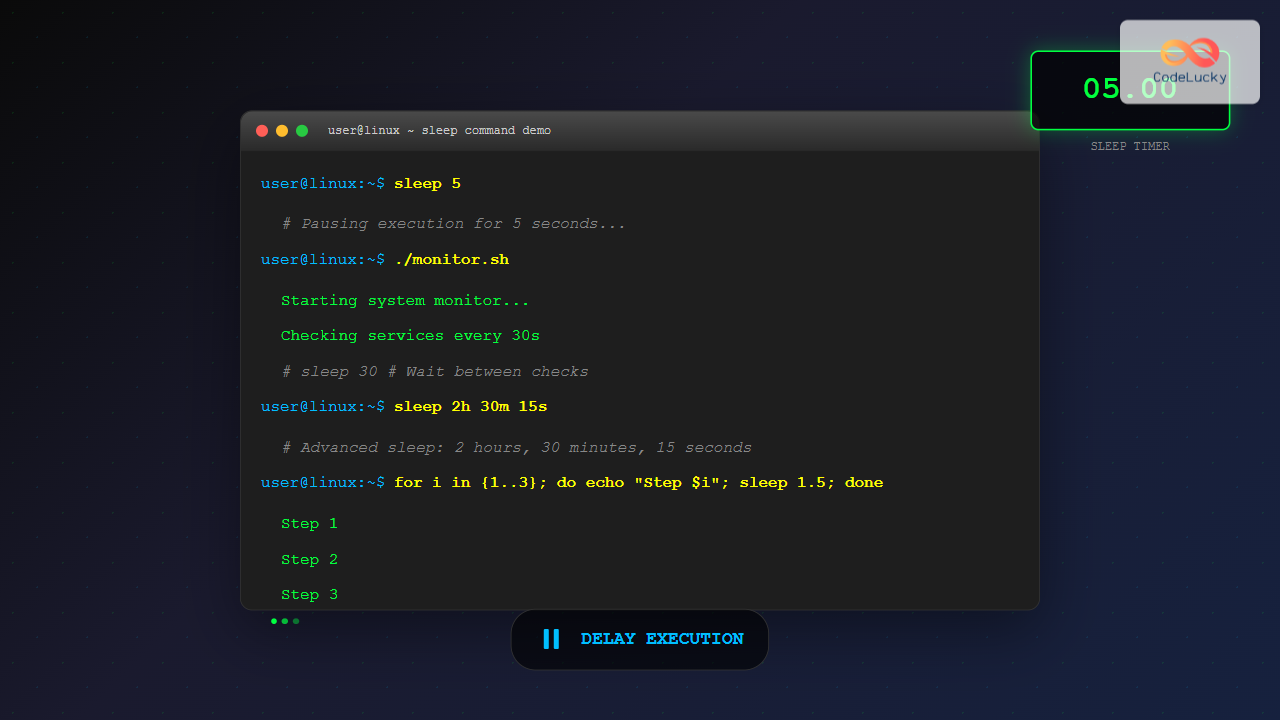
The sleep command is one of the most fundamental utilities in Linux and Unix-like systems, designed to pause execution for a specified duration. Whether you’re writing shell scripts, managing system processes, or controlling timing in automated tasks, understanding the sleep command is essential for effective Linux administration and programming.
What is the sleep Command?
The sleep command temporarily suspends the execution of a process for a specified amount of time. During this pause, the process becomes inactive, allowing other processes to use system resources. This makes it invaluable for creating delays, implementing timeouts, and controlling the flow of scripts.
Basic Syntax and Usage
The basic syntax of the sleep command is straightforward:
sleep [NUMBER][SUFFIX]Where:
- NUMBER: The duration of the pause
- SUFFIX: Optional time unit (s for seconds, m for minutes, h for hours, d for days)
Simple Examples
# Sleep for 5 seconds
sleep 5

# Sleep for 2 minutes
sleep 2m

# Sleep for 1 hour
sleep 1h

# Sleep for 1 day
sleep 1d
Time Suffixes and Units
The sleep command supports various time units to make your scripts more readable and precise:
| Suffix | Unit | Example | Description |
|---|---|---|---|
| s | Seconds | sleep 30s |
Default unit (can be omitted) |
| m | Minutes | sleep 5m |
5 minutes = 300 seconds |
| h | Hours | sleep 2h |
2 hours = 7200 seconds |
| d | Days | sleep 1d |
1 day = 86400 seconds |
Decimal and Fractional Values
Modern implementations of sleep support decimal values, allowing for precise timing control:
# Sleep for 2.5 seconds
sleep 2.5

# Sleep for 0.1 seconds (100 milliseconds)
sleep 0.1

# Sleep for 1.5 minutes
sleep 1.5m
Note: Decimal support may vary depending on your Linux distribution and shell implementation. Most modern systems support this feature.
Practical Examples in Shell Scripts
1. Simple Progress Indicator
#!/bin/bash

echo "Processing..."
for i in {1..5}; do
    echo "Step $i completed"
    sleep 2
done
echo "All steps finished!"
Output:
Processing...
Step 1 completed
Step 2 completed
Step 3 completed
Step 4 completed
Step 5 completed
All steps finished!
2. System Monitoring Script
#!/bin/bash

while true; do
    echo "=== System Status at $(date) ==="
    echo "CPU Usage:"
    top -bn1 | grep "Cpu(s)" | awk '{print $2}' | cut -d'%' -f1
    echo "Memory Usage:"
    free -m | awk 'NR==2{printf "%.2f%%\n", $3*100/$2}'
    echo "---"
    sleep 10
done
3. Retry Mechanism with Exponential Backoff
#!/bin/bash

retry_count=0
max_retries=5

while [ $retry_count -lt $max_retries ]; do
    if ping -c 1 google.com &> /dev/null; then
        echo "Connection successful!"
        break
    else
        retry_count=$((retry_count + 1))
        wait_time=$((2 ** retry_count))
        echo "Attempt $retry_count failed. Retrying in $wait_time seconds..."
        sleep $wait_time
    fi
done
Advanced Sleep Techniques
Multiple Time Units
You can combine multiple time units for precise timing:
# Sleep for 1 hour, 30 minutes, and 45 seconds
sleep 1h 30m 45s

# Sleep for 2 days, 3 hours, and 15 minutes
sleep 2d 3h 15m
Using Variables with Sleep
#!/bin/bash

# Define delay as a variable
DELAY=5
RETRY_DELAY=2m

echo "Starting process..."
sleep $DELAY
echo "Process started. Waiting for retry interval..."
sleep $RETRY_DELAY
echo "Retrying operation..."
Sleep in Background Processes
You can run sleep commands in the background using the & operator:
# Start a background sleep
sleep 60 &
echo "Sleep started in background with PID: $!"

# Continue with other commands
echo "Doing other work..."
ls -la

# Wait for background process to complete
wait
Interactive Examples
Countdown Timer Script
#!/bin/bash

countdown() {
    local seconds=$1
    while [ $seconds -gt 0 ]; do
        echo -ne "\rCountdown: $seconds seconds remaining"
        sleep 1
        ((seconds--))
    done
    echo -e "\rTime's up!                    "
}

# Usage
echo "Starting 10-second countdown:"
countdown 10
Animated Loading Spinner
#!/bin/bash

spinner() {
    local pid=$1
    local delay=0.1
    local spinstr='|/-\'
    while [ "$(ps a | awk '{print $1}' | grep $pid)" ]; do
        local temp=${spinstr#?}
        printf " [%c]  " "$spinstr"
        local spinstr=$temp${spinstr%"$temp"}
        sleep $delay
        printf "\b\b\b\b\b\b"
    done
    printf "    \b\b\b\b"
}

# Example usage
echo "Processing..."
sleep 5 &
spinner $!
echo "Done!"
Common Use Cases
1. Rate Limiting API Calls
#!/bin/bash

api_urls=("url1" "url2" "url3" "url4" "url5")

for url in "${api_urls[@]}"; do
    echo "Calling API: $url"
    # Simulate API call
    curl -s "$url"
    # Rate limit: 1 request per 2 seconds
    sleep 2
done
2. Batch Processing with Intervals
#!/bin/bash

process_batch() {
    local batch_size=10
    local count=0

    for file in *.txt; do
        echo "Processing: $file"
        # Process the file
        process_file "$file"

        ((count++))

        # Pause after each batch
        if [ $((count % batch_size)) -eq 0 ]; then
            echo "Batch completed. Pausing for 30 seconds..."
            sleep 30
        fi
    done
}

process_batch
3. Service Health Monitoring
#!/bin/bash

monitor_service() {
    local service_name=$1
    local check_interval=30

    while true; do
        if systemctl is-active --quiet "$service_name"; then
            echo "$(date): $service_name is running"
        else
            echo "$(date): WARNING - $service_name is down!"
            # Send alert or restart service
        fi
        sleep $check_interval
    done
}

# Monitor Apache service
monitor_service apache2
Sleep vs Other Delay Commands
| Command | Purpose | Use Case |
|---|---|---|
sleep |
Pause execution for specified time | General delays in scripts |
wait |
Wait for background processes | Process synchronization |
read -t |
Wait for user input with timeout | Interactive prompts |
timeout |
Run command with time limit | Command execution control |
Performance Considerations
System Resource Usage
The sleep command is highly efficient in terms of system resource usage. When a process sleeps, it:
- Consumes minimal CPU resources
- Releases CPU time to other processes
- Maintains minimal memory footprint
- Does not perform any active polling
Precision and Accuracy
While sleep is generally accurate, several factors can affect precision:
- System load: High system load may cause slight delays
- Scheduler granularity: Minimum sleep time depends on system tick rate
- Process priority: Higher priority processes may delay wake-up
# For high-precision timing, consider using nanosleep or usleep
# Available on some systems
usleep 500000  # Sleep for 0.5 seconds (microseconds)
nanosleep 0.1  # Sleep for 0.1 seconds (nanoseconds)
Troubleshooting Common Issues
1. Sleep Command Not Found
If you encounter “command not found” error:
# Check if sleep is installed
which sleep

# Install if missing (Ubuntu/Debian)
sudo apt-get install coreutils

# Install if missing (RHEL/CentOS)
sudo yum install coreutils
2. Fractional Sleep Not Working
Some older systems may not support decimal values:
# Alternative for systems without decimal support
python -c "import time; time.sleep(0.5)"

# Or use Perl
perl -e "select(undef, undef, undef, 0.5)"
3. Interrupted Sleep
Sleep can be interrupted by signals. To handle this:
#!/bin/bash

# Trap signals to prevent interruption
trap 'echo "Sleep interrupted"; exit 1' INT TERM

echo "Sleeping for 60 seconds (try Ctrl+C)..."
sleep 60
echo "Sleep completed successfully"
Best Practices
1. Use Meaningful Variable Names
#!/bin/bash

# Good
HEALTH_CHECK_INTERVAL=30
API_RATE_LIMIT_DELAY=2

sleep $HEALTH_CHECK_INTERVAL
sleep $API_RATE_LIMIT_DELAY

# Avoid magic numbers
# sleep 30  # What is this 30 for?
2. Add Comments for Long Delays
#!/bin/bash

# Wait for database to fully initialize (typical startup time: 2-3 minutes)
sleep 3m

# Allow time for log rotation to complete
sleep 10
3. Make Delays Configurable
#!/bin/bash

# Allow delays to be configured via environment variables
RETRY_DELAY=${RETRY_DELAY:-5}
POLL_INTERVAL=${POLL_INTERVAL:-10}

echo "Using retry delay: ${RETRY_DELAY}s"
echo "Using poll interval: ${POLL_INTERVAL}s"

sleep $RETRY_DELAY
Integration with Other Commands
Combining Sleep with Conditional Logic
#!/bin/bash

check_and_wait() {
    local max_attempts=10
    local attempt=1

    while [ $attempt -le $max_attempts ]; do
        if service_is_ready; then
            echo "Service is ready after $attempt attempts"
            return 0
        fi

        echo "Attempt $attempt: Service not ready, waiting..."
        sleep 5
        ((attempt++))
    done

    echo "Service failed to become ready after $max_attempts attempts"
    return 1
}
Using Sleep in Pipelines
# Process files with delays between operations
find /data -name "*.log" | while read file; do
    echo "Processing $file"
    process_log_file "$file"
    sleep 1  # Prevent overwhelming the system
done
Conclusion
The sleep command is an essential tool in the Linux administrator’s toolkit, providing precise control over timing and execution flow in scripts and interactive sessions. From simple delays to complex retry mechanisms and system monitoring, mastering sleep enables you to create more robust and efficient automation scripts.
Key takeaways:
- Use appropriate time units (s, m, h, d) for clarity
- Leverage decimal values for precise timing when supported
- Combine sleep with conditional logic for smart automation
- Consider system resources and precision requirements
- Make delays configurable in production scripts
Whether you’re implementing rate limiting, creating progress indicators, or building resilient systems with retry logic, the sleep command provides the timing control necessary for professional Linux scripting and system administration.
Related Posts
timeout Command Linux: Complete Guide to Running Commands with Time Limits
The timeout command in Linux is an essential utility that allows you to run commands with a specified time limit....
nohup Command Linux: Run Commands After Logout and Keep Processes Running
The nohup command is one of the most essential tools for Linux system administrators and developers who need to run...
bg Command in Linux: Resume Jobs in Background with Examples
The bg command in Linux is a powerful built-in shell command that allows you to resume suspended jobs in the...
jobs Command Linux: Complete Guide to Managing Background Jobs in Terminal
The jobs command is an essential tool for Linux users who need to manage multiple processes running in the background....
at Command Linux: Complete Guide to Schedule One-time Tasks with Examples
The at command in Linux is a powerful utility for scheduling one-time tasks to run at specific times in the...

ps Command in Linux: Complete Guide to Process Monitoring and Management
The ps command is one of the most fundamental and powerful tools in Linux for displaying information about running processes....
watch Command Linux: Monitor and Execute Commands Repeatedly in Real-Time
The watch command is one of the most powerful utilities in Linux for executing commands repeatedly at regular intervals and...

bash Command Linux: Start New Shell Sessions and Execute Scripts Efficiently
The bash command is one of the most fundamental tools in Linux systems, serving as both a command-line interpreter and...

kill Command in Linux: Complete Guide to Terminate Processes by PID
The kill command is one of the most essential tools in Linux system administration, allowing users to terminate processes by...
uptime Command Linux: Complete Guide to System Uptime and Load Average Monitoring
The uptime command is one of the most fundamental system monitoring tools in Linux, providing essential information about how long...

top Command Linux: Complete Guide to Real-Time Process Monitoring
The top command is one of the most essential tools in a Linux system administrator's arsenal. It provides real-time information...

w Command Linux: Complete Guide to Monitor Active Users and System Activity
The w command is one of the most essential system monitoring tools in Linux, providing administrators and users with real-time...





