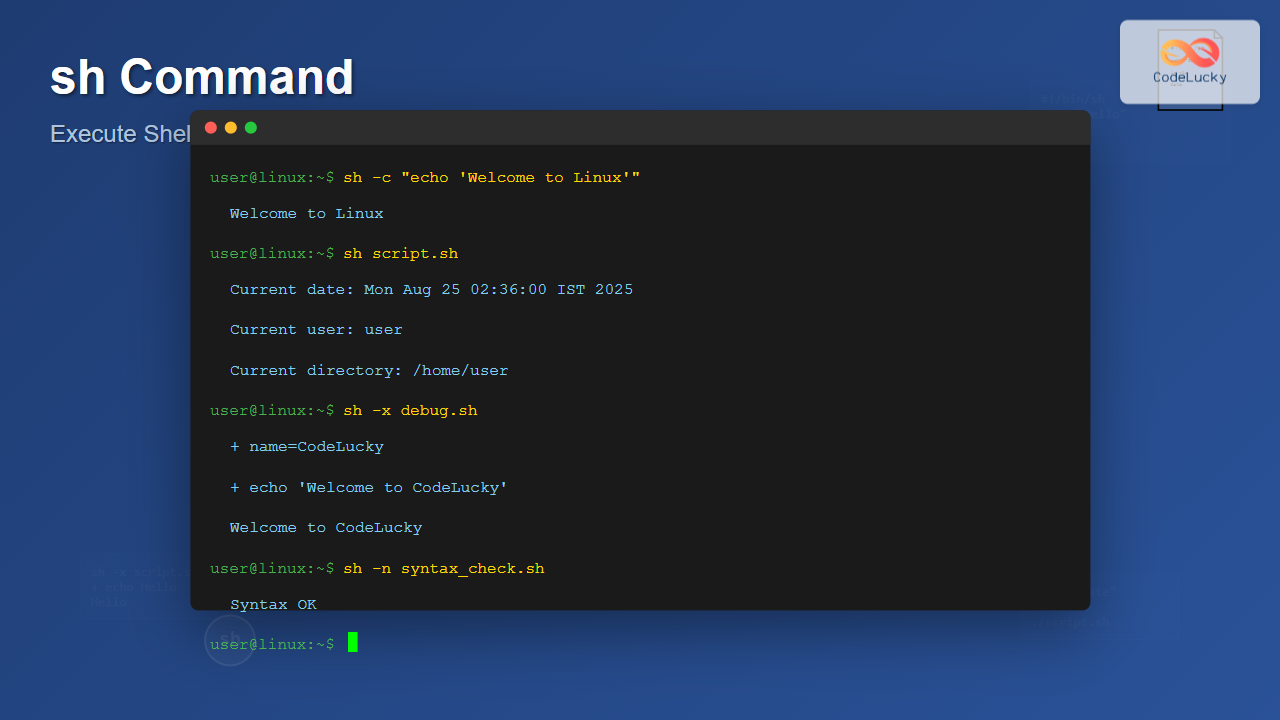
The sh command is one of the most fundamental tools in Linux and Unix-like systems, serving as the standard shell interpreter for executing shell scripts and commands. Whether you’re a system administrator, developer, or Linux enthusiast, understanding the sh command is essential for effective command-line operations and automation.
What is the sh Command?
The sh command invokes the Bourne shell, which is the original Unix shell developed by Stephen Bourne. In modern Linux distributions, sh is typically a symbolic link to a POSIX-compliant shell like bash, dash, or another shell implementation. The command serves multiple purposes:
- Executing shell scripts
- Running interactive shell sessions
- Processing command-line arguments
- Providing a standardized shell environment
Basic Syntax and Usage
The basic syntax of the sh command follows this pattern:
sh [options] [script_file] [arguments]Simple Command Execution
You can use sh to execute commands directly:
sh -c "echo 'Hello, World!'"Output:
Hello, World!Running Shell Scripts
To execute a shell script file:
sh script.shLet’s create a simple script to demonstrate:
# Create a simple script
echo '#!/bin/sh
echo "Current date: $(date)"
echo "Current user: $(whoami)"
echo "Current directory: $(pwd)"' > sample_script.sh

# Execute the script
sh sample_script.sh
Output:
Current date: Mon Aug 25 02:35:00 IST 2025
Current user: username
Current directory: /home/username
Common sh Command Options
-c Option: Execute Commands
The -c option allows you to execute commands directly from the command line:
sh -c "ls -la | head -5"Output:
total 24
drwxr-xr-x 3 user user 4096 Aug 25 02:35 .
drwxr-xr-x 3 user user 4096 Aug 25 02:30 ..
-rw-r--r-- 1 user user  220 Aug 25 02:30 .bash_logout
-rw-r--r-- 1 user user 3771 Aug 25 02:30 .bashrc
-x Option: Debug Mode
Enable debug mode to see command execution traces:
# Create a debug script
echo '#!/bin/sh
name="CodeLucky"
echo "Welcome to $name"
if [ "$name" = "CodeLucky" ]; then
    echo "You are learning Linux commands!"
fi' > debug_script.sh

# Run with debug mode
sh -x debug_script.sh
Output:
+ name=CodeLucky
+ echo 'Welcome to CodeLucky'
Welcome to CodeLucky
+ '[' CodeLucky = CodeLucky ']'
+ echo 'You are learning Linux commands!'
You are learning Linux commands!
-v Option: Verbose Mode
Display each command as it’s read:
sh -v debug_script.shOutput:
#!/bin/sh
name="CodeLucky"
echo "Welcome to $name"
Welcome to CodeLucky
if [ "$name" = "CodeLucky" ]; then
    echo "You are learning Linux commands!"
fi
You are learning Linux commands!
-n Option: Syntax Check
Check script syntax without executing:
# Create a script with syntax error
echo '#!/bin/sh
if [ $USER = "root"
    echo "Root user detected"
fi' > syntax_error.sh

# Check syntax
sh -n syntax_error.sh
Output:
syntax_error.sh: line 4: syntax error: unexpected end of fileAdvanced sh Command Usage
Interactive Mode
Launch an interactive shell session:
sh -iThis starts a new shell session where you can execute commands interactively.
Login Shell
Start a login shell that reads profile files:
sh -lCombining Options
You can combine multiple options for enhanced functionality:
# Debug and verbose mode together
sh -xv script.sh

# Syntax check with verbose output
sh -nv script.sh
Practical Examples and Use Cases
System Information Script
Create a comprehensive system information script:
echo '#!/bin/sh
echo "=== System Information ==="
echo "Hostname: $(hostname)"
echo "Kernel: $(uname -r)"
echo "OS: $(uname -o)"
echo "Architecture: $(uname -m)"
echo "CPU Info: $(grep "model name" /proc/cpuinfo | head -1 | cut -d: -f2)"
echo "Memory: $(free -h | grep Mem | awk "{print \$2}")"
echo "Disk Usage: $(df -h / | tail -1 | awk "{print \$5}")"
echo "Uptime: $(uptime -p)"' > sysinfo.sh

sh sysinfo.sh
File Processing Script
Process files with specific extensions:
echo '#!/bin/sh
if [ $# -eq 0 ]; then
    echo "Usage: $0 "
    exit 1
fi

directory="$1"
if [ ! -d "$directory" ]; then
    echo "Error: Directory $directory does not exist"
    exit 1
fi

echo "Processing files in: $directory"
for file in "$directory"/*.txt; do
    if [ -f "$file" ]; then
        lines=$(wc -l < "$file")
        words=$(wc -w < "$file")
        echo "File: $(basename "$file") - Lines: $lines, Words: $words"
    fi
done' > fileprocess.sh

# Create test files and directory
mkdir test_dir
echo -e "Line 1\nLine 2\nLine 3" > test_dir/file1.txt
echo -e "Hello world\nThis is a test" > test_dir/file2.txt

# Run the script
sh fileprocess.sh test_dir
Output:
Processing files in: test_dir
File: file1.txt - Lines: 3, Words: 6
File: file2.txt - Lines: 2, Words: 6
Backup Script
Create a simple backup script:
echo '#!/bin/sh
SOURCE_DIR="$1"
BACKUP_DIR="$2"
DATE=$(date +%Y%m%d_%H%M%S)

if [ $# -ne 2 ]; then
    echo "Usage: $0  "
    exit 1
fi

if [ ! -d "$SOURCE_DIR" ]; then
    echo "Error: Source directory does not exist"
    exit 1
fi

mkdir -p "$BACKUP_DIR"
BACKUP_FILE="$BACKUP_DIR/backup_$DATE.tar.gz"

echo "Creating backup of $SOURCE_DIR..."
tar -czf "$BACKUP_FILE" -C "$(dirname "$SOURCE_DIR")" "$(basename "$SOURCE_DIR")"

if [ $? -eq 0 ]; then
    echo "Backup created successfully: $BACKUP_FILE"
    echo "Backup size: $(du -h "$BACKUP_FILE" | cut -f1)"
else
    echo "Backup failed!"
    exit 1
fi' > backup.sh

# Create test directory and run backup
mkdir source_data
echo "Important data" > source_data/data.txt
mkdir backups

sh backup.sh source_data backups
Error Handling and Best Practices
Exit Status Handling
Check command execution status:
echo '#!/bin/sh
command_to_run="ls /nonexistent_directory"

echo "Running: $command_to_run"
$command_to_run

if [ $? -eq 0 ]; then
    echo "Command executed successfully"
else
    echo "Command failed with exit status: $?"
fi' > status_check.sh

sh status_check.sh
Output:
Running: ls /nonexistent_directory
ls: cannot access '/nonexistent_directory': No such file or directory
Command failed with exit status: 2
Input Validation
Always validate user input and parameters:
echo '#!/bin/sh
validate_input() {
    if [ -z "$1" ]; then
        echo "Error: No input provided"
        return 1
    fi

    if [ ${#1} -lt 3 ]; then
        echo "Error: Input too short (minimum 3 characters)"
        return 1
    fi

    return 0
}

echo "Enter your name:"
read user_name

if validate_input "$user_name"; then
    echo "Hello, $user_name! Welcome to CodeLucky.com"
else
    echo "Invalid input provided"
fi' > validation.sh
Comparison with Other Shells
sh vs bash
While bash offers more features, sh provides better portability:
| Feature | sh | bash |
|---|---|---|
| POSIX Compliance | Yes | Yes (with –posix) |
| Arrays | No | Yes |
| Command History | Basic | Advanced |
| Tab Completion | No | Yes |
| Portability | High | Medium |
Performance and Optimization
Efficient Script Writing
Optimize your shell scripts for better performance:
echo '#!/bin/sh
# Efficient file processing
process_files_efficient() {
    find "$1" -name "*.log" -type f | while read -r file; do
        # Process each file
        echo "Processing: $file"
        # Add your processing logic here
    done
}

# Less efficient approach (avoid this)
process_files_inefficient() {
    for file in $(find "$1" -name "*.log" -type f); do
        echo "Processing: $file"
    done
}' > optimization.sh
Security Considerations
Safe Script Execution
Always validate and sanitize inputs:
echo '#!/bin/sh
# Secure parameter handling
safe_execute() {
    # Validate parameter
    case "$1" in
        *";"*|*"&"*|*"|"*|*">"*|*"<"*)
            echo "Error: Invalid characters detected"
            return 1
            ;;
    esac

    # Execute safely
    echo "Executing safe command with parameter: $1"
}

# Example usage
safe_execute "valid_parameter"
safe_execute "invalid; rm -rf /"' > security.sh

sh security.sh
Output:
Executing safe command with parameter: valid_parameter
Error: Invalid characters detected
Troubleshooting Common Issues
Permission Issues
If you encounter permission errors:
# Make script executable
chmod +x script.sh

# Check permissions
ls -l script.sh
Path Issues
Ensure proper path handling:
echo '#!/bin/sh
# Get script directory
SCRIPT_DIR=$(dirname "$0")
SCRIPT_DIR=$(cd "$SCRIPT_DIR" && pwd)

echo "Script directory: $SCRIPT_DIR"
echo "Current working directory: $(pwd)"' > path_demo.sh

sh path_demo.sh
Conclusion
The sh command is a powerful and essential tool for Linux system administration and automation. Its POSIX compliance ensures portability across different Unix-like systems, making it an excellent choice for writing portable shell scripts. By mastering the various options and best practices outlined in this guide, you’ll be able to effectively use the sh command for script execution, debugging, and system automation tasks.
Remember to always validate inputs, handle errors gracefully, and follow security best practices when writing shell scripts. The sh command’s simplicity and reliability make it an indispensable tool in any Linux administrator’s toolkit.
Related Posts

bash Command Linux: Start New Shell Sessions and Execute Scripts Efficiently
The bash command is one of the most fundamental tools in Linux systems, serving as both a command-line interpreter and...
type Command Linux: Complete Guide to Display Command Type and Location
The type command is an essential Linux utility that helps you identify the nature and location of commands in your...
source Command Linux: Execute Scripts and Load Functions Efficiently
The source command in Linux is a powerful built-in shell command that executes commands from a file within the current...

echo Command in Linux: Complete Guide to Print Text and Variables in Terminal
The echo command is one of the most fundamental and frequently used commands in Linux and Unix-like operating systems. It...

Linux Commands Tutorial: Complete Beginner’s Guide to Terminal Basics
The Linux terminal is a powerful command-line interface that gives you direct control over your operating system. While it might...
read Command Linux: Complete Guide to Reading User Input in Shell Scripts
The read command is one of the most fundamental tools in Linux shell scripting for creating interactive programs that capture...
set Command Linux: Display and Configure Shell Options for Advanced Terminal Control
The set command is one of the most powerful built-in commands in Linux shells, allowing you to display and modify...
which Command Linux: Complete Guide to Locating Executable Commands in PATH
The which command is a fundamental Linux utility that helps you locate executable files in your system's PATH environment variable....
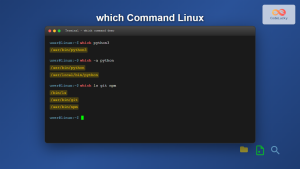
which Command Linux: Complete Guide to Finding Executable File Locations
The which command is one of the most fundamental utilities in Linux and Unix-like systems, designed to help users locate...
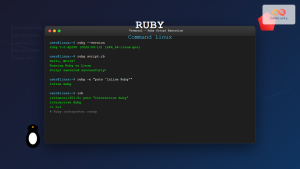
ruby Command Linux: Complete Guide to Running Ruby Scripts and Programs
The ruby command is a powerful tool for executing Ruby scripts and programs directly from the Linux command line. Whether...
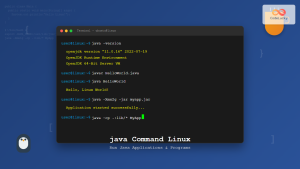
java Command Linux: Complete Guide to Running Java Applications and Programs
The java command is one of the most essential tools for developers working with Java applications on Linux systems. This...
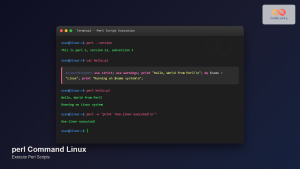
perl Command Linux: Complete Guide to Executing Perl Scripts on Linux Systems
The perl command is a powerful tool in Linux systems that allows you to execute Perl scripts and run Perl...