
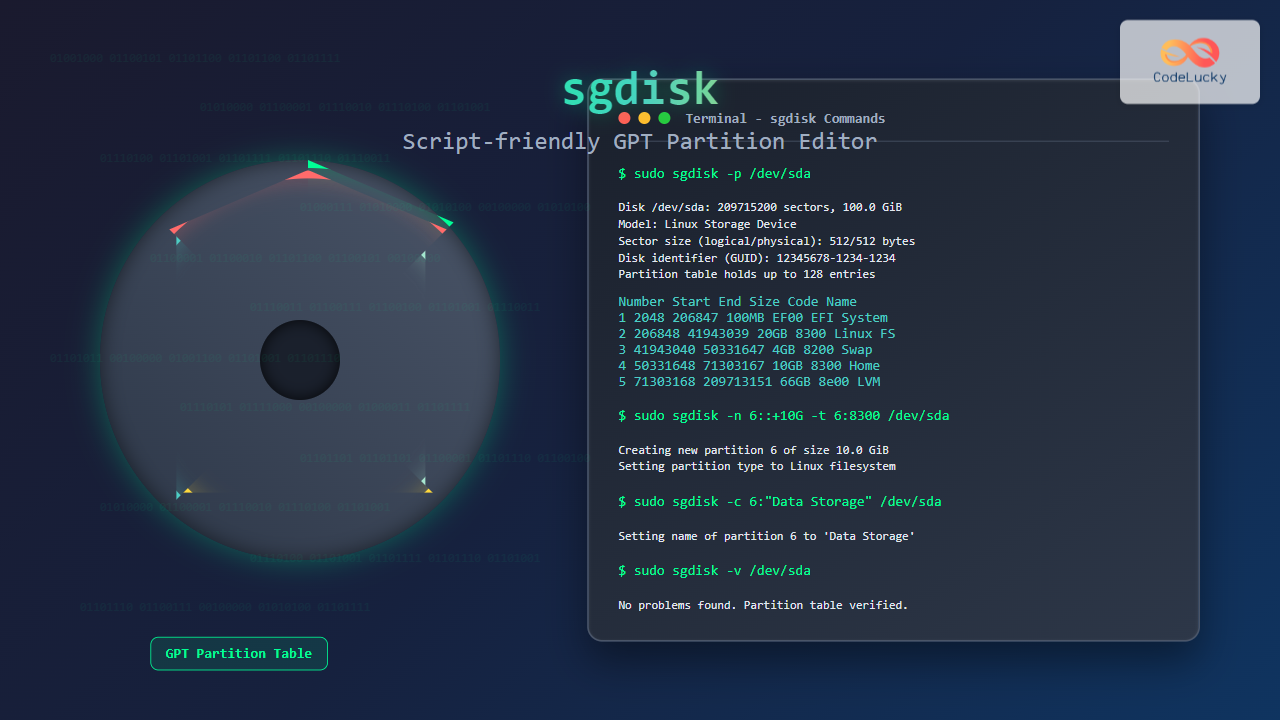
The sgdisk command is a powerful script-friendly alternative to the interactive gdisk utility for managing GPT (GUID Partition Table) partitions in Linux. Unlike traditional partitioning tools, sgdisk is designed specifically for automation and scripting scenarios, making it an essential tool for system administrators and DevOps professionals.
What is sgdisk Command?
sgdisk stands for “Script-friendly GPT disk partitioner” and is part of the GPT fdisk package. It provides a command-line interface for creating, modifying, and managing GPT partition tables without requiring user interaction, making it perfect for automated deployment scripts and system provisioning.
Key Features of sgdisk
- Non-interactive operation – All operations are performed via command-line arguments
- GPT-specific functionality – Full support for GUID Partition Tables
- Script-friendly output – Structured output suitable for parsing
- Batch operations – Multiple operations can be performed in a single command
- Advanced partition management – Support for partition attributes, type codes, and names
Installation and Prerequisites
Before using sgdisk, ensure it’s installed on your Linux system:
Ubuntu/Debian:
sudo apt update
sudo apt install gdisk
RHEL/CentOS/Fedora:
sudo yum install gdisk
# or for newer versions
sudo dnf install gdisk
Arch Linux:
sudo pacman -S gptfdiskBasic Syntax and Options
The general syntax of sgdisk follows this pattern:
sgdisk [options] deviceEssential Command Options
| Option | Description |
|---|---|
-p |
Print partition table |
-l |
List partition types |
-n |
Create new partition |
-d |
Delete partition |
-t |
Change partition type |
-c |
Change partition name |
-z |
Zap (destroy) GPT data structures |
-Z |
Zap GPT and MBR data structures |
Getting Started: Viewing Partition Information
Let’s start with basic commands to examine existing partitions:
Display Partition Table
sudo sgdisk -p /dev/sdaExpected Output:
Disk /dev/sda: 209715200 sectors, 100.0 GiB
Model: VBOX HARDDISK
Sector size (logical/physical): 512/512 bytes
Disk identifier (GUID): 12345678-1234-1234-1234-123456789ABC
Partition table holds up to 128 entries
Main partition table begins at sector 2 and ends at sector 33
First usable sector is 34, last usable sector is 209715166
Partitions will be aligned on 2048-sector boundaries
Total free space is 2014 sectors (1007.0 KiB)

Number  Start (sector)    End (sector)  Size       Code  Name
   1            2048          206847   100.0 MiB   EF00  EFI System
   2          206848       209713151   99.9 GiB    8300  Linux filesystem
List Available Partition Types
sgdisk -LCommon Partition Type Codes:
0700 Microsoft basic data
0c01 Microsoft reserved
2700 Windows RE
3000 ONIE boot
3001 ONIE config
4100 PowerPC PReP boot
4200 Windows LDM data
4201 Windows LDM metadata
7501 IBM GPFS
7f00 ChromeOS kernel
7f01 ChromeOS root
7f02 ChromeOS reserved
8200 Linux swap
8300 Linux filesystem
8301 Linux reserved
8302 Linux /home
8400 Intel Rapid Start
8e00 Linux LVM
a000 Android bootloader
a001 Android bootloader 2
a002 Android boot
ef00 EFI System
ef01 MBR partition scheme
ef02 BIOS boot partition
Creating and Managing Partitions
Creating New Partitions
The syntax for creating a new partition is:
sgdisk -n partition_number:start_sector:end_sector /dev/deviceExample: Creating a New Partition
# Create partition 3 starting at sector 1000000 and ending at sector 2000000
sudo sgdisk -n 3:1000000:2000000 /dev/sda

# Create partition using default start and specific size
sudo sgdisk -n 4::+500M /dev/sda

# Create partition using all remaining space
sudo sgdisk -n 5 /dev/sda
Setting Partition Types
# Set partition 3 as Linux filesystem
sudo sgdisk -t 3:8300 /dev/sda

# Set partition 4 as Linux swap
sudo sgdisk -t 4:8200 /dev/sda

# Set partition 5 as Linux LVM
sudo sgdisk -t 5:8e00 /dev/sda
Naming Partitions
# Set descriptive names for partitions
sudo sgdisk -c 3:"Data Storage" /dev/sda
sudo sgdisk -c 4:"Swap Space" /dev/sda
sudo sgdisk -c 5:"LVM Volume" /dev/sda
Practical Examples and Use Cases
Example 1: Complete Disk Setup for a Web Server
Let’s create a complete partition scheme for a web server with separate partitions for system, logs, and data:
#!/bin/bash
# Web server disk setup script

DEVICE="/dev/sdb"

# Zap any existing partition table
sudo sgdisk -Z $DEVICE

# Create partitions
sudo sgdisk -n 1::+1G -t 1:ef02 -c 1:"BIOS Boot" $DEVICE
sudo sgdisk -n 2::+20G -t 2:8300 -c 2:"Root Filesystem" $DEVICE
sudo sgdisk -n 3::+4G -t 3:8200 -c 3:"Swap" $DEVICE
sudo sgdisk -n 4::+10G -t 4:8300 -c 4:"Var Logs" $DEVICE
sudo sgdisk -n 5:: -t 5:8300 -c 5:"Web Data" $DEVICE

# Print the result
sudo sgdisk -p $DEVICE
Expected Output:
Disk /dev/sdb: 104857600 sectors, 50.0 GiB
Sector size (logical/physical): 512/512 bytes
Disk identifier (GUID): 87654321-4321-4321-4321-210987654321
Partition table holds up to 128 entries
Total free space is 2014 sectors (1007.0 KiB)

Number  Start (sector)    End (sector)  Size       Code  Name
   1            2048         2099199   1024.0 MiB  EF02  BIOS Boot
   2         2099200        43954175   19.9 GiB    8300  Root Filesystem
   3        43954176        52342783   4.0 GiB     8200  Swap
   4        52342784        73314303   10.0 GiB    8300  Var Logs
   5        73314304       104857566   15.0 GiB    8300  Web Data
Example 2: UEFI System Setup
# Create UEFI-compatible partition layout
sudo sgdisk -n 1::+550M -t 1:ef00 -c 1:"EFI System" /dev/sda
sudo sgdisk -n 2::+2G -t 2:8200 -c 2:"Linux Swap" /dev/sda
sudo sgdisk -n 3:: -t 3:8300 -c 3:"Linux Root" /dev/sda
Example 3: Database Server Configuration
# Database server with separate data and log partitions
sudo sgdisk -n 1::+512M -t 1:ef02 -c 1:"BIOS Boot" /dev/sdc
sudo sgdisk -n 2::+30G -t 2:8300 -c 2:"System" /dev/sdc
sudo sgdisk -n 3::+8G -t 3:8200 -c 3:"Swap" /dev/sdc
sudo sgdisk -n 4::+50G -t 4:8e00 -c 4:"Database Data" /dev/sdc
sudo sgdisk -n 5:: -t 5:8e00 -c 5:"Database Logs" /dev/sdc
Advanced Features and Operations
Batch Operations
Multiple operations can be combined in a single command:
# Create multiple partitions and set types in one command
sudo sgdisk -n 1::+500M -t 1:ef00 -c 1:"EFI" \
           -n 2::+2G -t 2:8200 -c 2:"Swap" \
           -n 3:: -t 3:8300 -c 3:"Root" \
           /dev/sda
Backup and Restore Partition Tables
# Backup partition table
sudo sgdisk -b /backup/sda-partition-backup.gpt /dev/sda

# Restore partition table
sudo sgdisk -l /backup/sda-partition-backup.gpt /dev/sda
Working with Partition Attributes
# Set partition attributes (e.g., required partition)
sudo sgdisk -A 1:set:0 /dev/sda

# Clear partition attributes
sudo sgdisk -A 1:clear:0 /dev/sda

# Show partition attributes
sudo sgdisk -A 1:show /dev/sda
Interactive Examples and Troubleshooting
Checking Partition Alignment
# Check if partitions are properly aligned
sudo sgdisk -v /dev/sda
Good Alignment Output:
No problems found. 2014 free sectors (1007.0 KiB) available in 1
segments, the largest of which is 2014 sectors (1007.0 KiB) in size.
Converting from MBR to GPT
# Convert MBR disk to GPT (CAUTION: Backup data first!)
sudo sgdisk -g /dev/sda
Randomizing Disk GUID
# Generate new random GUID for the disk
sudo sgdisk -G /dev/sda
Scripting Best Practices
Error Handling in Scripts
#!/bin/bash

DEVICE="/dev/sdb"

# Function to check command success
check_command() {
    if [ $? -ne 0 ]; then
        echo "Error: $1 failed"
        exit 1
    fi
}

# Zap existing partition table
sudo sgdisk -Z $DEVICE
check_command "Zapping partition table"

# Create new partitions
sudo sgdisk -n 1::+1G -t 1:ef02 $DEVICE
check_command "Creating boot partition"

sudo sgdisk -n 2:: -t 2:8300 $DEVICE
check_command "Creating root partition"

echo "Partitioning completed successfully"
Verification Script
#!/bin/bash

DEVICE="/dev/sda"

echo "=== Partition Table Information ==="
sudo sgdisk -p $DEVICE

echo -e "\n=== Verification Check ==="
sudo sgdisk -v $DEVICE

echo -e "\n=== Disk GUID ==="
sudo sgdisk -i 0 $DEVICE | grep "Disk identifier"
Common Use Cases and Scenarios
Container Host Setup
# Partition layout optimized for container workloads
sudo sgdisk -Z /dev/sda
sudo sgdisk -n 1::+512M -t 1:ef00 -c 1:"EFI System" /dev/sda
sudo sgdisk -n 2::+4G -t 2:8200 -c 2:"Swap" /dev/sda
sudo sgdisk -n 3::+20G -t 3:8300 -c 3:"Root FS" /dev/sda
sudo sgdisk -n 4::+30G -t 4:8300 -c 4:"Docker Storage" /dev/sda
sudo sgdisk -n 5:: -t 5:8300 -c 5:"Container Data" /dev/sda
Development Workstation
# Multi-boot development setup
sudo sgdisk -n 1::+512M -t 1:ef00 -c 1:"EFI System" /dev/nvme0n1
sudo sgdisk -n 2::+40G -t 2:8300 -c 2:"Ubuntu Root" /dev/nvme0n1
sudo sgdisk -n 3::+40G -t 3:0700 -c 3:"Windows" /dev/nvme0n1
sudo sgdisk -n 4::+8G -t 4:8200 -c 4:"Linux Swap" /dev/nvme0n1
sudo sgdisk -n 5:: -t 5:8300 -c 5:"Shared Data" /dev/nvme0n1
Performance Considerations
Optimal Partition Alignment
Modern SSDs and advanced format drives require proper partition alignment for optimal performance:
# Check current alignment settings
sudo sgdisk -D /dev/sda

# Create aligned partitions (default alignment is usually optimal)
sudo sgdisk -a 2048 -n 1::+10G /dev/sda
Partition Size Considerations
- EFI System Partition: 512MB minimum, 1GB recommended
- Swap Partition: Typically 1-2x RAM size for hibernation support
- Root Partition: Minimum 20GB, 50GB+ recommended for development
- Data Partitions: Size based on specific requirements
Security and Safety Tips
Before Using sgdisk
- Always backup important data before partitioning
- Double-check device names to avoid accidentally modifying the wrong disk
- Test scripts on non-production systems first
- Verify partition tables before proceeding with filesystem creation
Safe Practice Example
#!/bin/bash

DEVICE="/dev/sdb"

# Safety checks
if [ ! -b "$DEVICE" ]; then
    echo "Error: $DEVICE is not a valid block device"
    exit 1
fi

# Confirm with user
echo "WARNING: This will destroy all data on $DEVICE"
read -p "Are you sure you want to continue? (yes/no): " confirmation

if [ "$confirmation" != "yes" ]; then
    echo "Operation cancelled"
    exit 0
fi

# Proceed with partitioning...
echo "Proceeding with partitioning $DEVICE"
Conclusion
The sgdisk command is an essential tool for modern Linux system administration, offering powerful script-friendly capabilities for GPT partition management. Its non-interactive nature makes it perfect for automation, while its comprehensive feature set handles everything from basic partitioning to complex multi-disk scenarios.
Key takeaways for using sgdisk effectively:
- Always plan your partition layout before implementation
- Use descriptive partition names for better organization
- Implement proper error handling in automated scripts
- Regularly backup partition tables for disaster recovery
- Test thoroughly in non-production environments
Whether you’re provisioning cloud instances, setting up development environments, or managing production servers, mastering sgdisk will significantly improve your efficiency in disk management tasks. Remember to always prioritize data safety and follow best practices when working with partition tables.
Related Posts
cgdisk Command Linux: Complete Guide to Curses-Based GPT Partition Management
The cgdisk command is a powerful curses-based GPT (GUID Partition Table) partition editor for Linux systems. Unlike traditional command-line tools,...
sfdisk Command Linux: Complete Guide to Scriptable Partition Table Editor
The sfdisk command is a powerful and scriptable partition table editor in Linux that provides advanced functionality for managing disk...
gdisk Command Linux: Complete Guide to GPT Partition Table Management
The gdisk command is a powerful GPT (GUID Partition Table) partition editor for Linux systems that provides advanced capabilities for...
cfdisk Command Linux: Complete Guide to Curses-based Partition Management
The cfdisk command is a powerful, user-friendly partition table editor for Linux systems that provides a curses-based interface for managing...
gparted Command Linux: Complete Guide to Graphical Partition Management
The gparted command in Linux provides access to one of the most powerful and user-friendly graphical partition editors available for...
parted Command Linux: Complete Guide to Disk Partition Management
The parted command is a powerful disk partition manipulation program in Linux that allows you to create, resize, move, and...
fdisk Command Linux: Complete Guide to Disk Partition Management
The fdisk command is one of the most powerful and essential tools for disk partition management in Linux systems. Whether...
kpartx Command Linux: Create and Manage Partition Maps with Complete Examples
The kpartx command is a powerful Linux utility that creates device maps from partition tables, enabling you to access partitions...
mkfs Command Linux: Complete Guide to Creating Filesystems on Partitions
The mkfs command in Linux is a fundamental tool for creating filesystems on disk partitions. Whether you're setting up a...
vgdisplay Command Linux: Complete Guide to Display Volume Group Information
The vgdisplay command is an essential tool in Linux systems for displaying detailed information about Volume Groups (VGs) in Logical...
pvcreate Command Linux: Complete Guide to Creating Physical Volumes for LVM
The pvcreate command is a fundamental tool in Linux Logical Volume Management (LVM) that initializes storage devices as physical volumes....
vgcreate Command Linux: Complete Guide to Volume Group Creation
The vgcreate command is a fundamental tool in Linux Logical Volume Manager (LVM) that allows system administrators to create volume...





