
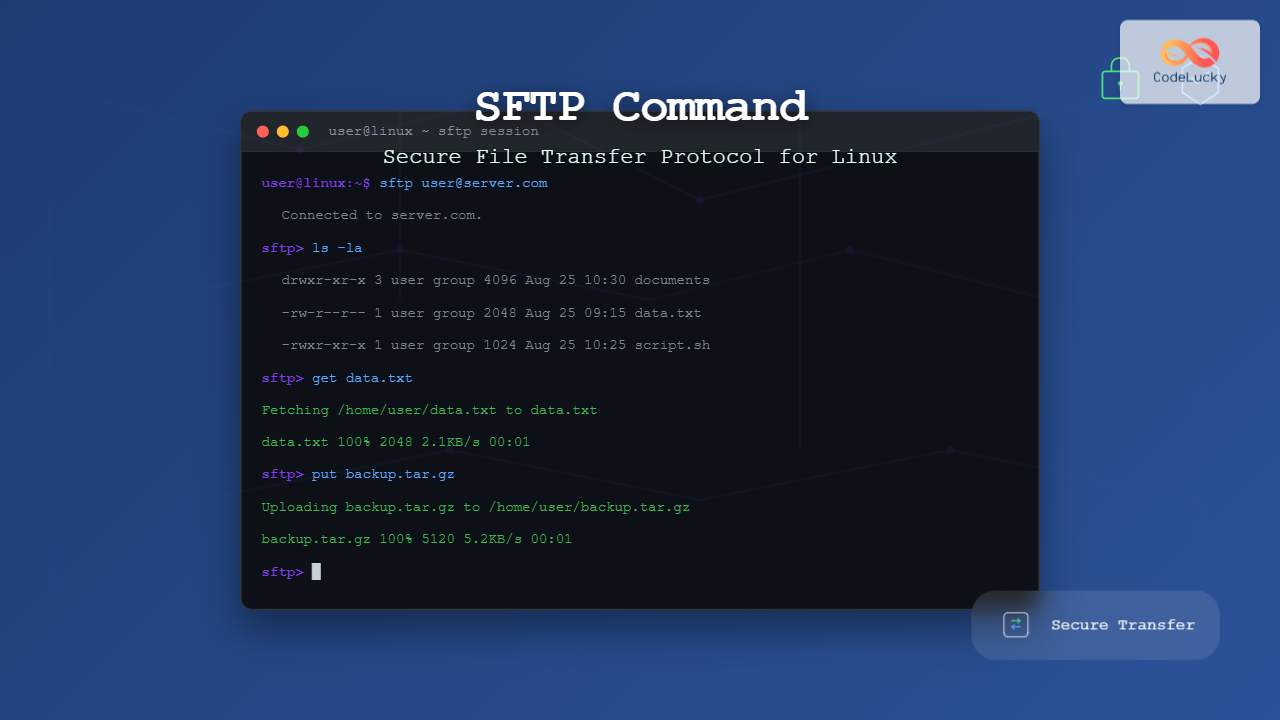
The sftp command (Secure File Transfer Protocol) is a powerful Linux utility that provides secure file transfer capabilities over an encrypted SSH connection. Unlike traditional FTP, SFTP ensures data integrity and confidentiality by encrypting all communications between client and server.
What is SFTP?
SFTP is a network protocol that combines the reliability of SSH with file transfer functionality. It operates on port 22 by default and provides:
- Encryption: All data transfers are encrypted end-to-end
- Authentication: Multiple authentication methods including password and key-based
- Integrity: Data corruption detection and prevention
- Firewall-friendly: Uses a single port for all operations
Basic SFTP Syntax
The basic syntax for the sftp command is:
sftp [options] [user@]hostname[:directory]Common SFTP Options
| Option | Description |
|---|---|
-P port |
Specify SSH port number |
-i identity_file |
Use specific private key for authentication |
-o ssh_option |
Pass SSH configuration options |
-v |
Enable verbose mode |
-C |
Enable compression |
-B buffer_size |
Set buffer size for transfers |
Connecting to SFTP Server
Basic Connection
Connect to an SFTP server using username and password:
$ sftp [email protected]
[email protected]'s password:
Connected to example.com.
sftp>
Connection with Custom Port
$ sftp -P 2222 [email protected]
Connected to example.com.
sftp>
Key-Based Authentication
$ sftp -i ~/.ssh/private_key [email protected]
Connected to example.com.
sftp>
Essential SFTP Commands
Navigation Commands
pwd – Print Working Directory
sftp> pwd
Remote working directory: /home/user
lpwd – Local Print Working Directory
sftp> lpwd
Local working directory: /home/localuser
ls – List Remote Directory
sftp> ls
documents    downloads    pictures    videos
file1.txt    file2.pdf    script.sh
lls – List Local Directory
sftp> lls
Desktop  Documents  Downloads  Music  Pictures  Videos
cd – Change Remote Directory
sftp> cd documents
sftp> pwd
Remote working directory: /home/user/documents
lcd – Change Local Directory
sftp> lcd /tmp
sftp> lpwd
Local working directory: /tmp
File Transfer Commands
get – Download Files from Server
Download a single file:
sftp> get file1.txt
Fetching /home/user/file1.txt to file1.txt
/home/user/file1.txt                    100%  1024    1.2KB/s   00:01
Download with different local name:
sftp> get remote_file.txt local_file.txtDownload multiple files using wildcards:
sftp> get *.txt
Fetching /home/user/file1.txt to file1.txt
Fetching /home/user/file2.txt to file2.txt
put – Upload Files to Server
Upload a single file:
sftp> put local_file.txt
Uploading local_file.txt to /home/user/local_file.txt
local_file.txt                          100%  2048    2.1KB/s   00:01
Upload with different remote name:
sftp> put local_file.txt remote_file.txtUpload multiple files:
sftp> put *.pdf
Uploading document1.pdf to /home/user/document1.pdf
Uploading document2.pdf to /home/user/document2.pdf
mget – Download Multiple Files
sftp> mget *.log
Fetching /home/user/app1.log to app1.log
Fetching /home/user/app2.log to app2.log
Fetching /home/user/error.log to error.log
mput – Upload Multiple Files
sftp> mput *.jpg
Uploading photo1.jpg to /home/user/photo1.jpg
Uploading photo2.jpg to /home/user/photo2.jpg
Directory Operations
mkdir – Create Remote Directory
sftp> mkdir backup
sftp> ls
backup       documents    downloads
lmkdir – Create Local Directory
sftp> lmkdir temp_folderrmdir – Remove Remote Directory
sftp> rmdir old_folderrename – Rename Remote File/Directory
sftp> rename old_name.txt new_name.txtrm – Remove Remote File
sftp> rm unwanted_file.txtAdvanced SFTP Features
Recursive Directory Transfer
Download entire directory structure:
sftp> get -r remote_directory
Fetching /home/user/remote_directory/ to remote_directory/
Entering /home/user/remote_directory/
Fetching /home/user/remote_directory/file1.txt to remote_directory/file1.txt
Fetching /home/user/remote_directory/subfolder/ to remote_directory/subfolder/
Upload entire directory structure:
sftp> put -r local_directoryFile Permissions and Attributes
chmod – Change Remote File Permissions
sftp> chmod 755 script.sh
Changing mode on /home/user/script.sh
chown – Change Remote File Ownership
sftp> chown user:group file.txtls -la – Detailed File Listing
sftp> ls -la
drwxr-xr-x    3 user     group        4096 Aug 25 10:30 .
drwxr-xr-x    5 user     group        4096 Aug 24 15:20 ..
-rw-r--r--    1 user     group        1024 Aug 25 09:15 file1.txt
-rwxr-xr-x    1 user     group        2048 Aug 25 10:25 script.sh
Progress and Resume
Enabling Progress Indicators
sftp> progress
Progress meter enabled
Resume Interrupted Transfers
sftp> reget partially_downloaded_file.zipSFTP Configuration and Customization
SSH Configuration File
Create or edit ~/.ssh/config for easier connections:
Host myserver
    HostName example.com
    User myusername
    Port 2222
    IdentityFile ~/.ssh/myserver_key
Then connect simply with:
$ sftp myserverBatch Mode Operations
Create a batch file sftp_commands.txt:
cd /remote/directory
lcd /local/directory
get *.txt
put backup.tar.gz
quit
Execute batch commands:
$ sftp -b sftp_commands.txt [email protected]Security Best Practices
Key-Based Authentication Setup
Generate SSH key pair:
$ ssh-keygen -t rsa -b 4096 -f ~/.ssh/sftp_keyCopy public key to server:
$ ssh-copy-id -i ~/.ssh/sftp_key.pub [email protected]Restricting SFTP Access
Configure SSH server to restrict users to SFTP-only access by editing /etc/ssh/sshd_config:
Match User sftpuser
    ChrootDirectory /home/sftpuser
    ForceCommand internal-sftp
    AllowTcpForwarding no
    X11Forwarding no
Troubleshooting Common Issues
Connection Refused
Check if SSH service is running:
$ systemctl status sshVerify correct port:
$ nmap -p 22 example.comPermission Denied
Check SSH key permissions:
$ chmod 600 ~/.ssh/private_key
$ chmod 644 ~/.ssh/private_key.pub
Verbose Debugging
Use verbose mode for detailed connection information:
$ sftp -v [email protected]Performance Optimization
Compression
Enable compression for better performance over slow connections:
$ sftp -C [email protected]Parallel Transfers
Use multiple connections for faster transfers:
$ sftp -o "ControlMaster=auto" -o "ControlPath=/tmp/ssh-%r@%h:%p" [email protected]Alternative SFTP Tools
lftp
A more feature-rich alternative:
$ lftp sftp://[email protected]rsync over SSH
For synchronization tasks:
$ rsync -avz -e ssh source/ [email protected]:/destination/Conclusion
The sftp command is an essential tool for secure file transfers in Linux environments. Its integration with SSH provides robust security while maintaining ease of use. Whether you’re managing servers, backing up data, or transferring files between systems, mastering SFTP commands will significantly enhance your Linux administration skills.
Remember to always use key-based authentication when possible, keep your systems updated, and follow security best practices to maintain a secure file transfer environment.
Related Posts
scp Command Linux: Complete Guide to Secure File Transfer Over SSH
The scp (Secure Copy Protocol) command is one of the most essential tools in Linux for securely transferring files between...
ssh Command Linux: Secure Shell Remote Access Tutorial with Examples
The ssh command in Linux, short for Secure Shell, is one of the most essential tools for system administrators, developers,...

ftp Command Linux: Complete Guide to File Transfer Protocol Client Operations
The ftp command in Linux is a powerful client utility for transferring files between local and remote systems using the...
curl Command Linux: Complete Guide to Transfer Data from Servers with Examples
The curl command is one of the most powerful and versatile tools in the Linux command-line arsenal for transferring data...
ssh-keygen Linux: Complete Guide to Generate SSH Key Pairs Securely
SSH key authentication is one of the most secure methods for connecting to remote servers. The ssh-keygen command is a...

PHP HTTPS and SSL: Securing Data Transmission
In today's digital landscape, securing data transmission is paramount. As a PHP developer, understanding how to implement HTTPS and SSL...
openssl Command Linux: Complete Guide to Cryptography and SSL Certificate Management
The openssl command is one of the most powerful and versatile cryptographic tools available in Linux systems. This comprehensive toolkit...

gpg Command Linux: Complete Guide to GNU Privacy Guard Encryption and Digital Signatures
GNU Privacy Guard (GPG) is a powerful encryption tool that implements the OpenPGP standard, providing cryptographic privacy and authentication for...
ssh-copy-id Linux: Complete Guide to Copying SSH Keys to Remote Servers
The ssh-copy-id command is an essential Linux utility that simplifies the process of copying your SSH public key to remote...
denyhosts Linux: Complete SSH Brute Force Attack Prevention Guide
SSH brute force attacks are among the most common security threats facing Linux servers today. Attackers continuously attempt to gain...

Socket Programming: Complete Guide to Network Inter-process Communication in Operating Systems
Socket programming forms the backbone of network communication in modern operating systems, enabling processes to communicate across different machines or...

portsentry Linux: Complete Guide to Automated Port Scan Attack Detection and Prevention
Port scanning is one of the most common reconnaissance techniques used by attackers to identify vulnerable services on target systems....





