
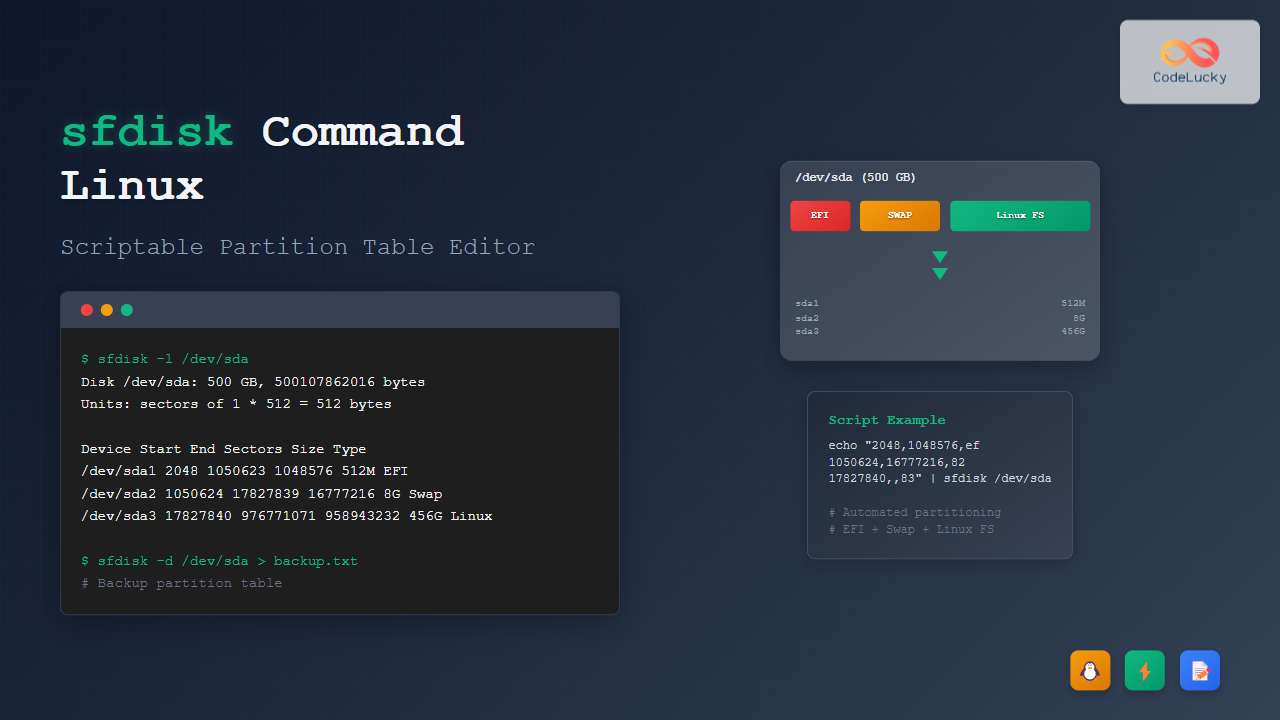
The sfdisk command is a powerful and scriptable partition table editor in Linux that provides advanced functionality for managing disk partitions. Unlike interactive tools like fdisk, sfdisk excels at automating partition operations through scripts, making it invaluable for system administrators and advanced users who need to perform batch operations or create reproducible partition layouts.
What is sfdisk?
sfdisk (Script-oriented fdisk) is a command-line utility that manipulates partition tables on block devices. It’s part of the util-linux package and offers both interactive and non-interactive modes. The tool supports various partition table formats including MBR (Master Boot Record) and GPT (GUID Partition Table).
Key Features of sfdisk
- Scriptable operations – Perfect for automation and batch processing
- Backup and restore – Can save and restore partition table layouts
- Multiple formats – Supports MBR, GPT, and other partition schemes
- Precise control – Allows exact specification of partition boundaries
- Non-destructive operations – Can simulate changes before applying them
Basic Syntax and Options
The general syntax for sfdisk is:
sfdisk [options] deviceCommon Options
| Option | Description |
|---|---|
-l, --list |
List partition tables |
-d, --dump |
Dump partition table in sfdisk format |
-g, --show-geometry |
Show disk geometry |
-s, --show-size |
Show device size |
-V, --verify |
Verify partition table |
-A, --activate |
Mark partition as bootable |
-n, --no-act |
Don’t write to disk (dry run) |
-f, --force |
Force operation |
Viewing Partition Information
List All Partition Tables
To view partition tables for all available devices:
sfdisk -lExample Output:
Disk /dev/sda: 465.76 GiB, 500107862016 bytes, 976773168 sectors
Disk model: Samsung SSD 860
Units: sectors of 1 * 512 = 512 bytes
Sector size (logical/physical): 512 bytes / 512 bytes
I/O size (minimum/optimal): 512 bytes / 512 bytes
Disklabel type: gpt
Disk identifier: 12345678-1234-1234-1234-123456789ABC

Device       Start       End   Sectors   Size Type
/dev/sda1     2048   1050623   1048576   512M EFI System
/dev/sda2  1050624  17827839  16777216     8G Linux swap
/dev/sda3 17827840 976771071 958943232 457.2G Linux filesystem
List Specific Device
To view partition table for a specific device:
sfdisk -l /dev/sdaShow Device Geometry
Display detailed geometry information:
sfdisk -g /dev/sdaExample Output:
/dev/sda: 60801 cylinders, 255 heads, 63 sectors/trackShow Device Size
Get device size in sectors:
sfdisk -s /dev/sdaExample Output:
488386584Dumping and Backing Up Partition Tables
Dump Partition Table
Create a backup of the current partition table:
sfdisk -d /dev/sda > partition_backup.txtExample Output in backup file:
label: gpt
label-id: 12345678-1234-1234-1234-123456789ABC
device: /dev/sda
unit: sectors
first-lba: 34
last-lba: 976773134

/dev/sda1 : start=        2048, size=     1048576, type=C12A7328-F81F-11D2-BA4B-00A0C93EC93B
/dev/sda2 : start=     1050624, size=    16777216, type=0657FD6D-A4AB-43C4-84E5-0933C84B4F4F
/dev/sda3 : start=    17827840, size=   958943232, type=0FC63DAF-8483-4772-8E79-3D69D8477DE4
Restore Partition Table
Restore from a backup:
sfdisk /dev/sda < partition_backup.txtCreating New Partition Tables
Interactive Mode
Start sfdisk in interactive mode:
sfdisk /dev/sdbYou’ll see a prompt where you can enter partition specifications:
Welcome to sfdisk (util-linux 2.34).
Changes will remain in memory only, until you decide to write them.
Be careful before using the write command.

Device does not contain a recognized partition table.
Created a new DOS disklabel with disk identifier 0x12345678.

New situation:
Disklabel type: dos
Disk identifier: 0x12345678

Device     Boot Start End Sectors Size Id Type
/dev/sdb1        2048        -       - 512M 83 Linux

>>>
Scriptable Partitioning
Create partitions using a script file:
cat > partition_script.txt << EOF
label: dos
device: /dev/sdb
unit: sectors

/dev/sdb1 : start=2048, size=1048576, type=83
/dev/sdb2 : start=1050624, size=2097152, type=82
/dev/sdb3 : start=3147776, size=+, type=83
EOF

sfdisk /dev/sdb < partition_script.txt
One-liner Partitioning
Create partitions with echo and pipe:
echo "2048,1048576,83
1050624,2097152,82
3147776,,83" | sfdisk /dev/sdb
Advanced sfdisk Operations
Resize Partitions
Resize the last partition to use all available space:
echo ", +" | sfdisk -N 3 /dev/sdbThis command modifies partition 3 (-N 3) to extend to the end of the disk.
Delete Partitions
Delete a specific partition:
echo "" | sfdisk -N 2 /dev/sdbActivate Boot Flag
Mark a partition as bootable:
sfdisk -A /dev/sdb 1Change Partition Type
Change partition type using type codes:
echo ", , 83" | sfdisk -N 1 /dev/sdbWorking with GPT Partition Tables
Create GPT Table
cat > gpt_script.txt << EOF
label: gpt
device: /dev/sdb
unit: sectors
first-lba: 34
last-lba: 2097118

/dev/sdb1 : start=2048, size=1048576, type=C12A7328-F81F-11D2-BA4B-00A0C93EC93B, name="EFI System"
/dev/sdb2 : start=1050624, size=1046528, type=0FC63DAF-8483-4772-8E79-3D69D8477DE4, name="Linux filesystem"
EOF

sfdisk /dev/sdb < gpt_script.txt
Common GPT Partition Type GUIDs
| Type | GUID |
|---|---|
| EFI System | C12A7328-F81F-11D2-BA4B-00A0C93EC93B |
| Linux filesystem | 0FC63DAF-8483-4772-8E79-3D69D8477DE4 |
| Linux swap | 0657FD6D-A4AB-43C4-84E5-0933C84B4F4F |
| Linux LVM | E6D6D379-F507-44C2-A23C-238F2A3DF928 |
Verification and Safety Features
Dry Run Mode
Test operations without writing to disk:
sfdisk -n /dev/sdb < partition_script.txtVerify Partition Table
Check partition table consistency:
sfdisk -V /dev/sdbExample Output:
/dev/sdb: OKCheck Specific Partition
Verify a specific partition:
sfdisk -V -n 1 /dev/sdbPractical Examples and Use Cases
Example 1: Setting Up a Development Server
Create a partition layout for a development server with separate partitions for root, home, and swap:
#!/bin/bash
# Development server partitioning script

DEVICE="/dev/sdb"

cat > dev_server_layout.txt << EOF
label: gpt
device: $DEVICE
unit: sectors

# EFI System Partition (512MB)
${DEVICE}1 : start=2048, size=1048576, type=C12A7328-F81F-11D2-BA4B-00A0C93EC93B, name="EFI System"

# Root partition (20GB)
${DEVICE}2 : start=1050624, size=41943040, type=0FC63DAF-8483-4772-8E79-3D69D8477DE4, name="Root"

# Swap partition (8GB)
${DEVICE}3 : start=42993664, size=16777216, type=0657FD6D-A4AB-43C4-84E5-0933C84B4F4F, name="Swap"

# Home partition (remaining space)
${DEVICE}4 : start=59770880, size=+, type=0FC63DAF-8483-4772-8E79-3D69D8477DE4, name="Home"
EOF

# Dry run first
echo "Testing partition layout..."
sfdisk -n $DEVICE < dev_server_layout.txt

# Apply if test passes
if [ $? -eq 0 ]; then
    echo "Applying partition layout..."
    sfdisk $DEVICE < dev_server_layout.txt
else
    echo "Partition layout test failed!"
    exit 1
fi
Example 2: Cloning Partition Layout
Clone partition layout from one disk to another:
#!/bin/bash
# Clone partition layout script

SOURCE_DISK="/dev/sda"
TARGET_DISK="/dev/sdb"

echo "Backing up partition table from $SOURCE_DISK..."
sfdisk -d $SOURCE_DISK > source_layout.txt

echo "Applying layout to $TARGET_DISK..."
sfdisk $TARGET_DISK < source_layout.txt

echo "Verification:"
sfdisk -V $TARGET_DISK
Example 3: Automated USB Drive Preparation
Prepare a USB drive with a specific layout:
#!/bin/bash
# USB drive preparation script

USB_DEVICE="/dev/sdc"

# Create a simple layout with one large partition
echo "Preparing USB drive $USB_DEVICE..."

cat << EOF | sfdisk $USB_DEVICE
label: dos
device: $USB_DEVICE
unit: sectors

${USB_DEVICE}1 : start=2048, size=+, type=c, bootable
EOF

echo "USB drive partitioned successfully!"
sfdisk -l $USB_DEVICE
Error Handling and Troubleshooting
Common Error Messages
Device or resource busy:
sfdisk: cannot open /dev/sdb: Device or resource busySolution: Unmount all partitions on the device first:
umount /dev/sdb*Permission denied:
sfdisk: cannot open /dev/sdb: Permission deniedSolution: Run with sudo privileges:
sudo sfdisk /dev/sdbRecovery Procedures
If you accidentally corrupt a partition table:
- Stop immediately – Don’t make further changes
- Use testdisk – Attempt automatic recovery
- Restore from backup – If you have a sfdisk dump
- Recreate manually – As last resort using known partition boundaries
Best Practices and Security Considerations
Always Backup First
# Create backup before any operation
sfdisk -d /dev/sda > backup_$(date +%Y%m%d_%H%M%S).txt
Use Dry Run Mode
# Test operations first
sfdisk -n /dev/sdb < partition_script.txt
Verify Operations
# Always verify after changes
sfdisk -V /dev/sdb
sfdisk -l /dev/sdb
Script Safety Measures
#!/bin/bash
set -e  # Exit on any error
set -u  # Exit on undefined variables

# Check if device exists
if [[ ! -b "$DEVICE" ]]; then
    echo "Error: Device $DEVICE does not exist"
    exit 1
fi

# Confirm operation
read -p "This will modify $DEVICE. Continue? (y/N): " confirm
if [[ $confirm != "y" ]]; then
    echo "Operation cancelled"
    exit 0
fi
Integration with Other Tools
Using with LVM
Create partitions for LVM setup:
# Create LVM partition
echo "2048,,8e" | sfdisk /dev/sdb

# Create physical volume
pvcreate /dev/sdb1

# Create volume group
vgcreate myvg /dev/sdb1
Using with RAID
Prepare disks for software RAID:
# Create identical layouts on multiple disks
for disk in /dev/sdb /dev/sdc; do
    echo "2048,,fd" | sfdisk $disk
done

# Create RAID array
mdadm --create /dev/md0 --level=1 --raid-devices=2 /dev/sdb1 /dev/sdc1
Performance Considerations
Alignment Optimization
For SSDs and modern drives, ensure proper alignment:
# Start partition at 1MB boundary (sector 2048 for 512-byte sectors)
echo "2048,,83" | sfdisk /dev/sdb
Checking Alignment
# Check partition alignment
sfdisk -l /dev/sdb | grep "does not start on physical sector boundary"
Conclusion
The sfdisk command is an essential tool for Linux system administrators who need precise control over disk partitioning. Its scriptable nature makes it perfect for automation, backup and restore operations, and creating reproducible partition layouts across multiple systems.
Key takeaways:
- Always backup partition tables before making changes
- Use dry run mode to test operations
- Verify partition tables after modifications
- Consider alignment for optimal performance
- Implement proper error handling in scripts
Whether you’re setting up new systems, cloning disk layouts, or automating deployment processes, sfdisk provides the flexibility and power needed for professional disk management tasks. Its integration capabilities with other Linux tools make it an invaluable component of any system administrator’s toolkit.
Related Posts
sgdisk Command Linux: Complete Guide to Script-Friendly GPT Partition Management
The sgdisk command is a powerful script-friendly alternative to the interactive gdisk utility for managing GPT (GUID Partition Table) partitions...
fdisk Command Linux: Complete Guide to Disk Partition Management
The fdisk command is one of the most powerful and essential tools for disk partition management in Linux systems. Whether...
cfdisk Command Linux: Complete Guide to Curses-based Partition Management
The cfdisk command is a powerful, user-friendly partition table editor for Linux systems that provides a curses-based interface for managing...
parted Command Linux: Complete Guide to Disk Partition Management
The parted command is a powerful disk partition manipulation program in Linux that allows you to create, resize, move, and...
cgdisk Command Linux: Complete Guide to Curses-Based GPT Partition Management
The cgdisk command is a powerful curses-based GPT (GUID Partition Table) partition editor for Linux systems. Unlike traditional command-line tools,...
gdisk Command Linux: Complete Guide to GPT Partition Table Management
The gdisk command is a powerful GPT (GUID Partition Table) partition editor for Linux systems that provides advanced capabilities for...
gparted Command Linux: Complete Guide to Graphical Partition Management
The gparted command in Linux provides access to one of the most powerful and user-friendly graphical partition editors available for...
kpartx Command Linux: Create and Manage Partition Maps with Complete Examples
The kpartx command is a powerful Linux utility that creates device maps from partition tables, enabling you to access partitions...
mkfs Command Linux: Complete Guide to Creating Filesystems on Partitions
The mkfs command in Linux is a fundamental tool for creating filesystems on disk partitions. Whether you're setting up a...
lsblk Command Linux: Complete Guide to List and Manage Block Devices
The lsblk command is an essential Linux utility that displays information about block devices in a tree-like format. Whether you're...

blkid Command Linux: Complete Guide to Display Block Device Information
The blkid command is an essential Linux utility that displays information about block devices, including file system types, UUIDs, labels,...
dd Command Linux: Complete Guide to Low-Level File Operations and Disk Cloning
The dd command is one of the most powerful yet dangerous utilities in Linux, often referred to as "disk destroyer"...





