
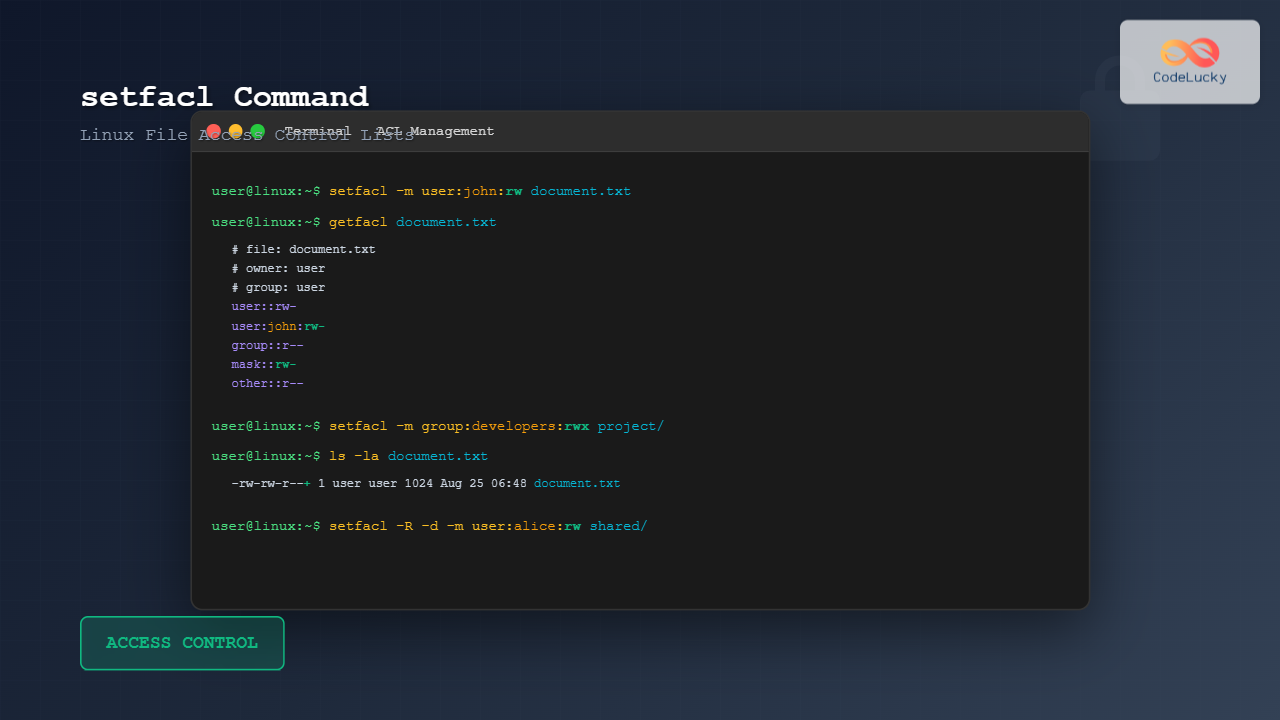
The setfacl command is a powerful Linux utility that allows you to set and modify File Access Control Lists (ACLs) on files and directories. While traditional Unix permissions provide basic read, write, and execute controls for owner, group, and others, ACLs extend this functionality by enabling fine-grained permission management for multiple users and groups.
Understanding File Access Control Lists (ACLs)
Before diving into the setfacl command, it’s essential to understand what ACLs are and why they’re useful:
- Extended Permissions: ACLs provide more granular control than standard Unix permissions
- Multiple Users/Groups: Assign different permissions to multiple users and groups on the same file
- Inheritance: Directory ACLs can be inherited by new files and subdirectories
- Backward Compatibility: ACLs work alongside traditional Unix permissions
Basic Syntax and Options
The basic syntax of the setfacl command is:
setfacl [OPTIONS] {-m|-x} acl_spec file(s)
setfacl [OPTIONS] {-M|-X} acl_file file(s)
Common Options
| Option | Description |
|---|---|
-m, --modify |
Modify the current ACL of file(s) |
-x, --remove |
Remove specific ACL entries |
-b, --remove-all |
Remove all extended ACL entries |
-k, --remove-default |
Remove default ACL entries |
-R, --recursive |
Apply operations recursively |
-d, --default |
Set default ACL for directories |
--mask |
Recalculate the effective rights mask |
ACL Entry Format
ACL entries follow a specific format:
[default:][user|group|other|mask]:[name]:[permissions]Permission Types
r– Read permissionw– Write permissionx– Execute permission-– No permission
Practical Examples
Example 1: Setting User Permissions
Let’s start by creating a test file and setting ACL permissions for a specific user:
# Create a test file
$ touch example.txt
$ ls -l example.txt
-rw-rw-r-- 1 user user 0 Aug 25 06:46 example.txt

# Grant read and write permissions to user 'john'
$ setfacl -m user:john:rw example.txt

# View the ACL
$ getfacl example.txt
# file: example.txt
# owner: user
# group: user
user::rw-
user:john:rw-
group::rw-
mask::rw-
other::r--
Notice how the file listing now shows a + symbol indicating extended ACL:
$ ls -l example.txt
-rw-rw-r--+ 1 user user 0 Aug 25 06:46 example.txt
Example 2: Setting Group Permissions
You can also set permissions for specific groups:
# Grant read and execute permissions to group 'developers'
$ setfacl -m group:developers:rx example.txt

# View the updated ACL
$ getfacl example.txt
# file: example.txt
# owner: user
# group: user
user::rw-
user:john:rw-
group::rw-
group:developers:r-x
mask::rwx
other::r--
Example 3: Multiple ACL Entries
You can set multiple ACL entries in a single command:
# Set permissions for multiple users and groups
$ setfacl -m user:alice:r,user:bob:rw,group:admins:rwx example.txt

# View the comprehensive ACL
$ getfacl example.txt
# file: example.txt
# owner: user
# group: user
user::rw-
user:alice:r--
user:bob:rw-
user:john:rw-
group::rw-
group:admins:rwx
group:developers:r-x
mask::rwx
other::r--
Example 4: Directory ACLs and Inheritance
ACLs on directories can be set to affect the directory itself and provide default ACLs for new files:
# Create a test directory
$ mkdir test_dir

# Set directory ACL and default ACL
$ setfacl -m user:john:rwx,default:user:john:rw test_dir

# View directory ACL
$ getfacl test_dir
# file: test_dir
# owner: user
# group: user
user::rwx
user:john:rwx
group::rwx
mask::rwx
other::r-x
default:user::rwx
default:user:john:rw-
default:group::rwx
default:mask::rwx
default:other::r-x
Now, any new file created in this directory will inherit the default ACL:
# Create a file in the directory
$ touch test_dir/new_file.txt

# Check inherited ACL
$ getfacl test_dir/new_file.txt
# file: test_dir/new_file.txt
# owner: user
# group: user
user::rw-
user:john:rw-
group::rwx                      #effective:rw-
mask::rw-
other::r--
Example 5: Removing ACL Entries
You can remove specific ACL entries or all extended ACLs:
# Remove specific user ACL
$ setfacl -x user:john example.txt

# Remove specific group ACL
$ setfacl -x group:developers example.txt

# Remove all extended ACL entries
$ setfacl -b example.txt

# Remove default ACLs from directory
$ setfacl -k test_dir
Example 6: Recursive ACL Operations
For applying ACLs to directories and all their contents:
# Create directory structure
$ mkdir -p project/{src,docs,tests}
$ touch project/src/main.c project/docs/readme.txt project/tests/test.sh

# Apply ACL recursively
$ setfacl -R -m user:developer:rw,group:team:r project/

# Verify ACL on nested file
$ getfacl project/src/main.c
# file: project/src/main.c
# owner: user
# group: user
user::rw-
user:developer:rw-
group::rw-
group:team:r--
mask::rw-
other::r--
Example 7: Using ACL Files
For complex ACL configurations, you can use ACL files:
# Create ACL configuration file
$ cat > acl_config.txt << EOF
user:alice:rw-
user:bob:r--
group:developers:rwx
group:testers:r--
EOF

# Apply ACL from file
$ setfacl -M acl_config.txt important_file.txt
Advanced Use Cases
Web Server Configuration
Setting up ACLs for web server files:
# Allow web server user to read files, developers to write
$ setfacl -R -m user:www-data:r,group:developers:rw /var/www/html/

# Set default ACLs for new files
$ setfacl -R -d -m user:www-data:r,group:developers:rw /var/www/html/
Shared Development Environment
Creating a shared project directory with proper ACLs:
# Create shared project directory
$ mkdir /shared/project
$ setfacl -m group:developers:rwx /shared/project
$ setfacl -d -m group:developers:rw /shared/project
$ setfacl -d -m other::--- /shared/project
Best Practices
- Start Simple: Begin with basic ACLs and add complexity as needed
- Document Changes: Keep records of ACL modifications for system maintenance
- Regular Audits: Periodically review ACL configurations using
getfacl - Backup ACLs: Save ACL configurations before major changes
- Test Thoroughly: Verify ACL effects with different user accounts
- Use Groups: Prefer group-based ACLs over individual user ACLs for maintainability
Common Troubleshooting
Filesystem Support
Ensure your filesystem supports ACLs:
# Check if filesystem is mounted with ACL support
$ mount | grep acl

# If not, remount with ACL support
$ sudo mount -o remount,acl /dev/sda1
Permission Conflicts
Understanding how ACLs interact with traditional permissions:
# The effective permission is the intersection of ACL and mask
$ setfacl -m user:john:rwx,mask::r example.txt
# john's effective permission will be 'r--' due to mask restriction
Performance Considerations
- ACLs have minimal performance impact on modern systems
- Extensive recursive operations on large directory trees may take time
- Consider using default ACLs to reduce the need for recursive operations
- Regular ACL cleanup helps maintain system performance
Integration with System Tools
Many system tools now support ACLs:
cpwith-pflag preserves ACLsrsyncwith-Aflag synchronizes ACLstarcan archive and restore ACLs with proper options
# Copy file with ACLs preserved
$ cp -p source_file.txt destination_file.txt

# Sync directories with ACLs
$ rsync -avA source_dir/ destination_dir/
The setfacl command is an essential tool for Linux system administrators who need fine-grained access control. By mastering ACLs, you can create sophisticated permission schemes that go far beyond traditional Unix permissions, enabling secure and flexible multi-user environments. Remember to always test ACL configurations thoroughly and maintain good documentation of your access control policies.
Related Posts
getfacl Command Linux: Complete Guide to File Access Control Lists Management
The getfacl command in Linux is a powerful utility that allows system administrators and users to view Access Control Lists...
File Permissions in Operating System: Complete Guide to Access Control Lists (ACLs)
Introduction to File Permissions and Access Control File permissions form the backbone of operating system security, controlling who can access,...
chmod Command in Linux: Complete File Permissions Tutorial with Examples
The chmod command is one of the most essential Linux commands for managing file and directory permissions. Whether you're a...
umask Command Linux: Set Default File Permissions with Examples
The umask command is a fundamental Linux utility that controls the default permissions assigned to newly created files and directories....
chgrp Command in Linux: Complete Guide to Change Group Ownership
The chgrp command is an essential Linux utility that allows you to change the group ownership of files and directories....
Access Control Matrix: Comprehensive Guide to Permission Management Systems
Introduction to Access Control Matrix An Access Control Matrix (ACM) is a fundamental security model used in operating systems to...

chown Command Linux: Master File and Directory Ownership Management
The chown command is one of the most fundamental tools in Linux system administration, allowing users to change file and...
groups Command Linux: Complete Guide to Display User Group Memberships
The groups command is a fundamental Linux utility that displays the group memberships of users on your system. Understanding how...
chattr Command Linux: Complete Guide to Change File Attributes with Examples
The chattr command in Linux is a powerful utility that allows system administrators and users to change file attributes on...
usermod Command Linux: Complete Guide to Modify User Account Properties
The usermod command is a powerful Linux utility that allows system administrators to modify existing user account properties without deleting...

Role-based Access Control: Complete Implementation Guide for Modern Systems
Introduction to Role-based Access Control (RBAC) Role-based Access Control (RBAC) is a security paradigm that restricts system access based on...
xattr Command Linux: Complete Guide to Extended File Attributes Management
Extended file attributes in Linux provide a powerful mechanism to store additional metadata beyond traditional file permissions and ownership. The...





