
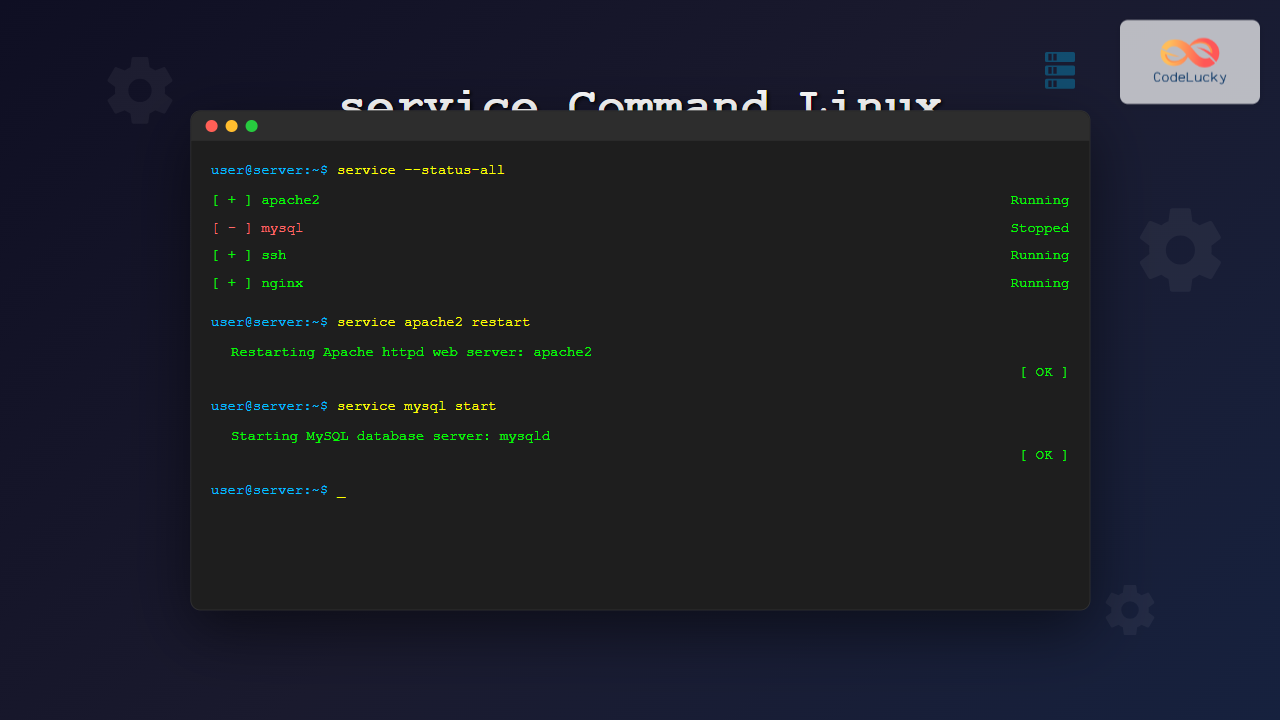
The service command is a fundamental tool in Linux system administration that allows you to manage system services and daemons efficiently. Whether you’re starting, stopping, or checking the status of services, mastering this command is essential for maintaining a healthy Linux environment.
What is the service Command?
The service command is a system administration utility that provides a standardized interface for controlling System V init scripts. It acts as a wrapper around the init scripts located in /etc/init.d/, making service management more intuitive and consistent across different Linux distributions.
Basic Syntax and Options
The general syntax of the service command is:
service [service-name] [action]
service --status-all
service --help
Common Actions
- start – Start a service
- stop – Stop a service
- restart – Restart a service
- reload – Reload service configuration
- status – Check service status
- force-reload – Force reload configuration
Starting Services
To start a service, use the start action:
sudo service apache2 startExpected Output:
Starting Apache httpd web server: apache2
                                          [ OK ]
You can also start multiple services in sequence:
sudo service mysql start
sudo service nginx start
Stopping Services
To stop a running service:
sudo service apache2 stopExpected Output:
Stopping Apache httpd web server: apache2
                                          [ OK ]
Restarting Services
The restart action stops and then starts a service:
sudo service ssh restartExpected Output:
Restarting OpenBSD Secure Shell server: sshd
                                               [ OK ]
Checking Service Status
To check if a service is running:
service apache2 statusExpected Output for Running Service:
Apache2 is running (pid 1234).Expected Output for Stopped Service:
Apache2 is stopped.Listing All Services
To view the status of all services:
service --status-allSample Output:
 [ + ]  apache2
 [ - ]  bluetooth
 [ + ]  cron
 [ + ]  dbus
 [ - ]  mysql
 [ + ]  networking
 [ + ]  ssh
Legend:
[ + ]– Service is running[ - ]– Service is stopped[ ? ]– Service status is unknown
Reloading Service Configuration
The reload action refreshes a service’s configuration without stopping it:
sudo service nginx reloadExpected Output:
Reloading nginx configuration: nginx
                                     [ OK ]
Common Service Examples
Managing Web Services
# Apache web server
sudo service apache2 start
sudo service apache2 stop
sudo service apache2 restart
sudo service apache2 reload

# Nginx web server
sudo service nginx start
sudo service nginx stop
sudo service nginx restart
sudo service nginx reload
Database Services
# MySQL database
sudo service mysql start
sudo service mysql stop
sudo service mysql restart
service mysql status

# PostgreSQL database
sudo service postgresql start
sudo service postgresql stop
sudo service postgresql restart
Network Services
# SSH service
sudo service ssh start
sudo service ssh stop
sudo service ssh restart
service ssh status

# Network Manager
sudo service network-manager restart
Interactive Service Management Example
Here’s a practical scenario where you troubleshoot a web server:
# Step 1: Check if Apache is running
service apache2 status

# Output: Apache2 is stopped.

# Step 2: Start the service
sudo service apache2 start

# Output: Starting Apache httpd web server: apache2 [OK]

# Step 3: Verify it's running
service apache2 status

# Output: Apache2 is running (pid 2458).

# Step 4: Test configuration and reload
sudo apache2ctl configtest
sudo service apache2 reload

# Output: Syntax OK
# Output: Reloading Apache httpd web server: apache2 [OK]
Error Handling and Troubleshooting
Common Error Messages
Service not found:
service: unrecognized service

# Solution: Check available services
ls /etc/init.d/
Permission denied:
service: access denied

# Solution: Use sudo
sudo service servicename start
Service failed to start:
Starting servicename: servicename [FAILED]

# Check logs
sudo tail -f /var/log/syslog
# or
sudo journalctl -u servicename
Best Practices
1. Always Check Status First
service servicename status2. Use Reload Instead of Restart When Possible
# Preferred for configuration changes
sudo service nginx reload

# Only when necessary
sudo service nginx restart
3. Monitor Service Logs
sudo tail -f /var/log/servicename.log4. Verify Service After Changes
sudo service apache2 restart
service apache2 status
curl -I http://localhost
service vs systemctl
Modern Linux distributions use systemd, where systemctl is preferred:
| service command | systemctl equivalent |
|---|---|
service apache2 start |
systemctl start apache2 |
service apache2 stop |
systemctl stop apache2 |
service apache2 restart |
systemctl restart apache2 |
service apache2 status |
systemctl status apache2 |
Advanced Usage Tips
Running Multiple Service Operations
# Stop multiple services
for service in apache2 mysql redis-server; do
    sudo service $service stop
done

# Start services in specific order
services=("mysql" "redis-server" "apache2")
for service in "${services[@]}"; do
    sudo service $service start
    sleep 2
done
Creating Custom Service Scripts
You can create custom init scripts in /etc/init.d/:
sudo nano /etc/init.d/myservice
sudo chmod +x /etc/init.d/myservice
sudo service myservice start
Security Considerations
- Use sudo: Always use sudo for service management commands
- Verify services: Only run services you actually need
- Monitor logs: Regular monitoring helps detect issues early
- Update regularly: Keep services updated for security patches
Conclusion
The service command remains a valuable tool for Linux system administration, providing a simple and consistent interface for managing system services. While newer systems prefer systemctl, understanding the service command is crucial for working with older systems and scripts.
Master these service management techniques to maintain robust Linux systems, troubleshoot issues efficiently, and ensure your services run smoothly. Remember to always check service status, use appropriate actions for your needs, and monitor logs for any issues.
Practice these commands in a safe environment first, and always have backups before making significant changes to production systems.
Related Posts
systemctl Command Linux: Complete Guide to Control Systemd Services
The systemctl command is the primary tool for controlling systemd services in modern Linux distributions. As the central management utility...

systemd Linux: Complete Guide to System and Service Manager
systemd is a powerful system and service manager that has become the default init system for most modern Linux distributions....

update-rc.d Command Linux: Complete Guide to Managing System Services and Run Levels
The update-rc.d command is a powerful utility in Debian-based Linux distributions that manages the symbolic links for System V init...

sv Command Linux: Master Runit Service Control and Management
The sv command is a powerful utility in Linux systems that serves as the primary interface for controlling services managed...

init Command Linux: Complete Guide to Process Control and System Initialization
The init command in Linux serves as the cornerstone of system initialization and process control. As the first process started...
runit Linux: Complete Guide to Unix Init Scheme with Service Supervision
runit is a lightweight, cross-platform Unix init scheme with service supervision that provides a reliable alternative to traditional init systems....

launchd Linux: Understanding the Service Management Framework for System Administrators
The launchd service management framework has become an essential tool for Linux system administrators who need robust process and service...

rc-update Command Linux: Complete Guide to Managing OpenRC Services
The rc-update command is a powerful utility in Linux systems that use OpenRC as their init system, primarily found in...

s6-svc Command Linux: Complete Guide to Managing s6 Services
The s6-svc command is a powerful utility in the s6 process supervision suite that allows system administrators to control and...

sysvinit Linux: Complete Guide to System V Initialization System
The System V initialization system (sysvinit) is a traditional init system that has been the backbone of Unix and Linux...
chkconfig Command Linux: Complete Guide to System Service Management
The chkconfig command is a powerful system administration tool in Red Hat-based Linux distributions that allows you to configure system...

shepherd Linux: Complete Guide to GNU Guix Service Manager
The shepherd is GNU Guix's native service manager, designed to provide a robust and flexible alternative to traditional init systems...





