
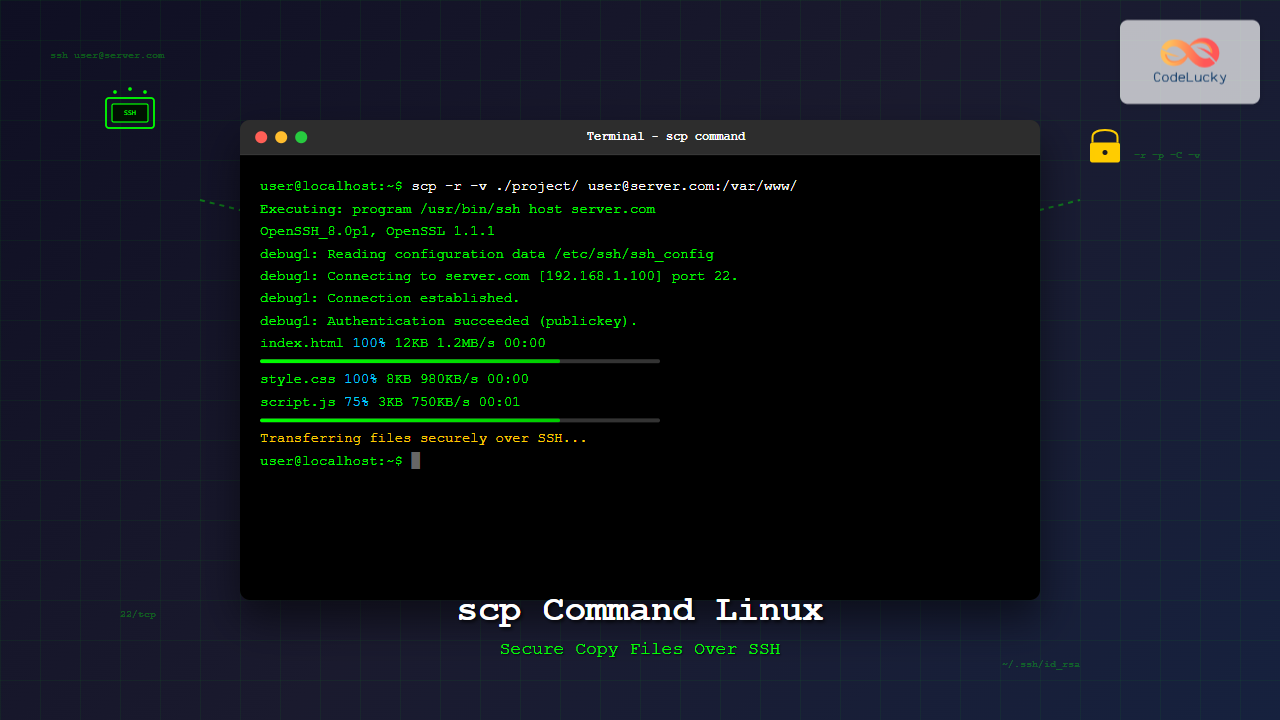
The scp (Secure Copy Protocol) command is one of the most essential tools in Linux for securely transferring files between local and remote systems over SSH. Built on top of SSH protocol, scp provides encrypted file transfers, making it the preferred choice for system administrators and developers who need to move files across networks safely.
In this comprehensive guide, we’ll explore everything you need to know about the scp command, from basic syntax to advanced usage scenarios with practical examples.
What is the scp Command?
The scp command stands for “Secure Copy Protocol” and is a network protocol that supports file transfers between hosts on a network. It uses SSH (Secure Shell) for data transfer and authentication, ensuring that your files are encrypted during transmission.
Key Features of scp:
- Encrypted transfers: All data is encrypted using SSH
- Authentication: Uses SSH keys or password authentication
- Preserves file attributes: Maintains timestamps, permissions, and modes
- Recursive copying: Can copy entire directory structures
- Cross-platform: Works between different Unix-like systems
Basic Syntax and Structure
The basic syntax of the scp command follows this pattern:
scp [options] source destinationWhere:
source– The file or directory to copy fromdestination– The location to copy to[options]– Various flags to modify behavior
Remote Path Format
For remote files, use the format:
[user@]hostname:pathExamples:
[email protected]:/home/user/file.txt[email protected]:/var/log/[email protected]:/etc/nginx/nginx.conf
Essential scp Command Options
| Option | Description |
|---|---|
-r |
Recursively copy directories |
-p |
Preserve file timestamps and modes |
-v |
Verbose output (show progress) |
-C |
Enable compression |
-P port |
Specify SSH port (capital P) |
-i key |
Use specific SSH private key |
-o option |
Pass options to SSH |
-q |
Quiet mode (suppress output) |
Basic File Transfer Examples
1. Copy Local File to Remote Server
scp /path/to/local/file.txt [email protected]:/path/to/destination/Example:
scp document.pdf [email protected]:/home/john/Documents/Expected Output:
document.pdf 100% 245KB 2.1MB/s 00:002. Copy Remote File to Local System
scp [email protected]:/path/to/remote/file.txt /local/destination/Example:
scp [email protected]:/var/log/apache2/access.log ./logs/Expected Output:
access.log 100% 1.2MB 890KB/s 00:013. Copy File Between Two Remote Servers
scp [email protected]:/path/file.txt [email protected]:/path/destination/Example:
scp [email protected]:/backup/database.sql [email protected]:/tmp/Directory Transfer Examples
1. Copy Directory Recursively
Use the -r flag to copy entire directories:
scp -r /local/directory/ [email protected]:/remote/path/Example:
scp -r ./website/ [email protected]:/var/www/html/Expected Output:
index.html                            100%   12KB   1.2MB/s   00:00
style.css                             100%    8KB   980KB/s   00:00
script.js                             100%    5KB   750KB/s   00:00
images/logo.png                       100%   45KB   2.1MB/s   00:00
images/banner.jpg                     100%  156KB   3.2MB/s   00:00
2. Preserve File Attributes
Use -p to maintain original timestamps and permissions:
scp -rp /local/backup/ [email protected]:/backups/Advanced scp Usage
1. Using Custom SSH Port
When your SSH server runs on a non-standard port:
scp -P 2222 file.txt [email protected]:/home/user/Note: Use capital -P for port specification (unlike ssh which uses lowercase -p).
2. Using SSH Private Key
scp -i ~/.ssh/private_key file.txt [email protected]:/home/user/Example:
scp -i ~/.ssh/aws-key.pem application.zip [email protected]:/home/ec2-user/3. Enable Compression for Large Files
Use -C to compress data during transfer:
scp -C large-file.tar.gz [email protected]:/tmp/4. Verbose Output for Troubleshooting
scp -v file.txt [email protected]:/home/user/Sample Verbose Output:
Executing: program /usr/bin/ssh host server.com, user user, command scp -v -t /home/user/
OpenSSH_8.0p1, OpenSSL 1.1.1c  28 May 2019
debug1: Reading configuration data /etc/ssh/ssh_config
debug1: Connecting to server.com [192.168.1.100] port 22.
debug1: Connection established.
debug1: Authentication succeeded (publickey).
file.txt                              100%    1KB     1.2KB/s   00:00
Practical Real-World Examples
1. Website Deployment
# Deploy website files to production server
scp -r ./dist/ [email protected]:/var/www/html/

# Deploy with compression for faster transfer
scp -rC ./dist/ [email protected]:/var/www/html/
2. Database Backup Transfer
# Transfer database backup to backup server
scp -C database_backup_$(date +%Y%m%d).sql [email protected]:/backups/mysql/

# Transfer with custom SSH key
scp -i ~/.ssh/backup-key -C backup.sql [email protected]:/encrypted/backups/
3. Log File Collection
# Collect application logs from multiple servers
scp app-server1.com:/var/log/app.log ./logs/app-server1.log
scp app-server2.com:/var/log/app.log ./logs/app-server2.log
scp app-server3.com:/var/log/app.log ./logs/app-server3.log
4. Configuration File Synchronization
# Sync configuration files across servers
scp -p /etc/nginx/nginx.conf [email protected]:/etc/nginx/
scp -p /etc/nginx/nginx.conf [email protected]:/etc/nginx/
Using Wildcards and Multiple Files
Transfer Multiple Files
# Multiple specific files
scp file1.txt file2.txt file3.txt [email protected]:/home/user/

# Using wildcards (quote them to prevent local expansion)
scp "*.txt" [email protected]:/home/user/documents/

# Copy all .conf files
scp /etc/nginx/*.conf [email protected]:/backup/nginx/
Security Best Practices
1. Use SSH Keys Instead of Passwords
# Generate SSH key pair
ssh-keygen -t rsa -b 4096 -C "[email protected]"

# Copy public key to remote server
ssh-copy-id [email protected]

# Use scp with key authentication
scp -i ~/.ssh/id_rsa file.txt [email protected]:/home/user/
2. Specify SSH Options
# Disable host key checking for automated scripts (use carefully)
scp -o StrictHostKeyChecking=no file.txt [email protected]:/tmp/

# Set connection timeout
scp -o ConnectTimeout=10 file.txt [email protected]:/home/user/

# Use specific cipher
scp -o Cipher=aes256-ctr file.txt [email protected]:/home/user/
Error Handling and Troubleshooting
Common Error Messages and Solutions
1. Permission Denied
scp: /remote/path/file.txt: Permission deniedSolutions:
- Check file permissions on the destination directory
- Ensure the user has write permissions
- Use sudo if necessary:
scp file.txt [email protected]:/tmp/ && ssh [email protected] 'sudo mv /tmp/file.txt /root/'
2. Host Key Verification Failed
Host key verification failed.Solutions:
- Remove old host key:
ssh-keygen -R hostname - Accept new host key manually:
ssh user@hostname
3. Connection Refused
ssh: connect to host server.com port 22: Connection refusedSolutions:
- Check if SSH service is running on remote host
- Verify the correct port number
- Check firewall settings
Performance Optimization Tips
1. Use Compression for Large Files
# Enable compression
scp -C large-file.tar [email protected]:/home/user/

# For multiple files
scp -rC ./large-directory/ [email protected]:/backup/
2. Parallel Transfers
For multiple files, use parallel processing:
# Using GNU parallel (if available)
parallel -j4 scp {} [email protected]:/destination/ ::: file1.txt file2.txt file3.txt file4.txt

# Using background processes
scp file1.txt [email protected]:/dest/ &
scp file2.txt [email protected]:/dest/ &
scp file3.txt [email protected]:/dest/ &
wait
3. Optimize SSH Configuration
Add to ~/.ssh/config:
Host myserver
    HostName server.example.com
    User myuser
    Port 22
    IdentityFile ~/.ssh/my_key
    Compression yes
    ServerAliveInterval 60
Then use:
scp file.txt myserver:/home/myuser/Automation and Scripting
Bash Script Example
#!/bin/bash
# Automated backup script using scp

SOURCE_DIR="/important/data"
REMOTE_SERVER="[email protected]"
REMOTE_PATH="/backups/daily"
DATE=$(date +%Y%m%d_%H%M%S)
BACKUP_NAME="backup_${DATE}.tar.gz"

# Create compressed backup
tar -czf "/tmp/${BACKUP_NAME}" "${SOURCE_DIR}"

# Transfer to backup server
if scp -C "/tmp/${BACKUP_NAME}" "${REMOTE_SERVER}:${REMOTE_PATH}/"; then
    echo "Backup successful: ${BACKUP_NAME}"
    rm "/tmp/${BACKUP_NAME}"
else
    echo "Backup failed!"
    exit 1
fi
Alternatives to scp
While scp is excellent for basic file transfers, consider these alternatives for specific use cases:
- rsync: Better for synchronizing files and handling interruptions
- sftp: Interactive file transfer with more features
- pscp (PuTTY): Windows equivalent of scp
- wget/curl: For downloading files from web servers
Conclusion
The scp command is an indispensable tool for secure file transfers in Linux environments. Its integration with SSH provides robust security, while its straightforward syntax makes it accessible for both beginners and advanced users. Whether you’re deploying applications, backing up data, or managing configuration files across multiple servers, mastering scp will significantly improve your workflow efficiency.
Remember to always prioritize security by using SSH keys, keeping your systems updated, and following the principle of least privilege when setting up file transfer operations. With the examples and techniques covered in this guide, you’re well-equipped to handle any file transfer scenario securely and efficiently.
Related Posts
sftp Command Linux: Complete Guide to Secure File Transfer Protocol
The sftp command (Secure File Transfer Protocol) is a powerful Linux utility that provides secure file transfer capabilities over an...
ssh Command Linux: Secure Shell Remote Access Tutorial with Examples
The ssh command in Linux, short for Secure Shell, is one of the most essential tools for system administrators, developers,...

ftp Command Linux: Complete Guide to File Transfer Protocol Client Operations
The ftp command in Linux is a powerful client utility for transferring files between local and remote systems using the...

curl Command Linux: Complete Guide to Transfer Data from Servers with Examples
The curl command is one of the most powerful and versatile tools in the Linux command-line arsenal for transferring data...
ssh-copy-id Linux: Complete Guide to Copying SSH Keys to Remote Servers
The ssh-copy-id command is an essential Linux utility that simplifies the process of copying your SSH public key to remote...
ssh-keygen Linux: Complete Guide to Generate SSH Key Pairs Securely
SSH key authentication is one of the most secure methods for connecting to remote servers. The ssh-keygen command is a...

rsync Command Linux: Complete Guide to Sync Files and Directories Efficiently
The rsync command is one of the most powerful and versatile file synchronization utilities available in Linux systems. Whether you're...
openssl Command Linux: Complete Guide to Cryptography and SSL Certificate Management
The openssl command is one of the most powerful and versatile cryptographic tools available in Linux systems. This comprehensive toolkit...
cp Command Linux: Copy Files and Directories with Examples and Best Practices
The cp command is one of the most fundamental and frequently used commands in Linux systems. It allows you to...

gpg Command Linux: Complete Guide to GNU Privacy Guard Encryption and Digital Signatures
GNU Privacy Guard (GPG) is a powerful encryption tool that implements the OpenPGP standard, providing cryptographic privacy and authentication for...

wget Command Linux: Complete Guide to Download Files from Internet
The wget command is one of the most powerful and versatile tools in Linux for downloading files from the internet....
chmod Command in Linux: Complete File Permissions Tutorial with Examples
The chmod command is one of the most essential Linux commands for managing file and directory permissions. Whether you're a...





