
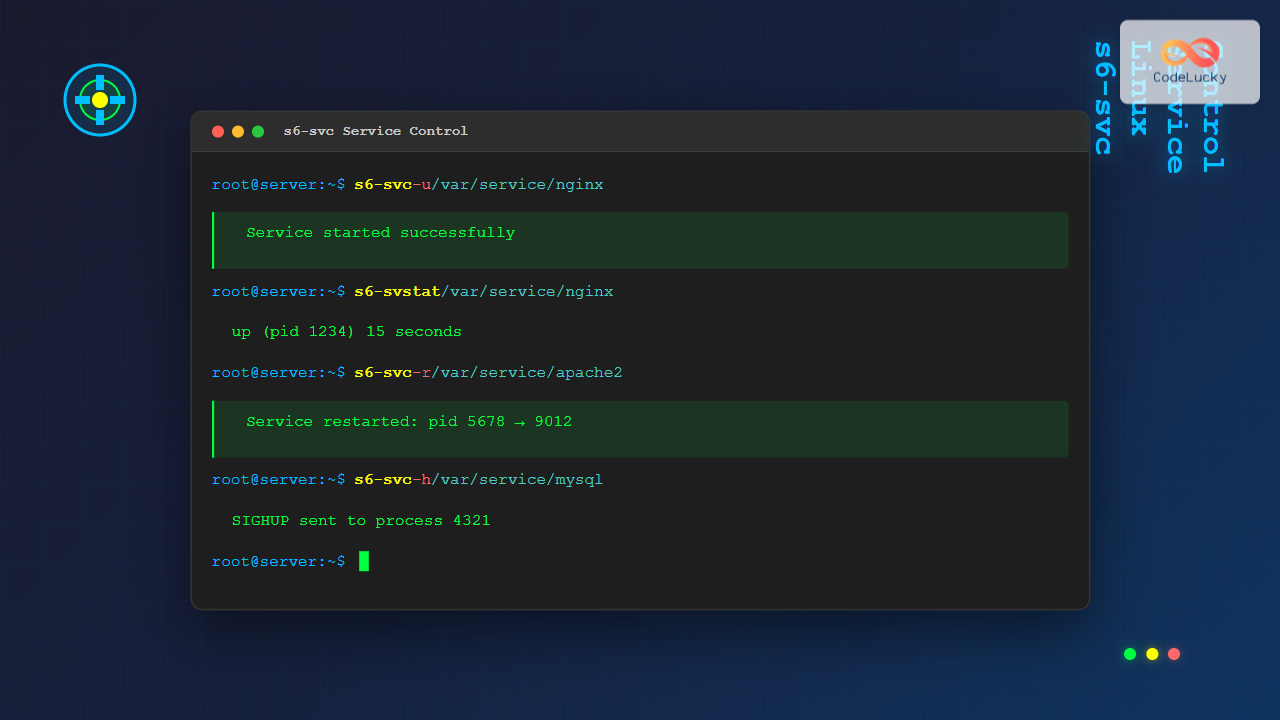
The s6-svc command is a powerful utility in the s6 process supervision suite that allows system administrators to control and manage s6 services effectively. As part of the s6 init system, this command provides granular control over service states, making it essential for modern Linux system management.
What is s6-svc?
The s6-svc command is the primary interface for sending control signals to services managed by the s6 supervision system. It communicates with the s6-supervise process to change service states, restart services, and manage service dependencies. Unlike traditional init systems, s6 provides real-time service supervision with automatic restarts and dependency management.
Basic Syntax and Usage
The basic syntax of the s6-svc command follows this pattern:
s6-svc [options] servicedirWhere servicedir is the path to the service directory containing the service configuration and run scripts.
Common Options
| Option | Description |
|---|---|
| -u | Start the service (up) |
| -d | Stop the service (down) |
| -r | Restart the service |
| -k | Kill the service |
| -t | Send SIGTERM to the service |
| -i | Send SIGINT to the service |
| -1 | Send SIGUSR1 to the service |
| -2 | Send SIGUSR2 to the service |
| -p | Send SIGSTOP to the service |
| -c | Send SIGCONT to the service |
| -h | Send SIGHUP to the service |
| -a | Send SIGALRM to the service |
| -q | Send SIGQUIT to the service |
Starting Services
To start a service using s6-svc, use the -u option:
$ s6-svc -u /var/service/nginxThis command instructs the s6-supervise process to start the nginx service. The service will be brought up according to its run script configuration.
Example Output
$ s6-svc -u /var/service/nginx
$ s6-svstat /var/service/nginx
up (pid 1234) 5 seconds
The service is now running with process ID 1234 and has been up for 5 seconds.
Stopping Services
To stop a running service, use the -d option:
$ s6-svc -d /var/service/nginxThis sends a termination signal to the service and prevents automatic restart by s6-supervise.
Verification
$ s6-svstat /var/service/nginx
down 10 seconds, normally up
The output confirms the service has been stopped and is in a “normally up” state, meaning it would restart automatically if the system were rebooted.
Restarting Services
The restart option -r provides a clean way to restart services:
$ s6-svc -r /var/service/apache2This command stops the current process and immediately starts a new instance, useful for applying configuration changes.
Restart Process Flow
$ s6-svstat /var/service/apache2
up (pid 5678) 120 seconds
$ s6-svc -r /var/service/apache2
$ s6-svstat /var/service/apache2
up (pid 9012) 2 seconds
Notice how the process ID changed from 5678 to 9012, indicating a complete restart.
Sending Signals to Services
s6-svc allows sending various signals to services for different purposes:
Graceful Reload with SIGHUP
$ s6-svc -h /var/service/nginxMany services interpret SIGHUP as a signal to reload configuration without stopping:
$ s6-svc -h /var/service/nginx
$ tail -f /var/log/nginx/error.log
2025/08/26 01:55:12 [notice] 1234#0: signal 1 (SIGHUP) received, reconfiguring
2025/08/26 01:55:12 [notice] 1234#0: configuration file test successful
Graceful Shutdown with SIGTERM
$ s6-svc -t /var/service/databaseSIGTERM allows processes to perform cleanup operations before terminating.
Advanced Service Control
Killing Unresponsive Services
When a service doesn’t respond to normal termination signals, use the kill option:
$ s6-svc -k /var/service/stuck-processThis sends SIGKILL, forcibly terminating the process:
$ s6-svstat /var/service/stuck-process
up (pid 3456) 300 seconds
$ s6-svc -k /var/service/stuck-process
$ s6-svstat /var/service/stuck-process
up (pid 7890) 1 second
Process Suspension and Continuation
Temporarily suspend a service:
$ s6-svc -p /var/service/cpu-intensiveResume the suspended service:
$ s6-svc -c /var/service/cpu-intensiveManaging Multiple Services
s6-svc can operate on multiple services simultaneously:
$ s6-svc -u /var/service/nginx /var/service/mysql /var/service/redisThis starts all three services with a single command. You can verify the status:
$ s6-svstat /var/service/nginx /var/service/mysql /var/service/redis
/var/service/nginx: up (pid 1111) 15 seconds
/var/service/mysql: up (pid 2222) 15 seconds
/var/service/redis: up (pid 3333) 15 seconds
Service Directory Structure
Understanding the s6 service directory structure is crucial for effective service management:
/var/service/myapp/
├── run                 # Main service script
├── finish             # Cleanup script (optional)
├── down              # Prevents auto-start if present
└── supervise/        # s6-supervise working directory
    ├── control       # Control FIFO
    ├── lock          # Supervisor lock file
    ├── pid           # Process ID file
    └── status        # Service status file
Practical Examples
Web Server Management
Managing a web server cluster:
# Start web servers
$ s6-svc -u /var/service/nginx /var/service/apache2

# Reload configurations
$ s6-svc -h /var/service/nginx /var/service/apache2

# Check status
$ s6-svstat /var/service/nginx /var/service/apache2
/var/service/nginx: up (pid 4444) 60 seconds
/var/service/apache2: up (pid 5555) 45 seconds
Database Service Control
Controlled database shutdown and startup:
# Graceful shutdown
$ s6-svc -t /var/service/postgresql
$ sleep 5
$ s6-svstat /var/service/postgresql
down 3 seconds, normally up

# Restart database
$ s6-svc -u /var/service/postgresql
$ s6-svstat /var/service/postgresql
up (pid 6666) 2 seconds
Error Handling and Troubleshooting
Common Issues
When s6-svc fails to control a service, check these common issues:
$ s6-svc -u /var/service/broken-service
s6-svc: fatal: unable to control /var/service/broken-service: supervisor not running
This error indicates the s6-supervise process isn’t running. Start supervision:
$ s6-supervise /var/service/broken-service &Permission Issues
$ s6-svc -u /var/service/restricted-service
s6-svc: fatal: unable to control /var/service/restricted-service: access denied
Ensure proper permissions on the service directory and run as appropriate user.
Integration with System Management
Service Dependencies
Create startup scripts that handle dependencies:
#!/bin/bash
# Start database first
s6-svc -u /var/service/mysql
sleep 2

# Then start application
s6-svc -u /var/service/webapp

# Finally start reverse proxy
s6-svc -u /var/service/nginx
Monitoring Integration
Combine s6-svc with monitoring scripts:
#!/bin/bash
# Health check and restart if needed
if ! s6-svstat /var/service/critical-app | grep -q "up"; then
    echo "Service down, restarting..."
    s6-svc -u /var/service/critical-app
fi
Best Practices
- Use appropriate signals: Always try SIGTERM before SIGKILL
- Monitor service states: Regularly check service status with s6-svstat
- Handle dependencies: Start services in correct order
- Log operations: Keep records of service management actions
- Test thoroughly: Verify service behavior after control operations
Comparison with Other Init Systems
| Feature | s6-svc | systemctl | service |
|---|---|---|---|
| Start Service | s6-svc -u | systemctl start | service start |
| Stop Service | s6-svc -d | systemctl stop | service stop |
| Restart Service | s6-svc -r | systemctl restart | service restart |
| Send Signal | s6-svc -h | systemctl kill -s | killall -HUP |
| Real-time Control | Yes | Limited | No |
Conclusion
The s6-svc command provides comprehensive control over s6-supervised services with its rich set of options and reliable operation. Its ability to send precise signals, manage multiple services, and integrate with system scripts makes it an essential tool for system administrators using the s6 supervision suite. By mastering s6-svc, you gain fine-grained control over service management in modern Linux environments.
Regular practice with s6-svc commands, combined with understanding of service dependencies and proper signal handling, will enable you to build robust and maintainable service management workflows in your Linux systems.
Related Posts

sv Command Linux: Master Runit Service Control and Management
The sv command is a powerful utility in Linux systems that serves as the primary interface for controlling services managed...
s6 Linux: Complete Guide to Small and Secure Service Manager
The s6 service manager represents a revolutionary approach to Linux process supervision, offering a lightweight and secure alternative to traditional...
service Command Linux: Complete Guide to Managing System Services
The service command is a fundamental tool in Linux system administration that allows you to manage system services and daemons...
systemctl Command Linux: Complete Guide to Control Systemd Services
The systemctl command is the primary tool for controlling systemd services in modern Linux distributions. As the central management utility...
runit Linux: Complete Guide to Unix Init Scheme with Service Supervision
runit is a lightweight, cross-platform Unix init scheme with service supervision that provides a reliable alternative to traditional init systems....

systemd Linux: Complete Guide to System and Service Manager
systemd is a powerful system and service manager that has become the default init system for most modern Linux distributions....

init Command Linux: Complete Guide to Process Control and System Initialization
The init command in Linux serves as the cornerstone of system initialization and process control. As the first process started...

launchd Linux: Understanding the Service Management Framework for System Administrators
The launchd service management framework has become an essential tool for Linux system administrators who need robust process and service...

sysvinit Linux: Complete Guide to System V Initialization System
The System V initialization system (sysvinit) is a traditional init system that has been the backbone of Unix and Linux...
telinit Command Linux: Complete Guide to System Runlevel Management
The telinit command is a powerful Linux utility that allows system administrators to change the current runlevel of a Linux...

rc-update Command Linux: Complete Guide to Managing OpenRC Services
The rc-update command is a powerful utility in Linux systems that use OpenRC as their init system, primarily found in...

shepherd Linux: Complete Guide to GNU Guix Service Manager
The shepherd is GNU Guix's native service manager, designed to provide a robust and flexible alternative to traditional init systems...





