
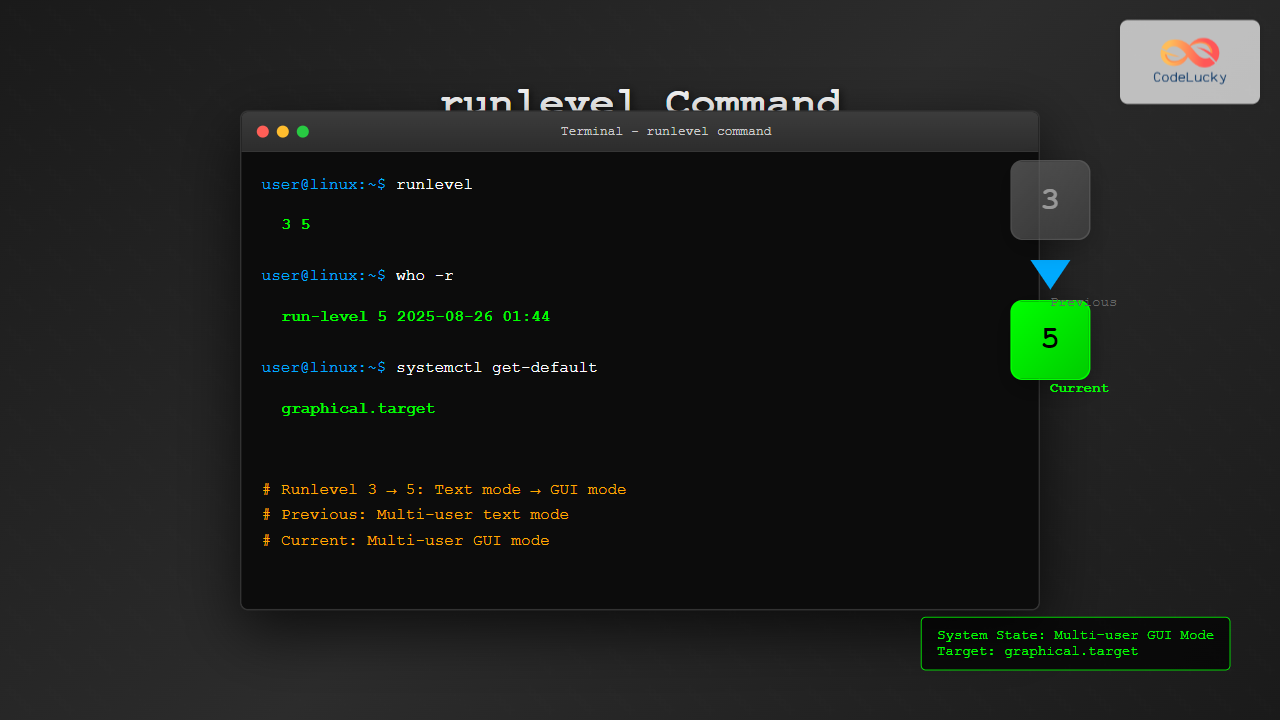
The runlevel command is a fundamental system administration tool in Linux that displays the current and previous system runlevels. Understanding runlevels is crucial for system administrators and Linux users who need to manage system states, troubleshoot boot issues, or configure services properly.
What are Runlevels in Linux?
Runlevels are predefined system states that determine which services and processes are running on a Linux system. Each runlevel corresponds to a specific operational mode, from system shutdown to full multi-user mode with networking capabilities.
Standard Linux Runlevels
- Runlevel 0: System halt/shutdown
- Runlevel 1: Single-user mode (rescue mode)
- Runlevel 2: Multi-user mode without networking
- Runlevel 3: Multi-user mode with networking (text mode)
- Runlevel 4: User-defined (typically unused)
- Runlevel 5: Multi-user mode with networking and GUI
- Runlevel 6: System reboot
Basic Syntax of runlevel Command
The runlevel command has a simple syntax:
runlevel [utmp-file]Where utmp-file is an optional parameter specifying the utmp file to read from (defaults to /var/run/utmp).
How to Use the runlevel Command
Display Current and Previous Runlevel
Simply type runlevel in the terminal:
$ runlevel
N 5
This output shows:
- N: No previous runlevel (system booted directly to current level)
- 5: Current runlevel is 5 (multi-user with GUI)
Example Outputs and Their Meanings
Fresh Boot Scenario
$ runlevel
N 3
Interpretation: System booted directly to runlevel 3 (multi-user text mode) with no previous runlevel.
After Runlevel Change
$ sudo init 5
$ runlevel
3 5
Interpretation: Previous runlevel was 3, current runlevel is 5 (switched from text mode to GUI mode).
Specifying Alternative utmp Files
You can specify a different utmp file to read runlevel information:
$ runlevel /var/log/wtmp
N 5
Practical Examples and Use Cases
System Maintenance Scenario
When performing system maintenance, you might need to switch to single-user mode and back:
# Check current runlevel
$ runlevel
N 5

# Switch to single-user mode
$ sudo init 1

# After maintenance, check runlevel
$ runlevel
5 1

# Return to multi-user GUI mode
$ sudo init 5

# Verify the change
$ runlevel
1 5
Server Environment Example
On a typical server without GUI:
$ runlevel
N 3
This indicates the server is running in multi-user mode with networking but without a graphical interface, which is optimal for server environments.
Understanding runlevel Output Format
The runlevel command always returns two values separated by a space:
| First Value | Second Value | Meaning |
|---|---|---|
| N | 3 | No previous runlevel, current is 3 |
| 3 | 5 | Changed from runlevel 3 to 5 |
| 5 | 1 | Changed from runlevel 5 to 1 |
Alternative Commands and Modern Equivalents
Using who Command
The who command with the -r option provides similar information:
$ who -r
         run-level 5  2025-08-26 13:45
systemctl for systemd Systems
On modern Linux distributions using systemd, you can use:
# Check current target (equivalent to runlevel)
$ systemctl get-default
graphical.target

# List all available targets
$ systemctl list-units --type=target
systemd Target to Runlevel Mapping
| Runlevel | systemd Target | Description |
|---|---|---|
| 0 | poweroff.target | System shutdown |
| 1 | rescue.target | Single-user mode |
| 3 | multi-user.target | Multi-user text mode |
| 5 | graphical.target | Multi-user GUI mode |
| 6 | reboot.target | System reboot |
Changing Runlevels
While the runlevel command only displays information, you can change runlevels using these methods:
Using init Command
# Switch to runlevel 3
$ sudo init 3

# Switch to runlevel 5
$ sudo init 5
Using telinit Command
# Switch to single-user mode
$ sudo telinit 1

# Switch to multi-user mode
$ sudo telinit 3
Using systemctl (systemd)
# Switch to text mode
$ sudo systemctl isolate multi-user.target

# Switch to GUI mode
$ sudo systemctl isolate graphical.target
Troubleshooting Common Issues
runlevel Command Not Found
If the runlevel command is not available, install the sysvinit-utils package:
# Ubuntu/Debian
$ sudo apt-get install sysvinit-utils

# CentOS/RHEL
$ sudo yum install sysvinit-tools
No Output from runlevel Command
If runlevel returns no output, check if the utmp file exists:
$ ls -la /var/run/utmp
$ ls -la /run/utmp
Understanding ‘unknown’ Output
Sometimes you might see:
$ runlevel
unknown
This typically occurs when:
- The system uses systemd exclusively
- The utmp file is corrupted or missing
- The system hasn’t properly initialized runlevel information
Script Integration and Automation
Bash Script Example
#!/bin/bash

# Get current runlevel
current_runlevel=$(runlevel | cut -d' ' -f2)

echo "Current runlevel: $current_runlevel"

case $current_runlevel in
    1) echo "System is in single-user mode" ;;
    3) echo "System is in multi-user text mode" ;;
    5) echo "System is in multi-user GUI mode" ;;
    *) echo "Unknown or special runlevel" ;;
esac
Checking Previous Runlevel
#!/bin/bash

runlevel_output=$(runlevel)
previous=$(echo $runlevel_output | cut -d' ' -f1)
current=$(echo $runlevel_output | cut -d' ' -f2)

if [ "$previous" = "N" ]; then
    echo "System booted directly to runlevel $current"
else
    echo "System changed from runlevel $previous to $current"
fi
Security Considerations
When working with runlevels and the runlevel command:
- Access Control: The command doesn’t require special privileges to read runlevel information
- Log Monitoring: Monitor runlevel changes in system logs for security auditing
- Service Management: Understand which services start at different runlevels to maintain security
Best Practices
Regular Monitoring
- Include runlevel checks in system monitoring scripts
- Document expected runlevels for different server roles
- Monitor unexpected runlevel changes
System Administration
- Always verify the current runlevel before making system changes
- Use appropriate runlevels for maintenance tasks
- Understand the implications of each runlevel change
Conclusion
The runlevel command is an essential tool for Linux system administrators, providing crucial information about system states. While modern Linux distributions increasingly use systemd targets instead of traditional runlevels, understanding the runlevel concept remains valuable for system management, troubleshooting, and maintaining compatibility with older systems.
Whether you’re managing servers, troubleshooting boot issues, or automating system tasks, the ability to quickly check current and previous runlevels using the runlevel command will enhance your Linux administration skills and help ensure smooth system operations.
Related Posts
telinit Command Linux: Complete Guide to System Runlevel Management
The telinit command is a powerful Linux utility that allows system administrators to change the current runlevel of a Linux...

init Command Linux: Complete Guide to Process Control and System Initialization
The init command in Linux serves as the cornerstone of system initialization and process control. As the first process started...
runit Linux: Complete Guide to Unix Init Scheme with Service Supervision
runit is a lightweight, cross-platform Unix init scheme with service supervision that provides a reliable alternative to traditional init systems....

rc-update Command Linux: Complete Guide to Managing OpenRC Services
The rc-update command is a powerful utility in Linux systems that use OpenRC as their init system, primarily found in...

sysvinit Linux: Complete Guide to System V Initialization System
The System V initialization system (sysvinit) is a traditional init system that has been the backbone of Unix and Linux...

sv Command Linux: Master Runit Service Control and Management
The sv command is a powerful utility in Linux systems that serves as the primary interface for controlling services managed...
last Command Linux: Display Login History and System Boot Records
The last command is an essential Linux utility that displays a chronological list of user logins, system boots, and shutdowns...

systemd Linux: Complete Guide to System and Service Manager
systemd is a powerful system and service manager that has become the default init system for most modern Linux distributions....
System Calls in Operating System: Complete Guide to User-Kernel Interface
System calls serve as the fundamental bridge between user applications and the operating system kernel, enabling programs to request services...
service Command Linux: Complete Guide to Managing System Services
The service command is a fundamental tool in Linux system administration that allows you to manage system services and daemons...
upstart Linux: Complete Guide to Event-Based System Initialization
The upstart initialization system revolutionized Linux system startup processes by introducing event-based service management. Unlike traditional SysV init systems that...

w Command Linux: Complete Guide to Monitor Active Users and System Activity
The w command is one of the most essential system monitoring tools in Linux, providing administrators and users with real-time...
- What are Runlevels in Linux?
- Basic Syntax of runlevel Command
- How to Use the runlevel Command
- Practical Examples and Use Cases
- Understanding runlevel Output Format
- Alternative Commands and Modern Equivalents
- Changing Runlevels
- Troubleshooting Common Issues
- Script Integration and Automation
- Security Considerations
- Best Practices
- Conclusion





