Running commands as an administrator in Windows is a common and essential task for system administrators, developers, and advanced users. This guide explains in detail how to execute commands with elevated permissions from the Windows Command Line (CMD), ensuring you control your system effectively and securely.
Why Run Commands as Administrator?
By default, some commands in Windows require administrative privileges to execute properly. Running the command prompt with standard user rights can lead to permission denied errors or incomplete operations. Administrative privileges provide the necessary rights to perform system-level changes, install software, modify sensitive configurations, and access protected resources.
How to Open an Elevated Command Prompt
Before running specific commands as administrator, you first need an elevated Command Prompt. Here are a few ways to open one:
- Method 1: Use the Start Menu
1. Click Start and typecmdorCommand Prompt.
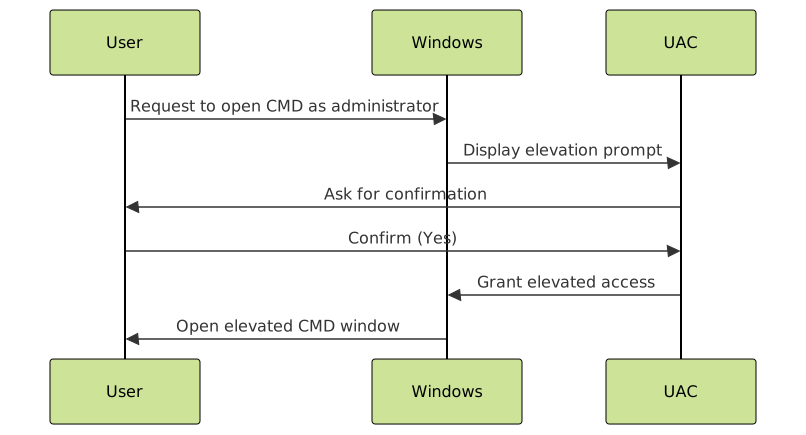
2. Right-click on Command Prompt and select Run as administrator.
3. Confirm User Account Control (UAC) prompt if it appears. - Method 2: Use the Run Dialog
1. PressWin + Rto open the Run dialog.
2. Typecmdand pressCtrl + Shift + Enterto run as administrator.
Run a Single Command as Administrator from Non-Elevated CMD
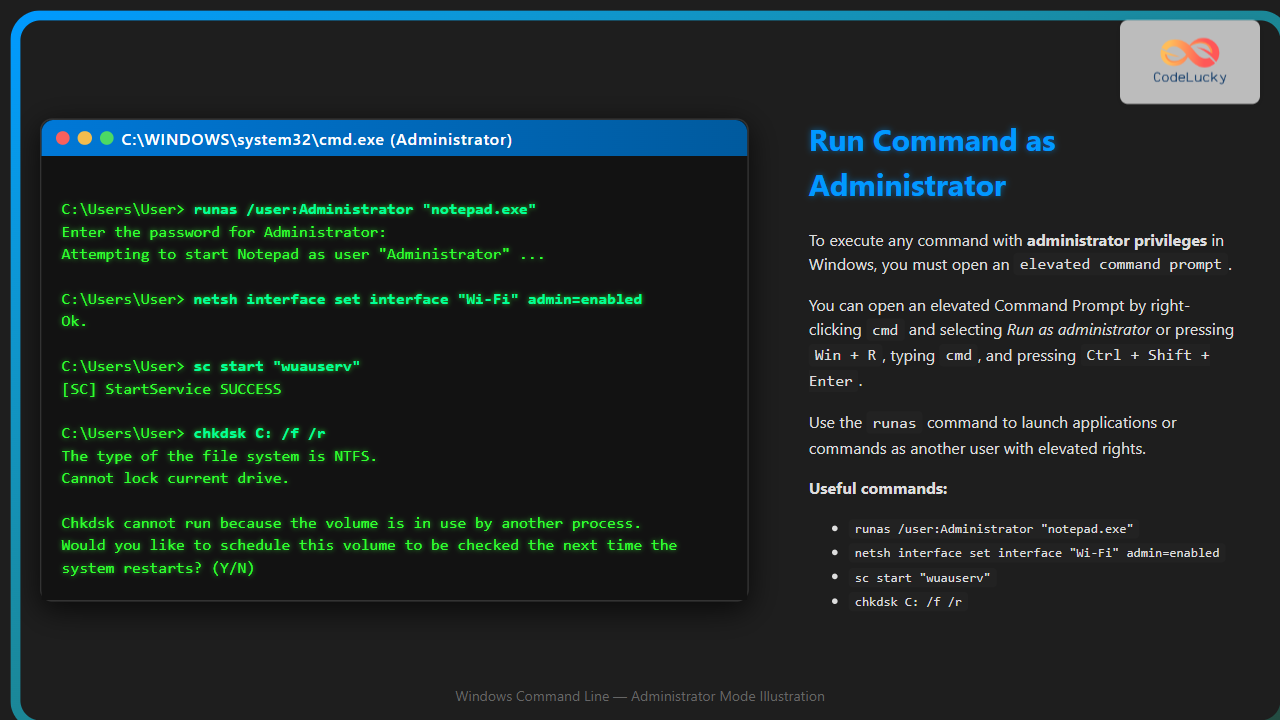
Sometimes, you may already have a regular Command Prompt open but want to run just one command with administrator privileges. You cannot elevate commands directly in the same window, but you can use the runas command.
runas /user:Administrator "command_here"For example, to open Notepad as an administrator:
runas /user:Administrator "notepad.exe"You will be prompted to enter the administrator password. Note: This requires knowing the Administrator password, and the built-in Administrator account must be enabled.
Example Output
C:\Users\User>runas /user:Administrator "notepad.exe"
Enter the password for Administrator:
Attempting to start Notepad as user "Administrator" ...
Using PowerShell to Elevate Commands
PowerShell provides more flexibility to run commands with admin rights via scripting or manual execution.
Start-Process cmd -Verb RunAsThis command opens a new elevated Command Prompt window. You can also run scripts elevated using similar techniques.

Run Commands as Administrator Using Task Scheduler
For advanced users, Task Scheduler can be configured to run a command or script with administrative privileges without direct interaction.
schtasks /run /tn "TaskName"You must first create a task set to run with highest privileges.
Common Administrative Commands Examples
Changing Network Settings
netsh interface set interface "Wi-Fi" admin=enabledManaging Services
sc start "wuauserv"Disk Checking Utility
chkdsk C: /f /rTips for Secure Command Execution as Administrator
- Only run commands as administrator when absolutely necessary.
- Verify commands and scripts to avoid unintentional system damage.
- Close the elevated Command Prompt when finished to reduce security risks.
Summary
Running commands as an administrator in Windows Command Line can be done by:
- Opening an elevated Command Prompt via Start Menu or Run Dialog
- Using the
runascommand to run specific commands as administrator - Leveraging PowerShell’s
Start-Process -Verb RunAs - Scheduling tasks with elevated privileges in Task Scheduler
Mastering these methods allows effective system management and automation while maintaining necessary security precautions.