
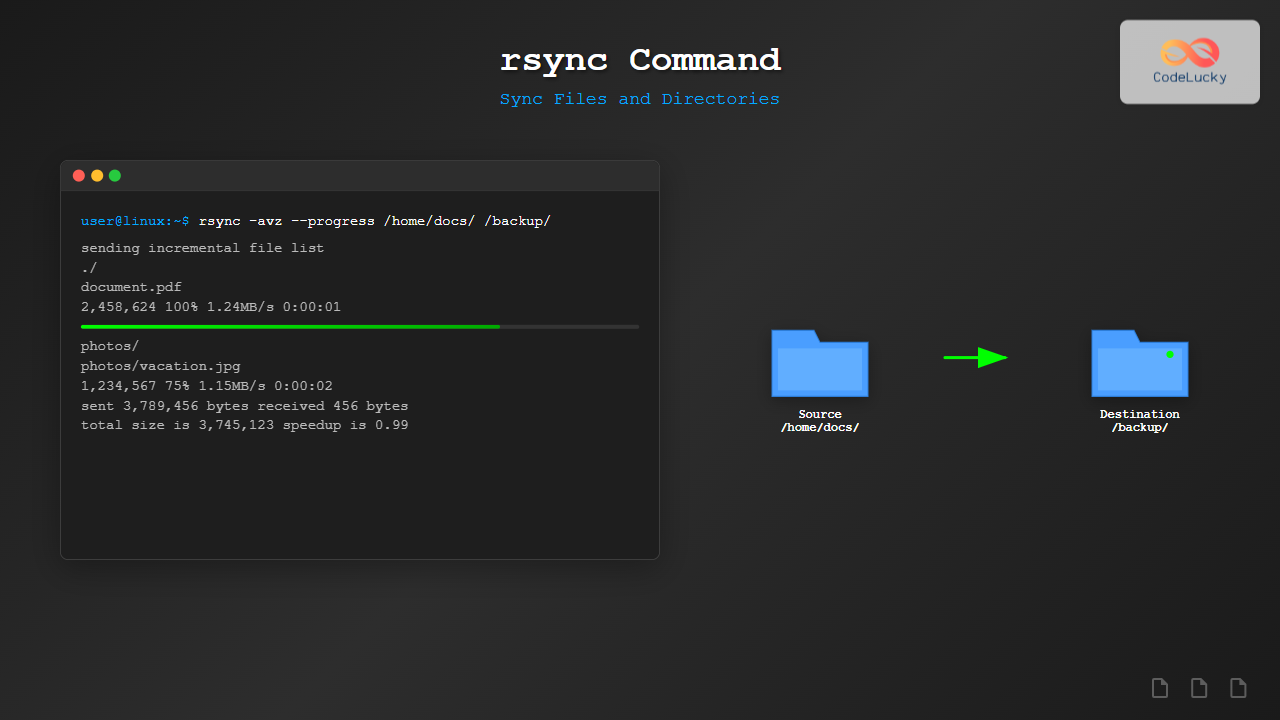
The rsync command is one of the most powerful and versatile file synchronization utilities available in Linux systems. Whether you’re backing up files, synchronizing directories across servers, or transferring large datasets efficiently, rsync provides an elegant solution with its delta-transfer algorithm that only copies the differences between source and destination files.
What is rsync?
rsync (remote sync) is a fast, versatile file copying tool that can copy locally, to/from another host over any remote shell, or to/from a remote rsync daemon. It’s particularly famous for its delta-transfer algorithm, which reduces the amount of data sent over the network by sending only the differences between the source files and the existing files in the destination.
Key Features of rsync
- Incremental transfers: Only synchronizes changed portions of files
- Preservation of file attributes: Maintains permissions, timestamps, and ownership
- Remote synchronization: Works over SSH and other protocols
- Bandwidth optimization: Compression and efficient data transfer
- Progress monitoring: Real-time transfer statistics
- Flexible filtering: Include/exclude patterns for selective sync
Basic rsync Syntax
The general syntax of the rsync command follows this pattern:
rsync [OPTIONS] SOURCE DESTINATIONWhere:
OPTIONS: Command-line flags that modify rsync behaviorSOURCE: The file or directory to copy fromDESTINATION: The target location for the copy
Essential rsync Options
Understanding the most commonly used options is crucial for effective rsync usage:
| Option | Description |
|---|---|
-a |
Archive mode (equivalent to -rlptgoD) |
-v |
Verbose output |
-r |
Recursive (copy directories recursively) |
-l |
Copy symbolic links as links |
-p |
Preserve permissions |
-t |
Preserve modification times |
-g |
Preserve group ownership |
-o |
Preserve owner |
-z |
Compress file data during transfer |
--progress |
Show progress during transfer |
--delete |
Delete files in destination not in source |
-n |
Dry run (show what would be transferred) |
Basic rsync Examples
1. Simple File Copy
Copy a single file from one location to another:
rsync -v document.txt /backup/
Expected Output:
document.txt

sent 1,245 bytes  received 35 bytes  2,560.00 bytes/sec
total size is 1,201  speedup is 0.94
2. Copy Directory Recursively
Synchronize an entire directory structure:
rsync -av /home/user/documents/ /backup/documents/
Expected Output:
sending incremental file list
./
file1.txt
file2.pdf
subfolder/
subfolder/image.jpg
subfolder/notes.txt

sent 15,432 bytes  received 156 bytes  31,176.00 bytes/sec
total size is 14,892  speedup is 0.95
3. Dry Run Before Actual Sync
Test what rsync would do without actually performing the operation:
rsync -avn /source/ /destination/
Expected Output:
sending incremental file list
./
newfile.txt
modified.doc
deleted.old

sent 1,024 bytes  received 45 bytes  2,138.00 bytes/sec
total size is 45,678  speedup is 42.73 (DRY RUN)
Advanced rsync Usage
1. Remote Synchronization via SSH
Synchronize files between local and remote systems using SSH:
# Copy to remote server
rsync -avz /local/path/ user@remote-server:/remote/path/

# Copy from remote server
rsync -avz user@remote-server:/remote/path/ /local/path/
Example with progress monitoring:
rsync -avz --progress /home/user/photos/ user@backup-server:/backups/photos/
Expected Output:
sending incremental file list
./
vacation/
vacation/beach1.jpg
       2,456,789  100%    1.23MB/s    0:00:01 (xfr#1, to-chk=15/17)
vacation/sunset.jpg
       1,234,567  100%    1.15MB/s    0:00:01 (xfr#2, to-chk=14/17)

sent 3,789,456 bytes  received 456 bytes  1,259,637.33 bytes/sec
total size is 3,745,123  speedup is 0.99
2. Synchronization with Deletion
Make the destination identical to the source by deleting extra files:
rsync -av --delete /source/ /destination/
Expected Output:
sending incremental file list
deleting old-file.txt
deleting obsolete-folder/
./
new-file.txt

sent 2,345 bytes  received 78 bytes  4,846.00 bytes/sec
total size is 12,456  speedup is 5.14
3. Bandwidth Limiting
Control the transfer speed to avoid overwhelming network resources:
rsync -av --bwlimit=1000 /large-files/ user@remote:/backup/
This limits the transfer to 1000 KB/s.
Filtering and Exclusion Patterns
1. Exclude Specific Files or Patterns
Skip certain files or file types during synchronization:
# Exclude temporary files
rsync -av --exclude='*.tmp' --exclude='*.log' /source/ /destination/

# Exclude multiple patterns from file
rsync -av --exclude-from='exclude-list.txt' /source/ /destination/
Example exclude-list.txt:
*.tmp
*.log
.git/
node_modules/
*.cache
2. Include Only Specific Files
Synchronize only files matching certain patterns:
rsync -av --include='*.jpg' --include='*.png' --exclude='*' /photos/ /backup/
Backup Strategies with rsync
1. Incremental Backup Script
Create a simple backup script for regular use:
#!/bin/bash
# daily-backup.sh

SOURCE="/home/user/"
DESTINATION="/backup/daily/"
LOGFILE="/var/log/backup.log"

echo "Starting backup at $(date)" >> $LOGFILE

rsync -av \
    --delete \
    --exclude='.cache' \
    --exclude='.tmp' \
    --log-file=$LOGFILE \
    $SOURCE $DESTINATION

echo "Backup completed at $(date)" >> $LOGFILE
2. Snapshot-style Backup
Create timestamped backup directories using hard links for space efficiency:
#!/bin/bash
BACKUP_DIR="/backup"
DATE=$(date +%Y-%m-%d_%H-%M-%S)
LATEST="$BACKUP_DIR/latest"
CURRENT="$BACKUP_DIR/$DATE"

# Create current backup linking to previous backup
rsync -av --delete --link-dest="$LATEST" /home/user/ "$CURRENT/"

# Update latest symlink
rm -f "$LATEST"
ln -s "$CURRENT" "$LATEST"
Monitoring and Troubleshooting
1. Verbose Output with Statistics
Get detailed information about the transfer:
rsync -av --stats --human-readable /source/ /destination/
Expected Output:
sending incremental file list
./
file1.txt
file2.jpg

Number of files: 156 (reg: 134, dir: 22)
Number of created files: 12 (reg: 10, dir: 2)
Number of deleted files: 0
Number of regular files transferred: 10
Total file size: 45.67M bytes
Total transferred file size: 2.34M bytes
Literal data: 2.34M bytes
Matched data: 0 bytes
File list size: 3.45K
File list generation time: 0.001 seconds
File list transfer time: 0.000 seconds
Total bytes sent: 2.35M
Total bytes received: 289

sent 2.35M bytes  received 289 bytes  1.57M bytes/sec
total size is 45.67M  speedup is 19.45
2. Debugging Connection Issues
Use verbose SSH options for troubleshooting remote transfers:
rsync -av -e "ssh -v" /local/ user@remote:/path/
Performance Optimization Tips
1. Optimize for Large Files
For transferring many large files, adjust the block size:
rsync -av --block-size=8192 /large-files/ /destination/
2. Parallel Transfers
While rsync doesn’t natively support parallel transfers, you can use it with GNU parallel:
# Split large directory into chunks and process in parallel
find /source -maxdepth 1 -type d | parallel rsync -av {} /destination/
3. Checksum Verification
Force checksum comparison instead of relying on size and timestamp:
rsync -av --checksum /source/ /destination/
Common Use Cases and Scenarios
1. Website Deployment
Deploy web applications while excluding development files:
rsync -avz \
    --exclude='.git' \
    --exclude='node_modules' \
    --exclude='*.dev.js' \
    --delete \
    /local/website/ user@webserver:/var/www/html/
2. Database Backup Synchronization
Synchronize database dumps to backup server:
rsync -av \
    --include='*.sql' \
    --include='*.sql.gz' \
    --exclude='*' \
    /var/backups/mysql/ backup-server:/mysql-backups/
3. Log File Aggregation
Collect log files from multiple servers:
#!/bin/bash
SERVERS=("web1.example.com" "web2.example.com" "api.example.com")
LOG_DIR="/var/log/aggregated"

for server in "${SERVERS[@]}"; do
    mkdir -p "$LOG_DIR/$server"
    rsync -av --include='*.log' --exclude='*' \
        root@$server:/var/log/ "$LOG_DIR/$server/"
done
Security Considerations
1. SSH Key Authentication
Use SSH keys instead of passwords for automated backups:
# Generate SSH key pair
ssh-keygen -t rsa -b 4096 -f ~/.ssh/backup_key

# Copy public key to remote server
ssh-copy-id -i ~/.ssh/backup_key.pub user@backup-server

# Use specific key in rsync
rsync -av -e "ssh -i ~/.ssh/backup_key" /data/ user@backup-server:/backup/
2. Restrict SSH Access
Create a restricted SSH configuration for backup operations:
# In ~/.ssh/authorized_keys on backup server
command="rsync --server -vlogDtpre.iLsfxC . /backup/",no-agent-forwarding,no-port-forwarding,no-pty,no-user-rc,no-X11-forwarding ssh-rsa AAAAB3NzaC1yc2E...
Troubleshooting Common Issues
1. Permission Denied Errors
When encountering permission issues, check file ownership and use appropriate options:
# Skip files that can't be read
rsync -av --ignore-errors /source/ /destination/

# Change ownership during transfer (requires root)
rsync -av --chown=user:group /source/ /destination/
2. Partial Transfer Recovery
Resume interrupted transfers using partial files:
rsync -av --partial --partial-dir=/tmp/rsync-partial /source/ /destination/
3. Handling Special Characters
Deal with filenames containing special characters:
rsync -av --iconv=utf-8,utf-8 /source/ /destination/
Best Practices and Recommendations
- Always test with dry run: Use
-nflag before actual synchronization - Use archive mode: The
-aflag preserves most file attributes - Monitor progress: Use
--progressfor long transfers - Log operations: Keep logs for audit and troubleshooting purposes
- Implement rotation: Don’t keep infinite backup versions
- Verify integrity: Occasionally use
--checksumfor verification - Secure transfers: Always use SSH for remote synchronization
- Handle interruptions: Use
--partialfor large transfers
Conclusion
The rsync command is an indispensable tool for Linux system administrators and users who need efficient, reliable file synchronization. Its delta-transfer algorithm, extensive options, and robust error handling make it ideal for everything from simple backups to complex data migration scenarios.
By mastering the various options and use cases covered in this guide, you’ll be able to implement sophisticated backup strategies, optimize file transfers, and maintain data synchronization across multiple systems. Remember to always test your rsync commands with the dry-run option before executing them on production data, and consider the security implications when working with remote systems.
Whether you’re backing up personal files, deploying applications, or managing enterprise data synchronization, rsync provides the flexibility and reliability you need to ensure your data remains safe and synchronized across your infrastructure.
Related Posts
mv Command in Linux: Complete Guide to Moving and Renaming Files
The mv command is one of the most fundamental and frequently used commands in Linux systems. Whether you're a system...
cp Command Linux: Copy Files and Directories with Examples and Best Practices
The cp command is one of the most fundamental and frequently used commands in Linux systems. It allows you to...
scp Command Linux: Complete Guide to Secure File Transfer Over SSH
The scp (Secure Copy Protocol) command is one of the most essential tools in Linux for securely transferring files between...

ftp Command Linux: Complete Guide to File Transfer Protocol Client Operations
The ftp command in Linux is a powerful client utility for transferring files between local and remote systems using the...
curl Command Linux: Complete Guide to Transfer Data from Servers with Examples
The curl command is one of the most powerful and versatile tools in the Linux command-line arsenal for transferring data...

git Command Linux: Complete Guide to Version Control with Git
Git is the most widely used distributed version control system that helps developers track changes, collaborate on projects, and manage...
ssh-copy-id Linux: Complete Guide to Copying SSH Keys to Remote Servers
The ssh-copy-id command is an essential Linux utility that simplifies the process of copying your SSH public key to remote...
dd Command Linux: Complete Guide to Low-Level File Operations and Disk Cloning
The dd command is one of the most powerful yet dangerous utilities in Linux, often referred to as "disk destroyer"...

parallel Command Linux: Run Commands Concurrently for Maximum Efficiency
The parallel command in Linux is a powerful tool that allows you to execute multiple commands simultaneously, dramatically improving efficiency...
inotifywait Command Linux: Complete Guide to Real-Time File System Monitoring
The inotifywait command is a powerful Linux utility that enables real-time monitoring of file system events. Whether you're tracking file...
btrfs Command Linux: Complete Guide to Advanced Filesystem Management
The btrfs command is a powerful utility for managing the B-tree filesystem (Btrfs) in Linux, offering advanced features like snapshots,...

Copy-on-Write File System: Complete Guide to ZFS and Btrfs Implementation
Copy-on-Write (COW) file systems represent a revolutionary approach to data storage and management, fundamentally changing how operating systems handle file...





