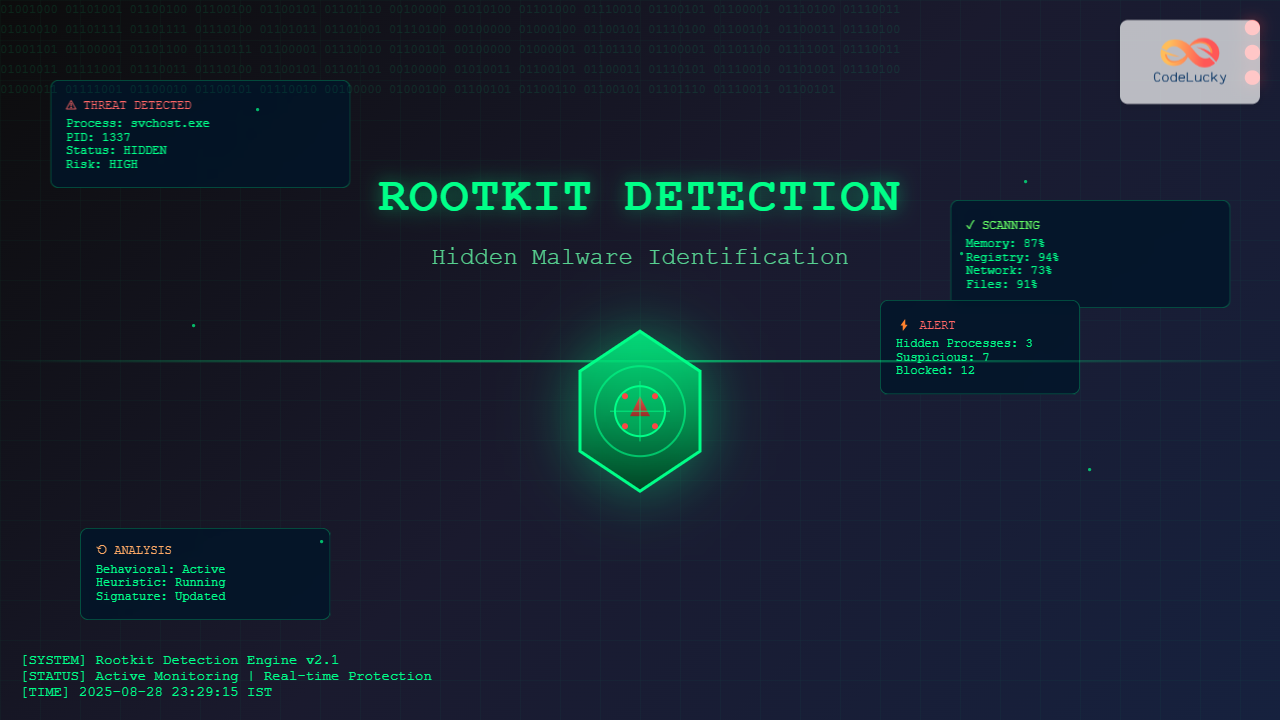
Rootkits represent one of the most sophisticated and dangerous forms of malware, designed to remain hidden deep within operating systems while maintaining persistent access and control. These stealthy threats pose significant challenges to system administrators and security professionals, as they employ advanced techniques to evade traditional detection methods.
Understanding Rootkits: The Invisible Threat
A rootkit is malicious software that provides unauthorized access to a computer while concealing its presence and activities. The term combines “root” (the highest privilege level in Unix systems) and “kit” (a collection of tools), reflecting its purpose of maintaining administrative access while remaining undetected.
Types of Rootkits
User-mode Rootkits operate at the application layer, modifying system APIs and libraries to hide their presence. These are easier to detect but can still cause significant damage.
Kernel-mode Rootkits operate at the operating system core level, providing deeper system access and enhanced stealth capabilities. They modify kernel data structures and system calls.
Bootloader Rootkits infect the master boot record or boot sector, loading before the operating system starts. These are particularly dangerous as they gain control during the boot process.
Hardware/Firmware Rootkits embed themselves in system firmware or hardware components, making them extremely difficult to detect and remove.

Rootkit Behavior and Hiding Techniques
Process Hiding
Rootkits employ various methods to hide their processes from system monitoring tools:
- API Hooking: Intercepting and modifying system API calls to filter out rootkit processes from listings
- DKOM (Direct Kernel Object Manipulation): Directly modifying kernel data structures to unlink processes from system lists
- Process Hollowing: Replacing legitimate process memory with malicious code while maintaining the original process appearance
File System Manipulation
Rootkits hide their files through sophisticated techniques:
// Example of file hiding through API hooking (pseudocode)
NTSTATUS HookedNtQueryDirectoryFile(
    HANDLE FileHandle,
    PFILE_DIRECTORY_INFORMATION FileInfo,
    ...
) {
    NTSTATUS status = OriginalNtQueryDirectoryFile(...);

    if (NT_SUCCESS(status)) {
        // Filter out rootkit files from directory listing
        FilterMaliciousFiles(FileInfo);
    }

    return status;
}
Network Traffic Concealment
Advanced rootkits hide network communications by:
- Filtering network connection lists
- Encrypting command and control communications
- Using legitimate protocols for data exfiltration
- Implementing covert channels

Detection Methodologies
Behavioral Analysis
Behavioral detection focuses on identifying suspicious system activities rather than specific signatures:
- Anomaly Detection: Monitoring for unusual system behavior patterns
- Heuristic Analysis: Identifying potentially malicious actions based on behavior patterns
- Sandbox Analysis: Executing suspicious code in isolated environments
Memory Analysis Techniques
Memory forensics provides powerful capabilities for rootkit detection:
// Volatility Framework example for process analysis
volatility -f memory_dump.raw --profile=Win7SP1x64 pslist
volatility -f memory_dump.raw --profile=Win7SP1x64 psscan
volatility -f memory_dump.raw --profile=Win7SP1x64 psxview

// Cross-reference results to identify hidden processes
System Integrity Checking
Integrity verification helps detect rootkit modifications:
- File Integrity Monitoring: Tracking changes to critical system files
- Registry Monitoring: Detecting unauthorized registry modifications
- System Call Monitoring: Analyzing system call patterns for anomalies
Advanced Detection Tools and Techniques
Specialized Rootkit Scanners
Malwarebytes Anti-Rootkit (MBAR) provides comprehensive rootkit detection capabilities with deep system scanning and cleaning functionality.
GMER offers advanced rootkit detection, including hidden processes, threads, modules, services, and files detection.
RootkitRevealer from Microsoft Sysinternals compares Windows API results with raw file system scans to identify discrepancies.
Command-Line Detection Methods
PowerShell and command-line tools provide powerful detection capabilities:
# PowerShell script for process analysis
Get-Process | Where-Object {$_.ProcessName -like "*suspicious*"}
Get-WmiObject Win32_Process | Select ProcessId,Name,CommandLine

# Compare different enumeration methods
$processes1 = Get-Process | Select Name,Id
$processes2 = Get-WmiObject Win32_Process | Select Name,ProcessId

# Identify discrepancies
Compare-Object $processes1 $processes2 -Property Name
Network-Based Detection
Network monitoring helps identify rootkit communications:
# Netstat command variations for connection analysis
netstat -ano | findstr ESTABLISHED
netstat -b | findstr ":443"

# PowerShell network connection analysis
Get-NetTCPConnection | Where-Object {$_.State -eq "Established"}
Get-NetUDPEndpoint | Where-Object {$_.LocalPort -gt 1024}

Practical Detection Scenarios
Scenario 1: Hidden Process Detection
Consider a system where Task Manager shows fewer processes than expected. This discrepancy often indicates rootkit presence.
# Detection approach using multiple enumeration methods
# Method 1: Standard Process List
tasklist /fo csv > processes_tasklist.csv

# Method 2: WMI Query
wmic process list full /format:csv > processes_wmi.csv

# Method 3: PowerShell
Get-Process | Export-Csv processes_powershell.csv

# Compare results to identify hidden processes
Scenario 2: Network Connection Analysis
Unusual network connections may indicate rootkit command and control communications:
# Monitor network connections over time
netstat -ano 5 > connections_log.txt

# Analyze for suspicious patterns
# - Connections to known malicious IPs
# - Unusual port usage
# - Processes without visible executables
Scenario 3: System Call Monitoring
System call interception is a common rootkit technique that can be detected through monitoring:
// Process Monitor (ProcMon) filter examples
Process Name: contains malicious
Path: contains \system32\drivers\
Operation: is Process and Thread Activity

Memory Forensics for Rootkit Detection
Volatility Framework Applications
The Volatility Framework provides comprehensive memory analysis capabilities for rootkit detection:
# Essential Volatility commands for rootkit analysis
# 1. Identify system profile
volatility -f memory.dmp imageinfo

# 2. List all processes (visible and hidden)
volatility -f memory.dmp --profile=Win7SP1x64 pslist
volatility -f memory.dmp --profile=Win7SP1x64 psscan
volatility -f memory.dmp --profile=Win7SP1x64 pstree

# 3. Cross-view analysis to identify hidden processes
volatility -f memory.dmp --profile=Win7SP1x64 psxview

# 4. Analyze network connections
volatility -f memory.dmp --profile=Win7SP1x64 netscan
volatility -f memory.dmp --profile=Win7SP1x64 connections

# 5. Examine loaded modules and drivers
volatility -f memory.dmp --profile=Win7SP1x64 modules
volatility -f memory.dmp --profile=Win7SP1x64 modscan
Memory Artifact Analysis
Memory analysis reveals rootkit artifacts that file system scans might miss:
- Unlinked Processes: Processes removed from system lists but still in memory
- Hidden Modules: Loaded libraries and drivers not visible to system APIs
- Modified System Structures: Kernel data structure modifications indicating DKOM attacks
- Injection Artifacts: Evidence of code injection into legitimate processes
Real-Time Monitoring and Prevention
System Integrity Monitoring
Implementing real-time monitoring helps detect rootkit activities as they occur:
# Windows System File Checker
sfc /scannow /verifyonly

# PowerShell script for continuous monitoring
while ($true) {
    $currentProcesses = Get-Process | Select Name,Id,Path
    $suspiciousProcesses = $currentProcesses | Where-Object {
        $_.Path -eq $null -or
        $_.Path -like "*temp*" -or
        $_.Name -like "*update*"
    }

    if ($suspiciousProcesses) {
        Write-Warning "Suspicious processes detected"
        $suspiciousProcesses | Out-File -Append "suspicious_processes.log"
    }

    Start-Sleep -Seconds 60
}
Registry Monitoring
Registry changes often indicate rootkit installation or persistence mechanisms:
# Key registry locations to monitor
# Startup locations
HKLM\SOFTWARE\Microsoft\Windows\CurrentVersion\Run
HKCU\SOFTWARE\Microsoft\Windows\CurrentVersion\Run

# Service installations
HKLM\SYSTEM\CurrentControlSet\Services

# Driver installations
HKLM\SYSTEM\CurrentControlSet\Control\Session Manager

# PowerShell registry monitoring
$registryPath = "HKLM:\SOFTWARE\Microsoft\Windows\CurrentVersion\Run"
$baseline = Get-ItemProperty $registryPath

# Continuous monitoring loop
while ($true) {
    $current = Get-ItemProperty $registryPath
    $differences = Compare-Object $baseline.PSObject.Properties $current.PSObject.Properties

    if ($differences) {
        Write-Warning "Registry changes detected in startup locations"
        $differences | Out-File -Append "registry_changes.log"
    }

    Start-Sleep -Seconds 300
}

Advanced Analysis Techniques
Behavioral Profiling
Creating behavioral profiles helps identify rootkit activities through pattern recognition:
# PowerShell behavior analysis script
function Analyze-ProcessBehavior {
    param([string]$ProcessName)

    # Collect process information
    $process = Get-Process -Name $ProcessName -ErrorAction SilentlyContinue

    if ($process) {
        $behaviorProfile = @{
            ProcessName = $ProcessName
            CPU_Usage = $process.CPU
            Memory_Usage = $process.WorkingSet64
            Handles = $process.HandleCount
            Threads = $process.Threads.Count
            StartTime = $process.StartTime
            HasMainWindow = $process.MainWindowTitle -ne ""
            ExecutablePath = $process.Path
        }

        # Analyze for suspicious patterns
        if ($behaviorProfile.CPU_Usage -gt 50 -and
            $behaviorProfile.HasMainWindow -eq $false) {
            Write-Warning "Suspicious: High CPU usage with no visible window"
        }

        if ($behaviorProfile.ExecutablePath -like "*temp*" -or
            $behaviorProfile.ExecutablePath -like "*appdata*") {
            Write-Warning "Suspicious: Running from temporary location"
        }

        return $behaviorProfile
    }
}

# Monitor all processes
Get-Process | ForEach-Object { Analyze-ProcessBehavior $_.Name }
Timeline Analysis
Timeline analysis helps correlate rootkit activities with system events:
# Create timeline of system events
# Combine multiple log sources
$securityLogs = Get-EventLog -LogName Security -After (Get-Date).AddDays(-1)
$systemLogs = Get-EventLog -LogName System -After (Get-Date).AddDays(-1)
$applicationLogs = Get-EventLog -LogName Application -After (Get-Date).AddDays(-1)

# Create unified timeline
$allEvents = @()
$allEvents += $securityLogs | Select TimeGenerated, Source, EventID, Message
$allEvents += $systemLogs | Select TimeGenerated, Source, EventID, Message
$allEvents += $applicationLogs | Select TimeGenerated, Source, EventID, Message

# Sort by time and export
$allEvents | Sort-Object TimeGenerated | Export-Csv "system_timeline.csv" -NoTypeInformation

# Look for suspicious patterns
$suspiciousEvents = $allEvents | Where-Object {
    $_.EventID -eq 4688 -or  # Process creation
    $_.EventID -eq 4648 -or  # Logon with explicit credentials
    $_.EventID -eq 7045      # Service installation
}
Response and Remediation
Incident Response Workflow
When rootkit presence is confirmed, follow a systematic response approach:
- Isolation: Disconnect the affected system from the network to prevent lateral movement
- Evidence Collection: Create memory dumps and disk images for forensic analysis
- Analysis: Perform detailed forensic examination to understand the rootkit’s capabilities
- Eradication: Remove the rootkit using specialized tools or system rebuilding
- Recovery: Restore system functionality and implement additional security measures
- Lessons Learned: Update security policies and procedures based on the incident
Removal Techniques
Rootkit removal requires specialized approaches depending on the type and sophistication:
# Safe mode boot for rootkit removal
# 1. Boot into Safe Mode to limit rootkit functionality
# 2. Run multiple specialized removal tools

# Example removal commands
# Malwarebytes Anti-Rootkit
mbam-chameleon.exe

# Windows Defender Offline
# Boot from external media with Windows Defender Offline

# Manual removal (advanced users only)
# Identify rootkit files and registry entries
# Remove using safe mode or bootable antivirus
System Hardening
Post-incident hardening prevents future rootkit infections:
- Enable Windows Defender or install reputable antivirus
- Configure User Account Control (UAC) to require administrator approval
- Enable Windows Firewall with restrictive rules
- Disable unnecessary services and features
- Implement application whitelisting where feasible
- Regular system updates and patch management
- Backup and recovery procedures for quick system restoration
Prevention Strategies
Multi-layered Defense
Effective rootkit prevention requires multiple security layers:
- Endpoint Protection: Advanced antivirus with behavioral detection
- Network Security: Firewalls, intrusion detection, and monitoring
- User Education: Training on social engineering and safe computing practices
- Access Control: Principle of least privilege and strong authentication
- System Monitoring: Continuous monitoring and log analysis
Security Best Practices
Implementing comprehensive security practices reduces rootkit infection risks:
# PowerShell security configuration script
# Enable PowerShell logging
Set-ItemProperty -Path "HKLM:\SOFTWARE\Policies\Microsoft\Windows\PowerShell\ModuleLogging" -Name "EnableModuleLogging" -Value 1

# Enable Windows Defender real-time protection
Set-MpPreference -DisableRealtimeMonitoring $false

# Configure Windows Update for automatic installation
Set-ItemProperty -Path "HKLM:\SOFTWARE\Microsoft\Windows\CurrentVersion\WindowsUpdate\Auto Update" -Name "AUOptions" -Value 4

# Enable system restore points
Enable-ComputerRestore -Drive "C:\"

# Configure audit policies
auditpol /set /category:"Logon/Logoff" /success:enable /failure:enable
auditpol /set /category:"Object Access" /success:enable /failure:enable
auditpol /set /category:"Process Tracking" /success:enable /failure:enable
Rootkit detection remains a critical cybersecurity challenge requiring sophisticated tools, techniques, and expertise. Success depends on combining multiple detection methodologies, maintaining current knowledge of evolving threats, and implementing comprehensive security practices. By understanding rootkit behaviors, employing advanced detection techniques, and maintaining vigilant monitoring, organizations can effectively protect their systems against these persistent and stealthy threats.
The landscape of rootkit threats continues to evolve, making ongoing education and tool updates essential for maintaining effective detection capabilities. Regular assessment and improvement of detection strategies ensure organizations stay ahead of increasingly sophisticated rootkit attacks.