
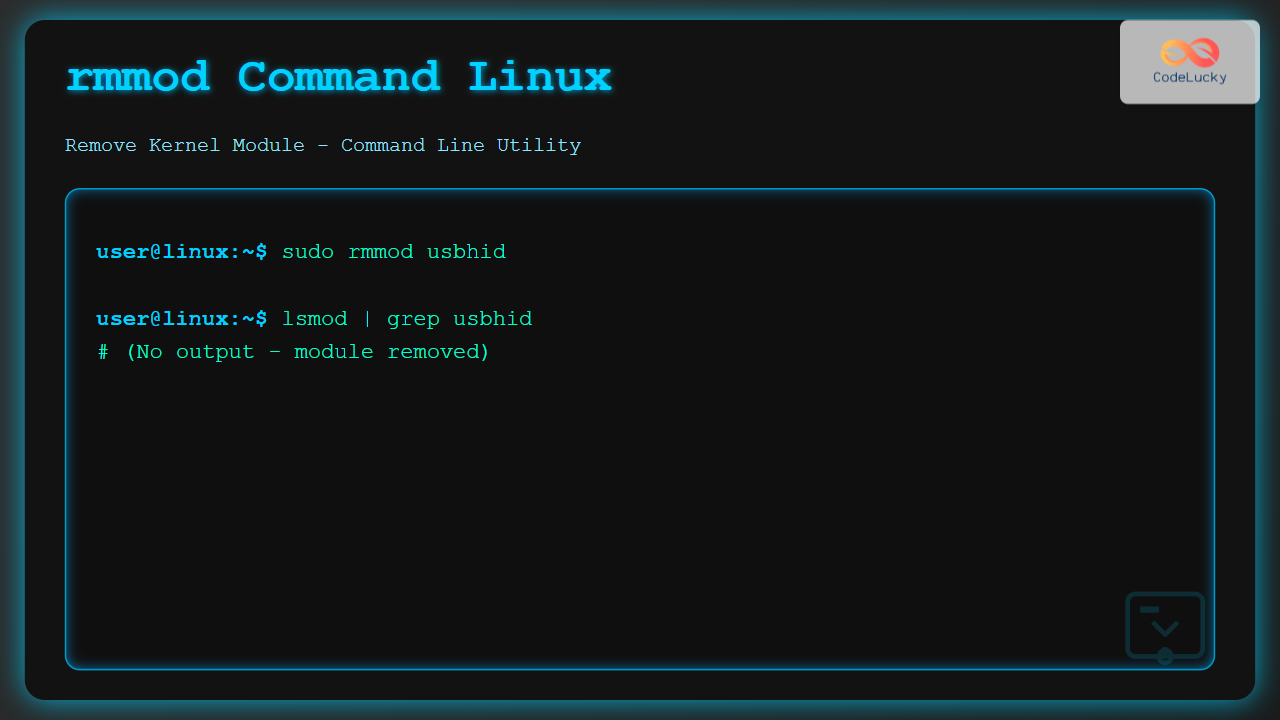
The rmmod command is a fundamental Linux utility for removing loadable kernel modules from the running kernel. Understanding how to use this command safely and effectively is crucial for system administrators and Linux users who need to manage hardware drivers, filesystem modules, and other kernel components.
What is the rmmod Command?
The rmmod (remove module) command allows you to unload kernel modules that are currently loaded in memory. Kernel modules are pieces of code that can be loaded and unloaded into the kernel upon demand, extending the kernel’s functionality without requiring a system reboot.
Basic Syntax and Usage
The basic syntax of the rmmod command is straightforward:
rmmod [options] module_nameSimple Example
To remove a module named “example_module”:
sudo rmmod example_moduleExpected output (no output indicates success):
$ sudo rmmod example_module
$
Common rmmod Options
-f, –force Option
Forces removal of the module even if it’s marked as “unsafe” to remove:
sudo rmmod -f module_name-w, –wait Option
Waits until the module reference count reaches zero before removing:
sudo rmmod -w module_name-s, –syslog Option
Sends error messages to syslog instead of stderr:
sudo rmmod -s module_name-v, –verbose Option
Provides verbose output during module removal:
sudo rmmod -v module_nameExample output:
$ sudo rmmod -v usbhid
rmmod: module 'usbhid' unloaded successfully
Practical Examples
Example 1: Removing a USB Driver Module
Let’s remove the USB HID (Human Interface Device) driver module:
# First, check if the module is loaded
lsmod | grep usbhid

# Remove the module
sudo rmmod usbhid

# Verify removal
lsmod | grep usbhid
Output demonstration:
$ lsmod | grep usbhid
usbhid                 49152  0
hid                   131072  2 hid_generic,usbhid

$ sudo rmmod usbhid

$ lsmod | grep usbhid
# No output - module successfully removed
Example 2: Handling Module Dependencies
When modules have dependencies, you need to remove them in the correct order:
# Check module dependencies
lsmod | grep -E "(bluetooth|btusb)"

# Remove dependent modules first
sudo rmmod btusb
sudo rmmod bluetooth
Example output:
$ lsmod | grep -E "(bluetooth|btusb)"
btusb                  57344  0
bluetooth             589824  1 btusb

$ sudo rmmod btusb
$ sudo rmmod bluetooth

$ lsmod | grep bluetooth
# No output - modules removed
Example 3: Error Handling
Attempting to remove a module that’s in use:
sudo rmmod ext4Expected error output:
$ sudo rmmod ext4
rmmod: ERROR: Module ext4 is in use
Advanced Usage Scenarios
Batch Module Removal
Remove multiple modules at once:
sudo rmmod module1 module2 module3Using with modprobe
For better dependency handling, consider using modprobe -r instead:
# rmmod - removes only the specified module
sudo rmmod bluetooth

# modprobe -r - removes module and unused dependencies
sudo modprobe -r bluetooth
Best Practices and Safety Tips
1. Check Module Usage Before Removal
# Check if module is in use
lsmod | grep module_name

# Check what's using the module
lsof | grep module_name
2. Verify Module Dependencies
# View module information and dependencies
modinfo module_name

# Check dependency tree
modprobe --show-depends module_name
3. Create a Backup Plan
# Save current module list
lsmod > /tmp/modules_backup.txt

# After removal, you can reload if needed
sudo modprobe module_name
Troubleshooting Common Issues
Module in Use Error
When you encounter “Module is in use” error:
- Identify what’s using the module:
lsmod | grep module_name fuser -v /dev/device_name - Stop the service or process using the module:
sudo systemctl stop service_name - Then remove the module:
sudo rmmod module_name
Permission Denied
Always use sudo or run as root:
# Wrong
rmmod module_name

# Correct
sudo rmmod module_name
Interactive Example: Safe Module Removal Process
Here’s a complete workflow for safely removing a network driver module:
Step-by-Step Process:
# Step 1: List current network modules
$ lsmod | grep -i network
r8169                  81920  0

# Step 2: Check module details
$ modinfo r8169 | head -5
filename:       /lib/modules/5.15.0/kernel/drivers/net/ethernet/realtek/r8169.ko
version:        2.3LK-NAPI
license:        GPL
description:    RealTek RTL-8169 Gigabit Ethernet driver

# Step 3: Safely bring down network interface
$ sudo ip link set eth0 down

# Step 4: Remove the module
$ sudo rmmod r8169

# Step 5: Verify removal
$ lsmod | grep r8169
# No output indicates successful removal

# Step 6: Reload if needed
$ sudo modprobe r8169
$ sudo ip link set eth0 up
Security Considerations
When using rmmod, keep these security aspects in mind:
- Root Privileges: rmmod requires root privileges, so always use sudo
- System Stability: Removing critical modules can crash the system
- Hardware Access: Removing hardware driver modules will disable associated devices
- Logging: Module removal activities are logged in system logs
Alternatives to rmmod
Using modprobe -r
For better dependency management:
# Remove module and its unused dependencies
sudo modprobe -r module_name

# Dry run to see what would be removed
sudo modprobe -r --dry-run module_name
Using systemctl
For service-related modules:
# Stop service first
sudo systemctl stop service_name

# Then remove module
sudo rmmod module_name
Monitoring and Logging
Monitor module removal activities:
# View kernel messages
dmesg | tail -20

# Check system logs
journalctl -f | grep -i module

# View module-specific logs
grep "rmmod" /var/log/syslog
Conclusion
The rmmod command is a powerful tool for managing kernel modules in Linux systems. While it provides direct control over module removal, it requires careful consideration of dependencies and system safety. Always verify module usage before removal, understand the implications of removing specific modules, and have a recovery plan in place.
For most scenarios involving dependency management, consider using modprobe -r as it provides more intelligent handling of module dependencies. Remember that improper use of rmmod can lead to system instability, so always test in a safe environment before applying changes to production systems.
lsmod to list currently loaded modules, modinfo to get module information, and modprobe --show-depends to understand dependencies before using rmmod.
Related Posts
insmod Command Linux: Complete Guide to Insert Kernel Modules
The insmod command is a fundamental Linux utility that allows system administrators and developers to insert kernel modules into the...
modprobe Command Linux: Complete Guide to Load and Manage Kernel Modules
The modprobe command is one of the most powerful tools in Linux system administration for managing kernel modules. Whether you're...
rm Command in Linux: Complete Guide to Delete Files and Directories Safely
The rm command is one of the most powerful and potentially dangerous commands in Linux. It stands for "remove" and...
lsmod Command Linux: Complete Guide to Listing Kernel Modules
The lsmod command is an essential Linux utility that displays information about currently loaded kernel modules in your system. Understanding...
depmod Command Linux: Complete Guide to Generate Module Dependencies
The depmod command is a critical system administration tool in Linux that generates module dependency maps for the kernel. This...
wipe Command Linux: Complete Guide to Secure File Deletion and Data Wiping
The wipe command in Linux is a powerful utility designed for secure file deletion that goes far beyond the standard...
unset Command Linux: Complete Guide to Remove Variables and Functions Efficiently
The unset command in Linux is a powerful built-in shell utility that allows you to remove variables and functions from...
dkms Command Linux: Complete Guide to Dynamic Kernel Module Support
Dynamic Kernel Module Support (DKMS) is a powerful framework that automatically rebuilds kernel modules when you install a new kernel...
rmdir Command in Linux: Complete Guide to Remove Empty Directories Safely
The rmdir command is a fundamental Linux utility designed specifically for removing empty directories. Unlike the more powerful rm -r...
modinfo Command Linux: Complete Guide to Display Kernel Module Information
The modinfo command is an essential Linux utility that displays detailed information about kernel modules. Whether you're troubleshooting hardware issues,...
devtmpfs Linux: Complete Guide to Device Temporary Filesystem Management
The devtmpfs (Device Temporary Filesystem) is a crucial component of modern Linux systems that revolutionizes how device nodes are managed...
chmod Command in Linux: Complete File Permissions Tutorial with Examples
The chmod command is one of the most essential Linux commands for managing file and directory permissions. Whether you're a...





