
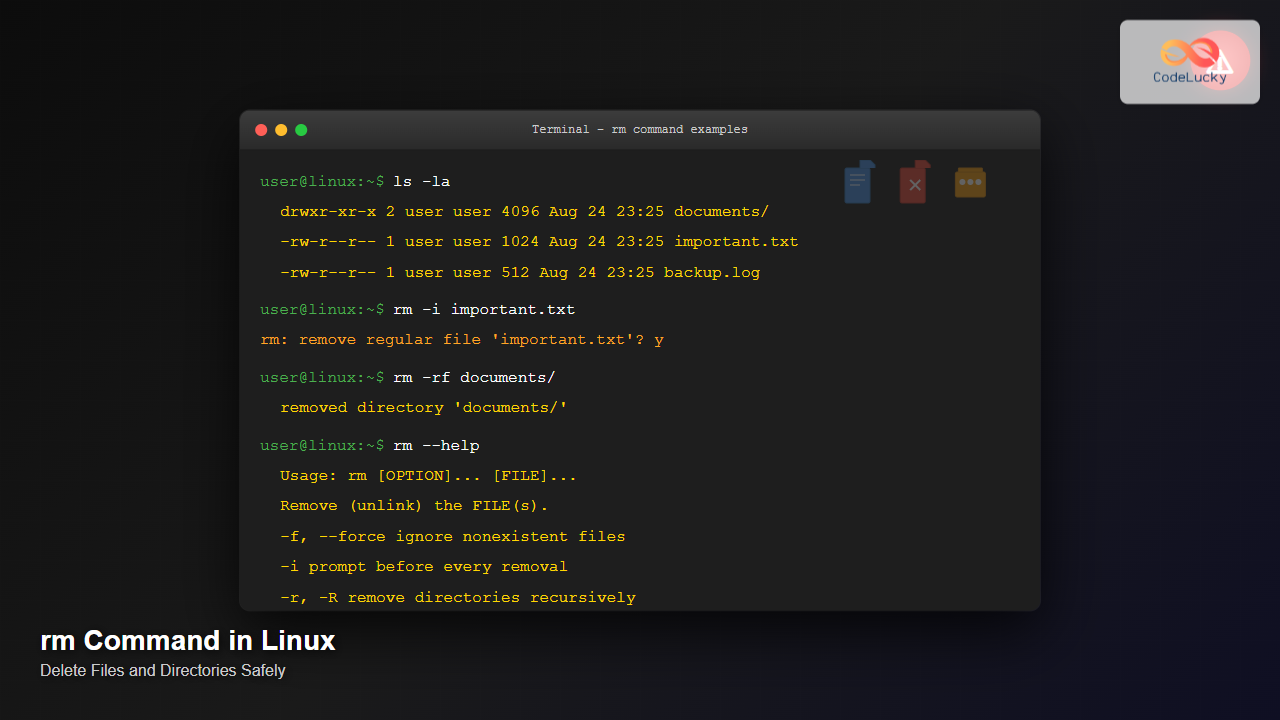
The rm command is one of the most powerful and potentially dangerous commands in Linux. It stands for “remove” and is used to delete files and directories from your system. While simple in concept, mastering the rm command requires understanding its various options, safety considerations, and best practices to avoid accidental data loss.
What is the rm Command?
The rm command is a core Linux utility that permanently removes files and directories from the filesystem. Unlike moving files to a trash or recycle bin, the rm command immediately frees up the disk space, making file recovery extremely difficult without specialized tools.
Basic Syntax
rm [options] file1 file2 ... fileNBasic Usage Examples
Deleting a Single File
The simplest use case is removing a single file:
$ ls
document.txt  image.jpg  script.sh
$ rm document.txt
$ ls
image.jpg  script.sh
Deleting Multiple Files
You can delete multiple files by listing them separated by spaces:
$ ls
file1.txt  file2.txt  file3.txt  important.doc
$ rm file1.txt file2.txt file3.txt
$ ls
important.doc
Using Wildcards
Wildcards make bulk deletion more efficient:
$ ls
backup_2024_01.tar  backup_2024_02.tar  backup_2024_03.tar  current.tar
$ rm backup_*.tar
$ ls
current.tar
Essential rm Command Options
-i (Interactive Mode)
The -i option prompts for confirmation before deleting each file:
$ rm -i important.txt
rm: remove regular file 'important.txt'? y
$ rm -i *.log
rm: remove regular file 'app.log'? y
rm: remove regular file 'error.log'? n
rm: remove regular file 'debug.log'? y
-f (Force Mode)
The -f option forces deletion without prompts and ignores non-existent files:
$ rm -f protected_file.txt nonexistent.txt
# No error messages or prompts
-r or -R (Recursive)
Use -r to delete directories and their contents recursively:
$ tree project/
project/
├── src/
│   ├── main.c
│   └── utils.c
├── docs/
│   └── readme.md
└── Makefile

$ rm -r project/
$ ls
# project/ directory completely removed
-v (Verbose Mode)
The -v option shows what files are being removed:
$ rm -v file1.txt file2.txt
removed 'file1.txt'
removed 'file2.txt'
Advanced Usage and Combinations
Safe Directory Removal
Combining options for safe directory deletion:
$ rm -riv old_project/
rm: descend into directory 'old_project/'? y
rm: remove regular file 'old_project/config.ini'? y
removed 'old_project/config.ini'
rm: remove regular file 'old_project/main.py'? y
removed 'old_project/main.py'
rm: remove directory 'old_project/'? y
removed directory 'old_project/'
Removing Files by Age
Combine with find to remove old files:
# Remove files older than 30 days
$ find /tmp -name "*.tmp" -mtime +30 -exec rm -v {} \;
removed '/tmp/old_cache.tmp'
removed '/tmp/temp_data.tmp'
Removing Empty Directories
Use -d to remove empty directories:
$ ls -la
drwxr-xr-x  2 user user 4096 Aug 24 23:25 empty_folder/
-rw-r--r--  1 user user   42 Aug 24 23:25 file.txt

$ rm -d empty_folder/
$ ls -la
-rw-r--r--  1 user user   42 Aug 24 23:25 file.txt
Working with Special Files
Files with Special Characters
Handle files with spaces or special characters:
$ ls
"file with spaces.txt"  'file-with-quotes.txt'  file*special.txt

$ rm "file with spaces.txt"
$ rm 'file-with-quotes.txt'
$ rm file\*special.txt
Hidden Files
Remove hidden files (starting with a dot):
$ ls -la
-rw-r--r--  1 user user   20 Aug 24 23:25 .hidden_config
-rw-r--r--  1 user user   30 Aug 24 23:25 visible.txt

$ rm .hidden_config
$ ls -la
-rw-r--r--  1 user user   30 Aug 24 23:25 visible.txt
Safety Best Practices
Creating Aliases for Safety
Add these aliases to your ~/.bashrc for safer operations:
# Add to ~/.bashrc
alias rm='rm -i'
alias rr='rm -r'
alias rf='rm -f'
Test Commands with echo
Preview what will be deleted before executing:
$ echo rm *.log
rm app.log debug.log error.log system.log

# After verification, run the actual command
$ rm *.log
Using ls Before rm
Always list files first to verify your selection:
$ ls *.bak
config.bak  database.bak  settings.bak

$ rm *.bak
Common Mistakes and How to Avoid Them
Accidental Space in Commands
Dangerous:
# This removes all files in current directory AND /important/data
$ rm * /important/data
Correct:
# This removes only the specified directory
$ rm -r /important/data
Using rm -rf / (Never Do This!)
This command attempts to delete your entire system. Modern systems have protections, but it’s still dangerous:
# NEVER RUN THIS COMMAND
$ rm -rf /
rm: it is dangerous to operate recursively on '/'
rm: use --no-preserve-root to override this failsafe
Recovery Options
Using the Recycle Bin Alternative
Install trash-cli for safer deletion:
$ sudo apt install trash-cli  # Ubuntu/Debian
$ sudo yum install trash-cli  # RHEL/CentOS

$ trash-put file.txt      # Move to trash
$ trash-list              # List trashed files
$ trash-restore           # Restore files
$ trash-empty             # Empty trash
File Recovery Tools
If files are accidentally deleted, use recovery tools:
# Install testdisk (includes photorec)
$ sudo apt install testdisk

# For ext4 filesystems
$ sudo extundelete /dev/sda1 --restore-all
Performance Considerations
Efficient Bulk Deletion
For large directories, this approach is faster:
# Faster for very large directories
$ find large_directory/ -delete

# Alternative approach
$ rsync -a --delete empty_directory/ large_directory/
$ rmdir large_directory/
Troubleshooting Common Issues
Permission Denied Errors
$ rm protected_file.txt
rm: cannot remove 'protected_file.txt': Permission denied

# Check permissions
$ ls -l protected_file.txt
-r--r--r--  1 root root 1024 Aug 24 23:25 protected_file.txt

# Solutions:
$ sudo rm protected_file.txt
# or
$ chmod u+w protected_file.txt && rm protected_file.txt
Directory Not Empty Errors
$ rm my_directory/
rm: cannot remove 'my_directory/': Is a directory

# Use -r for directories
$ rm -r my_directory/
Scripting with rm Command
Safe Deletion Script
#!/bin/bash
# safe_delete.sh - A safer deletion script

confirm_deletion() {
    read -p "Are you sure you want to delete $1? (y/N): " choice
    case "$choice" in
        y|Y ) return 0;;
        * ) return 1;;
    esac
}

if [ $# -eq 0 ]; then
    echo "Usage: $0  [file2] ..."
    exit 1
fi

for file in "$@"; do
    if [ -e "$file" ]; then
        if confirm_deletion "$file"; then
            rm -v "$file"
            echo "Deleted: $file"
        else
            echo "Skipped: $file"
        fi
    else
        echo "File not found: $file"
    fi
done
Alternative Commands
Using shred for Secure Deletion
# Securely overwrite file before deletion
$ shred -vfz -n 3 sensitive_file.txt
shred: sensitive_file.txt: pass 1/3 (random)...
shred: sensitive_file.txt: pass 2/3 (random)...
shred: sensitive_file.txt: pass 3/3 (000000)...
shred: sensitive_file.txt: removing
shred: sensitive_file.txt: renamed to 00000000000000
shred: 00000000000000: renamed to 0000000000000
shred: 0000000000000: renamed to 000000000000
shred: 000000000000: removed
Monitoring and Logging
Creating an rm Wrapper with Logging
#!/bin/bash
# logged_rm.sh - Log all deletions

LOG_FILE="$HOME/.rm_log"

# Log the deletion
echo "$(date): $USER removed: $*" >> "$LOG_FILE"

# Execute the actual rm command
/bin/rm "$@"
Conclusion
The rm command is an essential tool for Linux file management, but it requires careful handling due to its permanent nature. By understanding its options, implementing safety practices, and using appropriate alternatives when needed, you can efficiently manage your filesystem while minimizing the risk of accidental data loss.
Remember these key points:
- Always use
-ifor interactive confirmation when unsure - Test your commands with
lsfirst - Use
-rfor directories and-fonly when absolutely necessary - Consider alternatives like
trash-clifor recoverable deletion - Create aliases and scripts to implement safety measures
- Keep backups of important data as the ultimate safety net
With these practices in place, you can confidently use the rm command as part of your daily Linux workflow while maintaining the integrity of your important data.
Related Posts
rmdir Command in Linux: Complete Guide to Remove Empty Directories Safely
The rmdir command is a fundamental Linux utility designed specifically for removing empty directories. Unlike the more powerful rm -r...
wipe Command Linux: Complete Guide to Secure File Deletion and Data Wiping
The wipe command in Linux is a powerful utility designed for secure file deletion that goes far beyond the standard...
shred Command Linux: Complete Guide to Securely Delete Files and Protect Data
When you delete files in Linux using the standard rm command, the data isn't actually removed from your storage device....

Java Delete Files: Removing Files from System
Java provides robust file handling capabilities, including the ability to delete files from the system. Whether you're cleaning up temporary...
umount Command Linux: Complete Guide to Safely Unmounting Filesystems
The umount command is an essential Linux utility that allows you to safely disconnect filesystems from the directory tree. Whether...
mv Command in Linux: Complete Guide to Moving and Renaming Files
The mv command is one of the most fundamental and frequently used commands in Linux systems. Whether you're a system...
unset Command Linux: Complete Guide to Remove Variables and Functions Efficiently
The unset command in Linux is a powerful built-in shell utility that allows you to remove variables and functions from...
du Command Linux: Display Directory Size and Disk Usage Explained with Examples
The du (disk usage) command in Linux is a powerful tool that allows users to measure directory size, analyze disk...

file Command Advanced Linux: Master Detailed File Type Analysis and Detection
The file command is one of the most powerful and underutilized utilities in Linux for determining file types and analyzing...
cp Command Linux: Copy Files and Directories with Examples and Best Practices
The cp command is one of the most fundamental and frequently used commands in Linux systems. It allows you to...
rmmod Command Linux: Complete Guide to Remove Kernel Modules Safely
The rmmod command is a fundamental Linux utility for removing loadable kernel modules from the running kernel. Understanding how to...
strip Command Linux: Complete Guide to Removing Symbols from Object Files
The strip command is a powerful Linux utility that removes symbols, debugging information, and other metadata from executable files, object...





