
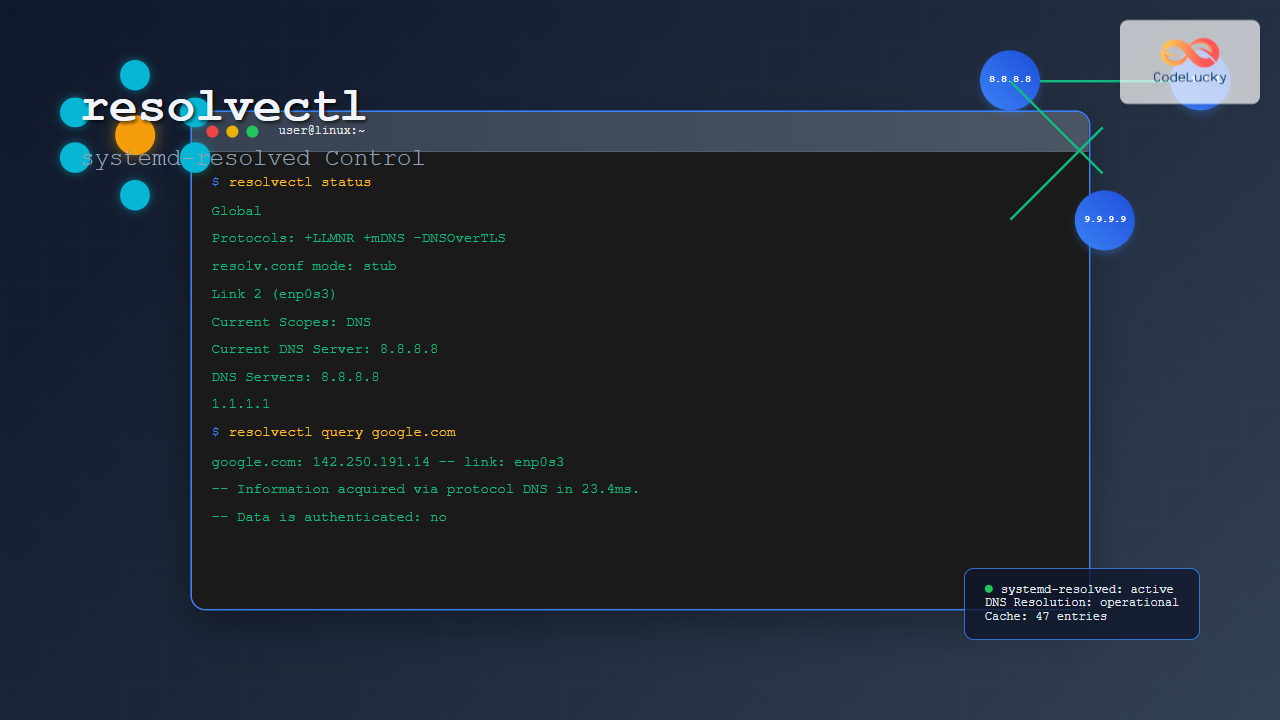
The resolvectl command is a powerful utility in modern Linux distributions that provides control over the systemd-resolved service. This command allows system administrators to manage DNS resolution, configure DNS servers, and troubleshoot network connectivity issues directly from the command line.
What is resolvectl?
resolvectl is the primary interface for interacting with systemd-resolved, which is the system service responsible for network name resolution in systemd-based Linux distributions. It replaces traditional DNS management tools and provides a unified approach to handling DNS queries, mDNS (multicast DNS), and LLMNR (Link-Local Multicast Name Resolution).
Key Features of resolvectl
- DNS Server Management: Configure and view DNS servers for network interfaces
- Query Resolution: Perform direct DNS lookups and troubleshooting
- Cache Management: Control DNS cache operations
- Network Interface Control: Manage DNS settings per interface
- Protocol Support: Handle DNS, mDNS, and LLMNR protocols
Basic Syntax
resolvectl [OPTIONS...] COMMAND [ARGUMENTS...]Essential resolvectl Commands
1. Checking System Status
View the current DNS resolution status and configuration:
resolvectl statusExample Output:
Global
       Protocols: +LLMNR +mDNS -DNSOverTLS DNSSEC=no/unsupported
resolv.conf mode: stub

Link 2 (enp0s3)
      Current Scopes: DNS
       LLMNR setting: yes
       mDNS setting: no
             DNSSEC: no/unsupported
   DNSSEC supported: no
  Current DNS Server: 8.8.8.8
         DNS Servers: 8.8.8.8
                      1.1.1.1
          DNS Domain: ~.
2. Performing DNS Queries
Query specific domain names to test DNS resolution:
resolvectl query example.comExample Output:
example.com: 93.184.216.34                    -- link: enp0s3
             2606:2800:220:1:248:1893:25c8:1946 -- link: enp0s3

-- Information acquired via protocol DNS in 45.2ms.
-- Data is authenticated: no
3. Querying Specific Record Types
Query different DNS record types:
# Query MX records
resolvectl query --type=MX gmail.com

# Query TXT records
resolvectl query --type=TXT google.com

# Query AAAA records (IPv6)
resolvectl query --type=AAAA google.com
Example MX Query Output:
gmail.com IN MX 5 gmail-smtp-in.l.google.com
          IN MX 10 alt1.gmail-smtp-in.l.google.com
          IN MX 20 alt2.gmail-smtp-in.l.google.com
          IN MX 30 alt3.gmail-smtp-in.l.google.com
          IN MX 40 alt4.gmail-smtp-in.l.google.com

-- Information acquired via protocol DNS in 67.8ms.
Advanced DNS Configuration
1. Setting DNS Servers for an Interface
Configure DNS servers for a specific network interface:
# Set DNS servers for interface enp0s3
sudo resolvectl dns enp0s3 8.8.8.8 1.1.1.1

# Verify the configuration
resolvectl status enp0s3
2. Setting Search Domains
Configure DNS search domains:
# Set search domain
sudo resolvectl domain enp0s3 example.com

# Set multiple search domains
sudo resolvectl domain enp0s3 example.com internal.local
3. Enabling/Disabling DNS Protocols
Control DNS-related protocols for specific interfaces:
# Enable LLMNR
sudo resolvectl llmnr enp0s3 yes

# Disable mDNS
sudo resolvectl mdns enp0s3 no

# Enable DNSSEC
sudo resolvectl dnssec enp0s3 yes
Cache Management
1. Viewing DNS Cache Statistics
resolvectl statisticsExample Output:
DNSSEC supported by current servers: no

Transactions
Current Transactions: 0
  Total Transactions: 157

Cache
  Current Cache Size: 12
          Cache Hits: 89
        Cache Misses: 68

DNSSEC Verdicts
              Secure: 0
            Insecure: 0
               Bogus: 0
       Indeterminate: 0
2. Flushing DNS Cache
Clear the DNS cache to resolve potential issues:
sudo resolvectl flush-cachesTroubleshooting with resolvectl
1. Reverse DNS Lookups
Perform reverse DNS queries to identify domain names from IP addresses:
resolvectl query 8.8.8.8Example Output:
8.8.8.8: dns.google

-- Information acquired via protocol DNS in 34.5ms.
2. Testing Connectivity to DNS Servers
Verify if DNS servers are reachable:
# Query using a specific DNS server
resolvectl query --no-caching example.com
3. Debugging DNS Resolution
Enable verbose output for detailed troubleshooting:
resolvectl query --verbose google.comWorking with Network Interfaces
1. Listing All Interfaces
View DNS configuration for all network interfaces:
resolvectl status --all2. Interface-Specific Configuration
Configure DNS settings for a specific interface:
# Configure interface with custom DNS
sudo resolvectl dns wlan0 9.9.9.9 149.112.112.112

# Set different protocols per interface
sudo resolvectl llmnr wlan0 no
sudo resolvectl mdns wlan0 yes
Practical Use Cases
1. Corporate Network Configuration
# Configure for corporate environment
sudo resolvectl dns enp0s3 10.0.1.1 10.0.1.2
sudo resolvectl domain enp0s3 company.local
sudo resolvectl llmnr enp0s3 yes
2. Privacy-Focused DNS Setup
# Use privacy-focused DNS providers
sudo resolvectl dns enp0s3 1.1.1.1 1.0.0.1
sudo resolvectl dnssec enp0s3 yes
3. Development Environment
# Configure for local development
sudo resolvectl dns enp0s3 127.0.0.1 8.8.8.8
sudo resolvectl domain enp0s3 dev.local test.local
Common Options and Flags
| Option | Description |
|---|---|
--type=TYPE |
Specify DNS record type (A, AAAA, MX, TXT, etc.) |
--class=CLASS |
Set DNS query class (default: IN) |
--no-caching |
Bypass local DNS cache |
--verbose |
Enable detailed output |
--json |
Output results in JSON format |
--interface=INTERFACE |
Use specific network interface |
Best Practices
1. Regular Monitoring
Create scripts to monitor DNS resolution health:
#!/bin/bash
# dns-health-check.sh

echo "=== DNS Status Check ==="
resolvectl status

echo -e "\n=== DNS Statistics ==="
resolvectl statistics

echo -e "\n=== Test Query ==="
resolvectl query google.com
2. Backup Configuration
Save current DNS configuration before making changes:
# Save current configuration
resolvectl status > dns-backup-$(date +%Y%m%d).txt
3. Automated DNS Switching
Create scripts for switching between different DNS configurations:
#!/bin/bash
# switch-dns.sh

case "$1" in
    "work")
        sudo resolvectl dns enp0s3 10.0.1.1 10.0.1.2
        sudo resolvectl domain enp0s3 company.local
        ;;
    "home")
        sudo resolvectl dns enp0s3 8.8.8.8 1.1.1.1
        sudo resolvectl domain enp0s3 ""
        ;;
    *)
        echo "Usage: $0 {work|home}"
        ;;
esac
Integration with systemd
1. Service Management
Control the systemd-resolved service:
# Check service status
systemctl status systemd-resolved

# Restart the service
sudo systemctl restart systemd-resolved

# Enable at boot
sudo systemctl enable systemd-resolved
2. Configuration Files
Main configuration file location:
/etc/systemd/resolved.confExample configuration:
[Resolve]
DNS=8.8.8.8 1.1.1.1
FallbackDNS=9.9.9.9
Domains=~.
DNSSEC=yes
DNSOverTLS=opportunistic
Troubleshooting Common Issues
1. DNS Resolution Failures
# Test basic connectivity
resolvectl query --no-caching google.com

# Check if systemd-resolved is running
systemctl status systemd-resolved

# Flush cache and retry
sudo resolvectl flush-caches
2. Performance Issues
# Check cache statistics
resolvectl statistics

# Monitor query times
time resolvectl query example.com
3. Configuration Persistence
For persistent DNS configuration across reboots, use NetworkManager or netplan depending on your distribution.
Security Considerations
1. DNS over TLS (DoT)
Enable encrypted DNS queries:
# Configure in /etc/systemd/resolved.conf
DNS=1.1.1.1#cloudflare-dns.com 8.8.8.8#dns.google
DNSOverTLS=yes
2. DNSSEC Validation
Enable DNSSEC for enhanced security:
sudo resolvectl dnssec enp0s3 yesConclusion
The resolvectl command is an essential tool for modern Linux system administration, providing comprehensive control over DNS resolution through systemd-resolved. From basic queries to advanced network configuration, mastering resolvectl enables efficient troubleshooting and management of network name resolution in Linux environments.
Whether you’re configuring DNS servers, debugging connectivity issues, or implementing security measures like DNSSEC and DNS over TLS, resolvectl offers the flexibility and power needed for professional network management. Regular practice with these commands will enhance your Linux administration skills and improve your ability to maintain robust network configurations.
Related Posts
systemd-resolved Linux: Complete Guide to Network Name Resolution Management
The systemd-resolved service is a fundamental component of modern Linux systems that handles network name resolution, DNS caching, and LLMNR...
hostnamectl Command Linux: Complete Guide to System Hostname Management
The hostnamectl command is a powerful systemd utility that allows Linux administrators to query and change the system hostname and...
systemd-networkd Linux: Complete Network Configuration Manager Guide
systemd-networkd is a powerful system daemon that manages network configurations on Linux systems. As part of the systemd ecosystem, it...
systemctl Command Linux: Complete Guide to Control Systemd Services
The systemctl command is the primary tool for controlling systemd services in modern Linux distributions. As the central management utility...
ip Command Linux: Complete Guide to Advanced Network Configuration and Management
The ip command is one of the most powerful and versatile networking tools in Linux, serving as the modern replacement...

intermapper Linux: Complete Network Monitoring and Mapping Guide
What is InterMapper for Linux? InterMapper is a powerful network monitoring and mapping tool that provides real-time visibility into network...

systemd-timesyncd Linux: Complete Guide to Network Time Synchronization
Time synchronization is a critical aspect of system administration that ensures your Linux servers maintain accurate time across distributed networks....
SNMP Command Linux: Complete Guide to Simple Network Management Protocol Configuration and Usage
Introduction to SNMP Command in Linux Simple Network Management Protocol (SNMP) is a fundamental protocol used for monitoring and managing...
nmcli Command Linux: Complete Guide to NetworkManager Command Line Tool
The nmcli (NetworkManager Command Line Interface) is a powerful command-line tool that allows you to control NetworkManager and configure network...
NetworkManager Linux: Complete Guide to Network Management Service
NetworkManager is a powerful network management service that provides automatic network detection and configuration for Linux systems. It simplifies network...

whatsup Linux: Complete Network Monitoring and System Administration Guide
whatsup is a powerful network monitoring and system administration tool for Linux that provides real-time insights into network connectivity, system...
dhclient Command Linux: Complete Guide to Dynamic Host Configuration Protocol Client
The dhclient command is a powerful Linux utility that serves as a Dynamic Host Configuration Protocol (DHCP) client. It automatically...





