
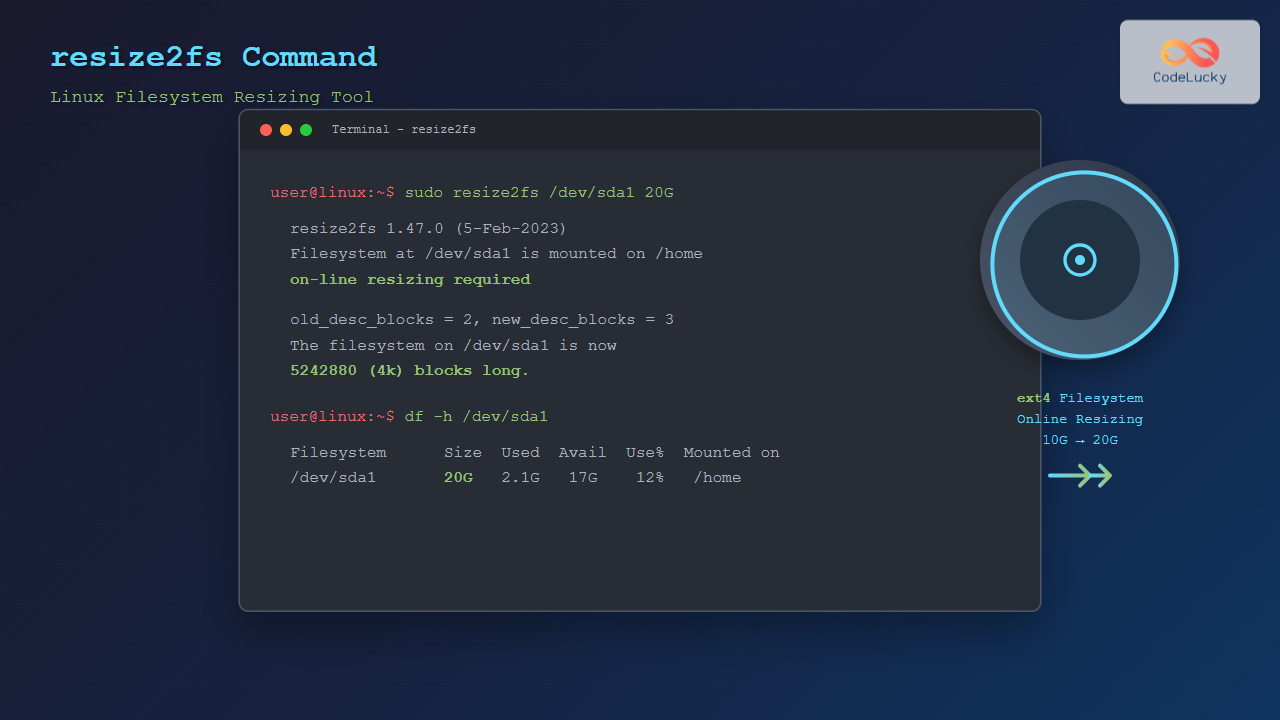
The resize2fs command is a powerful Linux utility designed to resize ext2, ext3, and ext4 filesystems. Whether you need to expand a partition after adding more storage or shrink a filesystem to reclaim space, resize2fs provides a safe and efficient way to modify filesystem sizes without data loss.
What is resize2fs?
resize2fs is part of the e2fsprogs package and serves as the primary tool for resizing extended filesystems (ext2, ext3, and ext4). It can both grow and shrink filesystems, making it essential for system administrators managing storage resources.
Key Features:
- Online resizing (for ext3/ext4 filesystems)
- Offline resizing for all supported filesystems
- Automatic block relocation
- Filesystem integrity checking
- Support for large filesystems (up to 1 exabyte)
Basic Syntax
resize2fs [options] device [new_size]Common Parameters:
- device: The filesystem device (e.g., /dev/sda1)
- new_size: Target size (optional – omit to use all available space)
- -f: Force resize operation
- -p: Print progress information
- -M: Minimize filesystem to smallest possible size
Prerequisites and Safety Checks
Before using resize2fs, ensure you meet these requirements:
1. Check Current Filesystem Information
df -h /dev/sda1
sudo dumpe2fs -h /dev/sda1 | grep -E "Block count|Block size"
Sample Output:
Filesystem      Size  Used Avail Use% Mounted on
/dev/sda1        10G  2.1G  7.4G  22% /home

Block count:              2621440
Block size:               4096
2. Filesystem Check
sudo e2fsck -f /dev/sda1Sample Output:
e2fsck 1.47.0 (5-Feb-2023)
Pass 1: Checking inodes, blocks, and sizes
Pass 2: Checking directory structure
Pass 3: Checking directory connectivity
Pass 4: Checking reference counts
Pass 5: Checking group summary information
/dev/sda1: 11/655360 files (0.0% non-contiguous), 83137/2621440 blocks
Expanding Filesystems
Scenario 1: Expand to Use All Available Space
When you’ve extended a partition using tools like fdisk or parted, use resize2fs to expand the filesystem:
# Check current size
df -h /dev/sda1

# Expand filesystem to use all available space
sudo resize2fs /dev/sda1
Sample Output:
resize2fs 1.47.0 (5-Feb-2023)
Filesystem at /dev/sda1 is mounted on /home; on-line resizing required
old_desc_blocks = 1, new_desc_blocks = 2
The filesystem on /dev/sda1 is now 5242880 (4k) blocks long.
Scenario 2: Expand to Specific Size
# Expand to 15GB
sudo resize2fs /dev/sda1 15G

# Expand by specific number of blocks
sudo resize2fs /dev/sda1 3932160
Shrinking Filesystems
Warning: Always unmount the filesystem before shrinking to prevent data corruption.
Step-by-Step Shrinking Process
# 1. Unmount the filesystem
sudo umount /dev/sda1

# 2. Check filesystem for errors
sudo e2fsck -f /dev/sda1

# 3. Shrink to minimum size first (optional)
sudo resize2fs -M /dev/sda1

# 4. Shrink to specific size (e.g., 8GB)
sudo resize2fs /dev/sda1 8G
Sample Output:
resize2fs 1.47.0 (5-Feb-2023)
Resizing the filesystem on /dev/sda1 to 2097152 (4k) blocks.
The filesystem on /dev/sda1 is now 2097152 (4k) blocks long.
Working with Different Size Units
resize2fs accepts various size formats:
| Unit | Description | Example |
|---|---|---|
| K, KB | Kilobytes | resize2fs /dev/sda1 500000K |
| M, MB | Megabytes | resize2fs /dev/sda1 1024M |
| G, GB | Gigabytes | resize2fs /dev/sda1 50G |
| T, TB | Terabytes | resize2fs /dev/sda1 2T |
| blocks | Filesystem blocks | resize2fs /dev/sda1 2621440 |
Online vs Offline Resizing
Online Resizing (Mounted Filesystem)
Supported for ext3 and ext4 filesystems when expanding:
# Check if filesystem is mounted
mount | grep /dev/sda1

# Perform online resize (expansion only)
sudo resize2fs /dev/sda1
Offline Resizing (Unmounted Filesystem)
Required for shrinking operations and ext2 filesystems:
# Unmount filesystem
sudo umount /dev/sda1

# Perform resize operation
sudo resize2fs /dev/sda1 10G

# Remount filesystem
sudo mount /dev/sda1 /mnt/target
Advanced Usage Examples
Example 1: Complete Disk Expansion Workflow
# 1. Extend partition using fdisk
sudo fdisk /dev/sda
# (use 'd' to delete, 'n' to create new larger partition)

# 2. Inform kernel of partition changes
sudo partprobe /dev/sda

# 3. Resize filesystem
sudo resize2fs /dev/sda1

# 4. Verify new size
df -h /dev/sda1
Example 2: Minimize Filesystem Size
# Find minimum possible size
sudo resize2fs -M /dev/sda1

# Check the result
sudo dumpe2fs -h /dev/sda1 | grep "Block count"
Sample Output:
resize2fs 1.47.0 (5-Feb-2023)
Resizing the filesystem on /dev/sda1 to 284235 (4k) blocks.
The filesystem on /dev/sda1 is now 284235 (4k) blocks long.

Block count:              284235
Monitoring Progress
For large filesystems, use the progress flag:
sudo resize2fs -p /dev/sda1 50GSample Output:
resize2fs 1.47.0 (5-Feb-2023)
Resizing the filesystem on /dev/sda1 to 13107200 (4k) blocks.
Begin pass 1 (max = 46)
Relocating blocks             XXXXXXXXXXXXXXXXXXXXXXXXXXXXXXXXXXXXXXXXXXXXXXXX
Begin pass 2 (max = 46)
Relocating blocks             XXXXXXXXXXXXXXXXXXXXXXXXXXXXXXXXXXXXXXXXXXXXXXXX
Begin pass 3 (max = 1600)
Scanning inode table          XXXXXXXXXXXXXXXXXXXXXXXXXXXXXXXXXXXXXXXXXXXXXXXX
The filesystem on /dev/sda1 is now 13107200 (4k) blocks long.
Troubleshooting Common Issues
Error: “Bad magic number in super-block”
# Solution: Check if correct device is specified
sudo file -s /dev/sda1
lsblk -f
Error: “Filesystem is mounted”
# For shrinking operations, unmount first
sudo umount /dev/sda1

# For expansion, ensure online resizing is supported
tune2fs -l /dev/sda1 | grep "Filesystem features"
Error: “New size too large”
# Check available space on partition
sudo parted /dev/sda print
sudo fdisk -l /dev/sda
Best Practices and Safety Tips
- Always backup data before resizing operations
- Run e2fsck before and after resizing
- Test on non-production systems first
- Ensure adequate free space (at least 10% free for shrinking)
- Use LVM for more flexible storage management
- Monitor disk space regularly to plan resize operations
Integration with Other Tools
Working with LVM
# Extend LV first, then resize filesystem
sudo lvextend -L +5G /dev/vg0/lv_home
sudo resize2fs /dev/vg0/lv_home
Working with Cloud Storage
# After extending EBS volume in AWS
sudo growpart /dev/xvdf 1
sudo resize2fs /dev/xvdf1
Conclusion
The resize2fs command is an essential tool for Linux system administrators managing ext2, ext3, and ext4 filesystems. Whether expanding storage after hardware upgrades or optimizing disk usage by shrinking partitions, resize2fs provides reliable filesystem resizing capabilities.
Remember to always follow proper safety procedures: backup your data, run filesystem checks, and test operations in non-production environments first. With proper planning and execution, resize2fs enables efficient storage management without service interruption through online resizing capabilities.
Master these techniques to maintain optimal storage utilization and ensure your Linux systems can adapt to changing storage requirements efficiently.
Related Posts

tune2fs Command Linux: Complete Guide to Ext2/3/4 Filesystem Tuning
The tune2fs command is a powerful Linux utility that allows system administrators to modify and tune various parameters of ext2,...
gparted Command Linux: Complete Guide to Graphical Partition Management
The gparted command in Linux provides access to one of the most powerful and user-friendly graphical partition editors available for...

e2fsck Command Linux: Complete Guide to Check and Repair Ext2/3/4 Filesystems
The e2fsck command is a critical system administration tool in Linux designed to check and repair Ext2, Ext3, and Ext4...
dumpe2fs Command Linux: Complete Guide to Display Ext2/3/4 Filesystem Information
The dumpe2fs command is a powerful Linux utility that displays detailed information about ext2, ext3, and ext4 filesystems. This essential...
mkfs Command Linux: Complete Guide to Creating Filesystems on Partitions
The mkfs command in Linux is a fundamental tool for creating filesystems on disk partitions. Whether you're setting up a...
parted Command Linux: Complete Guide to Disk Partition Management
The parted command is a powerful disk partition manipulation program in Linux that allows you to create, resize, move, and...

File System Types: FAT32, NTFS, ext4 and Modern Linux Filesystems Explained
Understanding File Systems: The Foundation of Data Storage A file system is the method and data structure that an operating...
fdisk Command Linux: Complete Guide to Disk Partition Management
The fdisk command is one of the most powerful and essential tools for disk partition management in Linux systems. Whether...
debugfs Command Linux: Complete Guide to Debug Ext2/3/4 Filesystems
The debugfs command is a powerful interactive filesystem debugger for ext2, ext3, and ext4 filesystems in Linux. It provides low-level...
du Command Linux: Display Directory Size and Disk Usage Explained with Examples
The du (disk usage) command in Linux is a powerful tool that allows users to measure directory size, analyze disk...
df Command in Linux: Complete Guide to Check Disk Space Usage
The df command is one of the most essential tools in a Linux system administrator's toolkit. Standing for "disk free,"...
xfs_info Command Linux: Complete Guide to Display XFS Filesystem Information
The xfs_info command is a powerful utility in Linux systems that provides comprehensive information about XFS filesystems. This command is...





