
The repquota command is an essential Linux system administration tool used to report disk quota usage for users and groups on filesystems with quota enforcement enabled. This comprehensive guide will help you understand and master the repquota command for effective storage management.
What is the repquota Command?
The repquota command displays quota usage and limits for all users and groups on specified filesystems. It provides detailed information about current disk usage, allocated quotas, and helps administrators monitor storage consumption patterns.
Key Features:
- Reports user and group quota usage
- Displays soft and hard limits
- Shows grace periods for exceeded quotas
- Supports multiple filesystem types
- Provides detailed usage statistics
Basic Syntax
repquota [options] filesystemThe basic syntax requires specifying the filesystem path where quota reporting is needed.
Common Options
| Option | Description |
|---|---|
-a |
Report on all filesystems with quotas |
-u |
Report user quotas (default) |
-g |
Report group quotas |
-v |
Verbose output with additional details |
-n |
Skip username/groupname resolution |
-t |
Truncate usernames to fit column width |
-s |
Use human-readable format (KB, MB, GB) |
Prerequisites
Before using repquota, ensure:
- Quotas are enabled on the filesystem
- You have root privileges or appropriate permissions
- The filesystem supports quota functionality
- Quota database files exist and are accessible
Enabling Quotas (Quick Setup)
# Edit /etc/fstab to add quota options
/dev/sda1 /home ext4 defaults,usrquota,grpquota 0 2

# Remount filesystem
mount -o remount /home

# Initialize quota database
quotacheck -cug /home
quotaon /home
Basic Examples
1. Report Quotas on Specific Filesystem
sudo repquota /homeSample Output:
*** Report for user quotas on device /dev/sda1
Block grace time: 7days; Inode grace time: 7days
                        Block limits                File limits
User            used    soft    hard  grace    used  soft  hard  grace
----------------------------------------------------------------------
root      --       0       0       0              2     0     0
john      --   51200  102400  153600          1024  2000  3000
alice     +-  204800  102400  153600  6days   1500  2000  3000
bob       --   76800  102400  153600           800  2000  3000
2. Report All Filesystems with Quotas
sudo repquota -aThis command reports quota usage across all mounted filesystems that have quotas enabled.
3. Report Group Quotas
sudo repquota -g /homeSample Output:
*** Report for group quotas on device /dev/sda1
Block grace time: 7days; Inode grace time: 7days
                        Block limits                File limits
Group           used    soft    hard  grace    used  soft  hard  grace
----------------------------------------------------------------------
root      --       0       0       0              2     0     0
users     --  256000  512000  768000          3200  5000  7500
developers+-  409600  512000  768000  5days   4800  5000  7500
Advanced Usage Examples
4. Verbose Output with Human-Readable Format
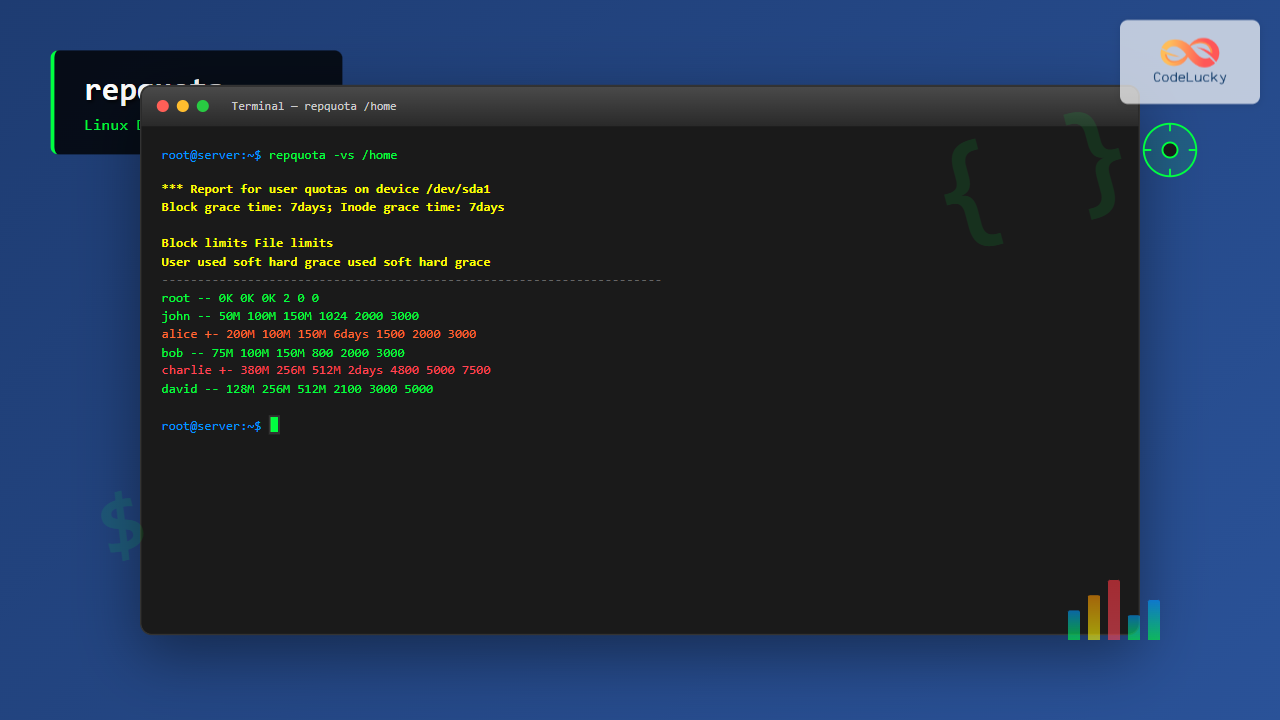
sudo repquota -vs /homeSample Output:
*** Report for user quotas on device /dev/sda1
Block grace time: 7days; Inode grace time: 7days
                        Block limits                File limits
User            used    soft    hard  grace    used  soft  hard  grace
----------------------------------------------------------------------
root      --       0K      0K      0K             2     0     0
john      --      50M    100M    150M          1024  2000  3000
alice     +-     200M    100M    150M  6days   1500  2000  3000
bob       --      75M    100M    150M           800  2000  3000
5. Skip Name Resolution for Performance
sudo repquota -n /homeThis option displays user/group IDs instead of names, improving performance on systems with many users.
6. Combined User and Group Report
sudo repquota -ug /homeReports both user and group quotas simultaneously.
Understanding Output Format
Column Explanations:
| Column | Description |
|---|---|
| User/Group | Username or group name |
| used (blocks) | Current disk space usage in KB |
| soft (blocks) | Soft limit for disk space |
| hard (blocks) | Hard limit for disk space |
| grace | Grace period remaining for soft limit |
| used (files) | Number of files/inodes used |
| soft (files) | Soft limit for file count |
| hard (files) | Hard limit for file count |
Status Indicators:
--: Within all limits+-: Soft limit exceeded, within grace period-+: Hard limit exceeded (rare, usually prevents further writes)++: Both soft and hard limits exceeded
Practical Use Cases
1. System Monitoring Script
#!/bin/bash
# Check quota usage and alert on high usage

THRESHOLD=80

repquota -a | awk '
/^[^-#*]/ {
    if ($3 > 0 && $4 > 0) {
        usage = ($3 / $4) * 100
        if (usage > '$THRESHOLD') {
            print "Warning: User " $1 " at " usage "% usage"
        }
    }
}'
2. Generate Quota Report for Management
#!/bin/bash
# Generate formatted quota report

echo "Disk Quota Report - $(date)"
echo "=================================="

repquota -vs /home | awk '
BEGIN {
    printf "%-15s %10s %10s %10s %8s\n", "User", "Used", "Soft", "Hard", "Usage%"
    printf "%-15s %10s %10s %10s %8s\n", "----", "----", "----", "----", "------"
}
/^[^-#*]/ && $3 > 0 {
    if ($4 > 0) {
        usage = ($3 / $4) * 100
        printf "%-15s %10s %10s %10s %7.1f%%\n", $1, $3, $4, $5, usage
    }
}'
3. Find Users Exceeding Quotas
sudo repquota /home | grep '+' | awk '{
    print "User: " $1 " - Usage: " $3 "KB, Limit: " $4 "KB, Grace: " $6
}'
Troubleshooting Common Issues
1. “repquota: Cannot open quotas on device”
Solution:
- Verify quotas are enabled on the filesystem
- Check if quota database files exist
- Run
quotacheckto rebuild quota database
sudo quotacheck -cug /home
sudo quotaon /home
2. “Permission denied” Error
Solution:
- Run command with sudo privileges
- Verify user has quota administration permissions
- Check file permissions on quota database files
3. Inconsistent Quota Information
Solution:
# Turn off quotas
sudo quotaoff /home

# Rebuild quota database
sudo quotacheck -cug /home

# Turn quotas back on
sudo quotaon /home
Best Practices
- Regular Monitoring: Schedule periodic quota reports to prevent storage issues
- Automated Alerts: Set up scripts to notify administrators when quotas approach limits
- Grace Period Management: Monitor grace periods and take action before they expire
- Documentation: Keep records of quota policies and user allocations
- Performance: Use
-noption for large user bases to improve performance
Integration with Other Commands
Combining with Other Quota Tools:
# Check specific user quota
quota -u john

# Set user quota
edquota -u alice

# View quota report and set new limits
repquota /home
edquota -u bob
Using with System Monitoring:
# Create daily quota report
repquota -vs /home > /var/log/daily-quota-$(date +%Y%m%d).log

# Email quota violations
repquota /home | grep '+' | mail -s "Quota Violations" [email protected]
Security Considerations
- Access Control: Restrict repquota access to authorized administrators only
- Log Monitoring: Monitor quota command usage in system logs
- Data Protection: Protect quota database files from unauthorized modification
- Regular Audits: Periodically review quota configurations and usage patterns
Conclusion
The repquota command is an indispensable tool for Linux system administrators managing disk quotas. By understanding its various options and output format, you can effectively monitor storage usage, identify potential issues, and maintain optimal system performance. Regular quota reporting helps prevent storage-related problems and ensures fair resource allocation across users and groups.
Whether you’re managing a small server or large enterprise environment, mastering repquota will significantly improve your storage management capabilities and help maintain system stability.
Related Posts
quota Command Linux: Complete Guide to Display and Manage Disk Usage Quotas
The quota command is an essential Linux system administration tool that displays disk usage and quota information for users and...
quotaon Command Linux: Enable and Manage Disk Quotas Effectively
The quotaon command is a powerful Linux utility that enables disk quota enforcement on file systems. It allows system administrators...
quotacheck Command Linux: Check Filesystem Quotas Explained with Examples
In Linux system administration, maintaining and monitoring disk usage is critical. Without proper checks, uncontrolled disk consumption can lead to...
edquota Command Linux: Complete Guide to Manage User Disk Quotas
The edquota command is a powerful Linux system administration tool that allows you to edit user and group disk quotas...
quotaoff Command Linux: Complete Guide to Disable Disk Quotas Safely
The quotaoff command is a crucial Linux system administration tool used to disable disk quotas on file systems. When you...
df Command in Linux: Complete Guide to Check Disk Space Usage
The df command is one of the most essential tools in a Linux system administrator's toolkit. Standing for "disk free,"...
du Command Linux: Display Directory Size and Disk Usage Explained with Examples
The du (disk usage) command in Linux is a powerful tool that allows users to measure directory size, analyze disk...

stat Command Linux: Complete Guide to Display File and Filesystem Status Information
The stat command is a powerful Linux utility that displays detailed information about files and filesystems. Unlike basic commands like...

free Command in Linux: Monitor Memory Usage and Swap Space Efficiently
The free command is one of the most essential utilities in Linux for monitoring system memory usage and swap space....
pvdisplay Command Linux: Complete Guide to Physical Volume Information Display
The pvdisplay command is an essential tool in Linux for displaying detailed information about Physical Volumes (PVs) in Logical Volume...
getrlimit Command Linux: Complete Guide to System Resource Limits Management
The getrlimit system call in Linux is a fundamental tool for retrieving information about resource limits imposed on processes. Understanding...

File System Types: FAT32, NTFS, ext4 and Modern Linux Filesystems Explained
Understanding File Systems: The Foundation of Data Storage A file system is the method and data structure that an operating...





