
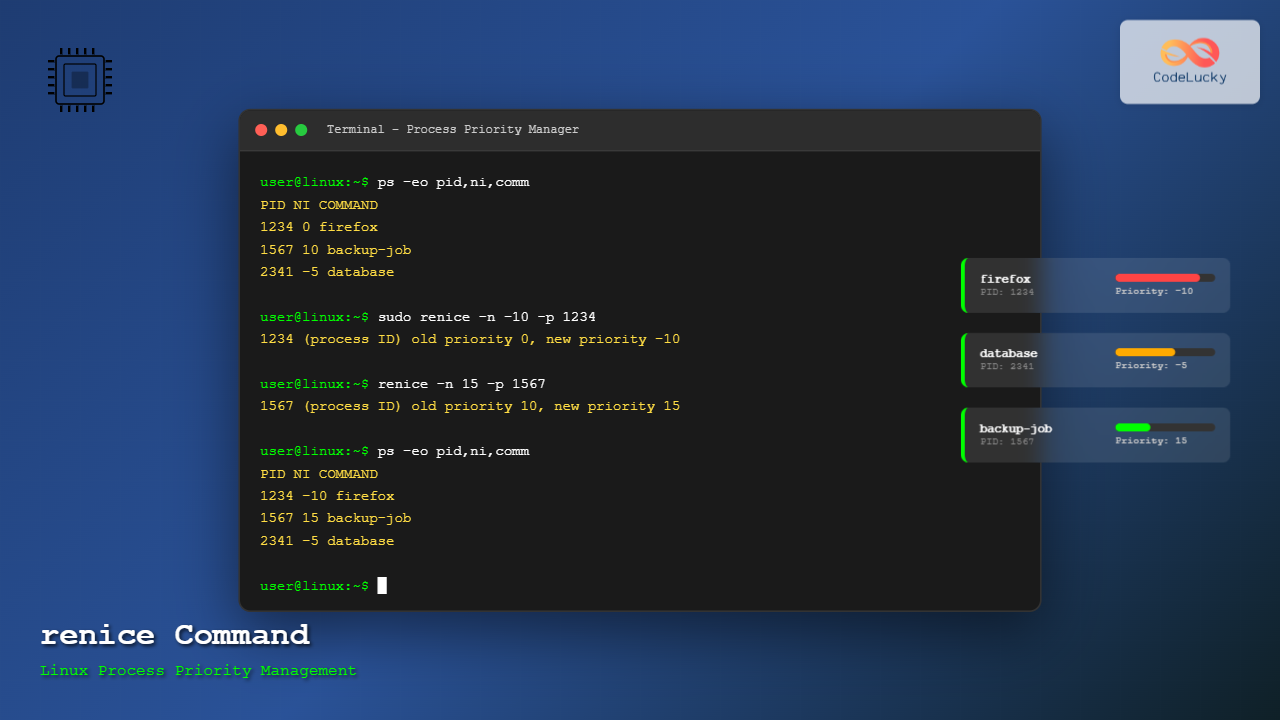
The renice command in Linux is a powerful system administration tool that allows you to modify the scheduling priority of running processes. Unlike the nice command which sets priority at process startup, renice dynamically adjusts the priority of already running processes, making it essential for system optimization and resource management.
Understanding Process Priority and Nice Values
Before diving into the renice command, it’s crucial to understand how Linux process scheduling works:
- Nice Values: Range from -20 (highest priority) to +19 (lowest priority)
- Default Nice Value: 0 for most processes
- Lower Nice Values: Higher priority (more CPU time)
- Higher Nice Values: Lower priority (less CPU time)
Basic Syntax of renice Command
The basic syntax of the renice command follows this pattern:
renice [-n] priority [-p] pid...
renice [-n] priority -g pgrp...
renice [-n] priority -u user...
Common Options
| Option | Description |
|---|---|
-n priority |
Specify the new nice value |
-p pid |
Target specific process ID |
-g pgrp |
Target process group |
-u user |
Target all processes owned by user |
Practical Examples with Output
Example 1: Checking Current Process Priority
First, let’s identify a running process and check its current priority:
$ ps -eo pid,ppid,ni,comm | grep firefox
 2145  1842   0 firefox
Here, the Firefox process (PID 2145) has a nice value of 0.
Example 2: Increasing Process Priority (Root Required)
To increase the priority of Firefox (decrease nice value), you need root privileges:
$ sudo renice -n -5 -p 2145
2145 (process ID) old priority 0, new priority -5
Verify the change:
$ ps -eo pid,ppid,ni,comm | grep firefox
 2145  1842  -5 firefox
Example 3: Decreasing Process Priority (User Can Do)
Regular users can decrease priority (increase nice value) of their own processes:
$ renice -n 10 -p 2145
2145 (process ID) old priority -5, new priority 10
Output verification:
$ ps -eo pid,ppid,ni,comm | grep firefox
 2145  1842  10 firefox
Example 4: Renicing Multiple Processes
You can renice multiple processes simultaneously:
$ renice -n 5 -p 1234 1235 1236
1234 (process ID) old priority 0, new priority 5
1235 (process ID) old priority 0, new priority 5
1236 (process ID) old priority 0, new priority 5
Example 5: Renicing by User
Change priority for all processes owned by a specific user:
$ sudo renice -n 2 -u john
501 (user ID) old priority 0, new priority 2
502 (user ID) old priority 0, new priority 2
503 (user ID) old priority 0, new priority 2
Example 6: Renicing by Process Group
Target an entire process group:
$ renice -n 3 -g 1500
1500 (process group ID) old priority 0, new priority 3
Advanced Usage Scenarios
Monitoring System Load
Before renicing processes, it’s good practice to monitor system load:
$ top -p 2145
PID USER      PR  NI    VIRT    RES    SHR S  %CPU %MEM     TIME+ COMMAND
2145 user     20   0 2847012 645432 123456 S   5.2  8.1   15:32.45 firefox
Combining with Other Commands
Use renice with process discovery commands:
$ pgrep firefox | xargs renice -n 15
2145 (process ID) old priority 0, new priority 15
2156 (process ID) old priority 0, new priority 15
Interactive Priority Management Script
Here’s a practical bash script for interactive process priority management:
#!/bin/bash
# Interactive process renice script

echo "=== Process Priority Manager ==="
echo "Current running processes with high CPU usage:"
ps -eo pid,ppid,ni,%cpu,comm --sort=-%cpu | head -10

echo -e "\nEnter Process ID to renice:"
read pid

echo "Enter new nice value (-20 to 19):"
read nice_value

if [[ $nice_value -ge -20 && $nice_value -le 19 ]]; then
    if [[ $nice_value -lt 0 ]]; then
        sudo renice -n $nice_value -p $pid
    else
        renice -n $nice_value -p $pid
    fi
    echo "Process $pid reniced successfully!"
else
    echo "Invalid nice value. Must be between -20 and 19"
fi
Best Practices and Guidelines
When to Use renice
- High CPU processes: Reduce priority of resource-intensive applications
- Background tasks: Lower priority for backup or maintenance jobs
- Critical processes: Increase priority for system-critical applications
- Performance tuning: Optimize system responsiveness
Security Considerations
- Regular users can only increase nice values (decrease priority)
- Only root can decrease nice values (increase priority)
- Avoid setting critical system processes to very low priority
- Monitor system performance after priority changes
Common Error Messages and Solutions
Permission Denied
$ renice -n -5 -p 1234
renice: failed to set priority for 1234 (process ID): Permission denied
Solution: Use sudo for negative nice values or ensure you own the process.
No Such Process
$ renice -n 5 -p 99999
renice: failed to set priority for 99999 (process ID): No such process
Solution: Verify the process ID exists using ps or pgrep.
Invalid Argument
$ renice -n 25 -p 1234
renice: invalid priority '25'
Solution: Use nice values within the valid range (-20 to 19).
Performance Impact Analysis
Understanding the impact of priority changes is crucial:
| Nice Value | Priority Level | Use Case |
|---|---|---|
| -20 to -10 | Very High | Critical system processes |
| -9 to -1 | High | Important applications |
| 0 | Default | Standard processes |
| 1 to 10 | Low | Background tasks |
| 11 to 19 | Very Low | Non-critical batch jobs |
Automation with Cron Jobs
You can automate process priority adjustments using cron jobs:
# Crontab entry to renice backup processes every hour
0 * * * * pgrep backup | xargs -r renice -n 15

# Daily priority adjustment for database maintenance
0 2 * * * pgrep mysql | xargs -r sudo renice -n -2
Troubleshooting Tips
Finding Process Information
Use these commands to gather process information before renicing:
# Find processes by name
$ pgrep -l firefox

# Show process tree
$ pstree -p

# Detailed process information
$ ps -ef | grep process_name

# Real-time process monitoring
$ htop
Verifying Changes
Always verify priority changes took effect:
# Check specific process
$ ps -o pid,ni,comm -p 1234

# Monitor system load
$ uptime

# Check process priorities in real-time
$ top -p 1234,1235,1236
Conclusion
The renice command is an essential tool for Linux system administrators and power users who need to optimize system performance by adjusting process priorities dynamically. By understanding nice values, proper syntax, and following best practices, you can effectively manage system resources and ensure critical processes receive appropriate CPU time allocation.
Remember to always monitor system performance after making priority changes and use renice judiciously to maintain system stability. Whether you’re managing a server environment or optimizing your desktop experience, mastering the renice command will significantly enhance your Linux system administration capabilities.
Related Posts

Nice Command Linux: Complete Guide to Process Priority Management
The nice command in Linux is a powerful system administration tool that allows you to control the priority of processes,...

Priority Scheduling Algorithm: Complete Implementation Guide with Examples
What is Priority Scheduling Algorithm? Priority scheduling is a CPU scheduling algorithm where each process is assigned a priority value,...

Completely Fair Scheduler: Linux CFS Algorithm Deep Dive
The Linux Completely Fair Scheduler (CFS) revolutionized process scheduling in the Linux kernel when it was introduced in version 2.6.23....

Multilevel Queue Scheduling: Multiple Priority Levels in Operating Systems
Introduction to Multilevel Queue Scheduling Multilevel queue scheduling is a sophisticated CPU scheduling algorithm used in operating systems to manage...

Process Scheduling in Operating System: Algorithms, Types & Implementation Guide
Process scheduling is one of the most critical components of an operating system that determines how the CPU time is...
prlimit Command Linux: Complete Guide to Display and Set Process Resource Limits
The prlimit command is a powerful Linux utility that allows system administrators and users to view and modify resource limits...

taskset Command Linux: Master CPU Affinity for Optimal Process Performance
The taskset command is a powerful Linux utility that allows system administrators and developers to control which CPU cores or...
ionice Command Linux: Master IO Scheduling Priority for Optimal System Performance
The ionice command is a powerful Linux utility that allows system administrators and developers to control the Input/Output (IO) scheduling...

CPU Scheduling Algorithms: FCFS, SJF, Round Robin Complete Guide
CPU scheduling is a fundamental concept in operating systems that determines how processes are allocated processor time. The CPU scheduler...

Preemptive vs Non-Preemptive Scheduling: Complete Guide to CPU Scheduling in Operating Systems
Understanding CPU Scheduling in Operating Systems CPU scheduling is one of the most critical functions of an operating system, determining...

Virtual CPU Scheduling: Complete Guide to Time-sharing Physical Processors
Virtual CPU scheduling is the cornerstone of modern operating systems, enabling multiple processes to share limited physical processors efficiently. This...

Real-time Scheduling: Hard and Soft Real-time Systems in Operating Systems
Real-time scheduling is a critical component of operating systems that manage tasks with strict timing requirements. Unlike traditional scheduling systems...





