
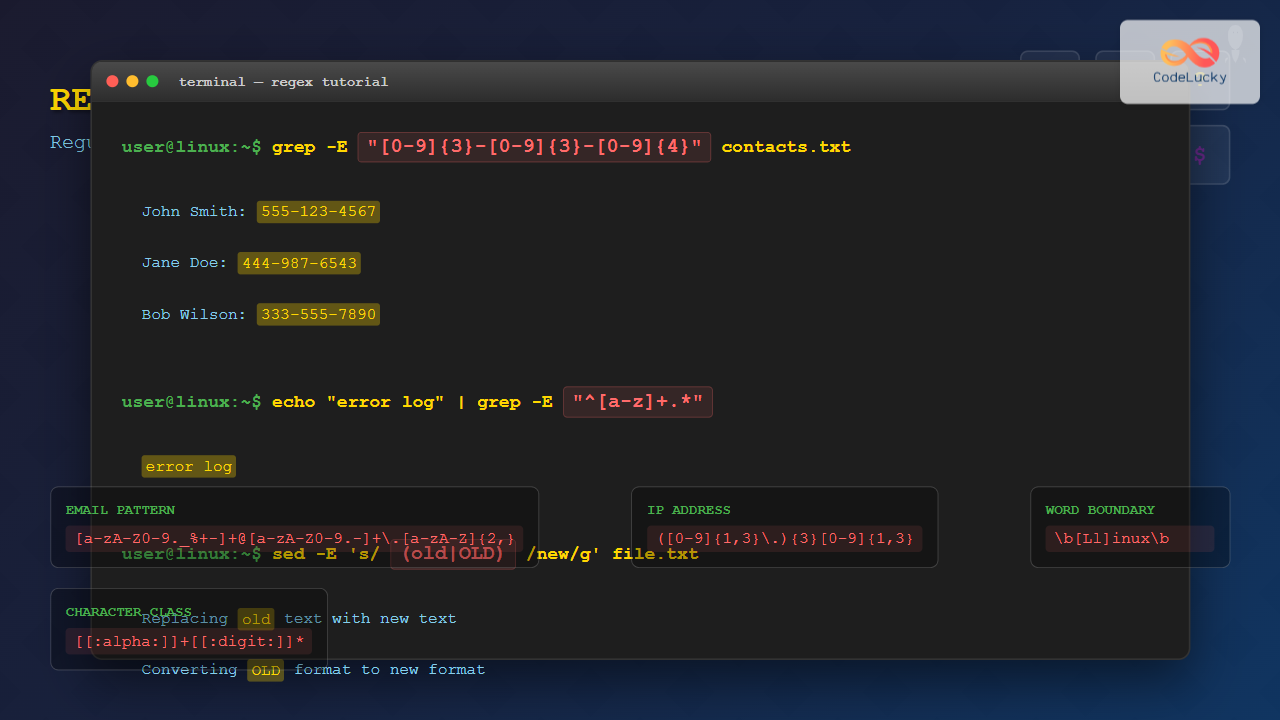
Regular expressions (regex) are powerful pattern-matching tools that form the backbone of text processing in Linux systems. Whether you’re searching through log files, filtering data, or automating text manipulation tasks, mastering regex will dramatically improve your Linux command-line efficiency.
In this comprehensive guide, we’ll explore everything from basic regex syntax to advanced pattern matching techniques using popular Linux tools like grep, sed, and awk.
What Are Regular Expressions?
A regular expression is a sequence of characters that defines a search pattern. Think of regex as a sophisticated “find and replace” tool that can match complex patterns rather than just literal text strings.
For example, instead of searching for the exact word “error”, you could create a regex pattern that matches “error”, “Error”, “ERROR”, or even “err0r” (with a zero instead of ‘o’).
Basic Regex Syntax and Metacharacters
Understanding metacharacters is crucial for building effective regex patterns. Here are the fundamental building blocks:
Literal Characters
Most characters in regex match themselves literally:
# Matches the exact word "hello"
echo "hello world" | grep "hello"
Output:
hello worldSpecial Metacharacters
The Dot (.) – Any Single Character
The dot matches any single character except newline:
# Matches "cat", "car", "can", etc.
echo -e "cat\ncar\ncan\ncup" | grep "ca."
Output:
cat
car
can
Asterisk (*) – Zero or More
Matches zero or more occurrences of the preceding character:
# Matches "color" and "colour"
echo -e "color\ncolour\ncolouur" | grep "colou*r"
Output:
color
colour
colouur
Plus (+) – One or More
Matches one or more occurrences (requires extended regex with -E):
# Matches "goood" but not "god"
echo -e "god\ngood\ngoood" | grep -E "go+d"
Output:
good
goood
Question Mark (?) – Zero or One
Makes the preceding character optional:
# Matches both "color" and "colour"
echo -e "color\ncolour" | grep -E "colou?r"
Output:
color
colour
Character Classes and Ranges
Square Brackets [] – Character Sets
Match any single character within the brackets:
# Matches words starting with vowels
echo -e "apple\nbanana\norange\ngrape" | grep "^[aeiou]"
Output:
apple
orange
Character Ranges
Use hyphens to specify ranges:
# Matches any digit
echo -e "file1\nfile2\nfileA" | grep "file[0-9]"
Output:
file1
file2
Negated Character Classes
Use caret (^) inside brackets to negate:
# Matches files NOT ending with numbers
echo -e "file1\nfile2\nfileA\nfileB" | grep "file[^0-9]"
Output:
fileA
fileB
Predefined Character Classes
Linux regex supports several predefined character classes:
| Class | Description | Equivalent |
|---|---|---|
| [:alnum:] | Alphanumeric characters | [a-zA-Z0-9] |
| [:alpha:] | Alphabetic characters | [a-zA-Z] |
| [:digit:] | Numeric characters | [0-9] |
| [:lower:] | Lowercase letters | [a-z] |
| [:upper:] | Uppercase letters | [A-Z] |
| [:space:] | Whitespace characters | [ \t\n\r\f\v] |
# Find lines with only digits
echo -e "123\nabc\n456\ndef" | grep "^[[:digit:]]*$"
Output:
123
456
Anchors and Boundaries
Line Anchors
Caret (^) – Beginning of Line
# Matches lines starting with "Error"
echo -e "Error: File not found\nWarning: Low disk space\nError: Permission denied" | grep "^Error"
Output:
Error: File not found
Error: Permission denied
Dollar Sign ($) – End of Line
# Matches lines ending with ".txt"
echo -e "document.txt\nimage.png\nscript.txt\nvideo.mp4" | grep "\.txt$"
Output:
document.txt
script.txt
Word Boundaries
Use \b for word boundaries (with extended regex):
# Matches whole word "cat" only
echo -e "cat\ncatch\nscat\nthe cat" | grep -E "\bcat\b"
Output:
cat
the cat
Quantifiers
Curly Braces {} – Specific Repetitions
# Matches exactly 3 digits
echo -e "12\n123\n1234" | grep -E "^[0-9]{3}$"
Output:
123# Matches 2 to 4 digits
echo -e "1\n12\n123\n1234\n12345" | grep -E "^[0-9]{2,4}$"Output:
12
123
1234
Grouping and Alternation
Parentheses () – Grouping
Group patterns together:
# Matches "abc" repeated 2-3 times
echo -e "abc\nabcabc\nabcabcabc\nabcabcabcabc" | grep -E "(abc){2,3}"
Output:
abcabc
abcabcabc
abcabcabcabc
Pipe (|) – Alternation
Match one pattern OR another:
# Matches lines containing "error" or "warning"
echo -e "Info: System running\nError: File missing\nWarning: Low memory" | grep -E "(error|warning)" -i
Output:
Error: File missing
Warning: Low memory
Essential Linux Tools for Regex
grep – Global Regular Expression Print
grep is the most commonly used tool for pattern matching in Linux:
Basic grep Options
-i: Case-insensitive matching-v: Invert match (show non-matching lines)-n: Show line numbers-c: Count matching lines-r: Recursive search-E: Extended regex (egrep)
Practical grep Examples
# Search for IP addresses in log files
grep -E "\b([0-9]{1,3}\.){3}[0-9]{1,3}\b" /var/log/syslog
# Find email addresses
grep -E "\b[A-Za-z0-9._%+-]+@[A-Za-z0-9.-]+\.[A-Z|a-z]{2,}\b" file.txt# Search for phone numbers (US format)
grep -E "\b\d{3}-\d{3}-\d{4}\b" contacts.txtsed – Stream Editor
sed uses regex for stream editing and text transformation:
# Replace all occurrences of "old" with "new"
echo "old text with old words" | sed 's/old/new/g'
Output:
new text with new words# Remove lines containing "debug"
sed '/debug/d' logfile.txt# Add line numbers to output
sed '=' file.txt | sed 'N;s/\n/\t/'awk – Pattern Processing Language
awk provides powerful regex capabilities within a programming context:
# Print lines matching regex pattern
awk '/^Error:/ {print "Found error:", $0}' logfile.txt
# Extract specific fields based on regex
echo "user:password:1001:1001:John Doe:/home/john:/bin/bash" | awk -F: '/john/ {print $5}'Output:
John DoeAdvanced Regex Techniques
Lookahead and Lookbehind
While not supported in basic grep, some tools support advanced assertions:
# Positive lookahead (in tools that support it)
# Matches "foo" only if followed by "bar"
# Pattern: foo(?=bar)
Backreferences
Capture groups and reference them later:
# Replace duplicate words with single occurrence
echo "the the quick brown fox" | sed 's/\(\b\w\+\) \1/\1/g'
Output:
the quick brown foxReal-World Linux Regex Applications
Log File Analysis
# Extract failed login attempts
grep "Failed password" /var/log/auth.log | grep -E -o "([0-9]{1,3}\.){3}[0-9]{1,3}"
# Find large HTTP response codes
awk '$9 ~ /^[45]/ {print $1, $9, $7}' /var/log/apache2/access.logSystem Administration Tasks
# Find all processes using excessive CPU
ps aux | awk '$3 > 50 {print $2, $11}'
# Extract disk usage for directories over 1GB
df -h | awk '$2 ~ /G$/ && $2+0 > 1 {print $6, $2}'Data Processing and Validation
# Validate and extract URLs from text
grep -E -o 'https?://[^\s]+' webpage.html
# Process CSV files with regex
awk -F, '$3 ~ /^[0-9]+$/ && $3 > 1000 {print $1, $3}' data.csvCommon Regex Patterns and Recipes
Validation Patterns
| Pattern | Regex | Description |
|---|---|---|
| ^[a-zA-Z0-9._%+-]+@[a-zA-Z0-9.-]+\.[a-zA-Z]{2,}$ | Basic email validation | |
| IP Address | ^((25[0-5]|2[0-4][0-9]|[01]?[0-9][0-9]?)\.){3}(25[0-5]|2[0-4][0-9]|[01]?[0-9][0-9]?)$ | IPv4 address |
| Phone (US) | ^\([0-9]{3}\) [0-9]{3}-[0-9]{4}$ | (555) 123-4567 format |
| Date (YYYY-MM-DD) | ^[0-9]{4}-[0-9]{2}-[0-9]{2}$ | ISO date format |
Extraction Patterns
# Extract all URLs from HTML
grep -E -o 'href="[^"]*"' webpage.html | sed 's/href="//;s/"//'
# Extract MAC addresses
grep -E -o '([0-9A-Fa-f]{2}[:-]){5}[0-9A-Fa-f]{2}' network.logPerformance Tips and Best Practices
Optimize Your Regex Patterns
- Be specific: Use anchors (^ and $) when appropriate
- Use character classes: [0-9] instead of (0|1|2|3|4|5|6|7|8|9)
- Avoid unnecessary backtracking: Use possessive quantifiers when available
- Escape special characters: Use \. for literal dots
Common Pitfalls to Avoid
- Greedy matching: .* can match more than expected
- Case sensitivity: Remember to use -i flag for case-insensitive matching
- Special character conflicts: Shell and regex both use special characters
- Line ending issues: Different systems use different line endings
Debugging Regex Patterns
Testing Your Patterns
# Use echo with multiple test cases
echo -e "test1\ntest2\nfail1" | grep -E "test[0-9]"
# Add color highlighting to see matches
echo "Hello World" | grep --color=always -E "W.*d"Verbose Mode and Documentation
# Comment your complex regex patterns
# This pattern matches valid email addresses
# ^[a-zA-Z0-9._%+-]+  - Username part
# @                    - At symbol
# [a-zA-Z0-9.-]+       - Domain name
# \.                   - Literal dot
# [a-zA-Z]{2,}$        - Top-level domain
Integration with Shell Scripts
Using Regex in Bash Scripts
#!/bin/bash
# Validate input format
validate_email() {
    local email="$1"
    if [[ $email =~ ^[a-zA-Z0-9._%+-]+@[a-zA-Z0-9.-]+\.[a-zA-Z]{2,}$ ]]; then
        echo "Valid email: $email"
    else
        echo "Invalid email format: $email"
    fi
}

validate_email "[email protected]"
validate_email "invalid-email"
Process Multiple Files
#!/bin/bash
# Search for patterns across multiple log files
for logfile in /var/log/*.log; do
    if [ -f "$logfile" ]; then
        echo "=== $logfile ==="
        grep -E "ERROR|FATAL" "$logfile" | head -5
    fi
done
Conclusion
Regular expressions are an indispensable tool for Linux users and system administrators. From simple text searches to complex data processing tasks, regex patterns provide powerful and flexible solutions for pattern matching and text manipulation.
By mastering the concepts covered in this guide—from basic metacharacters to advanced techniques—you’ll be able to:
- Efficiently search and filter text in large files
- Automate data validation and extraction tasks
- Process log files and system output
- Create sophisticated text processing pipelines
Remember that regex proficiency comes with practice. Start with simple patterns and gradually work your way up to more complex expressions. Keep this guide handy as a reference, and don’t hesitate to test your patterns with small datasets before applying them to critical operations.
The combination of regex knowledge and Linux command-line tools like grep, sed, and awk will significantly enhance your text processing capabilities and make you more effective in managing Linux systems.
Related Posts

C++ Regular Expressions: Using <regex>
Regular expressions are powerful tools for pattern matching and text manipulation. In C++, the <regex> library provides robust support for...
grep Command in Linux: Complete Guide to Text Pattern Search and File Operations
The grep command is one of the most powerful and frequently used text processing utilities in Linux and Unix systems....

Java RegEx: Regular Expressions in Java
Regular expressions, often abbreviated as RegEx, are powerful tools for pattern matching and text manipulation in Java. They provide a...

PHP Regular Expressions: Pattern Matching with preg_match()
Regular expressions are powerful tools for pattern matching and text manipulation in PHP. They allow developers to search, validate, and...

MySQL Regular Expressions: Advanced Pattern Matching
Regular expressions (regex) in MySQL elevate pattern matching to a whole new level! While basic pattern matching with LIKE is...
awk Command in Linux: Complete Pattern Scanning and Processing Tutorial
The awk command is one of the most powerful text processing tools available in Linux and Unix systems. Named after...

Python RegEx: Powerful Pattern Matching with Regular Expressions
Regular expressions, often abbreviated as RegEx, are powerful tools for pattern matching and text manipulation in Python. They provide a...

awk Advanced Linux: Mastering Complex Text Processing and Pattern Matching
The awk command is one of the most powerful text processing tools in Linux, capable of performing complex data manipulation...
strings Command Linux: Extract and Analyze Text from Binary Files
The strings command is a powerful Linux utility that extracts printable character sequences from binary files. Whether you're analyzing executables,...
find Command Advanced Linux: Master Complex Search Patterns and Powerful Operations
The find command is one of the most powerful and versatile tools in the Linux arsenal, capable of performing complex...

MySQL Pattern Matching: LIKE and REGEXP Unleashed
Pattern matching is a crucial tool in any database, allowing you to search for data that fits a specific format...

JavaScript String search() Method: Searching String Pattern
JavaScript String search() Method: Searching for String Patterns The search() method in JavaScript is used to find the first match...





