
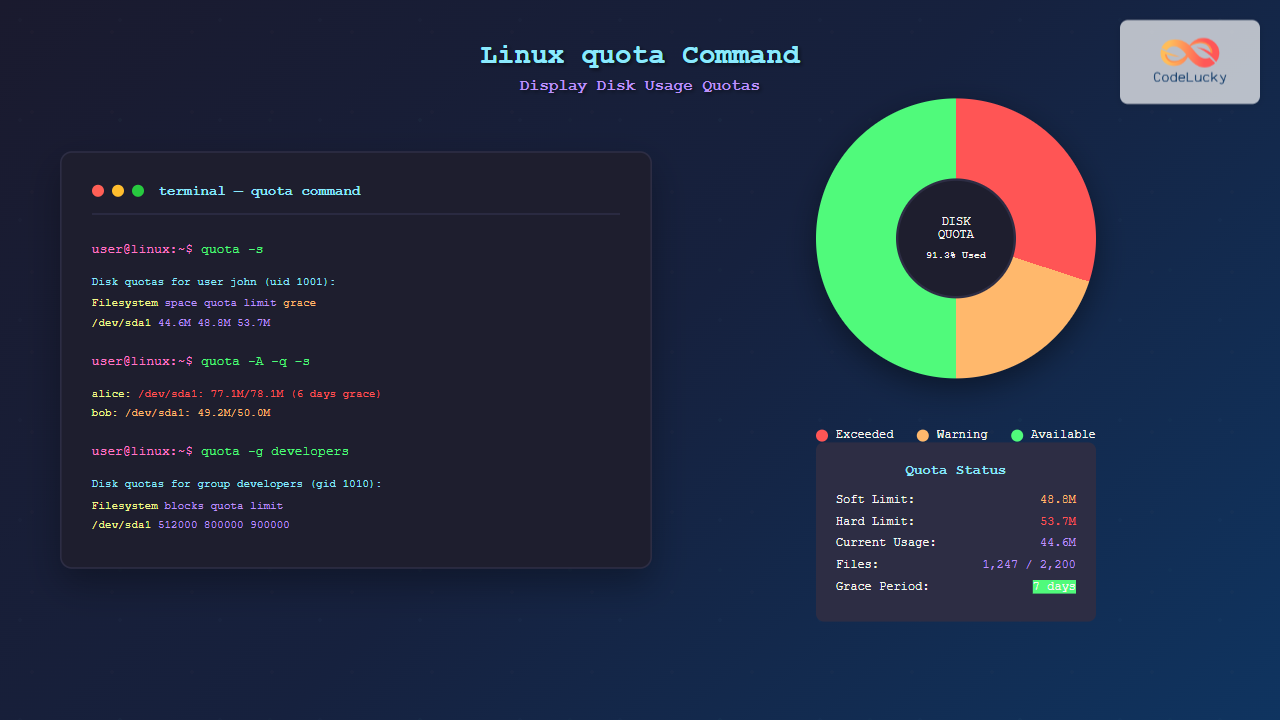
The quota command is an essential Linux system administration tool that displays disk usage and quota information for users and groups. It provides administrators with detailed insights into storage consumption, helping maintain system resources and enforce storage policies across multi-user environments.
What is the quota Command?
The quota command retrieves and displays disk usage statistics and quota limits for specified users or groups on filesystems that have quotas enabled. It works in conjunction with the quota system to monitor storage allocation and prevent excessive disk usage that could impact system performance.
Key Features:
- Display current disk usage for users and groups
- Show soft and hard quota limits
- Monitor grace periods for quota violations
- Support for multiple filesystem types
- Real-time quota status reporting
Prerequisites
Before using the quota command effectively, ensure the following requirements are met:
- Quota support enabled: The filesystem must be mounted with quota options
- Quota tools installed: The quota package must be installed on your system
- Proper permissions: Root access may be required for certain operations
- Quota initialization: Quota databases must be created and initialized
Basic Syntax
quota [options] [user/group]The basic syntax is straightforward, where you can specify options to modify the output format and specify which user or group to query.
Essential Options and Parameters
Common Options
| Option | Description |
|---|---|
-u |
Display user quotas (default) |
-g |
Display group quotas |
-v |
Verbose output, show quotas for all filesystems |
-s |
Use human-readable format (KB, MB, GB) |
-h |
Show help information |
-q |
Quiet mode, only show filesystems where usage exceeds quota |
Practical Examples
Example 1: Check Current User’s Quota
$ quota
Disk quotas for user john (uid 1001):
     Filesystem  blocks   quota   limit   grace   files   quota   limit   grace
      /dev/sda1    2048    5000   10000               125     200     250
This command displays the quota information for the current user, showing:
- blocks: Current disk usage in 1KB blocks
- quota: Soft limit for disk usage
- limit: Hard limit for disk usage
- files: Number of files currently owned
- grace: Time remaining before soft limit enforcement
Example 2: Check Specific User’s Quota
$ quota -u alice
Disk quotas for user alice (uid 1002):
     Filesystem  blocks   quota   limit   grace   files   quota   limit   grace
      /dev/sda1    7500    5000   10000    6days     180     200     250
This shows that user ‘alice’ has exceeded the soft limit (5000 blocks) but is still within the hard limit (10000 blocks), with 6 days remaining in the grace period.
Example 3: Display Human-Readable Format
$ quota -u -s john
Disk quotas for user john (uid 1001):
     Filesystem   space   quota   limit   grace   files   quota   limit   grace
      /dev/sda1   2048K   4883K   9766K             125     200     250
The -s option converts the output to a more readable format using appropriate units (K, M, G).
Example 4: Check Group Quotas
$ quota -g developers
Disk quotas for group developers (gid 2001):
     Filesystem  blocks   quota   limit   grace   files   quota   limit   grace
      /dev/sda1   15000   20000   25000             450     500     600
Group quotas help manage collective resource usage for teams or departments.
Example 5: Verbose Output for All Filesystems
$ quota -v
Disk quotas for user john (uid 1001):
     Filesystem  blocks   quota   limit   grace   files   quota   limit   grace
      /dev/sda1    2048    5000   10000               125     200     250
      /dev/sdb1       0       0       0                 0       0       0
The verbose option shows quota information for all mounted filesystems, even those without active quotas.
Understanding Quota Output
Block Usage vs. File Count
Linux quotas track two types of resources:
- Block quotas: Control the amount of disk space a user can consume
- Inode quotas: Limit the number of files and directories a user can create
Soft vs. Hard Limits
- Soft limit: A warning threshold that can be temporarily exceeded
- Hard limit: An absolute limit that cannot be exceeded
- Grace period: Time allowed to reduce usage below the soft limit
Advanced Usage Scenarios
Monitoring Quota Violations
$ quota -q -u
Disk quotas for user alice (uid 1002):
     Filesystem  blocks   quota   limit   grace   files   quota   limit   grace
      /dev/sda1    7500*   5000   10000    6days     180     200     250
The asterisk (*) indicates that the soft limit has been exceeded. The quiet mode only displays users who have exceeded their quotas.
Checking Multiple Users
$ quota -u john alice bob
Disk quotas for user john (uid 1001): ...
Disk quotas for user alice (uid 1002): ...
Disk quotas for user bob (uid 1003): ...
Integration with System Administration
Automated Quota Monitoring
Create a script to monitor quota usage:
#!/bin/bash
# quota-check.sh
for user in $(awk -F: '$3 >= 1000 {print $1}' /etc/passwd); do
    quota -q -u $user 2>/dev/null
done
Quota Reports
Generate comprehensive quota reports for all users:
$ quota -u -s $(awk -F: '$3>=1000{print $1}' /etc/passwd | tr '\n' ' ')
Common Issues and Troubleshooting
Quota Not Working
Issue: quota command returns “quota: Cannot open quotas on /dev/sda1: No such file or directory”
Solution:
- Verify quota support is enabled in the kernel
- Check if the filesystem is mounted with quota options
- Initialize quota databases with
quotacheck - Enable quotas with
quotaon
Permission Denied Errors
Issue: Regular users cannot check other users’ quotas
Solution: This is normal behavior. Users can only check their own quotas unless they have administrative privileges.
Outdated Quota Information
Issue: Quota information appears outdated
Solution: Run quotacheck to rebuild the quota databases and ensure accuracy.
Security Considerations
- Privacy: Regular users cannot view other users’ quota information
- Access Control: Root privileges required for system-wide quota management
- Audit Trail: Quota violations can be logged for security monitoring
Performance Impact
The quota command has minimal performance impact as it reads cached information from the kernel. However, frequent quota checks across large user bases should be optimized through scripting and scheduling.
Best Practices
- Regular Monitoring: Implement automated quota checking to prevent disk space issues
- Grace Periods: Configure appropriate grace periods to allow users time to clean up
- Notification System: Set up alerts when users approach their quota limits
- Documentation: Maintain clear policies about quota limits and consequences
- Capacity Planning: Use quota data for storage capacity planning
Related Commands
- quotacheck: Create, check, and repair quota files
- quotaon/quotaoff: Enable or disable filesystem quotas
- edquota: Edit user or group quotas
- repquota: Summarize quotas for a filesystem
- warnquota: Send warning messages to users exceeding quotas
Conclusion
The quota command is an indispensable tool for Linux system administrators managing multi-user environments. By providing detailed disk usage information and quota status, it enables proactive storage management and helps prevent system-wide disk space issues. Regular use of quota monitoring, combined with appropriate policies and automated alerts, ensures optimal system performance and resource utilization.
Understanding the various options and output formats of the quota command allows administrators to effectively monitor, report, and manage disk quotas across their systems, making it an essential component of Linux system administration toolkit.
Related Posts
quotaon Command Linux: Enable and Manage Disk Quotas Effectively
The quotaon command is a powerful Linux utility that enables disk quota enforcement on file systems. It allows system administrators...
repquota Command Linux: Complete Guide to Disk Quota Reporting and Management
The repquota command is an essential Linux system administration tool used to report disk quota usage for users and groups...
quotacheck Command Linux: Check Filesystem Quotas Explained with Examples
In Linux system administration, maintaining and monitoring disk usage is critical. Without proper checks, uncontrolled disk consumption can lead to...
quotaoff Command Linux: Complete Guide to Disable Disk Quotas Safely
The quotaoff command is a crucial Linux system administration tool used to disable disk quotas on file systems. When you...
edquota Command Linux: Complete Guide to Manage User Disk Quotas
The edquota command is a powerful Linux system administration tool that allows you to edit user and group disk quotas...
df Command in Linux: Complete Guide to Check Disk Space Usage
The df command is one of the most essential tools in a Linux system administrator's toolkit. Standing for "disk free,"...
du Command Linux: Display Directory Size and Disk Usage Explained with Examples
The du (disk usage) command in Linux is a powerful tool that allows users to measure directory size, analyze disk...

stat Command Linux: Complete Guide to Display File and Filesystem Status Information
The stat command is a powerful Linux utility that displays detailed information about files and filesystems. Unlike basic commands like...

free Command in Linux: Monitor Memory Usage and Swap Space Efficiently
The free command is one of the most essential utilities in Linux for monitoring system memory usage and swap space....

ulimit Command Linux: Complete Guide to Setting User Resource Limits
The ulimit command is a powerful built-in shell utility in Linux that allows users and system administrators to control the...
getrlimit Command Linux: Complete Guide to System Resource Limits Management
The getrlimit system call in Linux is a fundamental tool for retrieving information about resource limits imposed on processes. Understanding...
pvdisplay Command Linux: Complete Guide to Physical Volume Information Display
The pvdisplay command is an essential tool in Linux for displaying detailed information about Physical Volumes (PVs) in Logical Volume...





