
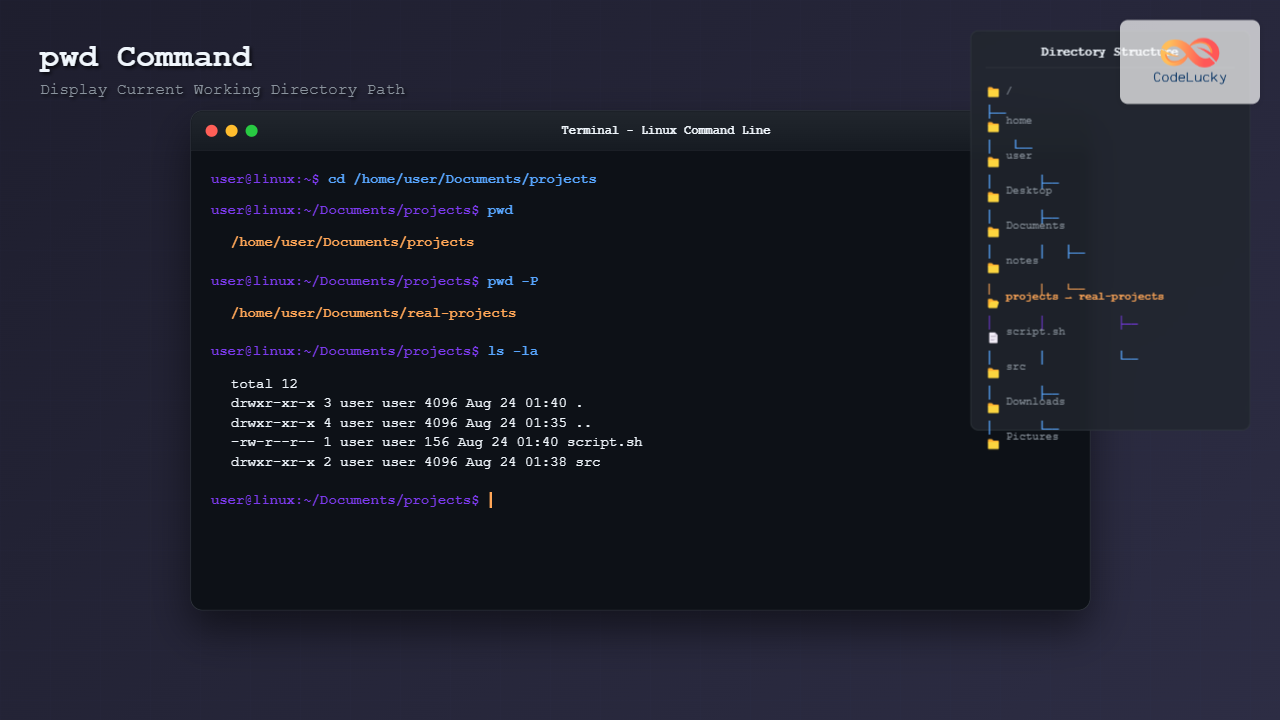
The pwd command is one of the fundamental Linux commands that every user should master. Standing for “Print Working Directory,” this essential command displays the absolute path of your current location in the file system hierarchy. Whether you’re a beginner learning Linux basics or an experienced system administrator, understanding pwd is crucial for effective command-line navigation.
What is the pwd Command?
The pwd command is a built-in shell utility that prints the full pathname of the current working directory to standard output. It helps you identify exactly where you are in the Linux file system structure, making it an indispensable tool for navigation and file management tasks.
Basic Syntax and Usage
The basic syntax of the pwd command is straightforward:
pwd [OPTION]Let’s start with the most basic usage:
$ pwd
/home/username/Documents
This output shows that you’re currently in the Documents directory under your home folder.
pwd Command Options
While pwd is simple, it offers several useful options to customize its behavior:
-L Option (Logical Path)
The -L option displays the logical current working directory, including symbolic links:
$ pwd -L
/home/username/project-link
This is the default behavior when no options are specified.
-P Option (Physical Path)
The -P option shows the physical directory path, resolving all symbolic links:
$ pwd -P
/home/username/actual-project-directory
This is particularly useful when working with symbolic links and you need to know the actual directory location.
Practical Examples
Example 1: Basic Directory Navigation
$ cd /var/log
$ pwd
/var/log

$ cd apache2
$ pwd
/var/log/apache2
This example shows how pwd confirms your location after changing directories.
Example 2: Working with Symbolic Links
Let’s create a symbolic link and see the difference between -L and -P options:
$ mkdir /home/username/original-folder
$ ln -s /home/username/original-folder /home/username/link-folder
$ cd /home/username/link-folder

$ pwd -L
/home/username/link-folder

$ pwd -P
/home/username/original-folder
Notice how -L shows the symbolic link path, while -P reveals the actual physical directory.
Example 3: Using pwd in Shell Scripts
The pwd command is frequently used in shell scripts to store the current directory:
#!/bin/bash
current_dir=$(pwd)
echo "Starting script from: $current_dir"

# Change to another directory for operations
cd /tmp
echo "Now working in: $(pwd)"

# Return to original directory
cd "$current_dir"
echo "Back to original location: $(pwd)"
Environment Variable: PWD
Linux maintains the current working directory in the PWD environment variable:
$ echo $PWD
/home/username/Documents

$ pwd
/home/username/Documents
Both commands typically show the same result, but the environment variable might not always be updated correctly, making the pwd command more reliable.
Common Use Cases
1. Directory Confirmation
Before performing critical operations, always verify your location:
$ pwd
/home/username/important-files
$ rm -rf old-backups/
2. Path Variable Assignment
Store current directory for later use:
$ backup_location=$(pwd)
$ cd /somewhere/else
$ cp file.txt "$backup_location/"
3. Build and Compilation Scripts
$ project_root=$(pwd)
$ cd src/
$ make
$ cd "$project_root"
Difference Between pwd and Other Commands
pwd vs ls
While ls shows the contents of a directory, pwd shows the directory path itself:
$ pwd
/home/username/Documents

$ ls
file1.txt  file2.txt  folder1  folder2
pwd vs which
The which command locates executable files, while pwd shows your current location:
$ pwd
/home/username

$ which pwd
/bin/pwd
Built-in vs External pwd
Most shells have a built-in pwd command, but there’s also an external version. You can check which one you’re using:
$ type pwd
pwd is a shell builtin

$ /bin/pwd
/home/username/current-directory
The built-in version is typically faster as it doesn’t need to spawn a new process.
Error Scenarios and Troubleshooting
Directory Doesn’t Exist
If the current directory has been deleted while you’re in it:
$ pwd
pwd: error retrieving current directory: getcwd: cannot access parent directories: No such file or directory
Solution: Change to a valid directory using cd.
Permission Issues
In rare cases, you might not have permissions to read the directory path:
$ pwd
pwd: cannot determine current directory
Advanced Tips and Tricks
1. Combining with Other Commands
$ ls $(pwd)/*.txt
/home/username/Documents/file1.txt  /home/username/Documents/file2.txt
2. Creating Directory Bookmarks
$ bookmark=$(pwd)
$ cd /anywhere/else
$ cd "$bookmark"  # Return to bookmarked location
3. Using in Find Operations
$ find $(pwd) -name "*.log" -type fPerformance Considerations
The pwd command is extremely lightweight and executes almost instantaneously. However, in very deep directory structures or networked file systems, there might be slight delays. The built-in version is generally faster than the external binary.
Best Practices
- Always verify location before destructive operations
- Use in scripts to make them more robust and portable
- Combine with other commands for powerful one-liners
- Understand symbolic links and use -P when you need physical paths
- Store paths in variables for complex directory operations
Related Commands
cd– Change directoryls– List directory contentsrealpath– Print resolved absolute pathdirname– Extract directory path from filepathbasename– Extract filename from filepath
Conclusion
The pwd command is a fundamental tool for Linux command-line navigation. Its simplicity belies its importance in daily Linux operations, script development, and system administration tasks. By mastering pwd and understanding its options, you’ll have better control over your file system navigation and can write more reliable shell scripts.
Remember that knowing your current location in the file system is crucial for safe and effective command-line operations. Whether you’re performing routine file management or complex system administration tasks, pwd will help ensure you’re always working in the right place.
Practice using pwd in combination with other commands, and you’ll quickly discover how this simple utility can significantly improve your Linux command-line productivity and confidence.
Related Posts
cd Command Linux: Complete Guide to Directory Navigation in Terminal
The cd command is one of the most fundamental and frequently used commands in Linux and Unix-like operating systems. Standing...
which Command Linux: Complete Guide to Finding Executable File Locations
The which command is one of the most fundamental utilities in Linux and Unix-like systems, designed to help users locate...
which Command Linux: Complete Guide to Locating Executable Commands in PATH
The which command is a fundamental Linux utility that helps you locate executable files in your system's PATH environment variable....

ls Command in Linux: Complete Guide to List Files and Directories with Examples
The ls command is one of the most fundamental and frequently used commands in Linux and Unix-like operating systems. It...
ls Command Advanced Linux: Complete Guide to File Listing Mastery
The ls command is one of the most fundamental and frequently used commands in Linux and Unix-like operating systems. While...

echo Command in Linux: Complete Guide to Print Text and Variables in Terminal
The echo command is one of the most fundamental and frequently used commands in Linux and Unix-like operating systems. It...
type Command Linux: Complete Guide to Display Command Type and Location
The type command is an essential Linux utility that helps you identify the nature and location of commands in your...
history Command Linux: Complete Guide to View and Manage Your Command History
The history command in Linux is one of the most powerful tools for managing and navigating your command line experience....
find Command Linux: Ultimate Guide to Search Files and Directories by Name, Size, and Attributes
The find command is one of the most powerful and versatile tools in Linux for searching files and directories. Whether...
export Command Linux: Complete Guide to Environment Variables Management
The export command is one of the most fundamental tools in Linux for managing environment variables. Whether you're a system...
who Command in Linux: Complete Guide to Display Logged in Users
The who command is one of the most fundamental system administration tools in Linux, designed to display information about currently...

bash Command Linux: Start New Shell Sessions and Execute Scripts Efficiently
The bash command is one of the most fundamental tools in Linux systems, serving as both a command-line interpreter and...





