
The prlimit command is a powerful Linux utility that allows system administrators and users to view and modify resource limits for running processes. Unlike the traditional ulimit command that only works with the current shell, prlimit can manipulate limits for any process by its PID (Process ID).
Understanding Process Resource Limits
Process resource limits are constraints imposed by the operating system to prevent individual processes from consuming excessive system resources. These limits help maintain system stability and ensure fair resource distribution among processes.
Linux supports two types of limits:
- Soft Limit: The current effective limit that can be increased up to the hard limit
- Hard Limit: The maximum value that the soft limit can reach
prlimit Command Syntax
The basic syntax of the prlimit command is:
prlimit [options] [--resource[=limits]] [--pid PID | command [arguments]]Common Options
--pid: Specify the process ID to modify--output: Define output format--verbose: Enable verbose output--noheadings: Don’t print column headings
Displaying Current Process Limits
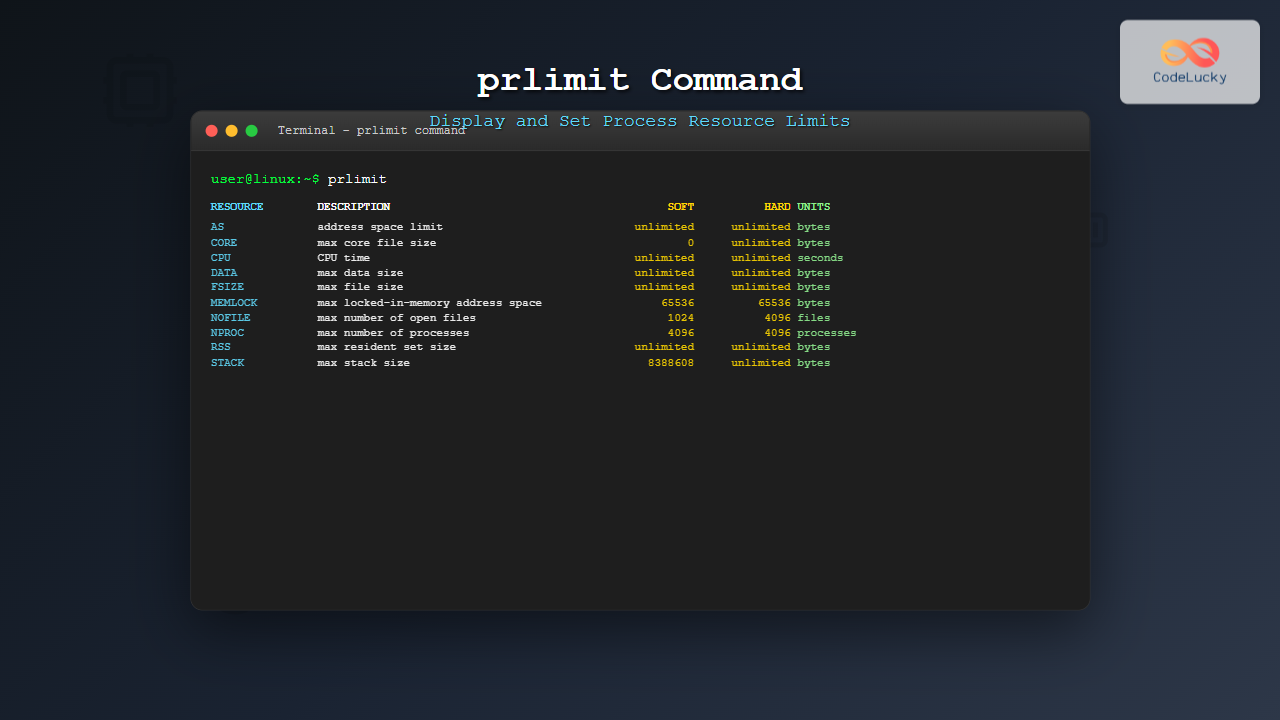
To view all resource limits for the current process, simply run:
$ prlimitSample output:
RESOURCE   DESCRIPTION                             SOFT      HARD      UNITS
AS         address space limit                unlimited unlimited bytes
CORE       max core file size                         0 unlimited bytes
CPU        CPU time                           unlimited unlimited seconds
DATA       max data size                      unlimited unlimited bytes
FSIZE      max file size                      unlimited unlimited bytes
LOCKS      max number of file locks held      unlimited unlimited locks
MEMLOCK    max locked-in-memory address space     65536     65536 bytes
MSGQUEUE   max bytes in POSIX mqueues            819200    819200 bytes
NICE       max nice prio allowed to raise             0         0
NOFILE     max number of open files                1024      4096 files
NPROC      max number of processes                 4096      4096 processes
RSS        max resident set size             unlimited unlimited bytes
RTPRIO     max real-time priority                     0         0
RTTIME     timeout for real-time tasks       unlimited unlimited microseconds
SIGPENDING max number of pending signals           4096      4096 signals
STACK      max stack size                       8388608 unlimited bytes
Viewing Limits for Specific Processes
To check limits for a specific process using its PID:
$ prlimit --pid 1234You can also use process names with pgrep:
$ prlimit --pid $(pgrep firefox)Setting Resource Limits
Setting Limits for New Processes
To start a new process with specific limits:
$ prlimit --nofile=1024:2048 --nproc=100:200 firefoxThis command starts Firefox with:
- Maximum open files: 1024 (soft), 2048 (hard)
- Maximum processes: 100 (soft), 200 (hard)
Modifying Limits for Running Processes
To modify limits for an existing process:
$ sudo prlimit --pid 1234 --nofile=2048:4096Note: Root privileges are typically required to modify limits for other users’ processes.
Common Resource Types
File-Related Limits
| Resource | Description | Example |
|---|---|---|
| NOFILE | Maximum number of open files | --nofile=1024:2048 |
| FSIZE | Maximum file size | --fsize=1G:2G |
| LOCKS | Maximum file locks | --locks=100:200 |
Memory-Related Limits
| Resource | Description | Example |
|---|---|---|
| AS | Virtual memory size | --as=1G:2G |
| RSS | Resident set size | --rss=512M:1G |
| STACK | Stack size | --stack=8M:16M |
| DATA | Data segment size | --data=1G:2G |
Process-Related Limits
| Resource | Description | Example |
|---|---|---|
| NPROC | Maximum processes | --nproc=100:200 |
| CPU | CPU time in seconds | --cpu=3600:7200 |
| RTTIME | Real-time CPU time | --rttime=1000000 |
Practical Examples
Example 1: Limiting Memory Usage
Start a process with limited virtual memory:
$ prlimit --as=512M:1G python memory_intensive_script.pyExample 2: Controlling File Access
Run a web server with limited file descriptors:
$ prlimit --nofile=1000:2000 --nproc=50:100 httpdExample 3: CPU Time Restriction
Limit CPU time for a computation:
$ prlimit --cpu=600:600 ./compute_taskThis allows exactly 10 minutes (600 seconds) of CPU time.
Advanced Usage Scenarios
Monitoring Resource Usage
Create a monitoring script to check if processes are approaching their limits:
#!/bin/bash
for pid in $(pgrep firefox); do
    echo "Process $pid limits:"
    prlimit --pid $pid --output RESOURCE,SOFT,HARD,UNITS
    echo "---"
done
Setting Temporary Limits
Apply temporary limits without modifying system configuration:
$ prlimit --nofile=500:1000 --nproc=10:20 bash -c 'your_command_here'Understanding Limit Inheritance
Child processes inherit resource limits from their parent processes. This means:
- Processes started from a shell inherit the shell’s limits
- System services inherit limits from their parent (usually systemd)
- Modified limits apply to the target process and its children
Common Use Cases
Database Servers
Database servers often need increased file descriptor limits:
$ sudo prlimit --pid $(pgrep mysqld) --nofile=65536:65536Web Servers
Web servers may require process and connection limits:
$ prlimit --nproc=1000:2000 --nofile=8192:16384 nginxDevelopment Environment
Limit resource usage for testing:
$ prlimit --as=256M:512M --cpu=300:300 ./test_applicationError Handling and Troubleshooting
Permission Denied
If you encounter permission errors:
$ sudo prlimit --pid 1234 --nofile=2048:4096Invalid Limit Values
Ensure soft limits don’t exceed hard limits:
# Incorrect - soft limit exceeds hard limit
$ prlimit --nofile=2048:1024 command

# Correct
$ prlimit --nofile=1024:2048 command
Integration with System Services
For systemd services, you can set limits in service files:
[Service]
LimitNOFILE=4096
LimitNPROC=2048
ExecStart=/path/to/your/service
Then use prlimit to verify the applied limits:
$ prlimit --pid $(systemctl show --property MainPID --value your-service)Best Practices
- Monitor regularly: Check resource usage patterns before setting limits
- Test thoroughly: Verify that applications work correctly with imposed limits
- Document changes: Keep records of limit modifications for troubleshooting
- Use conservative values: Start with generous limits and tighten gradually
- Consider system resources: Ensure total limits don’t exceed system capacity
Comparison with Related Commands
| Command | Scope | Modification | Target |
|---|---|---|---|
| ulimit | Current shell | Current session | Shell and children |
| prlimit | Any process | Runtime modification | Specific PID |
| systemd limits | Services | Service configuration | System services |
Conclusion
The prlimit command is an essential tool for Linux system administration, offering granular control over process resource consumption. By understanding its syntax, options, and practical applications, you can effectively manage system resources, prevent resource exhaustion, and maintain optimal system performance.
Whether you’re managing server applications, developing software, or troubleshooting performance issues, mastering prlimit will enhance your ability to control and optimize Linux system behavior. Remember to always test limit changes in non-production environments and monitor their effects on application performance.
Related Posts

ulimit Command Linux: Complete Guide to Setting User Resource Limits
The ulimit command is a powerful built-in shell utility in Linux that allows users and system administrators to control the...
getrlimit Command Linux: Complete Guide to System Resource Limits Management
The getrlimit system call in Linux is a fundamental tool for retrieving information about resource limits imposed on processes. Understanding...
renice Command Linux: Complete Guide to Changing Process Priority
The renice command in Linux is a powerful system administration tool that allows you to modify the scheduling priority of...

Process in Operating System: Complete Guide to Definition, States and Lifecycle
What is a Process in Operating System? A process is a program in execution that consists of the program code...
timeout Command Linux: Complete Guide to Running Commands with Time Limits
The timeout command in Linux is an essential utility that allows you to run commands with a specified time limit....
Process Creation in OS: Fork, Exec and Process Spawning Complete Guide
Introduction to Process Creation in Operating Systems Process creation is one of the fundamental concepts in operating systems that enables...
quotaon Command Linux: Enable and Manage Disk Quotas Effectively
The quotaon command is a powerful Linux utility that enables disk quota enforcement on file systems. It allows system administrators...
Nice Command Linux: Complete Guide to Process Priority Management
The nice command in Linux is a powerful system administration tool that allows you to control the priority of processes,...

Thread vs Process: Complete Guide to Differences and When to Use Each
Understanding the fundamental differences between threads and processes is crucial for system programming, application design, and performance optimization. While both...

ps Command in Linux: Complete Guide to Process Monitoring and Management
The ps command is one of the most fundamental and powerful tools in Linux for displaying information about running processes....
taskset Command Linux: Master CPU Affinity for Optimal Process Performance
The taskset command is a powerful Linux utility that allows system administrators and developers to control which CPU cores or...

kill Command in Linux: Complete Guide to Terminate Processes by PID
The kill command is one of the most essential tools in Linux system administration, allowing users to terminate processes by...





