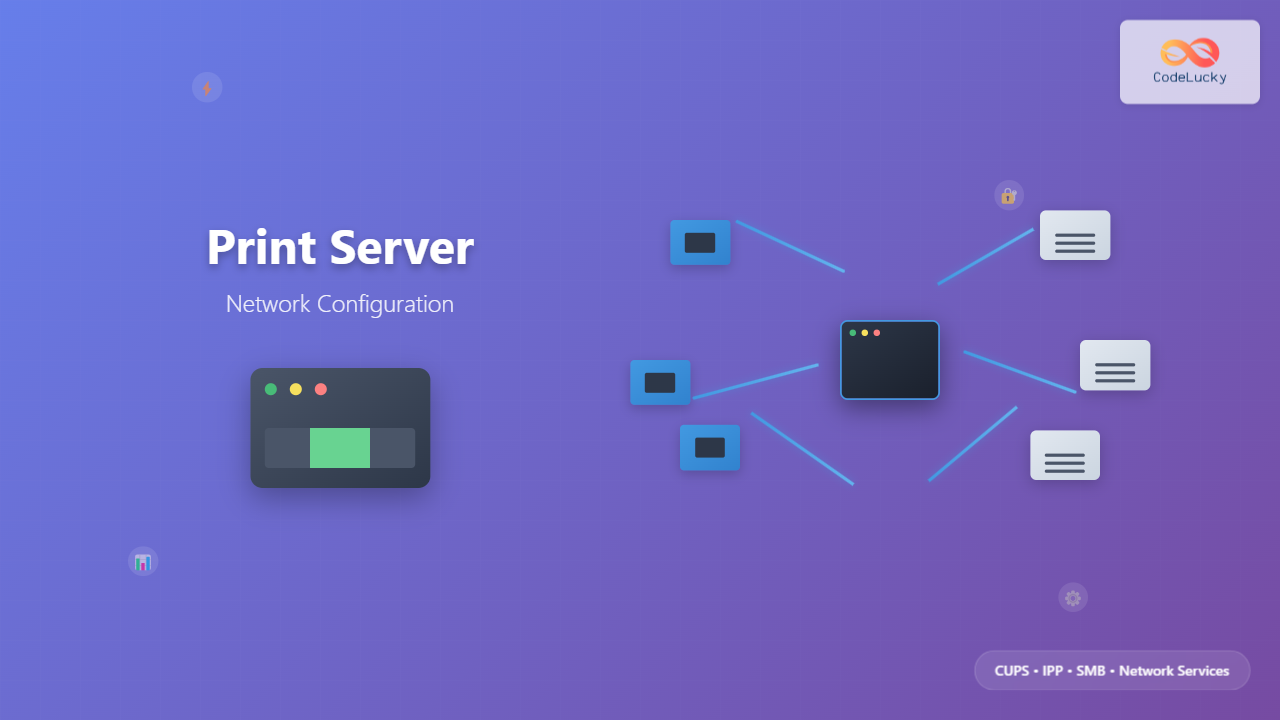
Print server configuration is a crucial aspect of network administration that enables centralized printing services across an organization. A print server acts as an intermediary between client computers and network printers, managing print jobs, queues, and access permissions while providing efficient resource sharing and cost optimization.
Understanding Print Server Architecture
A print server operates as a dedicated service that receives, processes, and manages print requests from multiple clients. It can be implemented as a dedicated hardware device, a software service running on a server, or integrated into network printers themselves.

Key Components of Print Server Infrastructure
- Print Spooler Service: Manages print job queuing and processing
- Print Drivers: Software components that translate print commands
- Print Queues: Temporary storage for pending print jobs
- Access Control Lists: User and group permissions for printer access
- Print Processors: Components that handle different data types
CUPS (Common Unix Printing System) Configuration
CUPS is the standard printing system used on Unix-like operating systems, including Linux and macOS. It provides a portable printing layer and supports Internet Printing Protocol (IPP).
Installing CUPS on Linux
For Ubuntu/Debian systems:
sudo apt update
sudo apt install cups cups-client
sudo systemctl enable cups
sudo systemctl start cups
For CentOS/RHEL systems:
sudo yum install cups cups-client
# For newer versions:
sudo dnf install cups cups-client
sudo systemctl enable cups
sudo systemctl start cups
CUPS Web Interface Configuration
CUPS provides a web-based administration interface accessible at https://localhost:631. To enable remote administration:
sudo cupsctl --remote-admin --remote-any --share-printers
Edit the CUPS configuration file:
sudo nano /etc/cups/cupsd.conf
Key configuration settings:
# Listen on all interfaces
Listen 0.0.0.0:631

# Allow remote access to administration
<Location /admin>
  Order allow,deny
  Allow from 192.168.1.0/24
</Location>

# Share printers on the network
Browsing On
BrowseOrder allow,deny
BrowseAllow all
DefaultShared Yes
Adding Network Printers via CUPS
Using the command line:
# Add a network printer
sudo lpadmin -p NetworkPrinter1 -E -v ipp://192.168.1.100/ipp/print -m everywhere

# Set default printer
sudo lpadmin -d NetworkPrinter1

# Enable sharing
sudo lpadmin -p NetworkPrinter1 -o printer-is-shared=true
Windows Print Server Configuration
Windows Server provides comprehensive print server capabilities through the Print and Document Services role.
Installing Print Server Role
Using PowerShell:
Install-WindowsFeature Print-Server -IncludeManagementTools
Install-WindowsFeature Print-LPD-Service
Install-WindowsFeature Print-Internet
Through Server Manager:
- Open Server Manager
- Click “Add Roles and Features”
- Select “Print and Document Services”
- Choose role services: Print Server, Internet Printing, LPD Service
Print Server Management Console
The Print Management console (printmanagement.msc) provides centralized administration:

Adding Network Printers in Windows
Using PowerShell:
# Add TCP/IP printer port
Add-PrinterPort -Name "IP_192.168.1.100" -PrinterHostAddress "192.168.1.100"

# Add printer
Add-Printer -Name "Office Printer" -DriverName "HP LaserJet PCL 6" -PortName "IP_192.168.1.100"

# Share the printer
Set-Printer -Name "Office Printer" -Shared $true -ShareName "OfficePrinter"
Network Printing Protocols
Understanding various printing protocols is essential for proper print server configuration:
Internet Printing Protocol (IPP)
IPP is the modern standard for network printing, providing:
- HTTP-based communication
- Authentication and encryption support
- Bidirectional communication
- Print job status monitoring
Line Printer Daemon (LPD)
LPD is a legacy protocol still widely supported:
# Enable LPD on Linux
sudo systemctl enable cups-lpd
sudo systemctl start cups-lpd

# Test LPD connection
lpq -S printserver -P printername
Server Message Block (SMB)
SMB printing allows Windows-style printer sharing:
# Install Samba for SMB support
sudo apt install samba samba-client

# Configure Samba for printing
sudo nano /etc/samba/smb.conf

[printers]
   comment = All Printers
   browseable = no
   path = /var/spool/samba
   printable = yes
   guest ok = yes
   read only = yes
Print Queue Management and Troubleshooting
Effective queue management is crucial for maintaining print server performance:

CUPS Queue Management
Common CUPS commands for queue management:
# View print queues
lpstat -t

# Cancel all jobs
sudo cancel -a

# Cancel specific job
sudo cancel job-id

# Purge completed jobs
sudo cupsdisable printer-name
sudo cupsenable printer-name

# View detailed printer status
lpstat -p printer-name -l
Windows Print Queue Management
PowerShell commands for Windows print management:
# Get print jobs
Get-PrintJob -PrinterName "Office Printer"

# Remove print job
Remove-PrintJob -PrinterName "Office Printer" -ID 1

# Restart print spooler
Restart-Service -Name Spooler

# Clear print queue
Stop-Service -Name Spooler
Remove-Item -Path "C:\Windows\System32\spool\PRINTERS\*" -Force
Start-Service -Name Spooler
Driver Management and Distribution
Centralized driver management eliminates the need to install drivers on each client machine:
Windows Driver Management
# Add printer driver
Add-PrinterDriver -Name "HP LaserJet PCL 6"

# Export driver package
Export-PrinterDriver -Name "HP LaserJet PCL 6" -Path "C:\Drivers\"

# Import driver package
Import-PrinterDriver -Path "C:\Drivers\driver.inf"
Point and Print Configuration
Configure Group Policy for automatic driver installation:
- Open Group Policy Management
- Navigate to Computer Configuration > Policies > Administrative Templates > Printers
- Enable “Point and Print Restrictions”
- Configure trusted servers and installation prompts
Security and Access Control
Print server security involves multiple layers of protection:

CUPS Security Configuration
# Enable SSL/TLS
sudo nano /etc/cups/cupsd.conf

# Add SSL configuration
DefaultEncryption Required
ServerCertificate /etc/cups/ssl/server.crt
ServerKey /etc/cups/ssl/server.key

# Create SSL certificate
sudo mkdir /etc/cups/ssl
sudo openssl req -new -x509 -keyout /etc/cups/ssl/server.key -out /etc/cups/ssl/server.crt -days 365 -nodes
User and Group Permissions
# Add user to print administrators
sudo usermod -a -G lpadmin username

# Set printer permissions
sudo lpadmin -p printer-name -u allow:@printusers
sudo lpadmin -p printer-name -u deny:@restricted
Performance Optimization and Monitoring
Optimizing print server performance ensures efficient printing operations:
Queue Optimization
- Multiple Queues: Create separate queues for different document types
- Priority Settings: Configure job priorities for critical printing
- Load Balancing: Distribute jobs across multiple printers
- Scheduled Printing: Implement time-based printing restrictions
Monitoring and Logging
# CUPS error log
sudo tail -f /var/log/cups/error_log

# Access log
sudo tail -f /var/log/cups/access_log

# Page log for accounting
sudo tail -f /var/log/cups/page_log

# Windows Event Viewer
Get-WinEvent -FilterHashtable @{LogName="System"; ID=10} -MaxEvents 50
Advanced Configuration Scenarios
Print Server Clustering
For high availability environments, implement print server clustering:
# Windows Failover Clustering for Print Services
Install-WindowsFeature Failover-Clustering -IncludeManagementTools
New-Cluster -Name PrintCluster -Node Server1,Server2
Add-ClusterGenericServiceRole -ServiceName Spooler
Cross-Platform Printing
Configure printing between different operating systems:
# Configure CUPS for Windows clients
sudo nano /etc/cups/cupsd.conf

# Enable SMB backend
sudo ln -s `which smbspool` /usr/lib/cups/backend/smb

# Add Windows printer
sudo lpadmin -p WindowsPrinter -v smb://username:password@server/printer
Troubleshooting Common Issues
Systematic troubleshooting approaches for print server problems:

Common Error Resolution
Connection Refused Errors:
# Check CUPS service
sudo systemctl status cups

# Check port binding
sudo netstat -tlnp | grep :631

# Verify firewall settings
sudo ufw allow 631/tcp
Permission Denied Errors:
# Check file permissions
ls -la /etc/cups/
sudo chown -R root:lp /etc/cups/
sudo chmod -R 755 /etc/cups/
Driver Installation Issues:
# Windows driver troubleshooting
pnputil /enum-drivers
pnputil /delete-driver oem##.inf /uninstall
Add-PrinterDriver -Name "Correct Driver Name"
Best Practices and Recommendations
Implementing these best practices ensures reliable and secure print server operations:
Configuration Management
- Documentation: Maintain detailed configuration documentation
- Version Control: Track configuration file changes
- Backup Procedures: Regular backup of print server configurations
- Testing Environment: Test changes in non-production environment
Security Hardening
- Regular Updates: Keep print server software updated
- Access Control: Implement least privilege principles
- Network Segmentation: Isolate print servers in dedicated VLANs
- Audit Logging: Enable comprehensive logging and monitoring
Capacity Planning
- Usage Analysis: Monitor print volume and patterns
- Resource Allocation: Plan server resources based on load
- Scalability: Design for future growth requirements
- Redundancy: Implement failover mechanisms for critical environments
Print server configuration requires careful planning and implementation to ensure reliable network printing services. By understanding the various protocols, security considerations, and management techniques, administrators can build robust printing infrastructures that meet organizational needs while maintaining security and performance standards. Regular monitoring, maintenance, and adherence to best practices will ensure long-term success of print server deployments.