Introduction to PowerShell in Modern Cloud Infrastructure
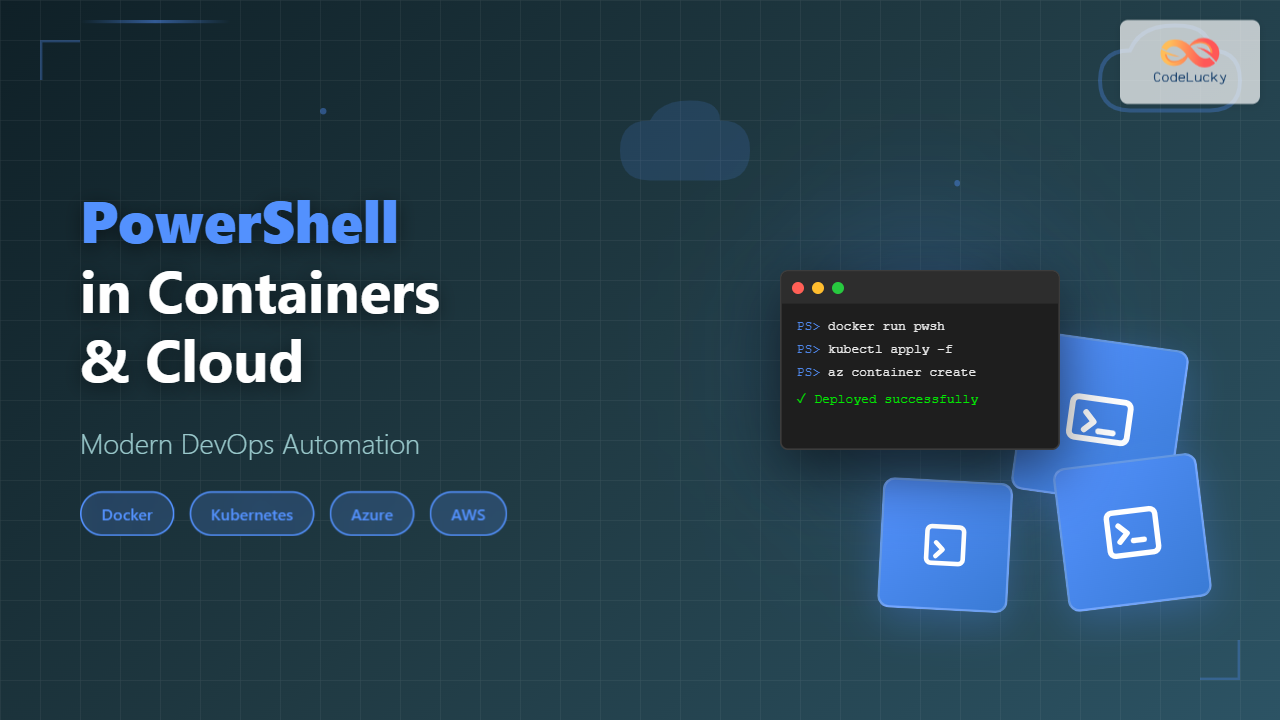
PowerShell has evolved from a Windows-centric scripting language to a cross-platform automation powerhouse. With the advent of PowerShell Core (now PowerShell 7+), it runs seamlessly in Linux containers, Kubernetes clusters, and all major cloud platforms. This transformation makes PowerShell an ideal choice for modern DevOps workflows, infrastructure-as-code, and cloud-native applications.
This comprehensive guide explores how to leverage PowerShell in containerized environments and cloud platforms, covering Docker integration, Kubernetes automation, Azure and AWS management, and best practices for cloud-native PowerShell development.
PowerShell in Docker Containers
Understanding PowerShell Container Images
Microsoft provides official PowerShell container images on Docker Hub and Microsoft Container Registry. These images come in various flavors optimized for different scenarios:
- Alpine-based: Minimal footprint (~100MB), ideal for production
- Ubuntu-based: Full-featured environment with common tools
- Debian-based: Balance between size and functionality
- Windows Server Core: For Windows container workloads

Creating a Basic PowerShell Container
Here’s how to create and run a PowerShell container:
# Pull the official PowerShell image
docker pull mcr.microsoft.com/powershell:latest

# Run PowerShell interactively
docker run -it mcr.microsoft.com/powershell:latest

# Run a PowerShell script from the container
docker run mcr.microsoft.com/powershell:latest pwsh -c "Get-Date; Write-Host 'Hello from Container!'"
Output:
Wednesday, October 22, 2025 5:18:00 PM
Hello from Container!
Building Custom PowerShell Containers
Create a Dockerfile for a custom PowerShell automation container:
# Dockerfile
FROM mcr.microsoft.com/powershell:7.4-alpine-3.18

# Install additional modules
RUN pwsh -Command "Install-Module -Name Az -Force -Scope AllUsers"
RUN pwsh -Command "Install-Module -Name Pester -Force -Scope AllUsers"

# Copy scripts
COPY ./scripts /app/scripts
WORKDIR /app

# Set execution policy
RUN pwsh -Command "Set-ExecutionPolicy -ExecutionPolicy RemoteSigned -Scope LocalMachine"

# Default command
CMD ["pwsh"]
Build and run the custom image:
# Build the image
docker build -t my-powershell-automation:1.0 .

# Run with volume mounting for script development
docker run -it -v $(pwd)/scripts:/app/scripts my-powershell-automation:1.0

# Execute specific automation script
docker run my-powershell-automation:1.0 pwsh -File /app/scripts/deploy.ps1
Multi-Stage Builds for Optimized Images
Use multi-stage builds to create lean production images:
# Multi-stage Dockerfile
# Stage 1: Build and test
FROM mcr.microsoft.com/powershell:7.4-ubuntu-22.04 AS builder

WORKDIR /build
COPY . .

# Install dependencies and run tests
RUN pwsh -Command "Install-Module -Name Pester -Force" && \
    pwsh -Command "Invoke-Pester -Path ./tests -Output Detailed"

# Stage 2: Production image
FROM mcr.microsoft.com/powershell:7.4-alpine-3.18

WORKDIR /app
COPY --from=builder /build/scripts ./scripts

# Only production modules
RUN pwsh -Command "Install-Module -Name Az.Storage -Force -Scope AllUsers"

ENTRYPOINT ["pwsh", "-File", "/app/scripts/main.ps1"]
PowerShell in Kubernetes
Kubernetes Architecture with PowerShell

Deploying PowerShell Pods
Create a Kubernetes deployment for PowerShell automation:
# powershell-deployment.yaml
apiVersion: apps/v1
kind: Deployment
metadata:
  name: powershell-automation
  labels:
    app: automation
spec:
  replicas: 2
  selector:
    matchLabels:
      app: automation
  template:
    metadata:
      labels:
        app: automation
    spec:
      containers:
      - name: powershell
        image: mcr.microsoft.com/powershell:7.4-alpine-3.18
        command: ["pwsh", "-Command"]
        args: ["while($true) { Write-Host 'Running automation...'; Start-Sleep 60 }"]
        resources:
          requests:
            memory: "128Mi"
            cpu: "100m"
          limits:
            memory: "256Mi"
            cpu: "200m"
        env:
        - name: AUTOMATION_MODE
          value: "production"
        volumeMounts:
        - name: scripts
          mountPath: /app/scripts
          readOnly: true
      volumes:
      - name: scripts
        configMap:
          name: powershell-scripts
Apply the deployment:
# Deploy to Kubernetes
kubectl apply -f powershell-deployment.yaml

# Check deployment status
kubectl get deployments
kubectl get pods -l app=automation

# View logs
kubectl logs -l app=automation --tail=50
Output:
NAME                      READY   STATUS    RESTARTS   AGE
powershell-automation-1   2/2     Running   0          45s

Running automation...
Running automation...
Running automation...
PowerShell CronJobs in Kubernetes
Create scheduled automation tasks using CronJobs:
# cronjob-backup.yaml
apiVersion: batch/v1
kind: CronJob
metadata:
  name: database-backup
spec:
  schedule: "0 2 * * *"  # Every day at 2 AM
  jobTemplate:
    spec:
      template:
        spec:
          containers:
          - name: backup
            image: my-powershell-automation:1.0
            command: ["pwsh", "-File", "/app/scripts/backup-database.ps1"]
            env:
            - name: DB_CONNECTION_STRING
              valueFrom:
                secretKeyRef:
                  name: database-secrets
                  key: connection-string
            - name: BACKUP_STORAGE
              value: "azureblob"
          restartPolicy: OnFailure
          backoffLimit: 3
Sample backup script with error handling:
# backup-database.ps1
param(
    [string]$ConnectionString = $env:DB_CONNECTION_STRING,
    [string]$StorageType = $env:BACKUP_STORAGE
)

$ErrorActionPreference = 'Stop'

try {
    Write-Host "Starting backup at $(Get-Date)"

    # Generate backup filename
    $timestamp = Get-Date -Format "yyyyMMdd-HHmmss"
    $backupFile = "backup-$timestamp.sql"

    # Perform backup
    Write-Host "Backing up database..."
    # Add actual backup logic here

    # Upload to cloud storage
    Write-Host "Uploading to $StorageType..."
    # Add upload logic here

    Write-Host "Backup completed successfully"
    exit 0

} catch {
    Write-Error "Backup failed: $_"
    exit 1
}
Managing Kubernetes with PowerShell
Install and use kubectl commands from PowerShell:
# Install kubectl (Linux/macOS)
$kubectlVersion = "v1.28.0"
Invoke-WebRequest -Uri "https://dl.k8s.io/release/$kubectlVersion/bin/linux/amd64/kubectl" `
    -OutFile "/usr/local/bin/kubectl"
chmod +x /usr/local/bin/kubectl

# Verify installation
kubectl version --client

# Get cluster information
kubectl cluster-info
kubectl get nodes

# Create namespace
kubectl create namespace dev-automation

# Deploy using PowerShell
$deploymentYaml = @"
apiVersion: v1
kind: Pod
metadata:
  name: pwsh-test
spec:
  containers:
  - name: powershell
    image: mcr.microsoft.com/powershell:latest
    command: ["pwsh", "-c", "Start-Sleep 3600"]
"@

$deploymentYaml | kubectl apply -f -

# Execute commands in pods
kubectl exec pwsh-test -- pwsh -Command "Get-Process | Select-Object -First 5"
Output:
NPM(K)    PM(M)    WS(M)  CPU(s)   Id  SI ProcessName
------    -----    -----  ------   --  -- -----------
     0     0.00     0.00    0.00     1   0 init
     0     0.00     0.00    0.00    12   0 pwsh
     0     0.00     0.00    0.00    45   0 sleep
Azure Cloud Automation with PowerShell
Azure Cloud Shell and Az Module
Azure Cloud Shell provides a browser-based PowerShell environment with pre-installed Azure modules:
# Install Az module locally (if needed)
Install-Module -Name Az -AllowClobber -Scope CurrentUser -Force

# Connect to Azure
Connect-AzAccount

# Or use service principal for automation
$credential = New-Object System.Management.Automation.PSCredential(
    $env:AZURE_CLIENT_ID,
    (ConvertTo-SecureString $env:AZURE_CLIENT_SECRET -AsPlainText -Force)
)

Connect-AzAccount -ServicePrincipal `
    -Credential $credential `
    -Tenant $env:AZURE_TENANT_ID

# List subscriptions
Get-AzSubscription

# Set active subscription
Set-AzContext -SubscriptionId "your-subscription-id"
Azure Resource Management

Create and manage Azure resources:
# Create resource group
$resourceGroup = "automation-rg"
$location = "eastus"

New-AzResourceGroup -Name $resourceGroup -Location $location

# Create storage account
$storageAccount = @{
    ResourceGroupName = $resourceGroup
    Name              = "automationstorage$(Get-Random)"
    Location          = $location
    SkuName           = "Standard_LRS"
    Kind              = "StorageV2"
}

$storage = New-AzStorageAccount @storageAccount

# Create container
$ctx = $storage.Context
New-AzStorageContainer -Name "backups" -Context $ctx -Permission Off

# Upload file to blob
$localFile = "./data/backup.zip"
Set-AzStorageBlobContent -File $localFile `
    -Container "backups" `
    -Blob "backup-$(Get-Date -Format 'yyyyMMdd').zip" `
    -Context $ctx

# List all VMs
Get-AzVM | Select-Object Name, Location, @{
    Name = 'Status'
    Expression = {
        (Get-AzVM -Name $_.Name -ResourceGroupName $_.ResourceGroupName -Status).Statuses[1].DisplayStatus
    }
} | Format-Table
Output:
Name                Location    Status
----                --------    ------
web-server-01       eastus      VM running
api-server-01       westus      VM running
db-server-01        centralus   VM deallocated
Azure Container Instances
Deploy PowerShell containers to Azure Container Instances:
# Create container instance
$containerParams = @{
    ResourceGroupName = $resourceGroup
    Name              = "pwsh-automation"
    Image             = "mcr.microsoft.com/powershell:7.4-alpine-3.18"
    OsType            = "Linux"
    Cpu               = 1
    MemoryInGB        = 1.5
    RestartPolicy     = "OnFailure"
    Command           = @("pwsh", "-Command", "Get-Date; Start-Sleep 300")
}

New-AzContainerGroup @containerParams

# Get container logs
Get-AzContainerInstanceLog -ResourceGroupName $resourceGroup -Name "pwsh-automation"

# Execute command in running container
Invoke-AzContainerInstanceCommand -ResourceGroupName $resourceGroup `
    -Name "pwsh-automation" `
    -Command "pwsh -Command 'Get-Process'"
Azure Functions with PowerShell
Create serverless PowerShell functions:
# Install Azure Functions Core Tools first
# Then create a function app

# Create new function app locally
func init MyFunctionApp --worker-runtime powershell

cd MyFunctionApp

# Create HTTP trigger function
func new --name ProcessData --template "HTTP trigger"

# run.ps1 - Function code
using namespace System.Net

param($Request, $TriggerMetadata)

$name = $Request.Query.Name
if (-not $name) {
    $name = $Request.Body.Name
}

$responseBody = @{
    Message = "Hello, $name! Processed at $(Get-Date)"
    Status  = "Success"
    Data    = @{
        ProcessedRecords = 42
        Duration         = "2.5s"
    }
}

Push-OutputBinding -Name Response -Value ([HttpResponseContext]@{
    StatusCode = [HttpStatusCode]::OK
    Body       = $responseBody | ConvertTo-Json
})
Deploy to Azure:
# Create function app in Azure
$functionAppName = "my-pwsh-functions"

az functionapp create `
    --resource-group $resourceGroup `
    --consumption-plan-location $location `
    --runtime powershell `
    --runtime-version 7.2 `
    --functions-version 4 `
    --name $functionAppName `
    --storage-account $storage.StorageAccountName

# Deploy code
func azure functionapp publish $functionAppName

# Test the function
$url = "https://$functionAppName.azurewebsites.net/api/ProcessData?name=DevOps"
Invoke-RestMethod -Uri $url -Method Get
AWS Cloud Automation with PowerShell
AWS Tools for PowerShell
Install and configure AWS PowerShell modules:
# Install AWS Tools
Install-Module -Name AWS.Tools.Installer -Force

# Install specific service modules
Install-AWSToolsModule AWS.Tools.EC2, AWS.Tools.S3, AWS.Tools.Lambda

# Configure credentials
Set-AWSCredential -AccessKey $env:AWS_ACCESS_KEY_ID `
    -SecretKey $env:AWS_SECRET_ACCESS_KEY `
    -StoreAs default

# Set default region
Set-DefaultAWSRegion -Region us-east-1

# Verify configuration
Get-AWSCredential -ListProfileDetail
Managing EC2 Instances
# List EC2 instances
$instances = Get-EC2Instance

foreach ($reservation in $instances) {
    foreach ($instance in $reservation.Instances) {
        [PSCustomObject]@{
            InstanceId   = $instance.InstanceId
            Type         = $instance.InstanceType
            State        = $instance.State.Name
            LaunchTime   = $instance.LaunchTime
            PrivateIP    = $instance.PrivateIpAddress
            PublicIP     = $instance.PublicIpAddress
        }
    }
} | Format-Table -AutoSize

# Start stopped instances
$stoppedInstances = Get-EC2Instance -Filter @{
    Name   = 'instance-state-name'
    Values = 'stopped'
}

foreach ($reservation in $stoppedInstances) {
    $instanceIds = $reservation.Instances.InstanceId
    Start-EC2Instance -InstanceId $instanceIds
    Write-Host "Started instances: $($instanceIds -join ', ')"
}

# Create new instance
$amiId = "ami-0c55b159cbfafe1f0"  # Amazon Linux 2
$instanceType = "t2.micro"

$newInstance = New-EC2Instance -ImageId $amiId `
    -InstanceType $instanceType `
    -KeyName "my-key-pair" `
    -SecurityGroup "sg-12345678" `
    -MinCount 1 `
    -MaxCount 1

Write-Host "Created instance: $($newInstance.Instances[0].InstanceId)"
S3 Bucket Operations
# Create S3 bucket
$bucketName = "automation-backup-$(Get-Random)"
New-S3Bucket -BucketName $bucketName -Region us-east-1

# Upload files to S3
$files = Get-ChildItem -Path "./backups" -Filter "*.zip"

foreach ($file in $files) {
    Write-S3Object -BucketName $bucketName `
        -File $file.FullName `
        -Key "backups/$($file.Name)" `
        -CannedACLName private

    Write-Host "Uploaded: $($file.Name)"
}

# List objects
Get-S3Object -BucketName $bucketName -Prefix "backups/" |
    Select-Object Key, Size, LastModified |
    Format-Table

# Download file
Read-S3Object -BucketName $bucketName `
    -Key "backups/backup-20251022.zip" `
    -File "./downloads/restore.zip"

# Set lifecycle policy
$rule = [Amazon.S3.Model.LifecycleRule]@{
    Id     = "DeleteOldBackups"
    Status = "Enabled"
    Filter = [Amazon.S3.Model.LifecycleRuleFilter]@{
        Prefix = "backups/"
    }
    Expiration = [Amazon.S3.Model.LifecycleRuleExpiration]@{
        Days = 30
    }
}

Write-S3LifecycleConfiguration -BucketName $bucketName -Configuration_Rule $rule
AWS Lambda with PowerShell
Create a PowerShell Lambda function:
# handler.ps1 - Lambda function
#Requires -Modules @{ModuleName='AWSPowerShell.NetCore';ModuleVersion='4.1.0'}

<#
.SYNOPSIS
Process S3 events and log to CloudWatch
#>

# PowerShell script file to be executed as a AWS Lambda function
#
# Get-AWSPowerShellLambdaTemplate -Template Basic

param(
    [parameter(Mandatory=$false)]
    [object]$LambdaInput,

    [parameter(Mandatory=$false)]
    [Amazon.Lambda.Core.ILambdaContext]$LambdaContext
)

# Log environment information
Write-Host "PowerShell version: $($PSVersionTable.PSVersion)"
Write-Host "Remaining time: $($LambdaContext.RemainingTime.TotalSeconds)s"

# Process S3 event
$bucket = $LambdaInput.Records[0].s3.bucket.name
$key = $LambdaInput.Records[0].s3.object.key

Write-Host "Processing file: s3://$bucket/$key"

# Get object metadata
$metadata = Get-S3Object -BucketName $bucket -Key $key

$response = @{
    StatusCode = 200
    Body       = @{
        Message    = "Successfully processed file"
        Bucket     = $bucket
        Key        = $key
        Size       = $metadata.Size
        ProcessedAt = (Get-Date).ToString('o')
    } | ConvertTo-Json
}

return $response
Deploy Lambda function:
# Package Lambda function
Compress-Archive -Path ./handler.ps1, ./requirements.psd1 -DestinationPath lambda-package.zip

# Create IAM role for Lambda
$trustPolicy = @{
    Version   = "2012-10-17"
    Statement = @(
        @{
            Effect    = "Allow"
            Principal = @{ Service = "lambda.amazonaws.com" }
            Action    = "sts:AssumeRole"
        }
    )
} | ConvertTo-Json -Depth 10

$role = New-IAMRole -RoleName "lambda-pwsh-role" `
    -AssumeRolePolicyDocument $trustPolicy

# Attach policies
Register-IAMRolePolicy -RoleName $role.RoleName `
    -PolicyArn "arn:aws:iam::aws:policy/service-role/AWSLambdaBasicExecutionRole"

# Create Lambda function
$functionParams = @{
    FunctionName = "PowerShellProcessor"
    Runtime      = "dotnet6"
    Handler      = "handler::handler.PowerShellHandler::Execute"
    Role         = $role.Arn
    ZipFilename  = "./lambda-package.zip"
    MemorySize   = 512
    Timeout      = 30
}

Publish-LMFunction @functionParams

# Test the function
$testEvent = @{
    Records = @(
        @{
            s3 = @{
                bucket = @{ name = "test-bucket" }
                object = @{ key = "test-file.txt" }
            }
        }
    )
} | ConvertTo-Json -Depth 10

Invoke-LMFunction -FunctionName "PowerShellProcessor" `
    -Payload $testEvent
Best Practices for Cloud PowerShell Development
Secret Management
Never hardcode secrets; use cloud-native secret management:
# Azure Key Vault
$vaultName = "automation-vault"
$secretName = "DatabasePassword"

# Store secret
$securePassword = ConvertTo-SecureString "P@ssw0rd123!" -AsPlainText -Force
Set-AzKeyVaultSecret -VaultName $vaultName `
    -Name $secretName `
    -SecretValue $securePassword

# Retrieve secret in automation
$secret = Get-AzKeyVaultSecret -VaultName $vaultName -Name $secretName
$plainPassword = $secret.SecretValue | ConvertFrom-SecureString -AsPlainText

# AWS Secrets Manager
$secretId = "prod/database/password"

# Create secret
$secretValue = @{
    username = "admin"
    password = "SecureP@ss123"
} | ConvertTo-Json

Write-SECSecret -SecretId $secretId -SecretString $secretValue

# Retrieve secret
$retrievedSecret = Get-SECSecretValue -SecretId $secretId
$credentials = $retrievedSecret.SecretString | ConvertFrom-Json
Error Handling and Logging
# Robust error handling for cloud automation
function Invoke-CloudAutomation {
    [CmdletBinding()]
    param(
        [Parameter(Mandatory)]
        [string]$TaskName,

        [Parameter(Mandatory)]
        [scriptblock]$ScriptBlock
    )

    $ErrorActionPreference = 'Stop'
    $startTime = Get-Date

    try {
        Write-Host "[$TaskName] Starting at $startTime"

        # Execute automation
        $result = & $ScriptBlock

        $duration = (Get-Date) - $startTime
        Write-Host "[$TaskName] Completed in $($duration.TotalSeconds)s"

        # Log to cloud service
        $logEntry = @{
            TaskName  = $TaskName
            Status    = "Success"
            Duration  = $duration.TotalSeconds
            Timestamp = $startTime.ToString('o')
        }

        # Send to Application Insights / CloudWatch
        Send-CloudMetric -Metric $logEntry

        return $result

    } catch {
        $duration = (Get-Date) - $startTime

        Write-Error "[$TaskName] Failed after $($duration.TotalSeconds)s: $_"

        # Log error
        $errorEntry = @{
            TaskName    = $TaskName
            Status      = "Failed"
            Error       = $_.Exception.Message
            StackTrace  = $_.ScriptStackTrace
            Duration    = $duration.TotalSeconds
            Timestamp   = $startTime.ToString('o')
        }

        Send-CloudMetric -Metric $errorEntry -IsError

        throw
    }
}

# Usage
Invoke-CloudAutomation -TaskName "DeployResources" -ScriptBlock {
    New-AzResourceGroupDeployment -ResourceGroupName "prod-rg" `
        -TemplateFile "./template.json"
}
Performance Optimization
# Use parallel processing for cloud operations
$resourceGroups = Get-AzResourceGroup

$results = $resourceGroups | ForEach-Object -Parallel {
    $rg = $_

    # Get all resources in parallel
    $resources = Get-AzResource -ResourceGroupName $rg.ResourceGroupName

    [PSCustomObject]@{
        ResourceGroup = $rg.ResourceGroupName
        ResourceCount = $resources.Count
        TotalCost     = ($resources | Measure-Object -Property Cost -Sum).Sum
    }
} -ThrottleLimit 10

$results | Format-Table

# Batch operations
$storageAccounts = 1..5 | ForEach-Object {
    @{
        Name              = "storage$_$(Get-Random)"
        ResourceGroupName = "automation-rg"
        Location          = "eastus"
        SkuName           = "Standard_LRS"
    }
}

# Create all at once
$jobs = $storageAccounts | ForEach-Object {
    New-AzStorageAccount @_ -AsJob
}

# Wait for all jobs
$jobs | Wait-Job | Receive-Job
CI/CD Integration

GitHub Actions with PowerShell
# .github/workflows/deploy.yml
name: Deploy PowerShell Container

on:
  push:
    branches: [main]

jobs:
  build-and-deploy:
    runs-on: ubuntu-latest

    steps:
    - uses: actions/checkout@v3

    - name: Build Container
      run: |
        docker build -t myregistry.azurecr.io/pwsh-automation:${{ github.sha }} .

    - name: Run PowerShell Tests
      run: |
        docker run myregistry.azurecr.io/pwsh-automation:${{ github.sha }} \
          pwsh -Command "Invoke-Pester -Path /app/tests -Output Detailed"

    - name: Login to Azure
      uses: azure/login@v1
      with:
        creds: ${{ secrets.AZURE_CREDENTIALS }}

    - name: Push to ACR
      run: |
        az acr login --name myregistry
        docker push myregistry.azurecr.io/pwsh-automation:${{ github.sha }}

    - name: Deploy to AKS
      run: |
        az aks get-credentials --resource-group prod-rg --name prod-cluster
        kubectl set image deployment/pwsh-automation \
          powershell=myregistry.azurecr.io/pwsh-automation:${{ github.sha }}
Azure DevOps Pipeline
# azure-pipelines.yml
trigger:
  branches:
    include:
    - main

pool:
  vmImage: 'ubuntu-latest'

variables:
  containerRegistry: 'myregistry.azurecr.io'
  imageName: 'pwsh-automation'

stages:
- stage: Build
  jobs:
  - job: BuildContainer
    steps:
    - task: PowerShell@2
      displayName: 'Run Pester Tests'
      inputs:
        targetType: 'inline'
        script: |
          Install-Module -Name Pester -Force -Scope CurrentUser
          Invoke-Pester -Path ./tests -Output Detailed -CI

    - task: Docker@2
      displayName: 'Build and Push'
      inputs:
        containerRegistry: 'ACRConnection'
        repository: $(imageName)
        command: 'buildAndPush'
        Dockerfile: 'Dockerfile'
        tags: |
          $(Build.BuildId)
          latest

- stage: Deploy
  dependsOn: Build
  jobs:
  - deployment: DeployToAKS
    environment: 'production'
    strategy:
      runOnce:
        deploy:
          steps:
          - task: AzurePowerShell@5
            inputs:
              azureSubscription: 'Production'
              ScriptType: 'InlineScript'
              Inline: |
                kubectl set image deployment/pwsh-automation \
                  powershell=$(containerRegistry)/$(imageName):$(Build.BuildId)
              azurePowerShellVersion: 'LatestVersion'
Monitoring and Observability
Application Insights Integration
# Install Application Insights module
Install-Module -Name Microsoft.ApplicationInsights -Force

# Initialize telemetry client
$instrumentationKey = $env:APPINSIGHTS_INSTRUMENTATIONKEY
$telemetryClient = New-Object Microsoft.ApplicationInsights.TelemetryClient
$telemetryClient.InstrumentationKey = $instrumentationKey

# Track custom events
function Send-CustomEvent {
    param(
        [string]$EventName,
        [hashtable]$Properties,
        [hashtable]$Metrics
    )

    $event = New-Object Microsoft.ApplicationInsights.DataContracts.EventTelemetry
    $event.Name = $EventName

    foreach ($key in $Properties.Keys) {
        $event.Properties.Add($key, $Properties[$key])
    }

    foreach ($key in $Metrics.Keys) {
        $event.Metrics.Add($key, $Metrics[$key])
    }

    $telemetryClient.TrackEvent($event)
    $telemetryClient.Flush()
}

# Usage in automation
$startTime = Get-Date

# Perform automation task
$processedItems = Invoke-AutomationTask

$duration = ((Get-Date) - $startTime).TotalSeconds

Send-CustomEvent -EventName "AutomationCompleted" `
    -Properties @{
        TaskName    = "DataProcessing"
        Environment = "Production"
        Status      = "Success"
    } `
    -Metrics @{
        Duration        = $duration
        ProcessedItems  = $processedItems
    }
Conclusion
PowerShell has become a powerful tool for modern cloud and container workflows. Its cross-platform nature, combined with extensive cloud provider support, makes it an excellent choice for DevOps automation, infrastructure management, and cloud-native application development.
Key takeaways include leveraging official PowerShell container images for consistent environments, using Kubernetes for orchestration, integrating with Azure and AWS services through dedicated modules, implementing proper secret management, and following CI/CD best practices. As cloud infrastructure continues to evolve, PowerShell’s role in automation and management will remain crucial for efficient and scalable operations.