
The passwd command is one of the most essential utilities in Linux system administration, allowing users and administrators to change passwords directly from the command line. Whether you’re managing your own account or administering multiple users, understanding the passwd command is crucial for maintaining system security and user access control.
What is the passwd Command?
The passwd command (short for “password”) is a built-in Linux utility that enables users to change their passwords and administrators to manage password policies for system accounts. It’s available on virtually all Unix-like operating systems and provides a secure way to update authentication credentials without requiring a graphical interface.
Key Features of passwd Command:
- Change user passwords securely
- Set password expiration dates
- Lock and unlock user accounts
- Display password status information
- Enforce password aging policies
Basic Syntax and Usage
The basic syntax of the passwd command is:
passwd [options] [username]When run without any arguments, passwd changes the password for the current user:
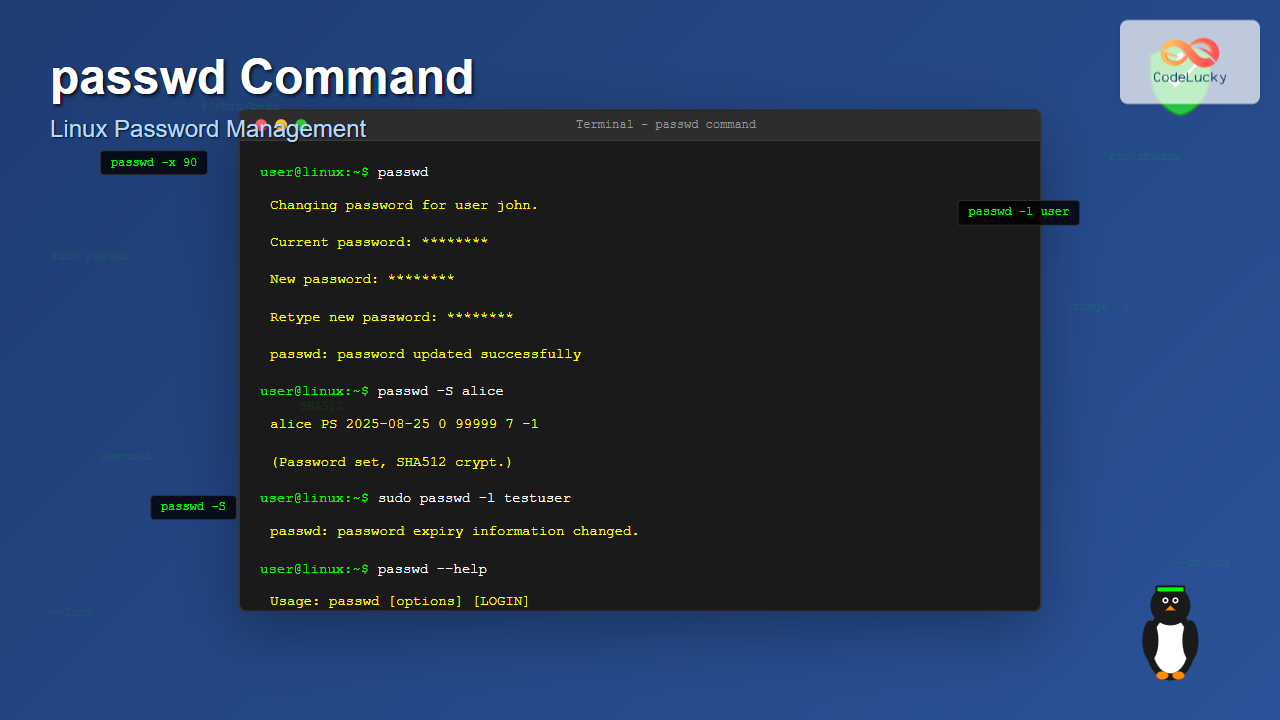
$ passwd
Changing password for user john.
Current password:
New password:
Retype new password:
passwd: password updated successfully
Changing Another User’s Password (Root/Sudo Required)
To change another user’s password, you need administrative privileges:
$ sudo passwd alice
New password:
Retype new password:
passwd: password updated successfully
Common passwd Command Options
1. Display Password Status (-S)
The -S option shows the password status for a user:
$ passwd -S john
john PS 2025-08-20 0 99999 7 -1 (Password set, SHA512 crypt.)
Output explanation:
- john: Username
- PS: Password status (P=Password, L=Locked, NP=No Password)
- 2025-08-20: Date of last password change
- 0: Minimum age (days before password can be changed)
- 99999: Maximum age (days before password expires)
- 7: Warning period (days before expiration warning)
- -1: Inactivity period
2. Lock User Account (-l)
Lock a user account to prevent login:
$ sudo passwd -l alice
passwd: password expiry information changed.

$ passwd -S alice
alice L 2025-08-20 0 99999 7 -1 (Password locked.)
3. Unlock User Account (-u)
Unlock a previously locked account:
$ sudo passwd -u alice
passwd: password expiry information changed.

$ passwd -S alice
alice PS 2025-08-20 0 99999 7 -1 (Password set, SHA512 crypt.)
4. Delete User Password (-d)
Remove the password for a user account (makes it passwordless):
$ sudo passwd -d testuser
passwd: password expiry information changed.

$ passwd -S testuser
testuser NP 2025-08-25 0 99999 7 -1 (Empty password.)
5. Force Password Change on Next Login (-e)
Expire the user’s password immediately, forcing them to change it on next login:
$ sudo passwd -e alice
passwd: password expiry information changed.
Advanced Password Management Options
Setting Password Aging Policies
Minimum Password Age (-n)
Set the minimum number of days before a user can change their password:
$ sudo passwd -n 7 alice
passwd: password expiry information changed.
Maximum Password Age (-x)
Set the maximum number of days a password remains valid:
$ sudo passwd -x 90 alice
passwd: password expiry information changed.
Warning Period (-w)
Set the number of days before password expiration to start warning the user:
$ sudo passwd -w 14 alice
passwd: password expiry information changed.
Inactivity Period (-i)
Set the number of days after password expiration before the account is locked:
$ sudo passwd -i 30 alice
passwd: password expiry information changed.
Viewing Complete Password Information
After setting various policies, check the complete password information:
$ sudo passwd -S alice
alice PS 2025-08-20 7 90 14 30 (Password set, SHA512 crypt.)
Interactive Password Change Process
When changing a password interactively, the passwd command follows this process:
- Current Password Verification: For non-root users changing their own password
- New Password Input: Enter the new password (hidden for security)
- Confirmation: Re-enter the new password to confirm
- Validation: Check against password complexity requirements
- Update: Store the new password hash in the system
Example Interactive Session:
$ passwd
Changing password for user john.
Current password: [entered but hidden]
New password: [entered but hidden]
Retype new password: [entered but hidden]
passwd: password updated successfully
Password Security and Best Practices
Password Complexity Requirements
Most Linux systems enforce password complexity through PAM (Pluggable Authentication Modules). Common requirements include:
- Minimum length (typically 8-12 characters)
- Mix of uppercase and lowercase letters
- Include numbers and special characters
- Avoid dictionary words and personal information
- Different from recent passwords
Example of Password Complexity Error:
$ passwd
Changing password for user john.
Current password:
New password:
BAD PASSWORD: The password is too similar to the old one
New password:
BAD PASSWORD: The password is shorter than 8 characters
New password:
Retype new password:
passwd: password updated successfully
Managing System Accounts
Root Password Management
Change the root password (requires current root access or sudo):
$ sudo passwd root
New password:
Retype new password:
passwd: password updated successfully
Service Account Management
Lock service accounts that shouldn’t have login access:
$ sudo passwd -l apache
$ sudo passwd -l mysql
$ sudo passwd -l nobody
Troubleshooting Common Issues
Permission Denied Errors
If you encounter permission errors:
$ passwd alice
passwd: Permission denied
Solution: Use sudo for administrative privileges:
$ sudo passwd alicePassword Complexity Failures
When passwords don’t meet complexity requirements:
BAD PASSWORD: The password contains the user name in some formSolution: Create a stronger password following system policies.
Account Locked Issues
If an account appears locked:
$ passwd -S alice
alice L 2025-08-20 0 99999 7 -1 (Password locked.)
Solution: Unlock the account:
$ sudo passwd -u aliceSecurity Considerations
Password Storage
The passwd command updates password hashes stored in:
/etc/shadow– Encrypted password hashes/etc/passwd– User account information
Audit Trail
Password changes are logged in system logs:
$ sudo tail /var/log/auth.log | grep passwd
Aug 25 12:30:15 server passwd[1234]: password changed for alice
Best Security Practices
- Regular Password Updates: Implement password aging policies
- Strong Password Policies: Enforce complexity requirements
- Account Monitoring: Regularly check password status
- Service Account Security: Lock unnecessary accounts
- Audit Logging: Monitor password change activities
Practical Examples for System Administrators
Bulk User Management Script
Here’s a practical script for managing multiple users:
#!/bin/bash
# Check password status for all users
for user in $(getent passwd | cut -d: -f1); do
    if id "$user" &>/dev/null; then
        echo "User: $user"
        passwd -S "$user" 2>/dev/null
        echo "---"
    fi
done
Password Policy Enforcement
Set consistent password policies for new users:
#!/bin/bash
USERNAME=$1
sudo passwd -x 90 "$USERNAME"    # Max age 90 days
sudo passwd -n 1 "$USERNAME"     # Min age 1 day
sudo passwd -w 7 "$USERNAME"     # Warning 7 days
sudo passwd -i 14 "$USERNAME"    # Inactive 14 days
echo "Password policy set for $USERNAME"
Alternative Password Management Tools
While passwd is the standard tool, other utilities complement password management:
- chage: More advanced password aging management
- usermod: User account modification
- pwgen: Password generation utility
- openssl: Generate secure passwords
Example with chage:
$ sudo chage -l alice
Last password change                    : Aug 20, 2025
Password expires                        : Nov 18, 2025
Password inactive                       : Dec 02, 2025
Account expires                         : never
Minimum number of days between password change : 7
Maximum number of days between password change : 90
Number of days of warning before password expires : 14
Conclusion
The passwd command is an indispensable tool for Linux system administration, providing comprehensive password management capabilities from the command line. Whether you’re changing your own password, managing user accounts, or implementing security policies, understanding passwd’s various options and best practices ensures robust authentication security.
Key takeaways for effective passwd usage:
- Use appropriate options for different administrative tasks
- Implement strong password policies and aging requirements
- Regularly monitor password status and account security
- Follow security best practices for system account management
- Combine passwd with other tools for comprehensive user management
Mastering the passwd command enhances your Linux administration skills and contributes to maintaining a secure, well-managed system environment.
Related Posts
su Command in Linux: Complete Guide to Switch User Accounts in Terminal
The su command (substitute user or switch user) is one of the most fundamental commands in Linux system administration. It...
usermod Command Linux: Complete Guide to Modify User Account Properties
The usermod command is a powerful Linux utility that allows system administrators to modify existing user account properties without deleting...
sudo Command Linux: Execute Commands as Another User with Full Administrative Control
The sudo command is one of the most powerful and essential tools in Linux system administration. Short for "superuser do"...
useradd Command Linux: Complete Guide to Add New User Accounts
The useradd command is one of the most essential tools in Linux system administration for creating new user accounts. Whether...
userdel Command Linux: Complete Guide to Safely Delete User Accounts
The userdel command is a crucial system administration tool in Linux that allows you to safely remove user accounts from...
ssh Command Linux: Secure Shell Remote Access Tutorial with Examples
The ssh command in Linux, short for Secure Shell, is one of the most essential tools for system administrators, developers,...
whoami Command Linux: Display Current Username and Identity Information
The whoami command is one of the most fundamental and frequently used commands in Linux systems. This simple yet powerful...

Linux Commands Tutorial: Complete Beginner’s Guide to Terminal Basics
The Linux terminal is a powerful command-line interface that gives you direct control over your operating system. While it might...
Security in Operating System: Complete Guide to Access Control and Authentication
Introduction to Operating System Security Operating system security forms the foundation of computer security, protecting system resources and user data...
loginctl Command Linux: Master Session Management with Practical Examples
The loginctl command is a powerful systemd utility that allows system administrators to introspect and control the systemd login manager...
who Command in Linux: Complete Guide to Display Logged in Users
The who command is one of the most fundamental system administration tools in Linux, designed to display information about currently...
HTML Password readOnly Property: Password Input Read-Only
HTML Password readOnly Property: Password Input Read-Only The HTML readOnly property for password input fields specifies that the input field...





