
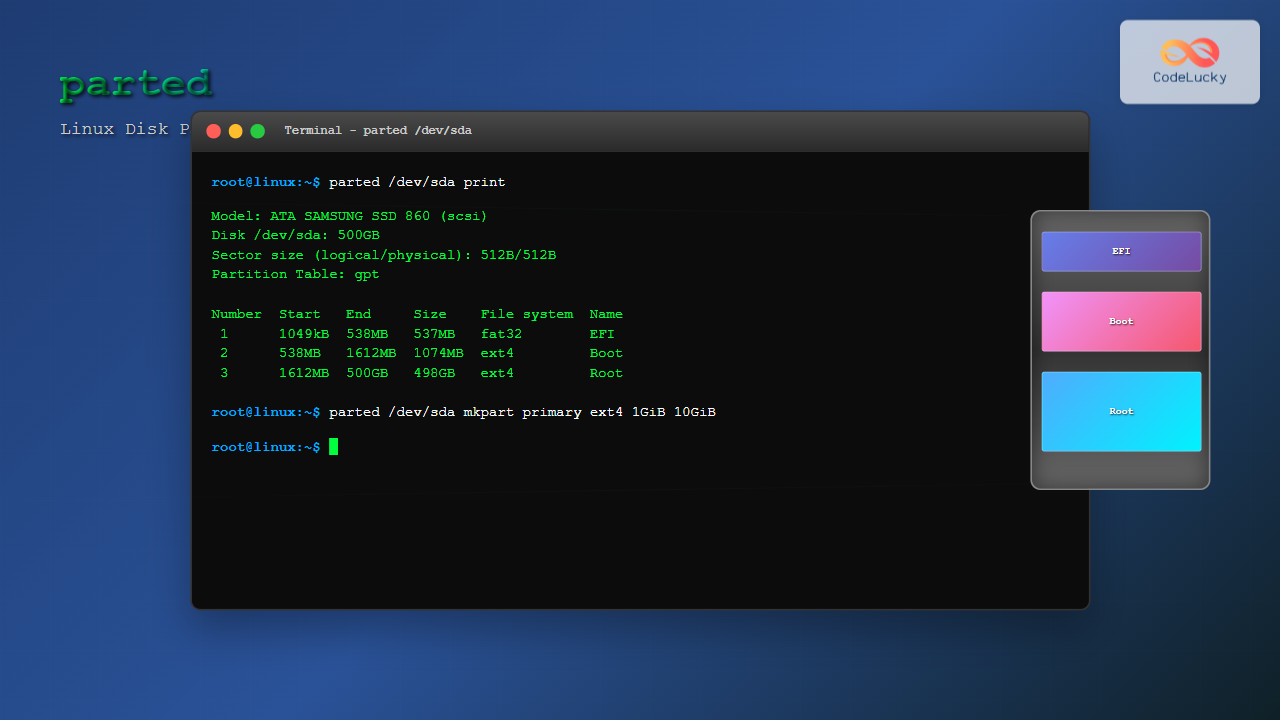
The parted command is a powerful disk partition manipulation program in Linux that allows you to create, resize, move, and manage disk partitions. Unlike fdisk, parted supports both MBR and GPT partition tables and can handle disks larger than 2TB. This comprehensive guide will walk you through everything you need to know about using parted effectively.
What is the parted Command?
GNU Parted is a program for creating and manipulating partition tables. It supports multiple partition table formats including MS-DOS (MBR), GPT, BSD, Mac, and Sun disk labels. The parted command provides both interactive and non-interactive modes, making it suitable for both manual operations and scripting.
Key Features of parted:
- Supports GPT and MBR partition tables
- Can handle disks larger than 2TB
- Allows partition resizing without data loss (when possible)
- Provides both interactive and command-line modes
- Supports various file systems
- Real-time partition table updates
Installing parted
Most Linux distributions come with parted pre-installed. If not, you can install it using your package manager:
# Ubuntu/Debian
sudo apt update
sudo apt install parted

# CentOS/RHEL/Fedora
sudo yum install parted
# or for newer versions
sudo dnf install parted

# Arch Linux
sudo pacman -S parted
Basic Syntax and Usage
The basic syntax of the parted command is:
parted [options] [device [command [parameters]...]]Common Options:
-l, --list: List partition layout on all block devices-s, --script: Never prompt for user intervention-a, --align: Set alignment for newly created partitions-v, --version: Display version information-h, --help: Display help message
Listing Disks and Partitions
Before working with partitions, you need to identify available disks and their current partition layout.
List All Block Devices
sudo parted -lExample Output:
Model: ATA SAMSUNG SSD 860 (scsi)
Disk /dev/sda: 500GB
Sector size (logical/physical): 512B/512B
Partition Table: gpt
Disk Flags:

Number  Start   End     Size    File system  Name                  Flags
 1      1049kB  538MB   537MB   fat32        EFI System Partition  boot, esp
 2      538MB   1612MB  1074MB  ext4         Boot Partition
 3      1612MB  500GB   498GB   ext4         Root Partition

Model: Generic USB Flash Drive (scsi)
Disk /dev/sdb: 16.0GB
Sector size (logical/physical): 512B/512B
Partition Table: msdos
Disk Flags:

Number  Start   End     Size    Type     File system  Flags
 1      32.3kB  16.0GB  16.0GB  primary  fat32        boot
Check Specific Device
sudo parted /dev/sda printInteractive Mode
Launch parted in interactive mode to work with a specific device:
sudo parted /dev/sdaThis opens an interactive session where you can execute multiple commands. The prompt will change to (parted).
Interactive Mode Commands
| Command | Description |
|---|---|
help |
Display available commands |
print |
Display partition table |
mklabel |
Create new partition table |
mkpart |
Create new partition |
rm |
Remove partition |
resize |
Resize partition |
move |
Move partition |
quit |
Exit parted |
Creating Partition Tables
Before creating partitions, you need to create a partition table. The two most common types are MBR (msdos) and GPT.
Create GPT Partition Table
sudo parted /dev/sdb mklabel gptCreate MBR Partition Table
sudo parted /dev/sdb mklabel msdosWarning: Creating a new partition table will destroy all existing data on the disk.
Creating Partitions
Use the mkpart command to create new partitions. The syntax varies depending on the partition table type.
Creating Partitions on GPT
sudo parted /dev/sdb mkpart primary ext4 1MiB 100%This creates a primary partition with ext4 file system starting at 1MiB and using 100% of available space.
Creating Multiple Partitions
# Create first partition (10GB)
sudo parted /dev/sdb mkpart primary ext4 1MiB 10GiB

# Create second partition (5GB)
sudo parted /dev/sdb mkpart primary ext4 10GiB 15GiB

# Create third partition (remaining space)
sudo parted /dev/sdb mkpart primary ext4 15GiB 100%
Creating Partitions with Specific Names (GPT)
sudo parted /dev/sdb mkpart "Boot Partition" ext4 1MiB 1GiB
sudo parted /dev/sdb mkpart "Root Partition" ext4 1GiB 50GiB
sudo parted /dev/sdb mkpart "Home Partition" ext4 50GiB 100%
Partition Alignment
Proper partition alignment is crucial for optimal performance, especially with SSDs. Parted automatically aligns partitions, but you can specify alignment preferences.
Set Alignment Type
# Optimal alignment (recommended)
sudo parted /dev/sdb align-check optimal 1

# Minimal alignment
sudo parted /dev/sdb align-check minimal 1
Check Partition Alignment
sudo parted /dev/sdb align-check optimal 1Output:
1 alignedResizing Partitions
One of parted’s most powerful features is the ability to resize partitions. However, this operation requires careful consideration.
Resize Partition (Interactive Mode)
sudo parted /dev/sdb
(parted) resizepart 1 20GiB
(parted) quit
Resize Partition (Command Line)
sudo parted /dev/sdb resizepart 1 20GiBImportant Notes:
- Always backup data before resizing
- Some file systems may need to be resized separately
- Growing a partition is generally safer than shrinking
- Ensure no processes are using the partition during resize
Moving Partitions
You can move partitions to different locations on the disk:
sudo parted /dev/sdb move 2 5GiB 15GiBThis moves partition 2 to start at 5GiB and end at 15GiB.
Deleting Partitions
Remove unwanted partitions using the rm command:
sudo parted /dev/sdb rm 3This removes partition number 3.
Delete All Partitions
# Interactive method
sudo parted /dev/sdb
(parted) rm 1
(parted) rm 2
(parted) rm 3
(parted) quit

# Script method
sudo parted /dev/sdb --script rm 1 rm 2 rm 3
Working with File Systems
While parted primarily deals with partitions, it has some file system capabilities.
Set File System Type
sudo parted /dev/sdb set 1 lvm on
sudo parted /dev/sdb set 1 boot on
Available Flags
| Flag | Description |
|---|---|
boot |
Bootable partition |
esp |
EFI System Partition |
lvm |
LVM partition |
raid |
RAID partition |
swap |
Swap partition |
Scripting with parted
For automation, use parted in script mode with the -s option:
Complete Disk Setup Script
#!/bin/bash

DEVICE="/dev/sdb"

# Create GPT partition table
sudo parted $DEVICE --script mklabel gpt

# Create EFI partition (512MB)
sudo parted $DEVICE --script mkpart "EFI System Partition" fat32 1MiB 513MiB
sudo parted $DEVICE --script set 1 esp on

# Create boot partition (1GB)
sudo parted $DEVICE --script mkpart "Boot Partition" ext4 513MiB 1537MiB
sudo parted $DEVICE --script set 2 boot on

# Create root partition (50GB)
sudo parted $DEVICE --script mkpart "Root Partition" ext4 1537MiB 51537MiB

# Create home partition (remaining space)
sudo parted $DEVICE --script mkpart "Home Partition" ext4 51537MiB 100%

# Display results
sudo parted $DEVICE --script print
Advanced Operations
Unit Specification
Parted supports various units for specifying sizes:
sudo parted /dev/sdb unit s print  # sectors
sudo parted /dev/sdb unit B print  # bytes
sudo parted /dev/sdb unit MiB print # mebibytes
sudo parted /dev/sdb unit % print   # percentage
Rescue Partitions
Attempt to recover a lost partition:
sudo parted /dev/sdb rescue 1GiB 10GiBCommon Use Cases and Examples
Setting up a Linux System Disk
# Create GPT table
sudo parted /dev/sda mklabel gpt

# EFI System Partition
sudo parted /dev/sda mkpart "EFI" fat32 1MiB 512MiB
sudo parted /dev/sda set 1 esp on

# Boot partition
sudo parted /dev/sda mkpart "Boot" ext4 512MiB 1GiB

# Swap partition (8GB)
sudo parted /dev/sda mkpart "Swap" linux-swap 1GiB 9GiB

# Root partition
sudo parted /dev/sda mkpart "Root" ext4 9GiB 100%
Creating a Data Storage Disk
# Create single large partition
sudo parted /dev/sdb mklabel gpt
sudo parted /dev/sdb mkpart primary ext4 1MiB 100%
sudo parted /dev/sdb name 1 "Data Storage"
Safety Best Practices
Before Making Changes
- Backup important data – Always backup before partition operations
- Unmount file systems – Ensure partitions are not in use
- Check disk health – Run
smartctlto verify disk health - Double-check device names – Verify you’re working on the correct disk
Verification Commands
# Check file system before resizing
sudo fsck /dev/sdb1

# Verify partition table
sudo parted /dev/sdb print

# Check mount points
lsblk
mount | grep sdb
Troubleshooting Common Issues
Partition Table Corruption
If parted reports partition table errors:
# Check for errors
sudo parted /dev/sdb print

# Fix partition table (interactive)
sudo parted /dev/sdb
(parted) print
Warning: The backup GPT table is corrupt, but the primary appears OK, so that will be used.
Fix/Ignore/Cancel? Fix
Device Busy Errors
If you get “device busy” errors:
# Check what's using the device
sudo lsof /dev/sdb*
sudo fuser -v /dev/sdb*

# Check mount points
mount | grep sdb

# Unmount if necessary
sudo umount /dev/sdb1
Alignment Warnings
For alignment warnings:
# Check current alignment
sudo parted /dev/sdb align-check optimal 1

# Recreate with proper alignment
sudo parted /dev/sdb rm 1
sudo parted /dev/sdb mkpart primary ext4 1MiB 10GiB
Comparing parted with Other Tools
| Feature | parted | fdisk | gdisk |
|---|---|---|---|
| GPT Support | ✓ | ✓ (newer versions) | ✓ |
| MBR Support | ✓ | ✓ | Limited |
| Resize Partitions | ✓ | ✗ | ✗ |
| Script-friendly | ✓ | Limited | Limited |
| Large Disk Support | ✓ | ✓ | ✓ |
Conclusion
The parted command is an essential tool for Linux system administrators and power users. Its ability to handle both GPT and MBR partition tables, resize partitions, and work with large disks makes it invaluable for modern disk management tasks. Whether you’re setting up a new system, expanding storage, or managing server infrastructure, mastering parted will significantly enhance your Linux administration capabilities.
Remember to always backup important data before performing partition operations, and practice these commands on test systems before applying them to production environments. With careful use and proper understanding, parted becomes a powerful ally in managing Linux storage systems.
Related Posts
fdisk Command Linux: Complete Guide to Disk Partition Management
The fdisk command is one of the most powerful and essential tools for disk partition management in Linux systems. Whether...
gparted Command Linux: Complete Guide to Graphical Partition Management
The gparted command in Linux provides access to one of the most powerful and user-friendly graphical partition editors available for...
sfdisk Command Linux: Complete Guide to Scriptable Partition Table Editor
The sfdisk command is a powerful and scriptable partition table editor in Linux that provides advanced functionality for managing disk...
gdisk Command Linux: Complete Guide to GPT Partition Table Management
The gdisk command is a powerful GPT (GUID Partition Table) partition editor for Linux systems that provides advanced capabilities for...
sgdisk Command Linux: Complete Guide to Script-Friendly GPT Partition Management
The sgdisk command is a powerful script-friendly alternative to the interactive gdisk utility for managing GPT (GUID Partition Table) partitions...
cgdisk Command Linux: Complete Guide to Curses-Based GPT Partition Management
The cgdisk command is a powerful curses-based GPT (GUID Partition Table) partition editor for Linux systems. Unlike traditional command-line tools,...
cfdisk Command Linux: Complete Guide to Curses-based Partition Management
The cfdisk command is a powerful, user-friendly partition table editor for Linux systems that provides a curses-based interface for managing...
mkfs Command Linux: Complete Guide to Creating Filesystems on Partitions
The mkfs command in Linux is a fundamental tool for creating filesystems on disk partitions. Whether you're setting up a...
resize2fs Command Linux: Complete Guide to Resize Ext2/3/4 Filesystems Safely
The resize2fs command is a powerful Linux utility designed to resize ext2, ext3, and ext4 filesystems. Whether you need to...
kpartx Command Linux: Create and Manage Partition Maps with Complete Examples
The kpartx command is a powerful Linux utility that creates device maps from partition tables, enabling you to access partitions...
lvm Command Linux: Complete Guide to Logical Volume Manager Operations
The Logical Volume Manager (LVM) is a powerful disk management tool in Linux that provides flexible storage management by abstracting...
dd Command Linux: Complete Guide to Low-Level File Operations and Disk Cloning
The dd command is one of the most powerful yet dangerous utilities in Linux, often referred to as "disk destroyer"...





