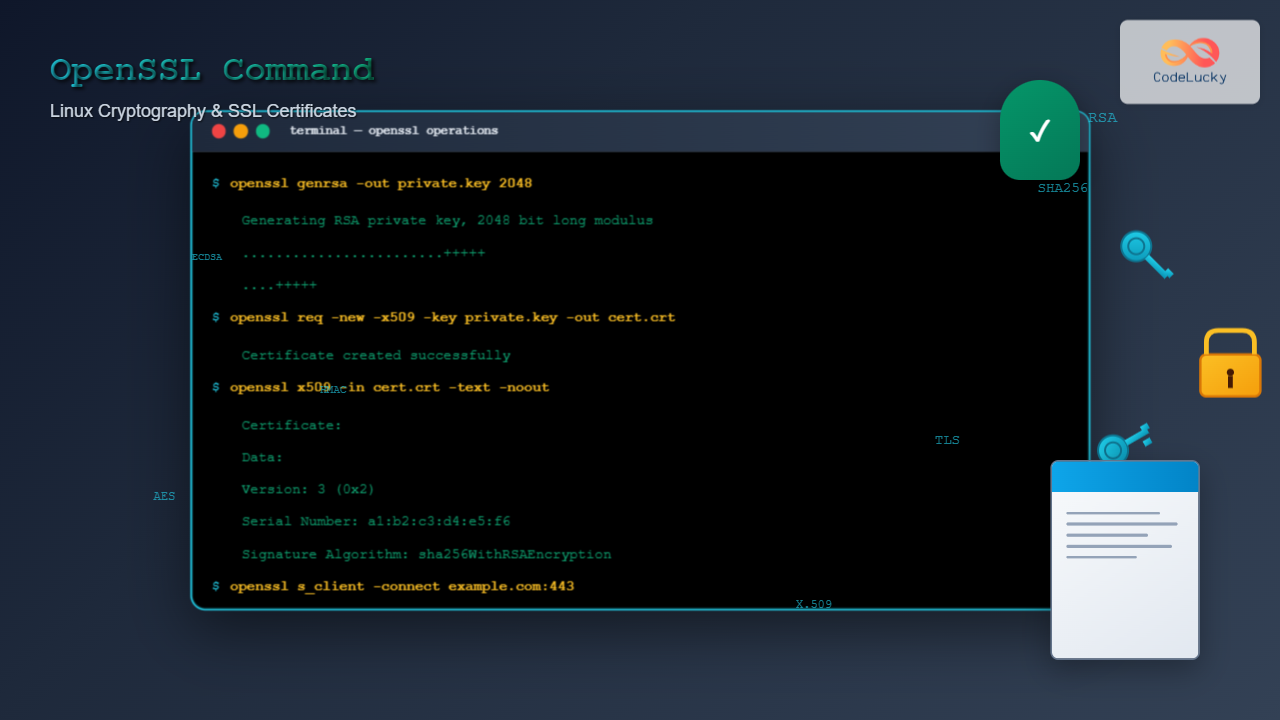
The openssl command is one of the most powerful and versatile cryptographic tools available in Linux systems. This comprehensive toolkit enables users to perform a wide range of security operations including SSL/TLS certificate management, key generation, encryption, decryption, and digital signature verification.
OpenSSL (Open Secure Sockets Layer) is an open-source implementation of SSL and TLS protocols that provides robust cryptographic functionality for securing network communications and protecting sensitive data.
What is OpenSSL?
OpenSSL is a software library and command-line tool that implements cryptographic functions and SSL/TLS protocols. It serves as the foundation for secure communications across the internet and is widely used by web servers, applications, and system administrators for:
- Creating and managing SSL/TLS certificates
- Generating cryptographic keys
- Encrypting and decrypting data
- Creating digital signatures
- Testing SSL connections
- Converting certificate formats
Installing OpenSSL
Most Linux distributions come with OpenSSL pre-installed. To check if it’s available and view the version:
openssl versionExpected Output:
OpenSSL 3.0.8 7 Feb 2023 (Library: OpenSSL 3.0.8 7 Feb 2023)If OpenSSL isn’t installed, you can install it using your package manager:
# Ubuntu/Debian
sudo apt update && sudo apt install openssl

# CentOS/RHEL/Fedora
sudo yum install openssl
# or
sudo dnf install openssl
Basic OpenSSL Command Structure
The OpenSSL command follows this general syntax:
openssl [command] [options] [arguments]Where:
[command]– The specific operation to perform (e.g., genrsa, req, x509)[options]– Flags that modify the command behavior[arguments]– Input files, output files, or other parameters
Generating Private Keys
RSA Private Key Generation
Generate a 2048-bit RSA private key:
openssl genrsa -out private.key 2048Output:
Generating RSA private key, 2048 bit long modulus (2 primes)
.................................+++++
.......................+++++
e is 65537 (0x010001)
Generate a password-protected RSA key:
openssl genrsa -aes256 -out encrypted_private.key 2048This will prompt for a passphrase to protect the key.
ECC Private Key Generation
Generate an Elliptic Curve private key:
openssl ecparam -genkey -name secp256r1 -out ecc_private.keyWorking with Public Keys
Extract Public Key from Private Key
openssl rsa -in private.key -pubout -out public.keyView the public key:
openssl rsa -in public.key -pubin -text -nooutSample Output:
RSA Public-Key: (2048 bit)
Modulus:
    00:c8:4a:8b:7f:d2:3e:4c:9a:1b:2f:8e:6d:7a:9c:
    3f:1e:2d:8b:4a:6c:7e:9f:2a:3b:8c:1d:4e:5f:6a:
    ...
Exponent: 65537 (0x10001)
Creating Certificate Signing Requests (CSR)
Generate CSR with Interactive Prompts
openssl req -new -key private.key -out certificate.csrThis will prompt for certificate details:
Country Name (2 letter code) [AU]:US
State or Province Name (full name) [Some-State]:California
Locality Name (eg, city) []:San Francisco
Organization Name (eg, company) [Internet Widgits Pty Ltd]:CodeLucky Inc
Organizational Unit Name (eg, section) []:IT Department
Common Name (e.g. server FQDN or YOUR name) []:www.codelucky.com
Email Address []:[email protected]
Generate CSR with Command Line Parameters
openssl req -new -key private.key -out certificate.csr -subj "/C=US/ST=California/L=San Francisco/O=CodeLucky Inc/OU=IT Department/CN=www.codelucky.com/[email protected]"Generate Private Key and CSR in One Command
openssl req -newkey rsa:2048 -keyout private.key -out certificate.csr -nodes -subj "/C=US/ST=CA/L=SF/O=CodeLucky/CN=www.codelucky.com"Creating Self-Signed Certificates
Create Self-Signed Certificate from Existing Private Key
openssl req -new -x509 -key private.key -out certificate.crt -days 365Create Self-Signed Certificate and Private Key
openssl req -newkey rsa:2048 -keyout private.key -out certificate.crt -x509 -days 365 -nodesCreate Self-Signed Certificate with SAN (Subject Alternative Names)
First, create a configuration file san.conf:
[req]
distinguished_name = req_distinguished_name
req_extensions = v3_req

[req_distinguished_name]
CN = www.codelucky.com

[v3_req]
subjectAltName = @alt_names

[alt_names]
DNS.1 = codelucky.com
DNS.2 = www.codelucky.com
DNS.3 = api.codelucky.com
IP.1 = 192.168.1.100
Then generate the certificate:
openssl req -newkey rsa:2048 -keyout private.key -out certificate.crt -x509 -days 365 -nodes -config san.conf -extensions v3_reqCertificate Management Operations
View Certificate Details
openssl x509 -in certificate.crt -text -nooutSample Output:
Certificate:
    Data:
        Version: 3 (0x2)
        Serial Number:
            12:34:56:78:90:ab:cd:ef
        Signature Algorithm: sha256WithRSAEncryption
        Issuer: C = US, ST = California, L = San Francisco, O = CodeLucky Inc, CN = www.codelucky.com
        Validity
            Not Before: Aug 25 01:31:00 2025 GMT
            Not After : Aug 25 01:31:00 2026 GMT
        Subject: C = US, ST = California, L = San Francisco, O = CodeLucky Inc, CN = www.codelucky.com
Check Certificate Expiration
openssl x509 -in certificate.crt -noout -datesOutput:
notBefore=Aug 25 01:31:00 2025 GMT
notAfter=Aug 25 01:31:00 2026 GMT
Verify Certificate Against CA
openssl verify -CAfile ca-certificate.crt certificate.crtSSL/TLS Connection Testing
Test SSL Connection to Website
openssl s_client -connect google.com:443Test SSL with SNI (Server Name Indication)
openssl s_client -connect example.com:443 -servername example.comDisplay SSL Certificate from Remote Server
openssl s_client -connect google.com:443 -showcertsTest SSL Connection with Specific Protocol
# Test TLS 1.2
openssl s_client -connect example.com:443 -tls1_2

# Test TLS 1.3
openssl s_client -connect example.com:443 -tls1_3
Data Encryption and Decryption
Symmetric Encryption
Encrypt a file using AES-256-CBC:
openssl enc -aes-256-cbc -salt -in plaintext.txt -out encrypted.datDecrypt the file:
openssl enc -aes-256-cbc -d -in encrypted.dat -out decrypted.txtBase64 Encoding/Decoding
# Encode to Base64
echo "Hello CodeLucky!" | openssl base64

# Decode from Base64
echo "SGVsbG8gQ29kZUx1Y2t5IQo=" | openssl base64 -d
Asymmetric Encryption
Encrypt with public key:
echo "Secret message" | openssl rsautl -encrypt -pubin -inkey public.key -out encrypted.datDecrypt with private key:
openssl rsautl -decrypt -inkey private.key -in encrypted.datHash Generation and Verification
Generate File Hashes
# MD5 hash
openssl dgst -md5 filename.txt

# SHA1 hash
openssl dgst -sha1 filename.txt

# SHA256 hash
openssl dgst -sha256 filename.txt

# SHA512 hash
openssl dgst -sha512 filename.txt
HMAC Generation
echo "Hello World" | openssl dgst -sha256 -hmac "secret_key"Certificate Format Conversion
PEM to DER Conversion
openssl x509 -outform der -in certificate.pem -out certificate.derDER to PEM Conversion
openssl x509 -inform der -in certificate.der -out certificate.pemPFX/P12 to PEM Conversion
openssl pkcs12 -in certificate.pfx -out certificate.pem -nodesPEM to PFX/P12 Conversion
openssl pkcs12 -export -out certificate.pfx -inkey private.key -in certificate.crtAdvanced OpenSSL Operations
Create Certificate Authority (CA)
Generate CA private key:
openssl genrsa -out ca-private.key 4096Create CA certificate:
openssl req -new -x509 -key ca-private.key -out ca-certificate.crt -days 3650 -subj "/C=US/ST=CA/L=SF/O=CodeLucky CA/CN=CodeLucky Root CA"Sign Certificate with CA
openssl x509 -req -in certificate.csr -CA ca-certificate.crt -CAkey ca-private.key -CAcreateserial -out signed-certificate.crt -days 365Create Certificate Chain
cat signed-certificate.crt ca-certificate.crt > certificate-chain.crtPerformance and Benchmarking
Speed Tests
# Test RSA performance
openssl speed rsa

# Test AES performance
openssl speed aes

# Test specific cipher
openssl speed aes-256-cbc
Security Best Practices
Key Security
- Use strong key sizes: Minimum 2048-bit for RSA, 256-bit for ECC
- Protect private keys: Use appropriate file permissions (600)
- Use passphrases: Encrypt private keys with strong passwords
chmod 600 private.key
chown user:user private.key
Certificate Validation
- Always verify certificate chains
- Check certificate expiration dates
- Validate Subject Alternative Names (SANs)
- Use Certificate Transparency logs for public certificates
Common OpenSSL Use Cases
Web Server Setup
Complete workflow for setting up SSL for a web server:
# 1. Generate private key
openssl genrsa -out server.key 2048

# 2. Create certificate signing request
openssl req -new -key server.key -out server.csr

# 3. Generate self-signed certificate (for testing)
openssl req -new -x509 -key server.key -out server.crt -days 365

# 4. Set proper permissions
chmod 600 server.key
chmod 644 server.crt
API Security
Generate JWT signing keys:
# Generate private key for JWT signing
openssl genpkey -algorithm RSA -out jwt_private.pem -pkcs8 -aes256

# Extract public key for JWT verification
openssl pkey -in jwt_private.pem -pubout -out jwt_public.pem
Troubleshooting Common Issues
Certificate Verification Errors
Check certificate and key matching:
# Get certificate modulus
openssl x509 -noout -modulus -in certificate.crt | openssl md5

# Get private key modulus
openssl rsa -noout -modulus -in private.key | openssl md5
If the MD5 hashes match, the certificate and key are paired correctly.
SSL Connection Problems
Debug SSL handshake issues:
openssl s_client -connect example.com:443 -debug -stateOpenSSL Configuration
Custom Configuration File
Create a custom OpenSSL configuration file openssl.cnf:
[req]
default_bits = 2048
prompt = no
distinguished_name = req_distinguished_name
req_extensions = v3_req

[req_distinguished_name]
C = US
ST = California
L = San Francisco
O = CodeLucky Inc
CN = www.codelucky.com

[v3_req]
basicConstraints = CA:FALSE
keyUsage = nonRepudiation, digitalSignature, keyEncipherment
subjectAltName = @alt_names

[alt_names]
DNS.1 = codelucky.com
DNS.2 = www.codelucky.com
Use the configuration file:
openssl req -new -key private.key -out certificate.csr -config openssl.cnfConclusion
The OpenSSL command is an indispensable tool for Linux system administrators and developers working with cryptography and SSL/TLS certificates. From basic key generation to complex certificate authority operations, OpenSSL provides comprehensive functionality for securing applications and communications.
By mastering these OpenSSL commands and techniques, you’ll be well-equipped to handle various cryptographic tasks, troubleshoot SSL issues, and implement robust security measures in your Linux environment. Remember to always follow security best practices and keep your OpenSSL installation updated to protect against vulnerabilities.
Regular practice with these commands will help you become proficient in managing cryptographic operations and maintaining secure systems effectively.
Related Posts

gpg Command Linux: Complete Guide to GNU Privacy Guard Encryption and Digital Signatures
GNU Privacy Guard (GPG) is a powerful encryption tool that implements the OpenPGP standard, providing cryptographic privacy and authentication for...
ssh Command Linux: Secure Shell Remote Access Tutorial with Examples
The ssh command in Linux, short for Secure Shell, is one of the most essential tools for system administrators, developers,...
curl Command Linux: Complete Guide to Transfer Data from Servers with Examples
The curl command is one of the most powerful and versatile tools in the Linux command-line arsenal for transferring data...

PHP HTTPS and SSL: Securing Data Transmission
In today's digital landscape, securing data transmission is paramount. As a PHP developer, understanding how to implement HTTPS and SSL...
scp Command Linux: Complete Guide to Secure File Transfer Over SSH
The scp (Secure Copy Protocol) command is one of the most essential tools in Linux for securely transferring files between...
ssh-keygen Linux: Complete Guide to Generate SSH Key Pairs Securely
SSH key authentication is one of the most secure methods for connecting to remote servers. The ssh-keygen command is a...
ss Command Linux: Complete Guide to Modern Socket Statistics and Network Analysis
The ss command is a powerful and modern utility for investigating sockets and network connections in Linux systems. As the...
sftp Command Linux: Complete Guide to Secure File Transfer Protocol
The sftp command (Secure File Transfer Protocol) is a powerful Linux utility that provides secure file transfer capabilities over an...

Python Cryptography: Securing Data with Encryption
In today's digital age, data security is paramount. Whether you're developing a web application, handling sensitive user information, or simply...

Vault Linux: Complete Guide to HashiCorp Vault for Secrets Management and Security
HashiCorp Vault is a powerful open-source tool designed to securely store and manage secrets, passwords, certificates, and encryption keys. In...
Wireshark Command Linux: Complete Network Protocol Analyzer Guide
Wireshark is the world's most popular network protocol analyzer, providing deep visibility into network traffic and communication protocols. While most...
cryptsetup Command Linux: Complete Guide to LUKS Disk Encryption
The cryptsetup command is a powerful Linux utility that provides disk encryption capabilities through the Linux Unified Key Setup (LUKS)...