
The od (octal dump) command is a powerful Linux utility that displays file contents in various formats including octal, hexadecimal, decimal, and ASCII. This essential tool helps system administrators, developers, and security professionals analyze binary files, debug data corruption issues, and examine file structures that aren’t human-readable in their native format.
What is the od Command?
The od command reads files or standard input and outputs their contents in a specified format. By default, it displays data in octal format, but it supports multiple output formats making it versatile for different analysis needs. This command is particularly useful when working with binary files, examining file headers, or troubleshooting data encoding issues.
Basic Syntax and Options
The basic syntax of the od command follows this pattern:
od [OPTIONS] [FILE...]Essential Options
-t TYPE: Specify output format type-A RADIX: Set address radix (o for octal, x for hex, d for decimal)-N LENGTH: Limit output to LENGTH bytes-S BYTES: Skip BYTES input bytes initially-w WIDTH: Set output width-v: Show all data (don’t use * to indicate repetition)
Output Format Types
The -t option accepts various format specifications:
o: Octal (default)x: Hexadecimald: Decimalc: ASCII charactersa: Named ASCII charactersf: Floating point
Practical Examples
Basic Octal Output
Let’s create a simple test file and examine it:
echo "Hello World" > test.txt
od test.txt
Output:
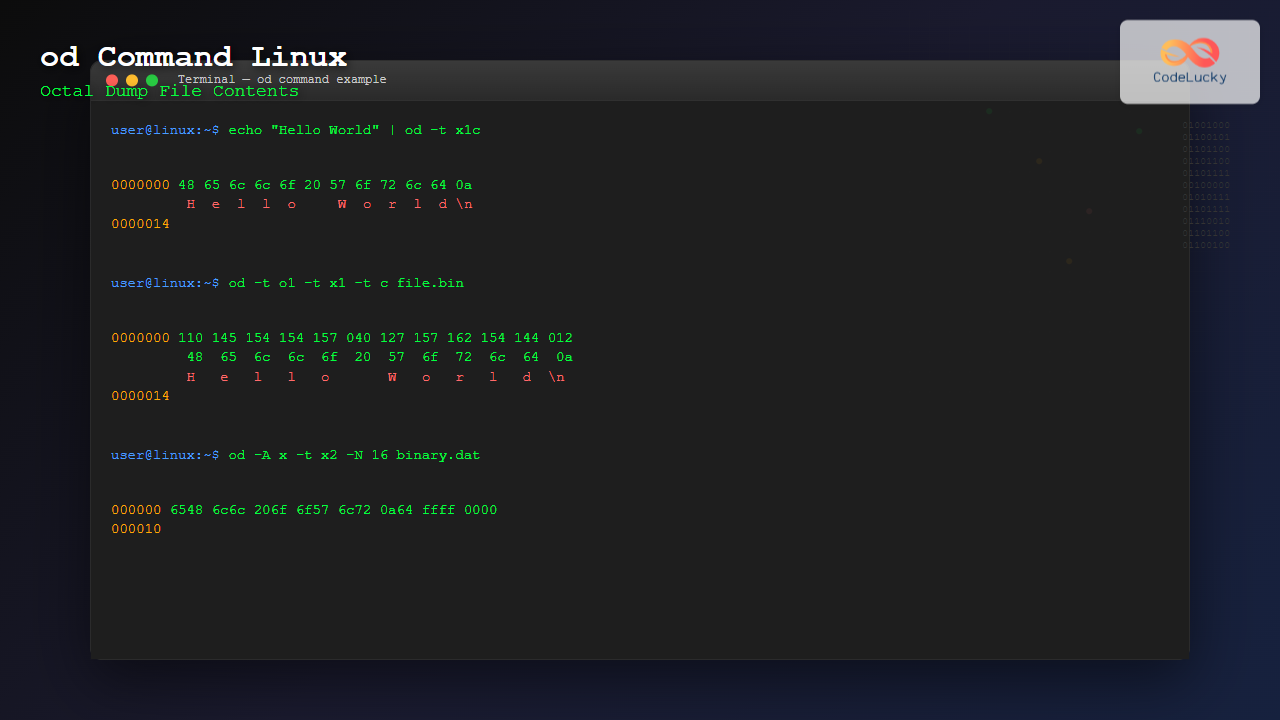
0000000 062510 066154 020157 071157 062154 005144
0000014
This shows the file contents in octal format with byte addresses on the left.
Hexadecimal Display
To view the same file in hexadecimal format:
od -t x1 test.txtOutput:
0000000 48 65 6c 6c 6f 20 57 6f 72 6c 64 0a
0000014
The x1 specifies single-byte hexadecimal values, making it easier to read individual characters.
ASCII Character Display
To see the ASCII representation alongside hex values:
od -t x1c test.txtOutput:
0000000 48 65 6c 6c 6f 20 57 6f 72 6c 64 0a
         H   e   l   l   o       W   o   r   l   d  \n
0000014
Multiple Format Display
You can combine multiple formats in a single command:
od -t x1 -t c -t o1 test.txtOutput:
0000000 48 65 6c 6c 6f 20 57 6f 72 6c 64 0a
         H   e   l   l   o       W   o   r   l   d  \n
        110 145 154 154 157 040 127 157 162 154 144 012
0000014
Advanced Usage Scenarios
Examining Binary Files
The od command excels at analyzing binary files. Let’s examine a small executable:
od -t x1 -N 32 /bin/lsThis displays the first 32 bytes of the /bin/ls executable in hexadecimal format, useful for examining file headers and magic numbers.
Analyzing File Headers
To check if a file is a PNG image by examining its header:
od -t x1 -N 8 image.pngExpected PNG header:
0000000 89 50 4e 47 0d 0a 1a 0aSkipping Bytes
To skip the first 100 bytes and display the next 50 bytes:
od -t x1 -S 100 -N 50 largefile.datCustom Width Display
For better readability, you can set a specific width:
od -t x1 -w 8 test.txtOutput:
0000000 48 65 6c 6c 6f 20 57 6f
0000010 72 6c 64 0a
0000014
Working with Different Data Types
16-bit and 32-bit Values
To display data as 16-bit hexadecimal values:
od -t x2 test.txtOutput:
0000000 6548 6c6c 206f 6f57 6c72 0a64
0000014
For 32-bit values:
od -t x4 test.txtFloating Point Data
When working with binary files containing floating-point numbers:
od -t f4 datafile.binThis interprets the data as 32-bit floating-point values.
Address Display Options
Hexadecimal Addresses
To display addresses in hexadecimal format:
od -A x -t x1 test.txtOutput:
000000 48 65 6c 6c 6f 20 57 6f 72 6c 64 0a
00000c
Decimal Addresses
For decimal address display:
od -A d -t x1 test.txtOutput:
0000000 48 65 6c 6c 6f 20 57 6f 72 6c 64 0a
0000012
Practical Use Cases
Debugging Data Corruption
When investigating file corruption, compare the hexadecimal output of a corrupted file with a known good version:
od -t x1 good_file.dat > good_dump.txt
od -t x1 corrupted_file.dat > corrupted_dump.txt
diff good_dump.txt corrupted_dump.txt
Analyzing Network Packets
For network troubleshooting, examine packet dumps:
od -t x1 -w 16 packet.dumpExamining Configuration Files
Some binary configuration files can be analyzed using od:
od -t x1c /path/to/config.binPerformance Considerations
When working with large files, use these optimization techniques:
- Use
-Nto limit output length - Combine with
headortailfor specific sections - Use
-Sto skip unnecessary data - Pipe output to
lessfor large dumps:od file.bin | less
Common Troubleshooting
Understanding Endianness
When examining multi-byte values, be aware of your system’s endianness. Intel systems typically use little-endian format:
echo -e '\x12\x34' | od -t x2Output on little-endian system:
0000000 3412Handling Special Characters
Use the -c format to identify control characters and special bytes:
od -t c filenameIntegration with Other Commands
Combining with grep
Search for specific byte patterns:
od -t x1 file.bin | grep "ff ff"Using with find
Examine multiple files:
find . -name "*.dat" -exec od -t x1 -N 16 {} \;Security Applications
The od command is valuable for security analysis:
- Examining malware samples
- Analyzing file format exploits
- Investigating data exfiltration
- Verifying file integrity
Best Practices
- Start with small samples: Use
-Nto examine file headers before processing entire files - Choose appropriate formats: Use
x1for byte-level analysis,cfor text identification - Document your analysis: Save output to files for comparison and documentation
- Combine with other tools: Use alongside
hexdump,strings, andfilecommands - Be mindful of binary data: Large binary files can produce overwhelming output
Conclusion
The od command is an indispensable tool for Linux users who need to examine file contents at the byte level. Its flexibility in output formats and addressing options makes it suitable for various tasks from debugging to security analysis. Whether you’re investigating data corruption, analyzing binary protocols, or examining file structures, mastering the od command will significantly enhance your Linux troubleshooting and analysis capabilities.
By understanding the various options and format specifiers, you can efficiently analyze any type of file data and gain deep insights into file structures and content that aren’t visible through standard text editors or viewers.
Related Posts
hexdump Command Linux: Complete Guide to Display File Contents in Hexadecimal Format
The hexdump command is a powerful Linux utility that displays the contents of files in hexadecimal format, making it an...

file Command Advanced Linux: Master Detailed File Type Analysis and Detection
The file command is one of the most powerful and underutilized utilities in Linux for determining file types and analyzing...
nm Command Linux: Complete Guide to Display Symbol Tables from Object Files
The nm command is a powerful utility in Linux that displays the symbol table of object files, executables, shared libraries,...
objdump Command Linux: Complete Guide to Display Object File Information
The objdump command is a powerful utility in Linux systems that allows developers and system administrators to examine the contents...
readelf Command Linux: Complete Guide to ELF File Analysis and Debugging
The readelf command is an essential tool for Linux developers, system administrators, and security analysts who need to examine Executable...
file Command in Linux: Complete Guide to Determine File Types and Formats
The file command is one of the most essential utilities in Linux for determining file types and formats. Unlike relying...
strings Command Linux: Extract and Analyze Text from Binary Files
The strings command is a powerful Linux utility that extracts printable character sequences from binary files. Whether you're analyzing executables,...

stat Command Linux: Complete Guide to Display File and Filesystem Status Information
The stat command is a powerful Linux utility that displays detailed information about files and filesystems. Unlike basic commands like...

size Command Linux: Display Section Sizes of Object Files and Executables
The size command is a powerful utility in Linux systems that displays the section sizes of object files, executables, and...

C++ File I/O: Working with Files
In the world of programming, the ability to read from and write to files is a crucial skill. C++ provides...
strip Command Linux: Complete Guide to Removing Symbols from Object Files
The strip command is a powerful Linux utility that removes symbols, debugging information, and other metadata from executable files, object...
debugfs Command Linux: Complete Guide to Debug Ext2/3/4 Filesystems
The debugfs command is a powerful interactive filesystem debugger for ext2, ext3, and ext4 filesystems in Linux. It provides low-level...





