
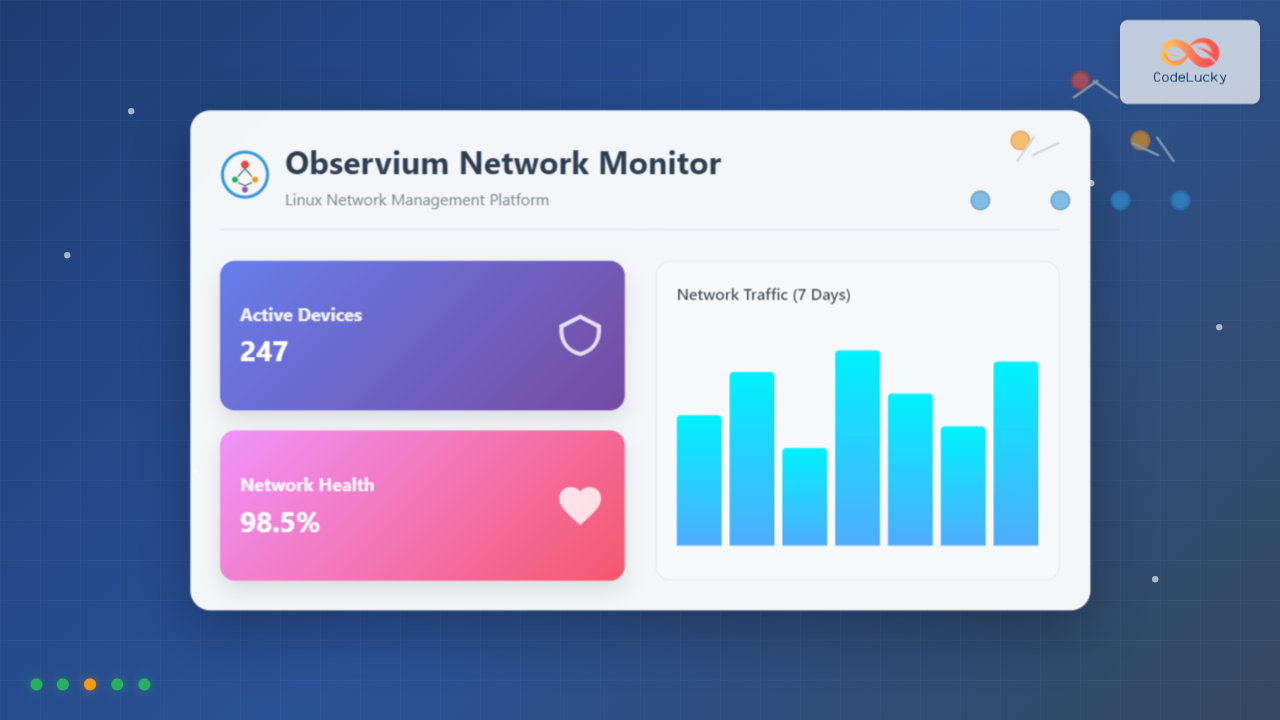
Observium is a powerful, auto-discovering network monitoring platform designed for Linux systems that provides comprehensive visibility into network infrastructure. This open-source solution offers real-time monitoring capabilities, intuitive web interfaces, and extensive device support, making it an ideal choice for network administrators and IT professionals.
What is Observium?
Observium is a PHP-based network monitoring platform that automatically discovers and monitors network devices using SNMP (Simple Network Management Protocol). It provides detailed insights into network performance, device health, and infrastructure status through an elegant web interface.
Key Features of Observium
- Auto-discovery: Automatically detects and adds network devices
- Multi-protocol support: SNMP v1, v2c, and v3 compatibility
- Extensive device support: Routers, switches, servers, and custom devices
- Historical data: Long-term trend analysis and reporting
- Alert system: Customizable notifications and thresholds
- RESTful API: Integration with external systems
System Requirements
Before installing Observium, ensure your Linux system meets the following requirements:
Minimum Hardware Requirements
CPU: Dual-core processor (2.0 GHz or higher)
RAM: 2GB minimum (4GB+ recommended)
Storage: 10GB available space (more for historical data)
Network: Ethernet connectivity to monitored devices
Software Dependencies
- Linux distribution (Ubuntu 20.04+, CentOS 7+, Debian 10+)
- Apache or Nginx web server
- MySQL or MariaDB database
- PHP 7.4+ with required extensions
- SNMP tools and libraries
- RRDtool for data storage
Installing Observium on Ubuntu/Debian
Step 1: Update System Packages
sudo apt update && sudo apt upgrade -yStep 2: Install Required Packages
sudo apt install apache2 mysql-server php php-mysql php-gd php-snmp \
php-curl php-mcrypt snmp snmp-mibs-downloader rrdtool subversion \
whois mtr-tiny nmap python3-mysqldb python3-pymysql fping \
imagemagick graphviz php-json php-zip -y
Step 3: Configure MySQL Database
# Secure MySQL installation
sudo mysql_secure_installation

# Create Observium database
sudo mysql -u root -p
mysql> CREATE DATABASE observium DEFAULT CHARACTER SET utf8 COLLATE utf8_general_ci;
mysql> CREATE USER 'observium'@'localhost' IDENTIFIED BY 'strong_password';
mysql> GRANT ALL PRIVILEGES ON observium.* TO 'observium'@'localhost';
mysql> FLUSH PRIVILEGES;
mysql> EXIT;
Step 4: Download and Install Observium
# Create directory and download
cd /opt
sudo wget http://www.observium.org/observium-community-latest.tar.gz
sudo tar zxvf observium-community-latest.tar.gz

# Set permissions
sudo chown -R www-data:www-data /opt/observium
sudo chmod 755 /opt/observium
Step 5: Configure Observium
Create the main configuration file:
sudo nano /opt/observium/config.phpAdd the following configuration:
<?php
// Database configuration
$config['db_host'] = 'localhost';
$config['db_user'] = 'observium';
$config['db_pass'] = 'strong_password';
$config['db_name'] = 'observium';

// Web interface settings
$config['base_url'] = '/';
$config['web_mouseover'] = TRUE;
$config['auth_mechanism'] = 'mysql';

// SNMP settings
$config['snmp']['timeout'] = 10;
$config['snmp']['retries'] = 3;

// Enable auto-discovery
$config['autodiscovery']['xdp'] = TRUE;
$config['autodiscovery']['ospf'] = TRUE;
$config['autodiscovery']['bgp'] = TRUE;

// Set up directories
$config['install_dir'] = '/opt/observium';
$config['html_dir'] = '/opt/observium/html';
$config['log_dir'] = '/opt/observium/logs';
$config['rrd_dir'] = '/opt/observium/rrd';
?>
Step 6: Initialize Database Schema
cd /opt/observium
sudo php includes/sql-schema/update.php
Step 7: Configure Apache Virtual Host
sudo nano /etc/apache2/sites-available/observium.confAdd the following configuration:
<VirtualHost *:80>
    DocumentRoot /opt/observium/html
    ServerName your-domain.com
    CustomLog /opt/observium/logs/access_log combined
    ErrorLog /opt/observium/logs/error_log

    <Directory "/opt/observium/html">
        AllowOverride All
        Options FollowSymLinks MultiViews
        Require all granted
    </Directory>
</VirtualHost>
# Enable the site and required modules
sudo a2ensite observium.conf
sudo a2enmod rewrite
sudo systemctl reload apache2Installing Observium on CentOS/RHEL
Step 1: Install EPEL Repository
sudo yum install epel-release -y
sudo yum update -y
Step 2: Install Required Packages
sudo yum install httpd mariadb-server mariadb php php-mysql php-gd \
php-snmp net-snmp net-snmp-utils rrdtool subversion wget \
php-process php-common php-cli cronie fping -y
Step 3: Start and Enable Services
sudo systemctl start httpd mariadb
sudo systemctl enable httpd mariadb
Step 4: Configure Database (Similar to Ubuntu steps)
sudo mysql_secure_installation
# Follow the same database creation steps as Ubuntu
Initial Configuration and Setup
Create Administrative User
cd /opt/observium
sudo php adduser.php admin admin 10
This creates an admin user with level 10 (full administrator privileges).
Configure SNMP Communities
Edit the configuration to add default SNMP communities:
sudo nano /opt/observium/config.phpAdd SNMP community strings:
$config['snmp']['community'] = array('public', 'private', 'your_community');Adding Devices to Observium
Command Line Device Addition
# Add a device with SNMP v2c
sudo php add_device.php hostname community v2c

# Example: Add a router
sudo php add_device.php 192.168.1.1 public v2c

# Add device with SNMP v3
sudo php add_device.php hostname '' v3 username authpass privpass
Web Interface Device Addition
- Access Observium web interface:
http://your-server-ip/ - Login with admin credentials
- Navigate to Devices → Add Device
- Fill in device details:
- Hostname or IP address
- SNMP version and credentials
- Device type (optional)
- Click Add Device
Bulk Device Discovery
For network-wide discovery, use the discovery script:
# Discover devices in a subnet
sudo php discovery.php -h all -m ports -m sensors -m storage
Configuring SNMP on Target Devices
Linux Server SNMP Configuration
Install and configure SNMP on monitored Linux servers:
# Install SNMP daemon
sudo apt install snmpd snmp-mibs-downloader  # Ubuntu/Debian
sudo yum install net-snmp net-snmp-utils     # CentOS/RHEL

# Configure SNMP daemon
sudo nano /etc/snmp/snmpd.conf
Basic SNMP configuration:
# Community and access configuration
com2sec readonly default public
group readgroup v2c readonly
view all included .1
access readgroup "" any noauth exact all none none

# System information
sysLocation "Data Center, Building A"
sysContact "[email protected]"
sysName "server01.company.com"

# Enable monitoring
master agentx
agentXSocket tcp:localhost:705
# Restart SNMP service
sudo systemctl restart snmpd
sudo systemctl enable snmpdCisco Device SNMP Configuration
! Enable SNMP on Cisco devices
configure terminal
snmp-server community public ro
snmp-server location "Network Closet Floor 2"
snmp-server contact "[email protected]"
snmp-server enable traps
exit
write memory
Monitoring and Alerts Configuration
Setting Up Alert Rules
Create custom alert rules in the configuration:
sudo nano /opt/observium/config.phpAdd alert configurations:
// CPU utilization alerts
$config['alerts']['rules']['cpu_high'] = array(
    'query' => 'SELECT * FROM processors WHERE processor_usage > 90',
    'delay' => '300',
    'message' => 'High CPU usage detected on %hostname%'
);

// Memory usage alerts
$config['alerts']['rules']['memory_high'] = array(
    'query' => 'SELECT * FROM mempools WHERE mempool_perc > 85',
    'delay' => '300',
    'message' => 'High memory usage on %hostname%'
);

// Interface status alerts
$config['alerts']['rules']['interface_down'] = array(
    'query' => 'SELECT * FROM ports WHERE ifOperStatus = "down" AND ifAdminStatus = "up"',
    'delay' => '60',
    'message' => 'Interface %ifDescr% is down on %hostname%'
);
Email Notification Setup
// Email configuration
$config['email']['default'] = '[email protected]';
$config['email']['from'] = '[email protected]';
$config['email']['sendmail'] = '/usr/sbin/sendmail';

// SMTP configuration (alternative)
$config['email']['backend'] = 'smtp';
$config['email']['smtp']['host'] = 'smtp.company.com';
$config['email']['smtp']['port'] = 587;
$config['email']['smtp']['username'] = '[email protected]';
$config['email']['smtp']['password'] = 'smtp_password';
$config['email']['smtp']['secure'] = 'tls';
Automation and Maintenance
Setting Up Cron Jobs
Configure automated tasks for continuous monitoring:
sudo crontab -eAdd the following cron entries:
# Run discovery every 6 hours
0 */6 * * * /opt/observium/discovery.php -h all >> /dev/null 2>&1

# Run poller every 5 minutes
*/5 * * * * /opt/observium/poller.php -h all >> /dev/null 2>&1

# Daily maintenance tasks
0 0 * * * /opt/observium/housekeeping.php -y >> /dev/null 2>&1

# Alert checking every minute
* * * * * /opt/observium/alerts.php >> /dev/null 2>&1
Database Maintenance
# Run database maintenance weekly
sudo crontab -e

# Add weekly database optimization
0 2 * * 0 /opt/observium/scripts/db_maintenance.php
Advanced Configuration Options
Custom Device Types
Define custom device types for specialized equipment:
// Custom device definitions
$config['os']['custom_device']['text'] = 'Custom Network Device';
$config['os']['custom_device']['type'] = 'network';
$config['os']['custom_device']['icon'] = 'device';
$config['os']['custom_device']['over'][0]['graph'] = 'device_bits';
$config['os']['custom_device']['over'][1]['graph'] = 'device_processor';
Performance Tuning
Optimize Observium for large environments:
// Performance optimizations
$config['rrd']['step'] = 300;  // 5-minute intervals
$config['rrd']['heartbeat'] = 600;
$config['poller']['threads'] = 8;  // Adjust based on CPU cores
$config['discovery']['threads'] = 4;

// Memory limits
ini_set('memory_limit', '512M');
$config['php']['memory_limit'] = '512M';
Web Interface Features
Dashboard Overview
The Observium web interface provides several key sections:
- Overview Dashboard: System-wide status and statistics
- Device List: All monitored devices with status indicators
- Maps: Network topology visualization
- Alerts: Current and historical alert information
- Reports: Availability and performance reports
- Settings: Configuration and user management
Customizing the Interface
Modify the web interface appearance:
// Custom CSS and branding
$config['web_theme'] = 'light';  // or 'dark'
$config['page_title_prefix'] = 'Company Network - ';
$config['favicon'] = 'images/custom-favicon.ico';

// Custom logo
$config['web']['logo'] = 'images/company-logo.png';
Troubleshooting Common Issues
SNMP Connection Problems
Test SNMP connectivity manually:
# Test SNMP v2c
snmpwalk -v2c -c public 192.168.1.1 system

# Test SNMP v3
snmpwalk -v3 -u username -a SHA -A authpass -x DES -X privpass 192.168.1.1 system

# Check SNMP daemon status on target device
sudo systemctl status snmpd
Database Connection Issues
# Test database connection
mysql -u observium -p observium

# Check MySQL service status
sudo systemctl status mysql

# Review MySQL error logs
sudo tail -f /var/log/mysql/error.log
Web Interface Problems
# Check Apache error logs
sudo tail -f /var/log/apache2/error.log

# Verify PHP modules
php -m | grep -E 'snmp|mysql|gd'

# Check file permissions
sudo chown -R www-data:www-data /opt/observium
sudo chmod -R 755 /opt/observium
Security Best Practices
SNMP Security
- Use SNMP v3 with encryption whenever possible
- Change default community strings
- Restrict SNMP access by IP address
- Use strong authentication passwords
- Disable SNMP write access unless required
Web Interface Security
# Enable HTTPS
sudo a2enmod ssl
sudo systemctl restart apache2

# Configure SSL certificate
<VirtualHost *:443>
    DocumentRoot /opt/observium/html
    ServerName your-domain.com

    SSLEngine on
    SSLCertificateFile /path/to/certificate.crt
    SSLCertificateKeyFile /path/to/private.key

    # Security headers
    Header always set X-Content-Type-Options nosniff
    Header always set X-Frame-Options DENY
    Header always set X-XSS-Protection "1; mode=block"
</VirtualHost>
Database Security
# Secure MySQL configuration
sudo nano /etc/mysql/mysql.conf.d/mysqld.cnf

# Add security settings
bind-address = 127.0.0.1
skip-networking = 1

# Regular database backups
sudo crontab -e
0 2 * * * mysqldump -u observium -p'password' observium > /backup/observium_$(date +%Y%m%d).sql
Integration and API Usage
RESTful API Examples
Observium provides a REST API for external integrations:
# Get device list
curl -u admin:password "http://your-server/api/v0/devices"

# Get device details
curl -u admin:password "http://your-server/api/v0/devices/1"

# Get port information
curl -u admin:password "http://your-server/api/v0/devices/1/ports"
Custom Scripts Integration
Create custom monitoring scripts:
#!/bin/bash
# Custom monitoring script example

# Check Observium API for critical alerts
ALERTS=$(curl -s -u admin:password "http://localhost/api/v0/alerts" | jq '.alerts[] | select(.severity=="critical")')

if [ ! -z "$ALERTS" ]; then
    echo "Critical alerts detected:"
    echo "$ALERTS" | jq -r '.message'
    # Send notification or take action
fi
Conclusion
Observium provides a comprehensive network monitoring solution for Linux environments, offering powerful auto-discovery capabilities, extensive device support, and an intuitive web interface. By following this guide, you can successfully deploy and configure Observium to monitor your network infrastructure effectively.
The platform’s strength lies in its simplicity of deployment combined with enterprise-grade monitoring capabilities. Whether you’re managing a small office network or a large enterprise infrastructure, Observium scales to meet your monitoring needs while providing valuable insights into network performance and device health.
Regular maintenance, proper security configuration, and strategic use of automation ensure that your Observium installation continues to provide reliable network monitoring for years to come. The investment in proper setup and configuration pays dividends in improved network visibility, faster problem resolution, and enhanced infrastructure management capabilities.
Related Posts

ManageEngine Linux: Complete Network Monitoring Solutions Guide
Network monitoring is crucial for maintaining optimal performance and security in Linux environments. ManageEngine provides powerful network monitoring solutions specifically...
LibreNMS Linux: Complete Network Monitoring System Setup and Configuration Guide
LibreNMS is a powerful, open-source network monitoring platform that provides comprehensive visibility into network infrastructure. Built on PHP and MySQL,...

whatsup Linux: Complete Network Monitoring and System Administration Guide
whatsup is a powerful network monitoring and system administration tool for Linux that provides real-time insights into network connectivity, system...
SolarWinds Linux: Complete Network Performance Monitor Guide for System Administrators
SolarWinds Network Performance Monitor (NPM) is a powerful network monitoring solution that provides comprehensive visibility into network infrastructure performance. While...
Cacti Advanced Linux: Complete Guide to Enterprise Network Graphing and Monitoring
Cacti stands as one of the most powerful open-source network graphing solutions available for Linux systems, providing comprehensive network monitoring...
intermapper Linux: Complete Network Monitoring and Mapping Guide
What is InterMapper for Linux? InterMapper is a powerful network monitoring and mapping tool that provides real-time visibility into network...
SNMP Command Linux: Complete Guide to Simple Network Management Protocol Configuration and Usage
Introduction to SNMP Command in Linux Simple Network Management Protocol (SNMP) is a fundamental protocol used for monitoring and managing...
ntopng Command Linux: Complete Guide to Web-Based Network Traffic Monitoring
Network traffic monitoring is crucial for maintaining optimal network performance, security, and troubleshooting connectivity issues. The ntopng command provides a...

Paessler Linux: Complete Guide to Network Monitoring with PRTG on Linux Systems
Network monitoring is crucial for maintaining optimal performance and security in Linux environments. Paessler PRTG Network Monitor offers comprehensive monitoring...

Spiceworks Linux: Complete Network Monitoring and Management Guide
Spiceworks is a powerful, free IT network monitoring and management platform that has revolutionized how system administrators handle their infrastructure....
thruk Linux: Comprehensive Monitoring Web Interface for Network Infrastructure
Thruk is a powerful web-based monitoring interface designed primarily for Nagios and compatible monitoring systems. As a comprehensive frontend solution,...
op5 Linux: Complete Network Monitoring Solution Guide
op5 Linux is a comprehensive network monitoring solution built on top of the proven Nagios monitoring engine. This enterprise-grade platform...





