
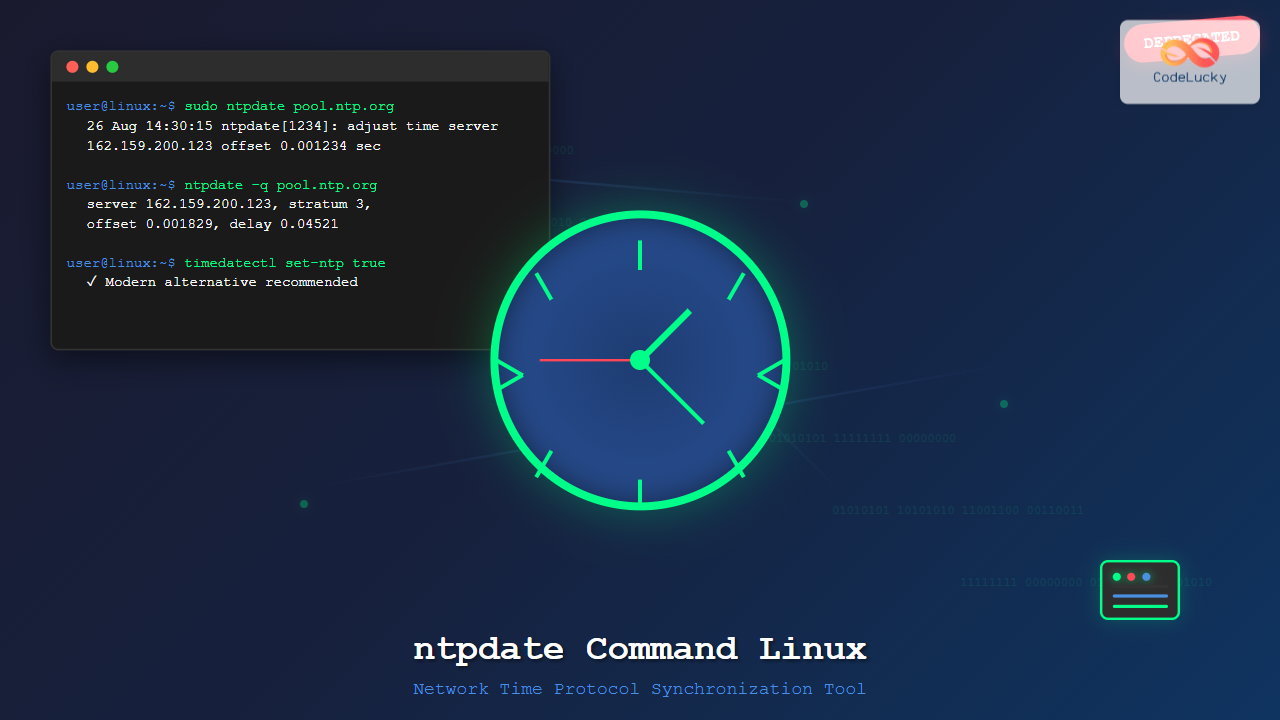
The ntpdate command was once a cornerstone tool for Linux system administrators to synchronize system time with Network Time Protocol (NTP) servers. While now deprecated in favor of modern alternatives, understanding ntpdate remains valuable for legacy systems and historical context.
What is ntpdate Command?
ntpdate is a command-line utility that sets the local date and time by polling Network Time Protocol (NTP) servers. It performs a one-time synchronization rather than continuous monitoring, making it suitable for systems that don’t require constant time accuracy or for manual time corrections.
Important: The ntpdate command has been deprecated since NTP version 4.2.2 and is no longer maintained. Modern Linux distributions recommend using timedatectl, chronyd, or ntpd instead.
Basic Syntax and Installation
The basic syntax for ntpdate is straightforward:
ntpdate [options] server1 [server2] [server3] ...Installing ntpdate
On most modern Linux distributions, you may need to install ntpdate separately:
# Ubuntu/Debian
sudo apt-get install ntpdate

# CentOS/RHEL/Fedora
sudo yum install ntpdate
# or for newer versions
sudo dnf install ntpdate

# Arch Linux
sudo pacman -S ntp
Common ntpdate Options
Here are the most frequently used options with ntpdate:
| Option | Description |
|---|---|
-s |
Log output to syslog instead of standard output |
-b |
Force time to be stepped rather than slewed |
-u |
Use unprivileged port for outgoing packets |
-d |
Enable debugging mode |
-t timeout |
Set timeout for server response |
-v |
Verbose output |
-q |
Query only, don’t set the time |
Practical Examples
Basic Time Synchronization
The simplest way to synchronize time using ntpdate:
sudo ntpdate pool.ntp.orgExpected Output:
26 Aug 14:30:15 ntpdate[1234]: adjust time server 162.159.200.123 offset 0.001234 secUsing Multiple NTP Servers
For better reliability, specify multiple NTP servers:
sudo ntpdate 0.pool.ntp.org 1.pool.ntp.org 2.pool.ntp.orgExpected Output:
26 Aug 14:30:16 ntpdate[1235]: adjust time server 132.163.96.1 offset -0.000892 secVerbose Mode Output
To see detailed information about the synchronization process:
sudo ntpdate -v pool.ntp.orgExpected Output:
26 Aug 14:30:17 ntpdate[1236]: ntpdate [email protected] Wed Feb 16 17:33:28 UTC 2022 (1)
26 Aug 14:30:17 ntpdate[1236]: Looking for host pool.ntp.org and service ntp
26 Aug 14:30:17 ntpdate[1236]: host found : 162.159.200.1
26 Aug 14:30:17 ntpdate[1236]: transmit(162.159.200.1)
26 Aug 14:30:17 ntpdate[1236]: receive(162.159.200.1)
26 Aug 14:30:17 ntpdate[1236]: adjust time server 162.159.200.1 offset 0.002156 sec
Query-Only Mode
To check time difference without actually setting the system time:
ntpdate -q pool.ntp.orgExpected Output:
server 162.159.200.123, stratum 3, offset 0.001829, delay 0.04521
26 Aug 14:30:18 ntpdate[1237]: adjust time server 162.159.200.123 offset 0.001829 sec
Using Specific Timeout
Set a custom timeout for server responses:
sudo ntpdate -t 10 pool.ntp.orgDebugging Mode
For troubleshooting connection issues:
sudo ntpdate -d pool.ntp.orgThis provides extensive debugging information including packet details and server selection process.
Common Use Cases and Scenarios
System Startup Synchronization
Many administrators used ntpdate in startup scripts for initial time synchronization:
#!/bin/bash
# Legacy startup script example
/usr/sbin/ntpdate -s pool.ntp.org
echo "System time synchronized"
Cron Job for Periodic Sync
Before NTP daemons became standard, ntpdate was often run via cron:
# Example crontab entry (NOT recommended for modern systems)
0 */4 * * * /usr/sbin/ntpdate -s pool.ntp.org
Common Issues and Troubleshooting
Permission Errors
If you encounter permission errors:
ntpdate: no server suitable for synchronization foundThis usually means you need root privileges. Use sudo:
sudo ntpdate pool.ntp.orgNetwork Connectivity Issues
Test network connectivity to NTP servers:
ping pool.ntp.org
nc -u pool.ntp.org 123
Firewall Blocking
NTP uses UDP port 123. Ensure your firewall allows outbound connections:
# UFW example
sudo ufw allow out 123/udp

# iptables example
sudo iptables -A OUTPUT -p udp --dport 123 -j ACCEPT
Why ntpdate is Deprecated
Several factors led to ntpdate‘s deprecation:
- One-time synchronization: Unlike NTP daemons, it doesn’t provide continuous time adjustment
- Security concerns: Lacks the security features of modern NTP implementations
- Clock stepping: Can cause abrupt time changes that may disrupt applications
- No ongoing monitoring: Doesn’t track server quality or handle server failures gracefully
Modern Alternatives
Using timedatectl (systemd systems)
The modern replacement for basic time synchronization:
# Check current time status
timedatectl status

# Enable NTP synchronization
sudo timedatectl set-ntp true

# Manual time sync
sudo timedatectl set-time "2025-08-26 14:30:00"
Using chronyd
Chrony is the preferred NTP implementation on many modern distributions:
# Check chrony sources
chronyc sources -v

# Force immediate synchronization
sudo chronyc makestep

# Check synchronization status
chronyc tracking
Using ntpd
The traditional NTP daemon for continuous synchronization:
# Start and enable ntpd
sudo systemctl start ntpd
sudo systemctl enable ntpd

# Check NTP peers
ntpq -p
Migration Strategy
If you’re still using ntpdate, here’s how to migrate:
Step 1: Identify Current Usage
# Find ntpdate in cron jobs
sudo grep -r ntpdate /etc/cron*

# Find in startup scripts
sudo grep -r ntpdate /etc/init*
Step 2: Replace with Modern Alternatives
Replace ntpdate commands in scripts:
# Old way
ntpdate pool.ntp.org

# New way (systemd)
timedatectl set-ntp true

# Or with chronyd
chronyc makestep
Step 3: Configure Automatic Synchronization
# Enable systemd-timesyncd
sudo systemctl enable systemd-timesyncd
sudo systemctl start systemd-timesyncd

# Or install and configure chrony
sudo apt-get install chrony
sudo systemctl enable chronyd
sudo systemctl start chronyd
Security Considerations
When working with time synchronization:
- Use authenticated NTP: Configure authentication when possible
- Multiple sources: Use multiple NTP servers for redundancy
- Firewall rules: Restrict NTP traffic to necessary servers only
- Monitor logs: Watch for time synchronization failures or attacks
Best Practices
For systems still requiring ntpdate:
- Use multiple servers: Specify at least 3-4 NTP servers
- Choose reliable servers: Use pool.ntp.org or your organization’s NTP servers
- Monitor execution: Log ntpdate output for troubleshooting
- Handle failures gracefully: Implement error handling in scripts
- Plan migration: Prepare to move to modern alternatives
Conclusion
While ntpdate served the Linux community well for many years, its deprecation reflects the evolution toward more robust, secure, and feature-rich time synchronization solutions. Understanding ntpdate helps with legacy system maintenance, but new deployments should embrace modern alternatives like timedatectl, chronyd, or systemd-timesyncd.
The transition from ntpdate to modern NTP implementations represents a broader shift in Linux system administration toward continuous, automated, and secure time management. By adopting these newer tools, administrators can ensure better time accuracy, improved security, and reduced maintenance overhead.
Remember: Time synchronization is critical for system logs, security certificates, and distributed applications. Choose the right tool for your environment and ensure proper configuration for reliable operation.
Related Posts
ntpd Command Linux: Complete Guide to Network Time Protocol Daemon Management
The ntpd (Network Time Protocol daemon) is a crucial system service in Linux that maintains accurate system time by synchronizing...
timedatectl Command Linux: Complete Guide to System Time and Date Management
The timedatectl command is a powerful utility in modern Linux distributions that provides a unified interface for managing system time,...
timedatectl Advanced Linux: Complete Time and Date Management Guide
The timedatectl command is a powerful Linux utility that provides comprehensive control over system time and date settings. As part...
systemd-timesyncd Linux: Complete Guide to Network Time Synchronization
Time synchronization is a critical aspect of system administration that ensures your Linux servers maintain accurate time across distributed networks....
chrony Linux: Complete Guide to NTP Client and Server Configuration
Network Time Protocol (NTP) synchronization is crucial for maintaining accurate time across Linux systems. chrony is a modern, versatile NTP...
date Command Linux: Complete Guide to Display and Set System Date
The date command is one of the most fundamental utilities in Linux systems, allowing users to display and manipulate system...

C Time Functions: Date and Time Operations with <time.h>
Time is an essential concept in programming, and C provides a robust set of functions for working with dates and...
uptime Command Linux: Complete Guide to System Uptime and Load Average Monitoring
The uptime command is one of the most fundamental system monitoring tools in Linux, providing essential information about how long...
hwclock Command Linux: Complete Hardware Clock Management Guide
The hwclock command is a powerful Linux utility for managing your system's hardware clock, also known as the Real-Time Clock...
ntopng Command Linux: Complete Guide to Web-Based Network Traffic Monitoring
Network traffic monitoring is crucial for maintaining optimal network performance, security, and troubleshooting connectivity issues. The ntopng command provides a...

PHP Date and Time: Working with Temporal Data
In the world of web development, handling dates and times is a crucial skill. PHP offers a robust set of...

MySQL NOW Function: Get Current Timestamp with Precision
The NOW() function in MySQL is your go-to tool for capturing the current date and time. It's essential for tracking...





