
The ntpd (Network Time Protocol daemon) is a crucial system service in Linux that maintains accurate system time by synchronizing with remote NTP servers. This comprehensive guide explores everything you need to know about managing the ntpd service, from basic operations to advanced troubleshooting techniques.
What is ntpd?
The Network Time Protocol daemon (ntpd) is a background service that continuously adjusts your system’s clock to match time servers across the internet. Unlike one-time synchronization tools, ntpd provides ongoing time accuracy by making gradual adjustments and maintaining long-term stability.
Key Features of ntpd:
- Continuous synchronization: Maintains accurate time throughout system operation
- Gradual adjustments: Prevents time jumps that could disrupt applications
- Multiple server support: Uses multiple time sources for redundancy
- Stratum hierarchy: Follows NTP’s hierarchical time distribution model
- Security features: Supports authentication and access controls
Installing ntpd
Most Linux distributions don’t install ntpd by default, favoring alternatives like systemd-timesyncd or chrony. Here’s how to install ntpd on various systems:
Ubuntu/Debian:
sudo apt update
sudo apt install ntp
CentOS/RHEL/Fedora:
# For older versions
sudo yum install ntp

# For newer versions with dnf
sudo dnf install ntp
Arch Linux:
sudo pacman -S ntpBasic ntpd Command Usage
The ntpd command syntax follows this pattern:
ntpd [options]Common Command Options:
| Option | Description |
|---|---|
-c configfile |
Specify configuration file path |
-d |
Debug mode (increases verbosity) |
-D debuglevel |
Set specific debug level |
-f driftfile |
Specify drift file location |
-g |
Allow large time corrections initially |
-n |
Don’t fork (run in foreground) |
-p pidfile |
Specify PID file location |
-q |
Set time and exit |
-u user[:group] |
Run as specified user/group |
Managing ntpd Service
Modern Linux systems use systemd to manage the ntpd service. Here are the essential service management commands:
Starting the Service:
sudo systemctl start ntpStopping the Service:
sudo systemctl stop ntpRestarting the Service:
sudo systemctl restart ntpEnabling Auto-start at Boot:
sudo systemctl enable ntpChecking Service Status:
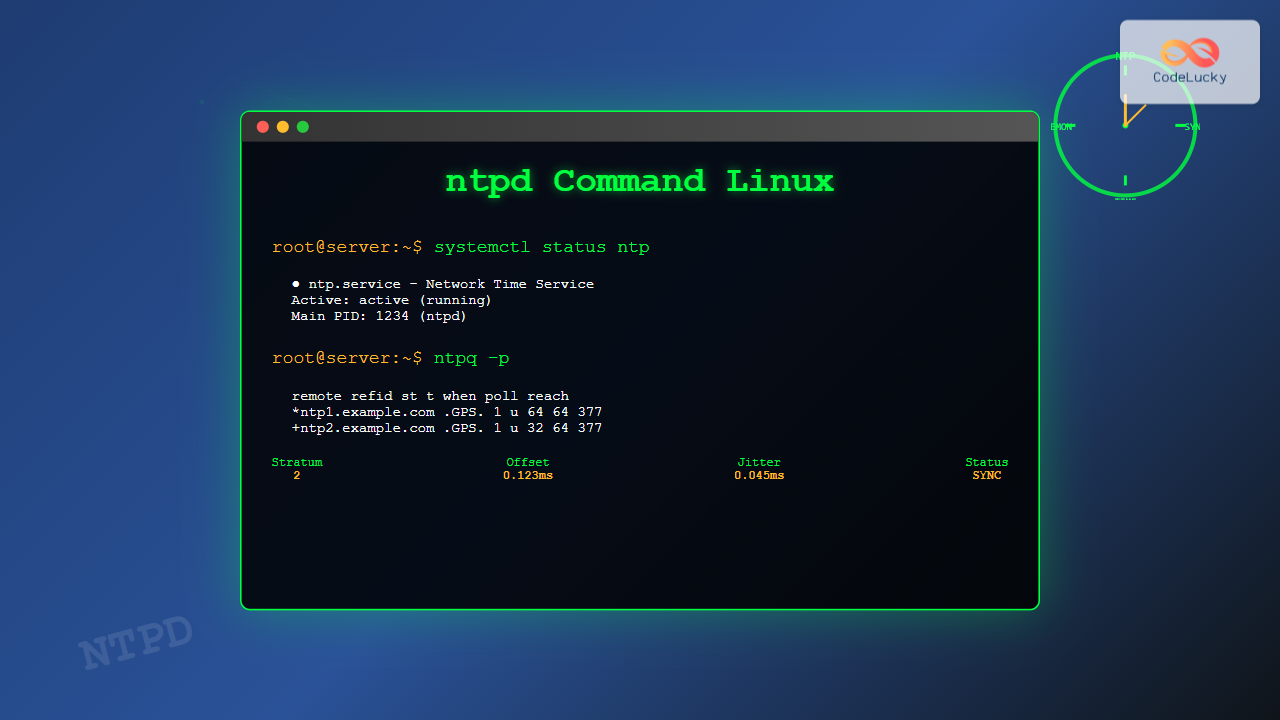
sudo systemctl status ntpExample output:
● ntp.service - Network Time Service
   Loaded: loaded (/lib/systemd/system/ntp.service; enabled; vendor preset: enabled)
   Active: active (running) since Tue 2025-08-26 02:30:15 IST; 24min ago
     Docs: man:ntpd(8)
 Main PID: 1234 (ntpd)
    Tasks: 2 (limit: 4915)
   Memory: 2.1M
   CGroup: /system.slice/ntp.service
           └─1234 /usr/sbin/ntpd -p /var/run/ntpd.pid -g -u 108:113
Configuration File: /etc/ntp.conf
The primary configuration file for ntpd is /etc/ntp.conf. This file defines time servers, access controls, and operational parameters.
Basic Configuration Example:
# /etc/ntp.conf

# Default NTP servers
server 0.pool.ntp.org iburst
server 1.pool.ntp.org iburst
server 2.pool.ntp.org iburst
server 3.pool.ntp.org iburst

# Fallback to local clock
server 127.127.1.0 stratum 10

# Restrict access for security
restrict default nomodify notrap nopeer noquery
restrict 127.0.0.1
restrict ::1

# Drift file location
driftfile /var/lib/ntp/drift

# Statistics directory
statsdir /var/log/ntpstats/
statistics loopstats peerstats clockstats
filegen loopstats file loopstats type day enable
filegen peerstats file peerstats type day enable
filegen clockstats file clockstats type day enable
Important Configuration Directives:
- server: Specifies NTP servers to synchronize with
- restrict: Controls access permissions
- driftfile: Stores frequency offset for faster startup
- statsdir: Directory for statistics files
- iburst: Speeds up initial synchronization
Monitoring ntpd Status
Several commands help monitor ntpd’s operation and synchronization status:
Using ntpq (NTP Query Tool):
ntpq -pExample output:
     remote           refid      st t when poll reach   delay   offset  jitter
==============================================================================
*ntp1.example.com .GPS.            1 u   64   64  377    1.234    0.123   0.045
+ntp2.example.com .GPS.            1 u   32   64  377    2.456    0.234   0.067
-ntp3.example.com .GPS.            2 u   16   64  377    5.678   -0.345   0.089
 ntp4.example.com .INIT.          16 u    -   64    0    0.000    0.000   0.000
Column Explanations:
- *: Current synchronization source
- +: Good candidate for synchronization
- -: Discarded by clustering algorithm
- remote: NTP server hostname/IP
- refid: Reference clock identifier
- st: Stratum level
- when: Seconds since last poll
- poll: Polling interval in seconds
- reach: Reachability register (octal)
- delay: Round-trip delay (ms)
- offset: Time difference (ms)
- jitter: Dispersion of measurements
Detailed Server Information:
ntpq -c "rv 0"Example output:
associd=0 status=0615 leap_none, sync_ntp, 1 event, clock_sync,
version="ntpd [email protected] Tue Jun 23 18:58:35 UTC 2020 (1)",
processor="x86_64", system="Linux/5.4.0", leap=00, stratum=2,
precision=-24, rootdelay=1.234, rootdisp=2.345, refid=192.0.2.1,
reftime=e4b2c123.456789ab  Tue, Aug 26 2025  2:54:00.273,
clock=e4b2c124.789abcde  Tue, Aug 26 2025  2:54:01.472, peer=12345,
tc=6, mintc=3, offset=0.123, frequency=1.234, sys_jitter=0.045,
clk_jitter=0.023, clk_wander=0.012
Using ntpstat for Quick Status
ntpstatExample outputs:
Synchronized:
synchronised to NTP server (192.0.2.1) at stratum 2
   time correct to within 12 ms
   polling server every 64 s
Not synchronized:
unsynchronised
   polling server every 8 s
Advanced ntpd Configuration
Setting Up Access Controls:
# Allow time queries from local network
restrict 192.168.1.0 mask 255.255.255.0 nomodify notrap

# Deny all access by default
restrict default ignore

# Allow localhost
restrict 127.0.0.1
restrict ::1
Configuring Authentication:
# Enable authentication
enable auth

# Key file location
keys /etc/ntp.keys

# Trusted keys
trustedkey 1 2 3

# Request key for server communication
requestkey 1
Creating Authentication Keys (/etc/ntp.keys):
# Format: keyid type key
1 M MySecretKey123
2 M AnotherSecretKey456
3 M ThirdSecretKey789
Set appropriate permissions:
sudo chmod 600 /etc/ntp.keys
sudo chown ntp:ntp /etc/ntp.keys
Troubleshooting Common Issues
1. ntpd Won’t Start
Check for port conflicts:
sudo netstat -tlnp | grep :123Verify configuration syntax:
sudo ntpd -n -d -g -c /etc/ntp.conf2. Time Synchronization Issues
Check firewall rules:
# Allow NTP traffic (port 123/UDP)
sudo ufw allow 123/udp

# For iptables
sudo iptables -A INPUT -p udp --dport 123 -j ACCEPT
sudo iptables -A OUTPUT -p udp --sport 123 -j ACCEPT
Test server connectivity:
ntpdate -q pool.ntp.org3. Large Time Offset
If the time difference is too large, ntpd may refuse to sync:
# Force initial synchronization
sudo ntpd -gq

# Or use ntpdate for one-time sync
sudo ntpdate -s pool.ntp.org
Performance Monitoring and Statistics
Viewing NTP Statistics:
# Loop statistics (frequency and offset)
sudo tail -f /var/log/ntpstats/loopstats

# Peer statistics (server performance)
sudo tail -f /var/log/ntpstats/peerstats

# Clock statistics (reference clock data)
sudo tail -f /var/log/ntpstats/clockstats
Monitoring Commands:
# Show association details
ntpq -c "as"

# Display system variables
ntpq -c "rv"

# Monitor specific peer
ntpq -c "rv &1"  # Replace 1 with association ID
Security Best Practices
1. Restrict Access Properly
# Minimal access configuration
restrict default kod nomodify notrap nopeer noquery
restrict -6 default kod nomodify notrap nopeer noquery
restrict 127.0.0.1
restrict -6 ::1
2. Use Pool Servers
# Use pool instead of individual servers
pool pool.ntp.org iburst

# Regional pools for better performance
pool north-america.pool.ntp.org iburst
pool europe.pool.ntp.org iburst
3. Enable Logging
# Add to /etc/ntp.conf
logfile /var/log/ntp.log
logconfig =syncall +clockall +peerall +sysall
Migration and Alternatives
Switching from systemd-timesyncd:
# Disable systemd-timesyncd
sudo systemctl stop systemd-timesyncd
sudo systemctl disable systemd-timesyncd

# Install and enable ntpd
sudo apt install ntp
sudo systemctl enable ntp
sudo systemctl start ntp
Comparing with chrony:
| Feature | ntpd | chrony |
|---|---|---|
| Memory usage | Higher | Lower |
| Intermittent connections | Poor | Excellent |
| Accuracy | Good | Better |
| Configuration complexity | Moderate | Simple |
Interactive Troubleshooting Script
Create a diagnostic script for ntpd issues:
#!/bin/bash
# ntpd-diagnostics.sh

echo "=== NTP Daemon Diagnostics ==="
echo

echo "1. Service Status:"
systemctl status ntp --no-pager
echo

echo "2. Current Time Sources:"
ntpq -p
echo

echo "3. Synchronization Status:"
ntpstat
echo

echo "4. System Clock Info:"
timedatectl status
echo

echo "5. Recent Log Entries:"
journalctl -u ntp --no-pager -n 10
echo

echo "6. Configuration Check:"
if ntpd -n -d -g -c /etc/ntp.conf 2>&1 | grep -q "configuration OK"; then
    echo "Configuration appears valid"
else
    echo "Configuration issues detected"
fi
Make it executable and run:
chmod +x ntpd-diagnostics.sh
./ntpd-diagnostics.sh
Conclusion
The ntpd command and service provide robust, enterprise-grade time synchronization for Linux systems. While newer alternatives like chrony and systemd-timesyncd exist, ntpd remains the gold standard for environments requiring maximum accuracy and extensive configuration options.
Key takeaways for effective ntpd management:
- Always use multiple time sources for redundancy
- Implement proper access controls for security
- Monitor synchronization status regularly
- Configure appropriate logging for troubleshooting
- Consider network conditions when choosing polling intervals
Regular monitoring and proper configuration ensure your systems maintain accurate time, which is critical for logging, authentication, and distributed applications. Master these ntpd techniques to become proficient in Linux time management and system administration.
Related Posts
ntpdate Command Linux: Complete Guide to Network Time Synchronization (Deprecated Tool)
The ntpdate command was once a cornerstone tool for Linux system administrators to synchronize system time with Network Time Protocol...
systemd-timesyncd Linux: Complete Guide to Network Time Synchronization
Time synchronization is a critical aspect of system administration that ensures your Linux servers maintain accurate time across distributed networks....
chrony Linux: Complete Guide to NTP Client and Server Configuration
Network Time Protocol (NTP) synchronization is crucial for maintaining accurate time across Linux systems. chrony is a modern, versatile NTP...
timedatectl Advanced Linux: Complete Time and Date Management Guide
The timedatectl command is a powerful Linux utility that provides comprehensive control over system time and date settings. As part...
timedatectl Command Linux: Complete Guide to System Time and Date Management
The timedatectl command is a powerful utility in modern Linux distributions that provides a unified interface for managing system time,...
hwclock Command Linux: Complete Hardware Clock Management Guide
The hwclock command is a powerful Linux utility for managing your system's hardware clock, also known as the Real-Time Clock...
ntopng Command Linux: Complete Guide to Web-Based Network Traffic Monitoring
Network traffic monitoring is crucial for maintaining optimal network performance, security, and troubleshooting connectivity issues. The ntopng command provides a...
uptime Command Linux: Complete Guide to System Uptime and Load Average Monitoring
The uptime command is one of the most fundamental system monitoring tools in Linux, providing essential information about how long...

C Time Functions: Date and Time Operations with <time.h>
Time is an essential concept in programming, and C provides a robust set of functions for working with dates and...

MySQL Date Functions: Master Date Manipulation
Date and time are crucial aspects of almost every database application. Whether you are scheduling events, tracking user activity, or...
heartbeat Linux: Complete Guide to System Uptime Monitoring and High Availability
The heartbeat service in Linux is a critical component for maintaining high availability and monitoring system uptime. Originally developed as...
date Command Linux: Complete Guide to Display and Set System Date
The date command is one of the most fundamental utilities in Linux systems, allowing users to display and manipulate system...





