
The nohup command is one of the most essential tools for Linux system administrators and developers who need to run long-running processes that should continue executing even after logging out of a terminal session. This comprehensive guide will walk you through everything you need to know about the nohup command, from basic usage to advanced techniques.
What is the nohup Command?
nohup stands for “no hang up” and is a POSIX command that allows you to run commands immune to hangups (SIGHUP signals). When you log out of a terminal session, the system typically sends a SIGHUP signal to all processes associated with that session, causing them to terminate. The nohup command prevents this behavior by ignoring the SIGHUP signal.
Key Features of nohup:
- Runs commands in the background
- Immune to hangup signals (SIGHUP)
- Redirects output to nohup.out file by default
- Continues execution after logout
- Works with any command or script
Basic Syntax and Usage
The basic syntax of the nohup command is straightforward:
nohup command [arguments] &The ampersand (&) at the end runs the command in the background, allowing you to continue using the terminal or log out safely.
Simple Example:
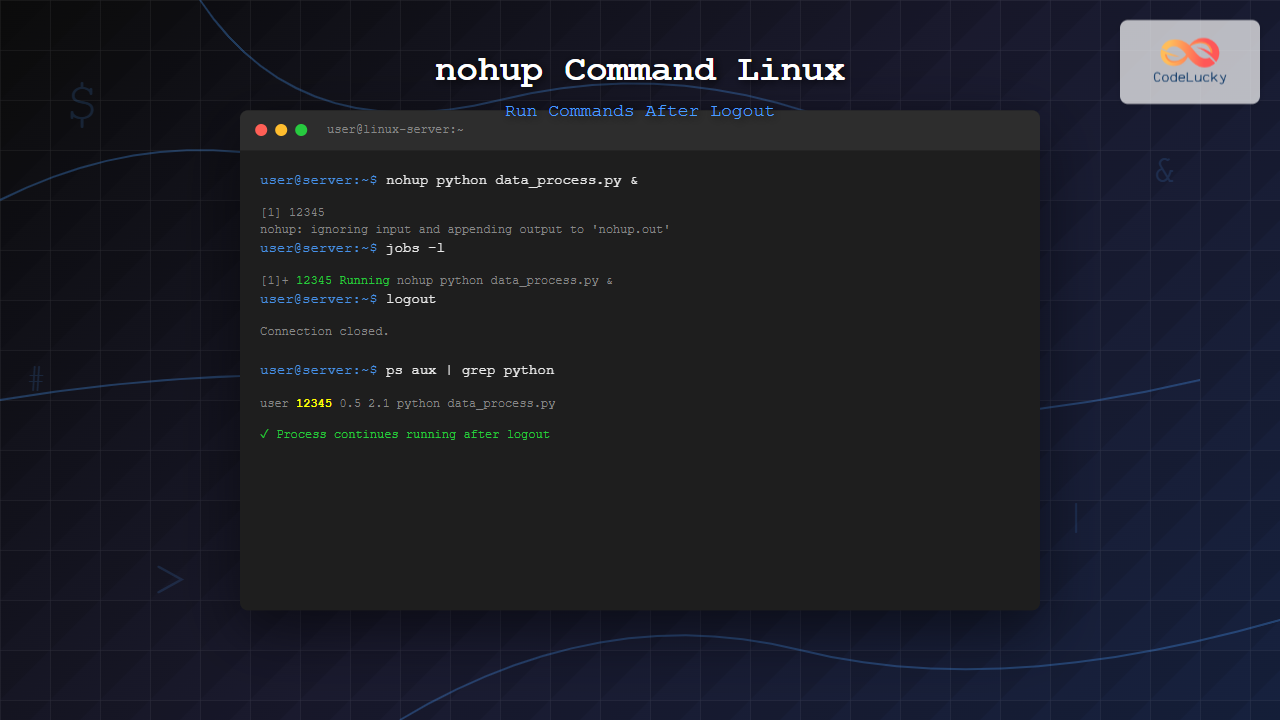
nohup sleep 3600 &Output:
[1] 12345
nohup: ignoring input and appending output to 'nohup.out'
In this example:
[1]indicates the job number12345is the process ID (PID)- The command will run for 3600 seconds (1 hour) even if you log out
Output Redirection with nohup
By default, nohup redirects both stdout and stderr to a file called nohup.out in the current directory. You can customize this behavior:
Default Output (nohup.out):
nohup python script.py &Custom Output File:
nohup python script.py > custom_output.log 2>&1 &Separate Files for stdout and stderr:
nohup python script.py > output.log 2> error.log &Discard Output:
nohup python script.py > /dev/null 2>&1 &Practical Examples
Example 1: Running a Web Server
# Start a Python HTTP server that continues after logout
nohup python3 -m http.server 8000 &
Output:
[1] 15678
nohup: ignoring input and appending output to 'nohup.out'
Example 2: File Processing Script
# Process large files in background
nohup ./process_data.sh /path/to/large/dataset > processing.log 2>&1 &
Example 3: Database Backup
# Create database backup that runs overnight
nohup mysqldump -u username -p database_name > backup_$(date +%Y%m%d).sql &
Example 4: Long-Running Calculation
# Scientific computation that takes hours
nohup python3 complex_calculation.py --iterations 1000000 > calc_results.txt 2>&1 &
Monitoring nohup Processes
Check Running Jobs:
jobs -lOutput:
[1]+ 12345 Running nohup sleep 3600 &Find Process by Name:
ps aux | grep "sleep 3600"Output:
user 12345 0.0 0.0 4352 692 ? S 14:30 0:00 sleep 3600Check Process Status:
ps -p 12345View Output in Real-Time:
tail -f nohup.outManaging nohup Processes
Bringing Background Job to Foreground:
# List jobs first
jobs

# Bring job to foreground
fg %1
Killing a nohup Process:
# Kill by PID
kill 12345

# Force kill if needed
kill -9 12345

# Kill by job number
kill %1
Stopping a Process Gracefully:
# Send SIGTERM signal
kill -TERM 12345

# Send SIGINT signal (Ctrl+C equivalent)
kill -INT 12345
Advanced nohup Techniques
Using nohup with Complex Commands:
# Multiple commands with pipes
nohup sh -c 'command1 | command2 | command3' &

# Command with environment variables
nohup env VAR=value command &

# Running with different nice priority
nohup nice -n 10 command &
Batch Processing with nohup:
#!/bin/bash
# batch_process.sh
for file in *.txt; do
    echo "Processing $file"
    # Some processing command
    process_file "$file"
done

# Run the batch script
nohup ./batch_process.sh > batch_output.log 2>&1 &
Creating a nohup Wrapper Script:
#!/bin/bash
# nohup_wrapper.sh

COMMAND="$1"
OUTPUT_FILE="${2:-nohup_$(date +%Y%m%d_%H%M%S).out}"

echo "Starting command: $COMMAND"
echo "Output file: $OUTPUT_FILE"

nohup $COMMAND > "$OUTPUT_FILE" 2>&1 &

echo "Process started with PID: $!"
echo "Monitor with: tail -f $OUTPUT_FILE"
nohup vs Other Background Methods
| Method | Survives Logout | Use Case |
|---|---|---|
command & |
No | Temporary background tasks |
nohup command & |
Yes | Long-running processes |
screen/tmux |
Yes | Interactive sessions |
systemd services |
Yes | System services |
Common Use Cases
1. Web Development:
# Run development server continuously
nohup npm start > server.log 2>&1 &

# Build process that takes time
nohup npm run build > build.log 2>&1 &
2. Data Processing:
# Process large CSV files
nohup python data_processor.py --input large_file.csv > processing.log 2>&1 &

# Run machine learning training
nohup python train_model.py --epochs 100 > training.log 2>&1 &
3. System Maintenance:
# Log rotation and cleanup
nohup ./cleanup_logs.sh > cleanup.log 2>&1 &

# File synchronization
nohup rsync -avz /source/ /destination/ > sync.log 2>&1 &
Troubleshooting Common Issues
Issue 1: Permission Denied for nohup.out
Problem: Cannot write to nohup.out in current directory
Solution:
# Redirect to a writable location
nohup command > ~/nohup.out 2>&1 &
Issue 2: Process Still Terminates
Problem: Process stops even with nohup
Solution:
# Ensure you're using the ampersand
nohup command &

# Check if process handles SIGHUP properly
nohup command > output.log 2>&1 < /dev/null &
Issue 3: Cannot Find Process
Problem: Lost track of background process
Solution:
# Find by command name
pgrep -f "command_name"

# Find by user
ps -u $USER

# Check all background jobs
jobs -l
Best Practices
- Always use meaningful output files:
nohup command > descriptive_name_$(date +%Y%m%d).log 2>&1 & - Include timestamps in output:
nohup sh -c 'command 2>&1 | while read line; do echo "$(date): $line"; done' > timestamped.log & - Monitor resource usage:
# Check memory and CPU usage top -p $(pgrep -f "your_command") - Create process management scripts:
#!/bin/bash
# start_service.sh
PID_FILE="/tmp/my_service.pid"

if [ -f "$PID_FILE" ]; then
    echo "Service already running"
    exit 1
fi

nohup my_service > service.log 2>&1 &
echo $! > "$PID_FILE"
echo "Service started with PID: $!"
Security Considerations
- File Permissions: Ensure nohup output files have appropriate permissions
- Process Ownership: Run processes with minimal required privileges
- Resource Limits: Set ulimits to prevent resource exhaustion
- Logging: Monitor process activities for security auditing
Conclusion
The nohup command is an indispensable tool for running persistent background processes in Linux. Whether you’re managing long-running scripts, web servers, or data processing tasks, understanding how to properly use nohup ensures your processes continue running even after you disconnect from your terminal session.
Key takeaways:
- Always use the ampersand (&) with nohup for background execution
- Redirect output appropriately to avoid cluttering your workspace
- Monitor your processes regularly to ensure they’re running as expected
- Use descriptive output files and implement proper logging
- Consider alternatives like screen, tmux, or systemd services for different use cases
Master the nohup command, and you’ll have a powerful tool for managing long-running processes that need to persist beyond your login session, making your Linux system administration tasks much more efficient and reliable.
Related Posts
jobs Command Linux: Complete Guide to Managing Background Jobs in Terminal
The jobs command is an essential tool for Linux users who need to manage multiple processes running in the background....
sleep Command Linux: Complete Guide to Delay Execution in Scripts and Terminal
The sleep command is one of the most fundamental utilities in Linux and Unix-like systems, designed to pause execution for...
bg Command in Linux: Resume Jobs in Background with Examples
The bg command in Linux is a powerful built-in shell command that allows you to resume suspended jobs in the...

kill Command in Linux: Complete Guide to Terminate Processes by PID
The kill command is one of the most essential tools in Linux system administration, allowing users to terminate processes by...
timeout Command Linux: Complete Guide to Running Commands with Time Limits
The timeout command in Linux is an essential utility that allows you to run commands with a specified time limit....
fg Command Linux: Complete Guide to Managing Background and Foreground Jobs
The fg command in Linux is a powerful job control tool that allows you to bring background processes to the...
screen Command Linux: Complete Guide to Managing Multiple Terminal Sessions
The screen command is one of the most powerful tools in a Linux administrator's arsenal, allowing you to create, manage,...
last Command Linux: Display Login History and System Boot Records
The last command is an essential Linux utility that displays a chronological list of user logins, system boots, and shutdowns...

ps Command in Linux: Complete Guide to Process Monitoring and Management
The ps command is one of the most fundamental and powerful tools in Linux for displaying information about running processes....
killall Command Linux: Complete Guide to Kill Processes by Name
The killall command is a powerful Linux utility that allows system administrators and users to terminate processes by their name...
history Command Linux: Complete Guide to View and Manage Your Command History
The history command in Linux is one of the most powerful tools for managing and navigating your command line experience....

bash Command Linux: Start New Shell Sessions and Execute Scripts Efficiently
The bash command is one of the most fundamental tools in Linux systems, serving as both a command-line interpreter and...





