
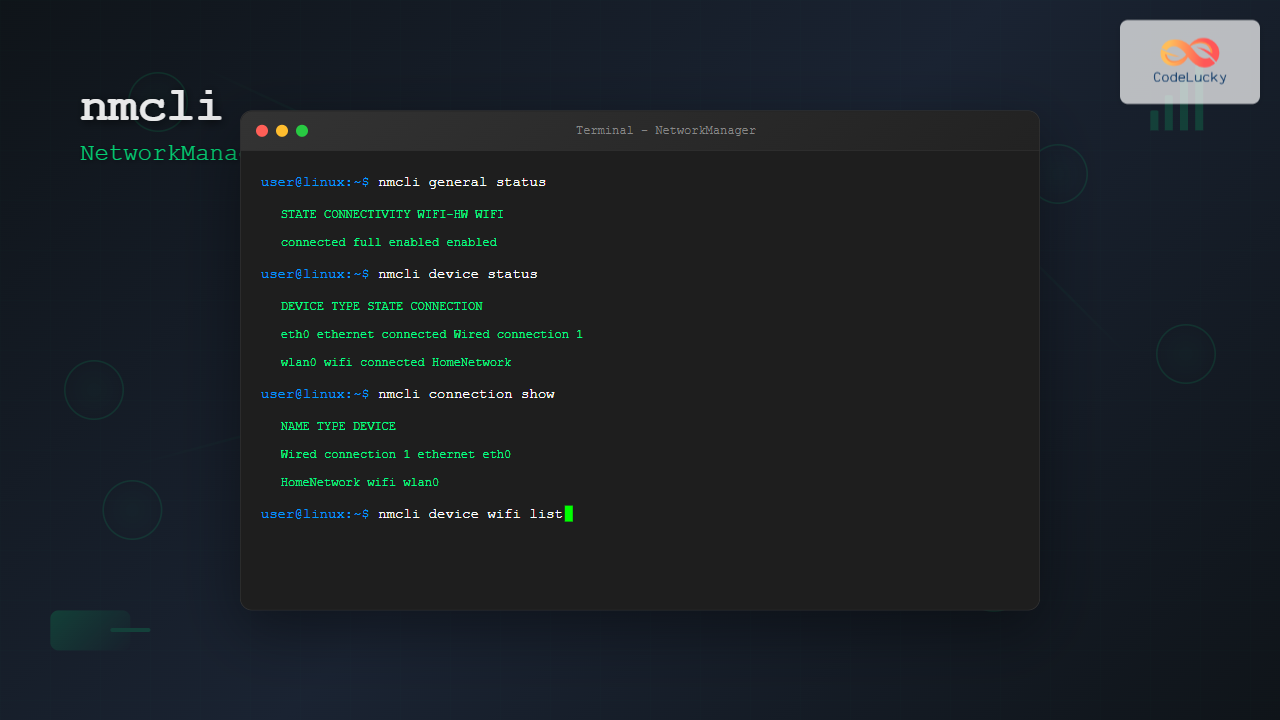
The nmcli (NetworkManager Command Line Interface) is a powerful command-line tool that allows you to control NetworkManager and configure network connections on Linux systems. This comprehensive guide will walk you through everything you need to know about nmcli, from basic usage to advanced network management techniques.
What is nmcli?
nmcli is the command-line interface for NetworkManager, a daemon that manages network connections on Linux systems. It provides a way to create, modify, activate, and deactivate network connections without using graphical interfaces. This makes it particularly valuable for server administration, automation scripts, and remote system management.
Key Features of nmcli
- Network Connection Management: Create, modify, and delete network profiles
- WiFi Management: Scan, connect, and manage wireless networks
- Device Control: Enable/disable network interfaces
- Status Monitoring: Check network status and connection details
- Automation Support: Script-friendly output formats
nmcli Command Syntax
The basic syntax of nmcli follows this pattern:
nmcli [OPTIONS] OBJECT { COMMAND | help }Where:
- OPTIONS: Global options that affect the command behavior
- OBJECT: The type of NetworkManager object (connection, device, general, etc.)
- COMMAND: The action to perform on the object
Common Objects in nmcli
| Object | Description |
|---|---|
general |
General NetworkManager status and operations |
networking |
Overall networking control |
radio |
Radio switches (WiFi, WWAN) |
connection |
NetworkManager connections |
device |
Devices managed by NetworkManager |
Basic nmcli Commands
Checking NetworkManager Status
Start by checking the overall status of NetworkManager:
nmcli general statusExample Output:
STATE      CONNECTIVITY  WIFI-HW  WIFI     WWAN-HW  WWAN
connected  full          enabled  enabled  enabled  enabled
For more detailed information:
nmcli generalViewing Network Devices
To see all network devices managed by NetworkManager:
nmcli device statusExample Output:
DEVICE  TYPE      STATE         CONNECTION
eth0    ethernet  connected     Wired connection 1
wlan0   wifi      disconnected  --
lo      loopback  unmanaged     --
For detailed device information:
nmcli device show eth0Managing Network Connections
List all configured connections:
nmcli connection showExample Output:
NAME                UUID                                  TYPE      DEVICE
Wired connection 1  a1b2c3d4-e5f6-7890-1234-567890abcdef  ethernet  eth0
MyWiFi              b2c3d4e5-f6g7-8901-2345-678901bcdefg  wifi      --
Show details of a specific connection:
nmcli connection show "Wired connection 1"WiFi Management with nmcli
Scanning for WiFi Networks
To scan for available WiFi networks:
nmcli device wifi listExample Output:
SSID       BSSID             MODE   CHAN  RATE        SIGNAL  BARS  SECURITY
MyNetwork  AA:BB:CC:DD:EE:FF Infra  6     130 Mbit/s  89      ▂▄▆█  WPA2
OpenWiFi   BB:CC:DD:EE:FF:AA Infra  11    54 Mbit/s   45      ▂▄__  --
Coffee5G   CC:DD:EE:FF:AA:BB Infra  149   867 Mbit/s  72      ▂▄▆_  WPA2
Connecting to WiFi Networks
Connect to an open WiFi network:
nmcli device wifi connect "OpenWiFi"Connect to a password-protected WiFi network:
nmcli device wifi connect "MyNetwork" password "mypassword"Connect using a specific interface:
nmcli device wifi connect "MyNetwork" password "mypassword" ifname wlan0Creating WiFi Connection Profiles
Create a persistent WiFi connection profile:
nmcli connection add \
  type wifi \
  con-name "MyHome" \
  ifname wlan0 \
  ssid "HomeNetwork" \
  wifi-sec.key-mgmt wpa-psk \
  wifi-sec.psk "homepassword"
Ethernet Connection Management
Creating Wired Connections
Create a basic ethernet connection with DHCP:
nmcli connection add \
  type ethernet \
  con-name "Office-LAN" \
  ifname eth0
Static IP Configuration
Create an ethernet connection with static IP:
nmcli connection add \
  type ethernet \
  con-name "Static-Connection" \
  ifname eth0 \
  ipv4.addresses 192.168.1.100/24 \
  ipv4.gateway 192.168.1.1 \
  ipv4.dns "8.8.8.8,8.8.4.4" \
  ipv4.method manual
Modifying Existing Connections
Change IP address of an existing connection:
nmcli connection modify "Static-Connection" \
  ipv4.addresses 192.168.1.101/24
Add additional DNS server:
nmcli connection modify "Static-Connection" \
  +ipv4.dns 1.1.1.1
Remove a DNS server:
nmcli connection modify "Static-Connection" \
  -ipv4.dns 8.8.4.4
Connection Control Operations
Activating and Deactivating Connections
Activate a connection:
nmcli connection up "MyHome"Deactivate a connection:
nmcli connection down "MyHome"Reload connection configurations:
nmcli connection reloadDeleting Connections
Delete a connection profile:
nmcli connection delete "Old-Connection"Example Output:
Connection 'Old-Connection' (uuid-here) successfully deleted.Device Management
Enabling and Disabling Devices
Disconnect and disable a device:
nmcli device disconnect eth0Connect a device (activates the best available connection):
nmcli device connect eth0Set a device to managed/unmanaged state:
nmcli device set eth0 managed yesWiFi Radio Control
Check WiFi radio status:
nmcli radio wifiDisable WiFi:
nmcli radio wifi offEnable WiFi:
nmcli radio wifi onAdvanced nmcli Features
Interactive Connection Editor
Launch the interactive connection editor:
nmcli connection editEdit an existing connection interactively:
nmcli connection edit "MyConnection"Within the interactive editor, you can use commands like:
nmcli> set ipv4.addresses 192.168.1.50/24
nmcli> set ipv4.gateway 192.168.1.1
nmcli> save
nmcli> quit
Output Formatting Options
Get output in different formats for scripting:
# Terse output (script-friendly)
nmcli -t connection show

# Fields-specific output
nmcli -f NAME,TYPE,DEVICE connection show

# JSON output
nmcli -f ALL connection show --output json
Creating Complex Network Configurations
Create a bridge connection:
nmcli connection add \
  type bridge \
  con-name br0 \
  ifname br0 \
  ipv4.addresses 192.168.1.10/24 \
  ipv4.gateway 192.168.1.1 \
  ipv4.method manual
Add an ethernet interface to the bridge:
nmcli connection add \
  type bridge-slave \
  con-name br0-eth0 \
  ifname eth0 \
  master br0
Troubleshooting with nmcli
Checking Connection Status
Verify connectivity:
nmcli general connectivity checkView connection logs:
nmcli connection show "MyConnection" | grep -i errorNetwork Diagnostics
Monitor network changes in real-time:
nmcli monitorCheck device capabilities:
nmcli device show wlan0 | grep -i capCommon Issues and Solutions
Connection Won’t Activate:
# Check device status
nmcli device status

# Restart NetworkManager
sudo systemctl restart NetworkManager

# Reload connections
nmcli connection reload
WiFi Not Scanning:
# Check if WiFi is enabled
nmcli radio wifi

# Force rescan
nmcli device wifi rescan
nmcli in Scripts and Automation
Script-Friendly Output
For automation, use terse mode and specific field selection:
#!/bin/bash
# Get connection status
STATUS=$(nmcli -t -f STATE general status)
if [ "$STATUS" = "connected" ]; then
    echo "Network is connected"
else
    echo "Network issue detected"
fi
Batch Operations
Create multiple connections from a script:
#!/bin/bash
# Array of WiFi networks
networks=("Office" "Home" "Cafe")
passwords=("office123" "home456" "cafe789")

for i in "${!networks[@]}"; do
    nmcli connection add \
        type wifi \
        con-name "${networks[$i]}" \
        ssid "${networks[$i]}" \
        wifi-sec.key-mgmt wpa-psk \
        wifi-sec.psk "${passwords[$i]}"
done
Security Considerations
Password Management
Avoid storing passwords in command history:
# Use environment variables
export WIFI_PASSWORD="secretpassword"
nmcli device wifi connect "MyNetwork" password "$WIFI_PASSWORD"

# Or use file input
nmcli connection add type wifi con-name "Secure" ssid "SecureNet" \
  wifi-sec.key-mgmt wpa-psk wifi-sec.psk-flags 0x2
Connection Permissions
Set connection permissions:
nmcli connection modify "MyConnection" \
  connection.permissions "user:alice:,user:bob:"
Performance Optimization
Connection Prioritization
Set connection priority (higher numbers = higher priority):
nmcli connection modify "EthernetConnection" \
  connection.autoconnect-priority 10

nmcli connection modify "WiFiConnection" \
  connection.autoconnect-priority 5
Automatic Connection Management
Configure automatic connection behavior:
nmcli connection modify "MyConnection" \
  connection.autoconnect yes \
  connection.autoconnect-retries 3
Conclusion
The nmcli command is an incredibly powerful tool for managing network connections on Linux systems. From simple WiFi connections to complex network configurations, nmcli provides the flexibility and control needed for both desktop users and system administrators.
Key takeaways from this guide:
- nmcli provides complete control over NetworkManager from the command line
- It supports all major connection types including WiFi, Ethernet, and advanced configurations
- The tool is highly scriptable and automation-friendly
- Interactive mode makes complex configurations more manageable
- Proper security practices should be followed when dealing with passwords and sensitive data
By mastering nmcli, you’ll have the skills to efficiently manage network connections in any Linux environment, whether you’re troubleshooting connectivity issues, setting up new systems, or automating network configuration tasks.
Practice these commands in a safe environment to become proficient with nmcli, and always remember to test configuration changes thoroughly before implementing them in production systems.
Related Posts
nmtui Command Linux: Complete Guide to NetworkManager Text User Interface
The nmtui (NetworkManager Text User Interface) command is a powerful, menu-driven tool that provides an intuitive way to configure network...
NetworkManager Linux: Complete Guide to Network Management Service
NetworkManager is a powerful network management service that provides automatic network detection and configuration for Linux systems. It simplifies network...
systemd-networkd Linux: Complete Network Configuration Manager Guide
systemd-networkd is a powerful system daemon that manages network configurations on Linux systems. As part of the systemd ecosystem, it...
iwconfig Command Linux: Complete Guide to Wireless Network Configuration
The iwconfig command is a powerful Linux utility that allows you to configure and manage wireless network interfaces from the...
ip Command Linux: Complete Guide to Advanced Network Configuration and Management
The ip command is one of the most powerful and versatile networking tools in Linux, serving as the modern replacement...
nmap Command Linux: Complete Guide to Network Mapping and Port Scanning
The nmap (Network Mapper) command is one of the most powerful and versatile network discovery and security auditing tools available...
ifconfig Command Linux: Complete Guide to Network Interface Configuration (Deprecated)
The ifconfig (interface configuration) command has been a cornerstone of Linux network administration for decades. While officially deprecated in favor...
SNMP Command Linux: Complete Guide to Simple Network Management Protocol Configuration and Usage
Introduction to SNMP Command in Linux Simple Network Management Protocol (SNMP) is a fundamental protocol used for monitoring and managing...

ManageEngine Linux: Complete Network Monitoring Solutions Guide
Network monitoring is crucial for maintaining optimal performance and security in Linux environments. ManageEngine provides powerful network monitoring solutions specifically...
jnettop Command Linux: Monitor Real-Time Network Traffic by Connection
The jnettop command is a powerful Linux network monitoring tool that provides real-time visibility into network traffic organized by individual...

netstat Command Linux: Complete Guide to Network Connection Monitoring
The netstat command is one of the most essential network monitoring tools in Linux systems. It provides comprehensive information about...

iptraf Command Linux: Complete Interactive Network Monitoring Guide
The iptraf command is a powerful console-based network monitoring utility for Linux systems that provides real-time IP LAN monitoring capabilities....





