
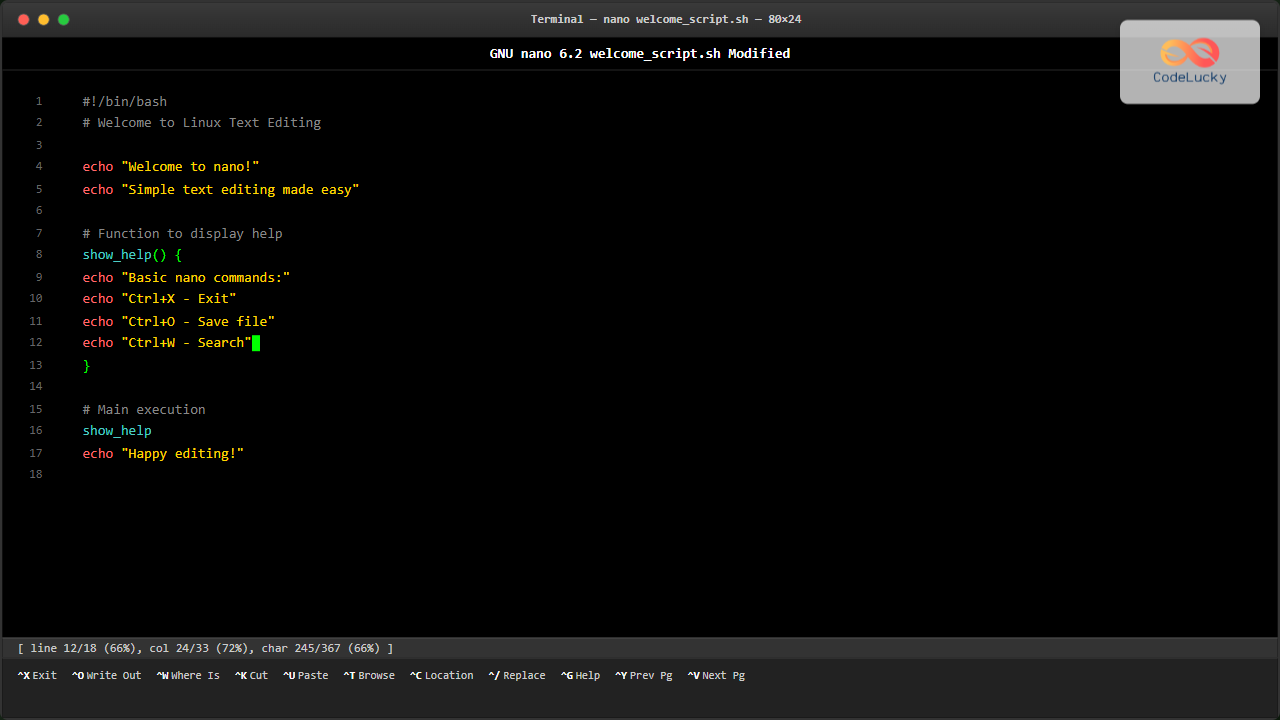
The nano command is one of the most beginner-friendly text editors available in Linux systems. Unlike complex editors like Vim or Emacs, nano provides an intuitive interface that displays helpful shortcuts directly on screen, making it perfect for users new to command-line text editing.
What is nano in Linux?
Nano is a simple, lightweight text editor that runs in the terminal. It’s pre-installed on most Linux distributions and offers a straightforward approach to editing text files without the steep learning curve associated with other command-line editors.
Key features of nano include:
- User-friendly interface with visible shortcuts
- Syntax highlighting for various programming languages
- Search and replace functionality
- Line numbering
- Auto-indentation
- Multiple file support
Basic nano Syntax
The basic syntax for using nano is:
nano [options] [filename]If you specify a filename that doesn’t exist, nano will create a new file with that name when you save.
Opening Files with nano
Creating a New File
To create a new file or open an existing one:
nano myfile.txtThis command opens nano with a file named “myfile.txt”. If the file doesn’t exist, nano will create it upon saving.
Opening Existing Files
nano /etc/hosts
nano ~/.bashrc
nano /var/log/syslog
You can open any text file by providing its full path to nano.
Understanding the nano Interface
When you open nano, you’ll see:
- Title bar: Shows nano version and filename
- Main editing area: Where you type and edit text
- Status line: Displays current line and column position
- Shortcut menu: Shows available keyboard shortcuts
The shortcuts are displayed at the bottom using the caret (^) symbol, which represents the Ctrl key. For example, ^X means Ctrl+X.
Essential nano Commands and Shortcuts
File Operations
| Shortcut | Description |
|---|---|
| Ctrl+X | Exit nano (prompts to save if changes exist) |
| Ctrl+O | Save file (Write Out) |
| Ctrl+R | Read/Insert another file into current document |
| Ctrl+T | Open file browser to select file |
Navigation Commands
| Shortcut | Description |
|---|---|
| Ctrl+Y | Go to previous page |
| Ctrl+V | Go to next page |
| Ctrl+A | Go to beginning of line |
| Ctrl+E | Go to end of line |
| Ctrl+G | Display help text |
| Ctrl+_ | Go to specific line number |
Editing Commands
| Shortcut | Description |
|---|---|
| Ctrl+K | Cut current line |
| Ctrl+U | Paste cut text |
| Ctrl+6 | Mark text for selection |
| Alt+6 | Copy selected text |
| Ctrl+Z | Undo last action |
| Alt+E | Redo last undone action |
Search and Replace
| Shortcut | Description |
|---|---|
| Ctrl+W | Search for text |
| Alt+W | Find next occurrence |
| Ctrl+\ | Search and replace |
Practical Examples
Example 1: Creating a Simple Text File
Let’s create a simple grocery list:
nano grocery_list.txtType the following content:
Grocery List
============
- Milk
- Bread
- Eggs
- Apples
- Rice
To save: Press Ctrl+O, confirm the filename, then press Enter. To exit: Press Ctrl+X.
Example 2: Editing Configuration Files
Editing the hosts file (requires sudo):
sudo nano /etc/hostsYou might see content like:
127.0.0.1    localhost
127.0.1.1    your-hostname
You can add custom entries like:
192.168.1.100 myserver.localExample 3: Creating a Shell Script
nano backup_script.shAdd the following content:
#!/bin/bash
# Simple backup script

echo "Starting backup..."
tar -czf backup_$(date +%Y%m%d).tar.gz /home/user/documents
echo "Backup completed!"
Save with Ctrl+O and exit with Ctrl+X.
Advanced nano Features
Using Command Line Options
Nano supports various command-line options:
# Open with line numbers
nano -l filename.txt

# Enable syntax highlighting
nano -Y python script.py

# Open at specific line number
nano +25 filename.txt

# Enable soft wrapping
nano -S filename.txt

# Show whitespace characters
nano -T 4 filename.txt
Search and Replace Example
To replace all occurrences of “old_text” with “new_text”:
- Press
Ctrl+\ - Enter “old_text” when prompted for search term
- Enter “new_text” when prompted for replacement
- Press
Ato replace all occurrences
Working with Multiple Files
Open multiple files simultaneously:
nano file1.txt file2.txt file3.txtSwitch between files using Alt+, (previous) and Alt+. (next).
Customizing nano
Configuration File
Create a personal nano configuration file:
nano ~/.nanorcAdd customizations like:
# Enable line numbers
set linenumbers

# Enable syntax highlighting
include "/usr/share/nano/*.nanorc"

# Set tab size to 4 spaces
set tabsize 4

# Enable auto-indentation
set autoindent

# Enable soft wrapping
set softwrap
Useful Configuration Options
set mouse– Enable mouse supportset smooth– Enable smooth scrollingset titlecolor yellow– Set title bar colorset numbercolor cyan– Set line number colorset keycolor cyan– Set shortcut key color
Common Use Cases
System Administration
- Editing configuration files (
/etc/nginx/nginx.conf) - Modifying system settings (
/etc/fstab) - Creating startup scripts (
/etc/rc.local)
Development
- Quick script editing
- README file creation
- Configuration file modifications
- Log file analysis
Daily Tasks
- Note-taking
- Creating to-do lists
- Writing documentation
- Email drafting
Troubleshooting Common Issues
Permission Denied
When editing system files, use sudo:
sudo nano /etc/hostsAccidental Exit
If you accidentally press Ctrl+X, nano will ask if you want to save changes. Press Y to save or N to discard changes.
Terminal Size Issues
If nano appears garbled, try resizing your terminal window or use:
reset
nano filename.txt
nano vs Other Editors
nano vs vim
- nano: Easier for beginners, intuitive shortcuts visible on screen
- vim: More powerful, steeper learning curve, modal editing
nano vs emacs
- nano: Lightweight, simple interface
- emacs: Feature-rich, extensible, complex
When to Use nano
- Quick edits and simple tasks
- New to command-line editors
- Minimal system requirements
- Editing configuration files
- Remote server administration
Best Practices
File Backup
Always backup important files before editing:
cp important_file.conf important_file.conf.backup
nano important_file.conf
Syntax Highlighting
Use appropriate file extensions to enable syntax highlighting:
nano script.py    # Python highlighting
nano config.json  # JSON highlighting
nano style.css    # CSS highlighting
Regular Saving
Save frequently using Ctrl+O to avoid losing work, especially during long editing sessions.
Conclusion
The nano text editor is an excellent choice for Linux users who need a straightforward, efficient way to edit text files from the command line. Its beginner-friendly interface, combined with powerful features like syntax highlighting and search functionality, makes it ideal for both newcomers and experienced users who prefer simplicity over complexity.
Whether you’re editing configuration files, writing scripts, or just taking quick notes, nano provides all the essential features you need without overwhelming you with unnecessary complexity. Master these basic commands and shortcuts, and you’ll find nano to be an indispensable tool in your Linux toolkit.
Remember to practice regularly with nano to become proficient. Start with simple text files and gradually work your way up to more complex editing tasks. With time, you’ll appreciate nano’s elegant simplicity and efficiency.
Related Posts
vim Command Linux: Master the Ultimate Text Editor with Advanced Techniques
The vim command is one of the most powerful and versatile text editors available in Linux systems. Originally created as...
emacs Command Linux: Complete Guide to the Powerful Text Editor
The emacs command is one of the most powerful and extensible text editors available in Linux systems. Originally developed by...

Linux Commands Tutorial: Complete Beginner’s Guide to Terminal Basics
The Linux terminal is a powerful command-line interface that gives you direct control over your operating system. While it might...
sed Command Linux: Complete Guide to Stream Editor for Text Manipulation
The sed (Stream Editor) command is one of the most powerful text processing utilities in Linux and Unix systems. It...

echo Command in Linux: Complete Guide to Print Text and Variables in Terminal
The echo command is one of the most fundamental and frequently used commands in Linux and Unix-like operating systems. It...
sed Advanced Linux: Stream Editor Advanced Techniques for Text Processing
The sed (Stream Editor) command stands as one of the most powerful text processing tools in Linux systems. While basic...
alias Command in Linux: Create Custom Command Shortcuts and Boost Your Productivity
The alias command in Linux is a powerful tool that allows you to create custom shortcuts for frequently used commands,...

HTML Editors: Choosing the Right Tool for Web Development
Introduction Choosing the right tool is crucial for any craft, and web development is no exception. When it comes to...
nm Command Linux: Complete Guide to Display Symbol Tables from Object Files
The nm command is a powerful utility in Linux that displays the symbol table of object files, executables, shared libraries,...
dialog Command Linux: Create Interactive Text-Based User Interfaces with Ease
The dialog command in Linux is a powerful utility that enables developers and system administrators to create sophisticated text-based user...
read Command Linux: Complete Guide to Reading User Input in Shell Scripts
The read command is one of the most fundamental tools in Linux shell scripting for creating interactive programs that capture...
node Command Linux: Complete Guide to Execute and Manage Node.js Applications
The node command is the cornerstone of Node.js development on Linux systems, providing developers with powerful capabilities to execute JavaScript...





