
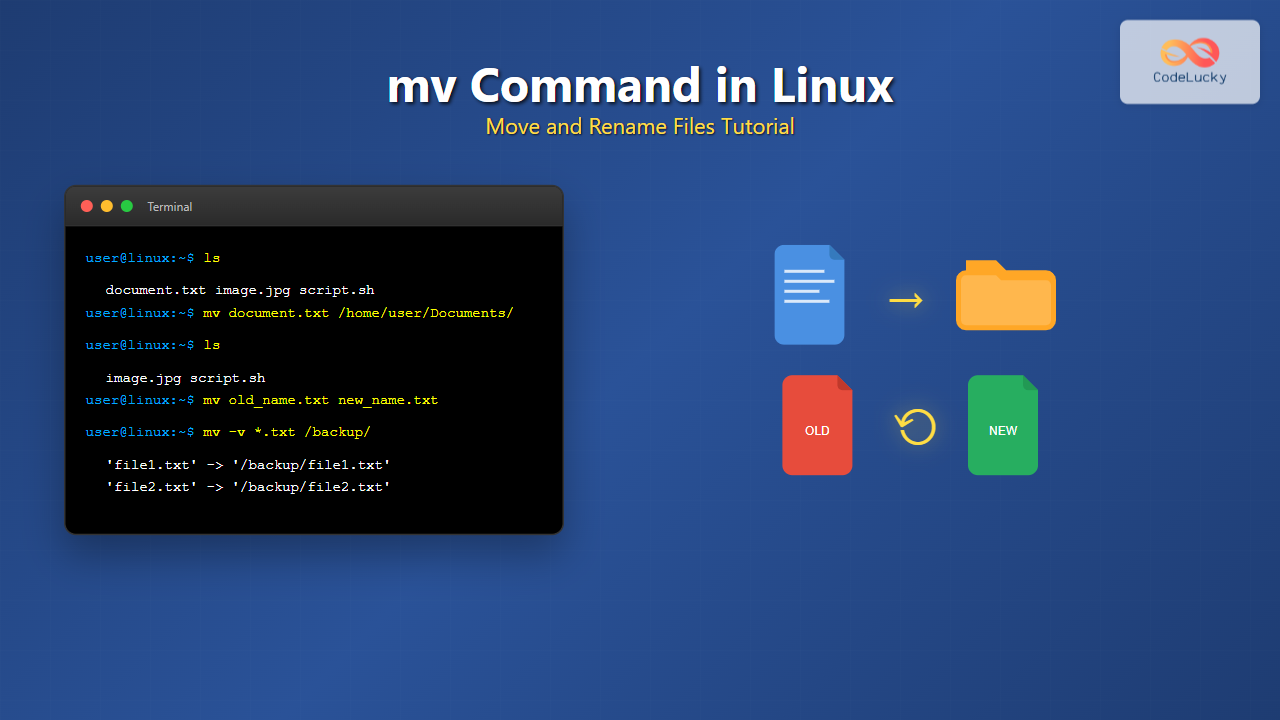
The mv command is one of the most fundamental and frequently used commands in Linux systems. Whether you’re a system administrator, developer, or Linux enthusiast, mastering the mv command is essential for efficient file and directory management. This comprehensive guide will take you through everything you need to know about moving and renaming files in Linux.
What is the mv Command?
The mv command stands for “move” and serves a dual purpose in Linux systems:
- Moving files and directories from one location to another
- Renaming files and directories within the same location
Unlike copy operations, the mv command performs a true move operation, meaning the original file is relocated rather than duplicated. This makes it highly efficient for large files as it doesn’t require additional disk space during the operation.
Basic Syntax and Structure
The basic syntax of the mv command follows this pattern:
mv [OPTIONS] SOURCE DESTINATIONWhere:
OPTIONS: Various flags that modify the command’s behaviorSOURCE: The file or directory you want to move/renameDESTINATION: The target location or new name
Moving Files: Step-by-Step Examples
Moving a Single File
Let’s start with the most basic operation – moving a single file:
mv document.txt /home/user/Documents/This command moves document.txt from the current directory to the /home/user/Documents/ directory.
Example with output:
$ ls
document.txt  image.jpg  script.sh

$ mv document.txt /home/user/Documents/

$ ls
image.jpg  script.sh

$ ls /home/user/Documents/
document.txt  other_files.pdf
Moving Multiple Files
You can move multiple files simultaneously by listing them before the destination:
mv file1.txt file2.txt file3.txt /destination/directory/Practical example:
$ ls
report1.doc  report2.doc  report3.doc  notes.txt

$ mv report1.doc report2.doc report3.doc /home/user/Reports/

$ ls
notes.txt

$ ls /home/user/Reports/
report1.doc  report2.doc  report3.doc
Moving Files with Wildcards
Wildcards make moving multiple files with similar patterns extremely efficient:
# Move all .txt files
mv *.txt /home/user/TextFiles/

# Move files starting with 'backup'
mv backup* /home/user/Backups/

# Move files with specific extensions
mv *.{jpg,png,gif} /home/user/Images/
Example demonstration:
$ ls
photo1.jpg  photo2.png  document.txt  script.py  backup_file.tar

$ mv *.{jpg,png} /home/user/Pictures/

$ ls
document.txt  script.py  backup_file.tar

$ ls /home/user/Pictures/
photo1.jpg  photo2.png  existing_image.gif
Renaming Files and Directories
Renaming is accomplished by specifying a new name as the destination within the same directory:
Renaming a Single File
mv oldname.txt newname.txtExample:
$ ls
project_draft.docx  final_version.pdf

$ mv project_draft.docx project_final.docx

$ ls
project_final.docx  final_version.pdf
Renaming Directories
The mv command works identically for directories:
mv old_directory_name new_directory_nameExample:
$ ls -l
drwxr-xr-x 2 user user 4096 Aug 24 10:30 temp_folder
drwxr-xr-x 2 user user 4096 Aug 24 10:25 documents

$ mv temp_folder archive_folder

$ ls -l
drwxr-xr-x 2 user user 4096 Aug 24 10:30 archive_folder
drwxr-xr-x 2 user user 4096 Aug 24 10:25 documents
Essential mv Command Options
Interactive Mode (-i)
The -i option prompts for confirmation before overwriting existing files:
mv -i source.txt destination.txtExample output:
$ mv -i important.txt /backup/important.txt
mv: overwrite '/backup/important.txt'? y
Force Mode (-f)
Forces the move operation without prompting, even when overwriting files:
mv -f source.txt destination.txtNo Clobber (-n)
Prevents overwriting existing files entirely:
mv -n source.txt destination.txtDemonstration:
$ ls
file1.txt  file2.txt

$ echo "Original content" > file1.txt
$ echo "Different content" > file2.txt

$ mv -n file2.txt file1.txt  # Won't overwrite

$ cat file1.txt
Original content  # Content unchanged
Verbose Mode (-v)
Provides detailed output about what the command is doing:
mv -v source.txt /destination/Example output:
$ mv -v *.txt /home/user/Documents/
'file1.txt' -> '/home/user/Documents/file1.txt'
'file2.txt' -> '/home/user/Documents/file2.txt'
'notes.txt' -> '/home/user/Documents/notes.txt'
Update Mode (-u)
Moves files only when the source is newer than the destination:
mv -u source.txt destination.txtAdvanced Usage Scenarios
Moving Across Different File Systems
When moving files across different file systems or partitions, mv performs a copy-and-delete operation:
mv /home/user/largefile.dat /mnt/external_drive/Handling Special Characters and Spaces
For files with spaces or special characters, use quotes or escape characters:
# Using quotes
mv "file with spaces.txt" "/destination/folder/"

# Using escape characters
mv file\ with\ spaces.txt /destination/folder/
Example:
$ ls
'My Document.pdf'  'Project Files'  normal_file.txt

$ mv "My Document.pdf" "/home/user/Important Documents/"

$ mv Project\ Files /home/user/Work/
Moving Hidden Files
Hidden files (starting with a dot) require special handling:
# Move specific hidden file
mv .hidden_config /backup/

# Move all hidden files (be careful!)
mv .* /backup/  # This includes . and .. which you usually don't want

# Better approach for hidden files
mv .[^.]* /backup/
Combining mv with Other Commands
Using find with mv
Move files based on complex criteria:
# Move files older than 30 days
find /source/ -type f -mtime +30 -exec mv {} /archive/ \;

# Move files larger than 100MB
find /source/ -type f -size +100M -exec mv {} /large_files/ \;
Creating Backup While Moving
You can create a backup copy before moving using command substitution:
# Create backup and then move
cp important.txt important.txt.backup && mv important.txt /new/location/
Common Pitfalls and How to Avoid Them
Overwriting Important Files
Problem: Accidentally overwriting existing files
Solution: Always use the -i option for interactive confirmation:
mv -i source.txt destination.txtMoving System Files
Problem: Moving critical system files can break your system
Solution: Be extremely careful with system directories and use -n to prevent overwriting:
mv -n custom_config.conf /etc/important_config.confCase Sensitivity Issues
Problem: Linux is case-sensitive, so File.txt and file.txt are different
Solution: Double-check file names and use tab completion:
# Use tab completion to avoid typos
mv File.txt[TAB] /destination/
Performance Considerations
Moving Large Files
For very large files, monitor the operation progress:
# Use rsync with progress for large files
rsync -av --progress largefile.dat /destination/ && rm largefile.dat
Moving Many Small Files
When moving thousands of small files, consider using alternative approaches:
# More efficient for many files
tar -cf - /source/many_files/ | (cd /destination/ && tar -xf -)
Security Considerations
Preserving Permissions
The mv command typically preserves file permissions and ownership when moving within the same file system:
$ ls -l sensitive_file.txt
-rw------- 1 user user 1024 Aug 24 10:30 sensitive_file.txt

$ mv sensitive_file.txt /secure/location/

$ ls -l /secure/location/sensitive_file.txt
-rw------- 1 user user 1024 Aug 24 10:30 sensitive_file.txt
Audit Trail
For security-sensitive environments, log mv operations:
mv -v source.txt destination.txt 2>&1 | tee -a /var/log/file_operations.logTroubleshooting Common Issues
Permission Denied Errors
Error: mv: cannot move 'file': Permission denied
Solutions:
# Check permissions
ls -l file.txt

# Change permissions if you own the file
chmod 644 file.txt

# Use sudo if necessary (be careful!)
sudo mv file.txt /protected/location/
No Space Left on Device
Error: mv: cannot move 'file': No space left on device
Solutions:
# Check available space
df -h

# Clean up space or choose different destination
mv file.txt /different/partition/
Cross-Device Link Error
Error: mv: cannot move 'directory': Invalid cross-device link
Solution: Use rsync for cross-device directory moves:
rsync -av directory/ /destination/directory/ && rm -rf directory/Best Practices and Tips
- Always backup important files before moving them
- Use descriptive names when renaming files
- Test with non-critical files first when learning new options
- Use absolute paths for important operations to avoid confusion
- Combine with ls to verify operations
# Good practice: verify before and after
ls -la source/
mv source/important.txt destination/
ls -la destination/
Alternative Commands and When to Use Them
cp vs mv
Use cp when you need to keep the original file:
# Copy keeps original
cp source.txt backup.txt

# Move removes original
mv source.txt renamed.txt
rsync vs mv
Use rsync for:
- Cross-network transfers
- Progress monitoring
- Resumable transfers
- Complex synchronization
Conclusion
The mv command is an indispensable tool in the Linux administrator’s toolkit. From simple file renaming to complex directory reorganization, mastering its various options and understanding its behavior in different scenarios will significantly improve your command-line efficiency.
Remember to always use caution when moving important files, leverage the interactive mode when in doubt, and combine mv with other commands to create powerful file management workflows. With practice, you’ll find that the mv command becomes second nature, enabling you to manage your Linux file system with confidence and precision.
Start practicing these examples in a safe environment, and gradually incorporate more advanced techniques as you become comfortable with the basics. The key to mastering the mv command lies in understanding not just what it does, but when and how to use it most effectively.
Related Posts
cp Command Linux: Copy Files and Directories with Examples and Best Practices
The cp command is one of the most fundamental and frequently used commands in Linux systems. It allows you to...
rm Command in Linux: Complete Guide to Delete Files and Directories Safely
The rm command is one of the most powerful and potentially dangerous commands in Linux. It stands for "remove" and...

rsync Command Linux: Complete Guide to Sync Files and Directories Efficiently
The rsync command is one of the most powerful and versatile file synchronization utilities available in Linux systems. Whether you're...

C++ Move Semantics: Rvalue References and std::move
In the ever-evolving landscape of C++, move semantics has emerged as a game-changing feature since its introduction in C++11. This...
find Command Linux: Ultimate Guide to Search Files and Directories by Name, Size, and Attributes
The find command is one of the most powerful and versatile tools in Linux for searching files and directories. Whether...
cd Command Linux: Complete Guide to Directory Navigation in Terminal
The cd command is one of the most fundamental and frequently used commands in Linux and Unix-like operating systems. Standing...
chmod Command in Linux: Complete File Permissions Tutorial with Examples
The chmod command is one of the most essential Linux commands for managing file and directory permissions. Whether you're a...
wipe Command Linux: Complete Guide to Secure File Deletion and Data Wiping
The wipe command in Linux is a powerful utility designed for secure file deletion that goes far beyond the standard...
dd Command Linux: Complete Guide to Low-Level File Operations and Disk Cloning
The dd command is one of the most powerful yet dangerous utilities in Linux, often referred to as "disk destroyer"...
mkdir Command Linux: Complete Guide to Creating Directories and Subdirectories
The mkdir command is one of the most fundamental and frequently used commands in Linux for creating directories. Whether you're...
rmdir Command in Linux: Complete Guide to Remove Empty Directories Safely
The rmdir command is a fundamental Linux utility designed specifically for removing empty directories. Unlike the more powerful rm -r...

chown Command Linux: Master File and Directory Ownership Management
The chown command is one of the most fundamental tools in Linux system administration, allowing users to change file and...





