
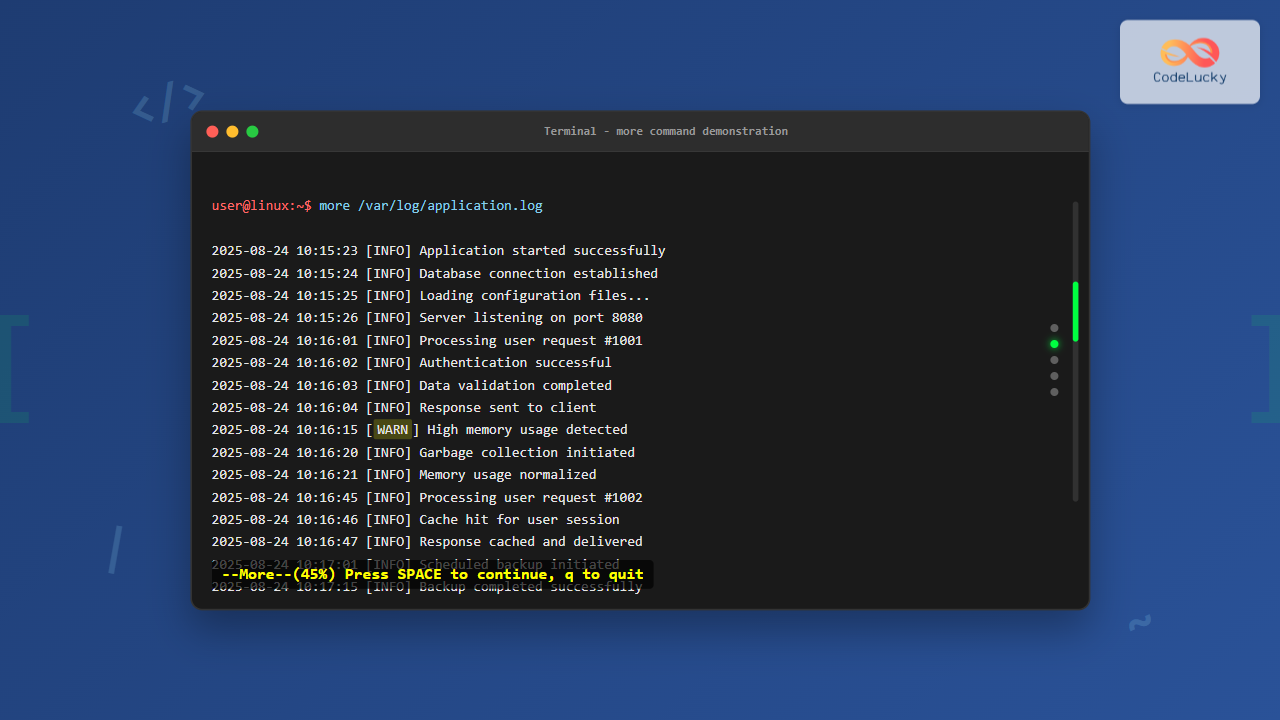
The more command is one of the most essential Linux utilities for viewing file contents in a controlled, paginated manner. Instead of overwhelming your terminal with entire file contents at once, the more command displays text one screen at a time, making it perfect for reading large files, logs, and documentation.
What is the more Command?
The more command is a pager program that allows you to view text files page by page. It’s particularly useful when dealing with lengthy files that would otherwise flood your terminal screen, making it difficult to read or navigate through the content effectively.
Unlike simple commands like cat that dump entire file contents to the terminal, more provides interactive navigation controls, allowing you to scroll through content at your own pace.
Basic Syntax and Usage
The basic syntax of the more command is straightforward:
more [options] [file...]Simple File Viewing
To view a file using more, simply specify the filename:
more filename.txtExample Output:
This is the first line of the file
This is the second line
This is the third line
...more content...
--More--(45%)
The --More--(45%) at the bottom indicates that you’re viewing 45% of the file, and more content is available.
Navigation Controls
Once you’re in the more interface, you can use various keyboard shortcuts to navigate:
| Key | Action |
|---|---|
Space or f |
Move forward one screen |
Enter |
Move forward one line |
b |
Move backward one screen |
q |
Quit more |
/pattern |
Search for pattern |
n |
Find next occurrence |
h |
Display help |
= |
Show current line number |
Command Line Options
The more command supports several useful options to customize its behavior:
-n (Number of Lines)
Specify the number of lines to display per screen:
more -10 largefile.txtThis displays only 10 lines at a time instead of the default screen size.
-d (Display Help)
Show helpful prompts for navigation:
more -d logfile.txtExample Output:
Log entry 1
Log entry 2
Log entry 3
--More--(25%) [Press space to continue, 'q' to quit.]
-s (Squeeze Blank Lines)
Replace multiple consecutive blank lines with a single blank line:
more -s document.txt+num (Start at Line Number)
Begin displaying from a specific line number:
more +50 largefile.txtThis starts displaying from line 50 of the file.
+/pattern (Start at Pattern)
Begin displaying from the first occurrence of a pattern:
more +/error application.logThis starts displaying from the first line containing “error”.
Practical Examples
Example 1: Viewing System Logs
more /var/log/syslogSample Output:
Aug 24 10:15:23 server kernel: [12345.678901] USB disconnect
Aug 24 10:15:24 server systemd[1]: Started Update UTMP
Aug 24 10:15:25 server NetworkManager[892]: <info> device (eth0): state change
Aug 24 10:15:26 server kernel: [12346.789012] TCP: Peer unexpectedly shrunk
--More--(12%)
Example 2: Reading Configuration Files
more /etc/ssh/sshd_configThis allows you to read SSH configuration settings page by page, making it easier to understand the configuration structure.
Example 3: Viewing Command Output
You can pipe command output to more for paginated viewing:
ps aux | moreSample Output:
USER       PID %CPU %MEM    VSZ   RSS TTY      STAT START   TIME COMMAND
root         1  0.0  0.1 169564 11420 ?        Ss   Aug23   0:03 /sbin/init
root         2  0.0  0.0      0     0 ?        S    Aug23   0:00 [kthreadd]
root         3  0.0  0.0      0     0 ?        I<   Aug23   0:00 [rcu_gp]
--More--(15%)
Example 4: Interactive Search
While viewing a file with more, you can search for specific content:
more application.logThen type /ERROR to search for “ERROR” in the file. The display will jump to the first occurrence.
Combining more with Other Commands
Using with grep
grep -n "error" application.log | moreThis searches for “error” in the log file and displays results with line numbers, paginated through more.
Using with find
find /var/log -name "*.log" -exec more {} \;This finds all .log files and opens each one with more for viewing.
Using with tail
tail -100 /var/log/messages | moreDisplay the last 100 lines of a log file using more for pagination.
Advanced Usage Tips
Setting Environment Variables
You can customize more’s behavior using the MORE environment variable:
export MORE="-d -s"
more largefile.txt
This sets default options (-d for help prompts, -s for squeezing blank lines).
Viewing Multiple Files
More can handle multiple files sequentially:
more file1.txt file2.txt file3.txtAfter reaching the end of one file, press Space to move to the next file.
Binary File Detection
More automatically detects binary files and asks for confirmation:
more binaryfile.exeOutput:
"binaryfile.exe" may be a binary file. See it anyway?more vs less vs cat
Understanding when to use more versus other file viewing commands:
| Command | Best For | Navigation |
|---|---|---|
more |
Basic pagination, simple viewing | Forward only (limited backward) |
less |
Advanced navigation, large files | Full forward/backward navigation |
cat |
Small files, concatenation | No interactive navigation |
Common Use Cases
System Administration
- Log Analysis:
more /var/log/auth.log - Configuration Review:
more /etc/fstab - Process Monitoring:
ps aux | more
Development
- Code Review:
more large_script.py - Documentation:
more README.md - Build Logs:
more build.log
Data Analysis
- CSV Files:
more data.csv - Report Files:
more monthly_report.txt - Database Dumps:
more database_export.sql | more
Troubleshooting Common Issues
Terminal Size Issues
If more doesn’t display correctly, check your terminal size:
echo $LINES $COLUMNSYou can also force a specific screen size:
LINES=20 COLUMNS=80 more filename.txtEncoding Problems
For files with special characters, ensure proper locale settings:
LC_ALL=C more filename.txtPermission Denied
If you can’t read a file, check permissions:
ls -l filename.txt
sudo more filename.txt
Performance Considerations
The more command is efficient with memory usage because it doesn’t load the entire file into memory at once. However, for very large files (gigabytes), consider these alternatives:
- For large logs: Use
tail -ffor real-time monitoring - For structured data: Use
headandtailto preview - For searchable content: Use
grepwithmore
Security Considerations
When using more with sensitive files:
- Be aware that more creates temporary files in some cases
- Avoid using more on files containing passwords or secrets in shared environments
- Consider using
sudoappropriately for system files
Conclusion
The more command is an indispensable tool for Linux users, providing a simple yet effective way to view file contents without overwhelming the terminal. While newer alternatives like less offer more features, more remains valuable for its simplicity and universal availability across Unix-like systems.
Whether you’re a system administrator analyzing logs, a developer reviewing code, or a regular user exploring file contents, mastering the more command will significantly improve your command-line efficiency. Practice with different file types and sizes to become comfortable with its navigation controls and options.
Remember that the key to effective use of more lies in understanding its navigation shortcuts and knowing when to combine it with other commands for powerful file analysis workflows.
Related Posts

less Command Linux: Complete Guide to View Large Files Page by Page
The less command is one of the most essential tools for Linux system administrators and developers who need to view...
head Command in Linux: Display First Lines of Files Efficiently
The head command is one of the most fundamental and frequently used utilities in Linux and Unix-like operating systems. It...

cat Command in Linux: Complete Guide to Display and Concatenate Files
The cat command is one of the most fundamental and frequently used commands in Linux and Unix-like operating systems. Short...
tail Command Linux: Complete Guide to Display Last Lines and Follow Logs in Real-Time
The tail command is one of the most essential tools in Linux for displaying the last lines of files and...

PHP Pagination: Splitting Content Across Pages
In the world of web development, efficiently managing large datasets is crucial for creating user-friendly and performant applications. One of...
history Command Linux: Complete Guide to View and Manage Your Command History
The history command in Linux is one of the most powerful tools for managing and navigating your command line experience....
redirect Command Linux: Complete Input Output Redirection Guide
Linux redirection is a powerful feature that allows you to control where command input comes from and where output goes....

echo Command in Linux: Complete Guide to Print Text and Variables in Terminal
The echo command is one of the most fundamental and frequently used commands in Linux and Unix-like operating systems. It...

Linux Commands Tutorial: Complete Beginner’s Guide to Terminal Basics
The Linux terminal is a powerful command-line interface that gives you direct control over your operating system. While it might...
vim Command Linux: Master the Ultimate Text Editor with Advanced Techniques
The vim command is one of the most powerful and versatile text editors available in Linux systems. Originally created as...
ls Command Advanced Linux: Complete Guide to File Listing Mastery
The ls command is one of the most fundamental and frequently used commands in Linux and Unix-like operating systems. While...
sed Advanced Linux: Stream Editor Advanced Techniques for Text Processing
The sed (Stream Editor) command stands as one of the most powerful text processing tools in Linux systems. While basic...





