
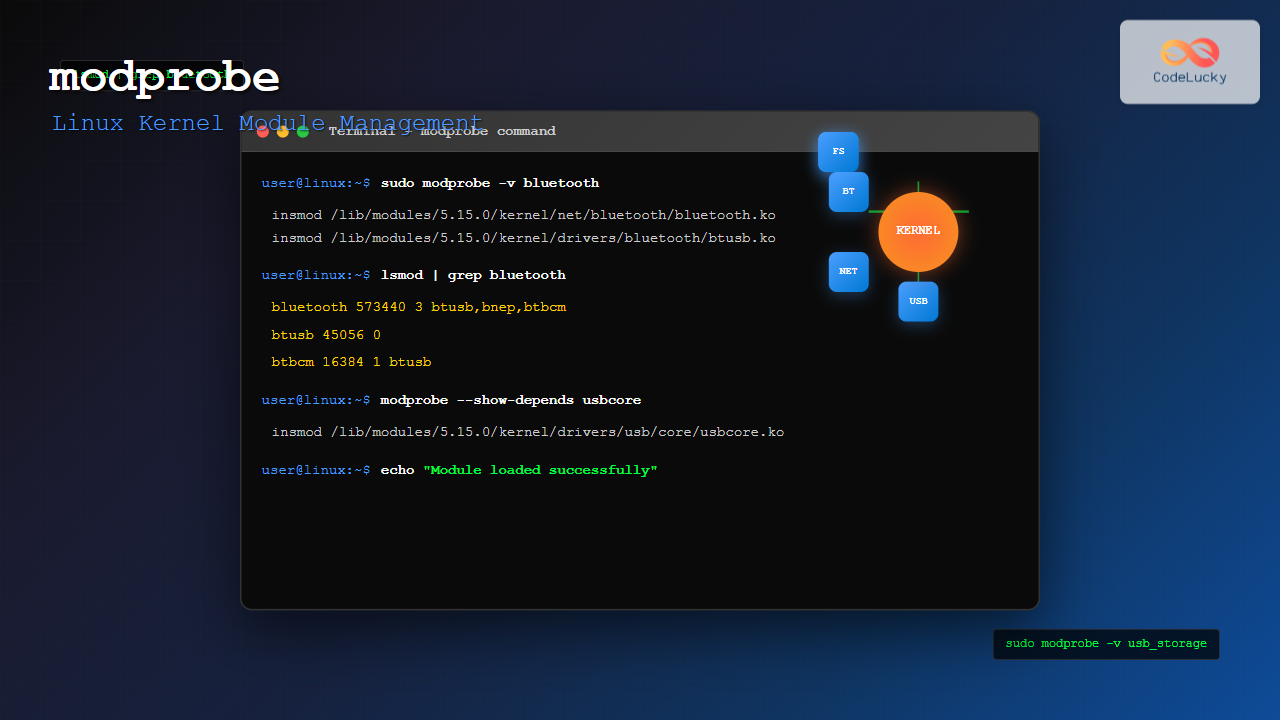
The modprobe command is one of the most powerful tools in Linux system administration for managing kernel modules. Whether you’re loading device drivers, enabling system features, or troubleshooting hardware issues, understanding modprobe is essential for any Linux administrator or power user.
What is modprobe Command?
The modprobe command is a Linux utility that intelligently loads and unloads kernel modules along with their dependencies. Unlike the basic insmod command, modprobe automatically resolves module dependencies and can load multiple modules in the correct order.
Kernel modules are pieces of code that can be loaded and unloaded into the kernel on demand, extending the kernel’s functionality without requiring a system reboot. These modules typically include device drivers, filesystem support, and network protocols.
Basic Syntax and Options
The basic syntax of modprobe is:
modprobe [options] module_name [module_parameters]Common Options
| Option | Description |
|---|---|
-a, --all |
Load all modules specified |
-r, --remove |
Remove module instead of loading |
-v, --verbose |
Show verbose output |
-n, --dry-run |
Show what would be done without actually doing it |
-f, --force |
Force module loading (use with caution) |
-c, --showconfig |
Show configuration and exit |
-l, --list |
List matching modules |
Loading Kernel Modules
Loading a kernel module is the primary function of modprobe. Here are practical examples:
Basic Module Loading
# Load a specific module
sudo modprobe bluetooth

# Load module with verbose output
sudo modprobe -v usbcore
Expected output:
insmod /lib/modules/5.15.0-72-generic/kernel/drivers/bluetooth/bluetooth.koLoading Multiple Modules
# Load multiple modules at once
sudo modprobe -a bluetooth wifi rtl8192ce
Loading Modules with Parameters
Many modules accept parameters to customize their behavior:
# Load module with specific parameters
sudo modprobe snd-hda-intel model=auto

# Load USB storage module with specific delay
sudo modprobe usb-storage delay_use=5
Removing Kernel Modules
The modprobe command can also remove modules and their dependencies:
Basic Module Removal
# Remove a specific module
sudo modprobe -r bluetooth

# Remove module with verbose output
sudo modprobe -rv usbcore
Expected output:
rmmod bluetooth
rmmod bnep
rmmod btusb
Force Removal
Warning: Use force removal only when absolutely necessary, as it can cause system instability.
# Force remove a module (dangerous)
sudo modprobe -rf problematic_module
Checking Module Information
Before loading or removing modules, it’s often useful to gather information about them:
List Available Modules
# List all available modules
modprobe -l

# List modules matching a pattern
modprobe -l | grep usb

# List modules matching specific pattern
modprobe -l '*bluetooth*'
Show Module Configuration
# Show current modprobe configuration
modprobe -c

# Show configuration for specific module
modprobe -c | grep bluetooth
Sample output:
alias net-pf-31 bluetooth
alias bt-proto-0 l2cap
alias bt-proto-2 sco
alias bt-proto-3 rfcomm
alias bt-proto-4 bnep
Dry Run and Testing
The dry-run option is invaluable for testing before making actual changes:
# Test what would happen when loading a module
sudo modprobe -n -v bluetooth

# Test removal without actually removing
sudo modprobe -n -r -v bluetooth
Sample output:
insmod /lib/modules/5.15.0-72-generic/kernel/net/bluetooth/bluetooth.ko
insmod /lib/modules/5.15.0-72-generic/kernel/drivers/bluetooth/btusb.ko
Working with Module Dependencies
One of modprobe’s key strengths is automatic dependency resolution:
Understanding Dependencies
# Check module dependencies
modinfo bluetooth | grep depends

# View dependency tree
modprobe --show-depends bluetooth
Expected output:
insmod /lib/modules/5.15.0-72-generic/kernel/lib/crc16.ko
insmod /lib/modules/5.15.0-72-generic/kernel/net/bluetooth/bluetooth.ko
Configuration Files
modprobe uses several configuration files to determine its behavior:
Main Configuration Locations
/etc/modprobe.conf– Main configuration file (older systems)/etc/modprobe.d/– Directory containing configuration files/lib/modprobe.d/– System default configurations
Creating Custom Configuration
# Create custom configuration file
sudo nano /etc/modprobe.d/custom.conf

# Example content:
# Blacklist a problematic module
blacklist nouveau

# Set module parameters
options snd-hda-intel model=auto

# Create module alias
alias my-wifi iwl4965
Blacklisting Modules
Sometimes you need to prevent specific modules from loading:
Temporary Blacklisting
# Prevent module from loading in current session
echo 'blacklist nouveau' | sudo tee /etc/modprobe.d/blacklist-nouveau.conf
Permanent Blacklisting
# Create permanent blacklist file
sudo nano /etc/modprobe.d/blacklist.conf

# Add the following line:
blacklist module_name
Troubleshooting Common Issues
Module Not Found Error
# Check if module exists
find /lib/modules/$(uname -r) -name "module_name*"

# Update module dependencies
sudo depmod -a
Dependency Issues
# Force rebuild of module dependencies
sudo depmod -A

# Check for missing dependencies
dmesg | grep -i "module"
Permission Denied
# Ensure you have proper permissions
sudo modprobe module_name

# Check if module is already loaded
lsmod | grep module_name
Advanced Usage Examples
Interactive Module Management Script
#!/bin/bash
# Interactive module manager

echo "Available modules:"
modprobe -l | head -10

read -p "Enter module name to load: " module_name

if [ ! -z "$module_name" ]; then
    echo "Testing module load..."
    sudo modprobe -n -v "$module_name"

    read -p "Proceed with loading? (y/n): " confirm
    if [ "$confirm" = "y" ]; then
        sudo modprobe -v "$module_name"
        echo "Module $module_name loaded successfully"
    fi
fi
Monitoring Module Loading
# Watch kernel messages while loading modules
sudo dmesg -w &
sudo modprobe -v your_module_name

# Check module status after loading
lsmod | grep your_module_name
Best Practices
Safety Guidelines
- Always use dry-run (
-n) option before loading unfamiliar modules - Check module information with
modinfobefore loading - Keep backups of configuration files before making changes
- Use verbose mode when troubleshooting
- Avoid force-loading modules unless absolutely necessary
Performance Considerations
- Load modules only when needed to conserve memory
- Use module parameters to optimize performance
- Remove unused modules to reduce kernel footprint
- Monitor system logs after loading new modules
Integration with System Services
Automatic Module Loading
# Add modules to load at boot
echo 'module_name' | sudo tee -a /etc/modules-load.d/modules.conf

# Create systemd service for module loading
sudo systemctl enable systemd-modules-load.service
Security Considerations
Loading kernel modules has security implications:
- Only load modules from trusted sources
- Verify module signatures when possible
- Use
modprobe.blacklistkernel parameter for critical systems - Monitor module loading in production environments
- Implement proper access controls for modprobe usage
Conclusion
The modprobe command is an essential tool for Linux system administration, providing intelligent kernel module management with automatic dependency resolution. By mastering its various options and understanding proper usage patterns, you can effectively manage your Linux system’s kernel modules, troubleshoot hardware issues, and optimize system performance.
Remember to always test changes in a safe environment, use verbose output for troubleshooting, and maintain proper configuration files to ensure consistent system behavior. With these skills, you’ll be well-equipped to handle complex module management scenarios in any Linux environment.
Related Posts
modinfo Command Linux: Complete Guide to Display Kernel Module Information
The modinfo command is an essential Linux utility that displays detailed information about kernel modules. Whether you're troubleshooting hardware issues,...
insmod Command Linux: Complete Guide to Insert Kernel Modules
The insmod command is a fundamental Linux utility that allows system administrators and developers to insert kernel modules into the...
rmmod Command Linux: Complete Guide to Remove Kernel Modules Safely
The rmmod command is a fundamental Linux utility for removing loadable kernel modules from the running kernel. Understanding how to...
depmod Command Linux: Complete Guide to Generate Module Dependencies
The depmod command is a critical system administration tool in Linux that generates module dependency maps for the kernel. This...
lsmod Command Linux: Complete Guide to Listing Kernel Modules
The lsmod command is an essential Linux utility that displays information about currently loaded kernel modules in your system. Understanding...
dkms Command Linux: Complete Guide to Dynamic Kernel Module Support
Dynamic Kernel Module Support (DKMS) is a powerful framework that automatically rebuilds kernel modules when you install a new kernel...

Device Drivers in Operating System: Complete Guide to Hardware Abstraction Layer
Device drivers serve as the critical bridge between your operating system and hardware components, forming what's known as the Hardware...

mdev Command Linux: Complete Guide to Minimal Device Manager Configuration
The mdev command is a lightweight device manager for Linux systems, particularly popular in embedded environments and minimal distributions. As...
ldd Command Linux: Display Shared Library Dependencies
The ldd command is an essential Linux utility that displays the shared library dependencies of executable files and shared libraries....

udevadm Command Linux: Complete Guide to Device Management and Udev Administration
The udevadm command is a powerful administrative tool in Linux systems that manages the udev device manager. It serves as...
ldconfig Command Linux: Complete Guide to Dynamic Linker Configuration
The ldconfig command is a fundamental Linux system administration tool that configures the dynamic linker's runtime bindings for shared libraries....
dmesg Command Linux: Complete Guide to Display and Analyze Kernel Messages
The dmesg command is one of the most powerful diagnostic tools in Linux, providing administrators and users with direct access...





