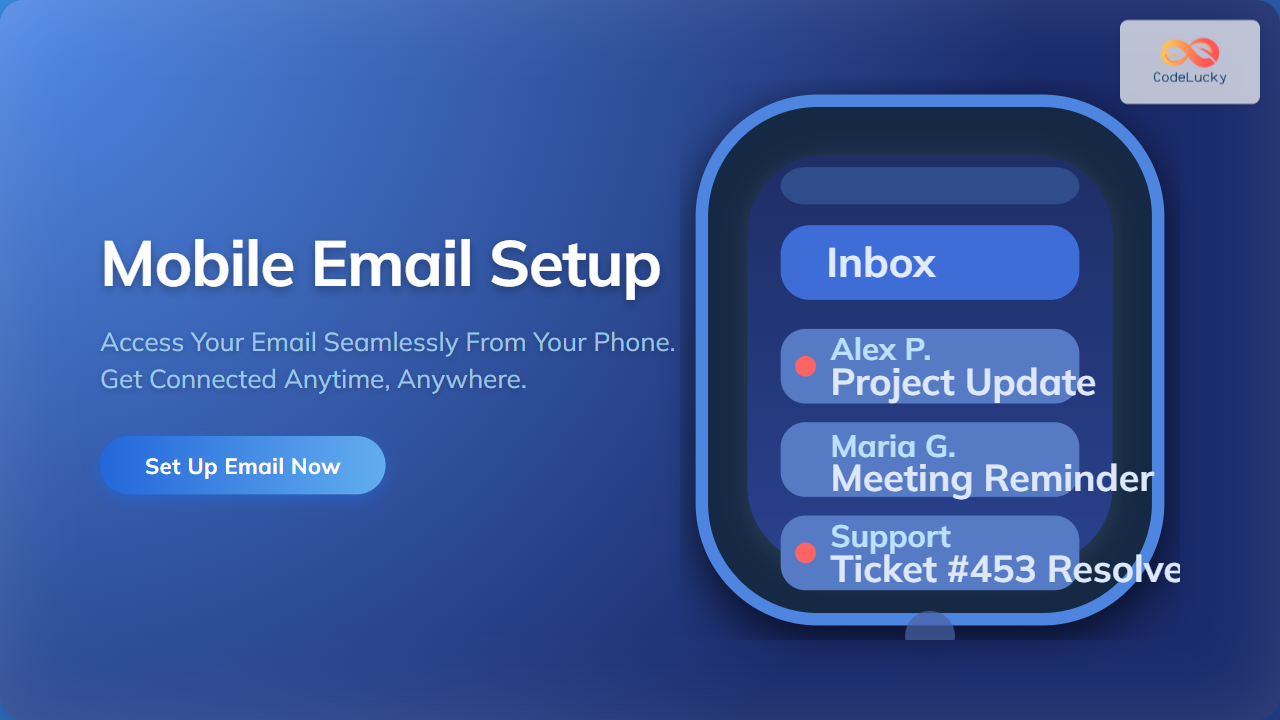
Accessing your email on your mobile phone is an essential part of staying connected in today’s fast-paced world. Whether it’s for work, personal communication, or staying organized, having email set up on your mobile device allows you to read, respond, and manage emails on the go. This detailed guide will walk you through the process of setting up your email on various mobile platforms with clear, step-by-step instructions, supported by useful visuals and diagrams to help you understand the process confidently.
Why Set Up Email on Your Mobile Phone?
Setting up email on your mobile phone ensures you receive instant notifications, can reply promptly, and organize emails no matter where you are. It helps boost productivity and prevents missing critical communications.
- Convenience: Check emails anywhere at any time.
- Immediate notifications: Get alerted as soon as an email arrives.
- Synchronization: Keep your emails synced across devices.
Types of Email Accounts Supported on Mobile Devices
Before starting, it’s important to know what type of email account you have, as this determines the setup steps and server settings you will need:
- IMAP (Internet Message Access Protocol): Synchronizes emails between device and server, ideal for accessing mail from multiple devices.
- POP3 (Post Office Protocol): Downloads emails to your device and often deletes from server; good for single-device access.
- Exchange ActiveSync: Used mostly by corporate or Microsoft 365 accounts to sync mail, contacts, calendars, and tasks.
- Webmail Accounts: Gmail, Outlook, Yahoo Mail — often have automatic setup options in mobile email apps.
How to Set Up Email on Your Phone: Step-By-Step Guide
Step 1: Choose Your Email App
Most smartphones come equipped with a default email app such as Apple Mail on iOS or Gmail on Android. You can also download third-party apps like Outlook, BlueMail, or Spark, which offer additional features.
Step 2: Gather Your Email Account Information
To set up your email manually, you’ll need the following details, which you can get from your email service provider:
- Email address
- Password
- Incoming mail server (IMAP/POP3 server address)
- Outgoing mail server (SMTP server address)
- Port numbers for incoming and outgoing servers
- Security type (SSL/TLS)
Step 3: Configure Your Email Account
Example for Android Gmail App (IMAP setup):
- Open Gmail > Tap the Menu ☰ > Settings > Add account
- Select “Other” if your email provider isn’t listed
- Enter your email address and tap “Next”
- Select “Personal (IMAP)” and input your password
- Enter the incoming server info: imap.example.com with SSL and port 993
- Enter the outgoing server info: smtp.example.com with SSL and port 465 or 587
- Adjust sync frequency and notification settings
- Save and finish setup
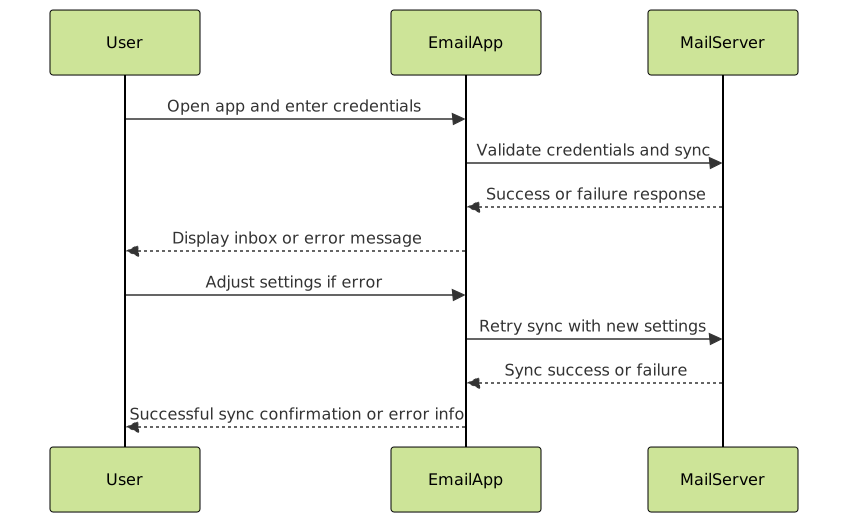
Upon completion, your emails will start syncing and appear in your inbox.
Step 4: Test Your Setup
Once set up, send a test email to yourself. Verify that you can receive and send emails without errors. If there’s a problem, double-check all server settings and password correctness.
Tips for Smooth Email Setup and Use
- Use Wi-Fi initially: To reduce data usage when syncing large mailboxes.
- Update your email app: Keep the app updated for new functionality and security.
- Enable two-factor authentication: For extra security, especially on corporate accounts.
- Backup emails: If your email client supports it, enable cloud backup or export important emails.
Troubleshooting Common Mobile Email Setup Issues
If emails fail to sync or you cannot send mails, consider these troubleshooting steps:
- Check internet connectivity.
- Confirm your email address and password are correct.
- Verify server names, ports, and security settings.
- Look for app updates or reinstall your email app.
- Clear app cache and data if emails aren’t loading.
Additional Features to Enhance Mobile Email Experience
- Unified inbox: View multiple email accounts in one place.
- Email filters and rules: Organize incoming emails automatically.
- Swipe gestures: Quickly archive, delete, or mark emails.
- Offline access: Read and compose emails even without internet, sending when back online.
Conclusion
Setting up email on your mobile phone is straightforward once you have the necessary information and understand the setup process. With the instructions and examples provided, configuring your mobile email can be accomplished quickly, ensuring you stay connected wherever you go. Regular updates and good security practices will keep your email access smooth and secure.