
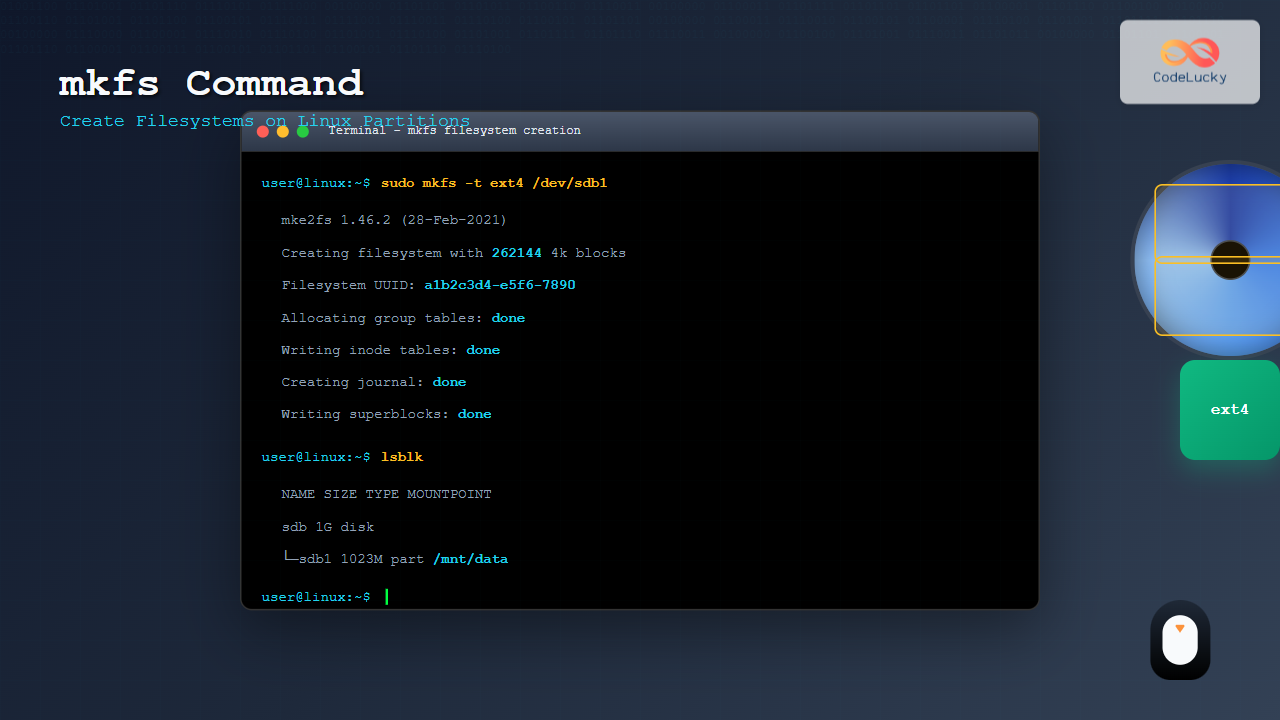
The mkfs command in Linux is a fundamental tool for creating filesystems on disk partitions. Whether you’re setting up a new storage device, preparing partitions for data storage, or configuring system drives, understanding mkfs is essential for every Linux system administrator and user.
What is the mkfs Command?
The mkfs (make filesystem) command is used to build a filesystem on a device or partition. It formats the specified partition with the chosen filesystem type, making it ready for mounting and data storage. The command essentially prepares raw disk space for use by the operating system.
Basic Syntax of mkfs Command
The basic syntax of the mkfs command follows this pattern:
mkfs [options] [-t filesystem_type] deviceWhere:
- options: Various flags to customize the filesystem creation
- -t filesystem_type: Specifies the type of filesystem to create
- device: The partition or device to format
Common Filesystem Types Supported
The mkfs command supports various filesystem types, each with specific characteristics:
| Filesystem | Description | Best Use Case |
|---|---|---|
| ext4 | Fourth extended filesystem | General purpose, default for most Linux distributions |
| ext3 | Third extended filesystem | Older systems requiring journaling |
| ext2 | Second extended filesystem | Small partitions, no journaling needed |
| xfs | High-performance filesystem | Large files and high-performance requirements |
| btrfs | B-tree filesystem | Advanced features like snapshots and compression |
| vfat | Virtual File Allocation Table | USB drives, compatibility with Windows |
| ntfs | New Technology File System | Windows compatibility |
Basic mkfs Examples
Creating an ext4 Filesystem
To create an ext4 filesystem on a partition:
sudo mkfs -t ext4 /dev/sdb1Expected output:
mke2fs 1.46.2 (28-Feb-2021)
Creating filesystem with 262144 4k blocks and 65536 inodes
Filesystem UUID: a1b2c3d4-e5f6-7890-abcd-ef1234567890
Superblock backups stored on blocks:
	32768, 98304, 163840, 229376

Allocating group tables: done
Writing inode tables: done
Creating journal (8192 blocks): done
Writing superblocks and filesystem accounting information: done
Creating a FAT32 Filesystem
For USB drives or Windows compatibility:
sudo mkfs -t vfat /dev/sdb1Expected output:
mkfs.fat 4.1 (2017-01-24)
WARNING: Not enough clusters for a 32 bit FAT! The filesystem will be FAT16 unless you force FAT32.
Creating an XFS Filesystem
For high-performance requirements:
sudo mkfs -t xfs /dev/sdb1Expected output:
meta-data=/dev/sdb1              isize=512    agcount=4, agsize=65536 blks
         =                       sectsz=512   attr=2, projid32bit=1
         =                       crc=1        finobt=1, sparse=1, rmapbt=0
         =                       reflink=1
data     =                       bsize=4096   blocks=262144, imaxpct=25
         =                       sunit=0      swidth=0 blks
naming   =version 2              bsize=4096   ascii-ci=0, ftype=1
log      =internal log           bsize=4096   blocks=2560, version=2
         =                       sectsz=512   sunit=0 blks, lazy-count=1
realtime =none                   extsz=4096   blocks=0, rtextents=0
Advanced mkfs Options and Examples
Setting Volume Label
You can assign a label to your filesystem during creation:
sudo mkfs -t ext4 -L "MyDataDrive" /dev/sdb1Specifying Block Size
For ext4 filesystems, you can specify block size:
sudo mkfs -t ext4 -b 4096 /dev/sdb1Setting Reserved Space
Reserve space for system use (default is 5%):
sudo mkfs -t ext4 -m 2 /dev/sdb1Force Filesystem Creation
To force creation even if the device appears to be in use:
sudo mkfs -t ext4 -F /dev/sdb1Filesystem-Specific Commands
Linux also provides filesystem-specific variants of mkfs:
mkfs.ext4
sudo mkfs.ext4 -L "DataDrive" -b 4096 /dev/sdb1mkfs.xfs
sudo mkfs.xfs -L "HighPerf" -f /dev/sdb1mkfs.btrfs
sudo mkfs.btrfs -L "Snapshots" /dev/sdb1Checking Existing Filesystems
Before creating a filesystem, it’s important to check what’s already on the device:
# List all block devices
lsblk

# Check filesystem type
sudo blkid /dev/sdb1

# View partition table
sudo fdisk -l /dev/sdb
Sample lsblk output:
NAME   MAJ:MIN RM  SIZE RO TYPE MOUNTPOINT
sda      8:0    0   20G  0 disk
├─sda1   8:1    0    1G  0 part /boot
└─sda2   8:2    0   19G  0 part /
sdb      8:16   0    1G  0 disk
└─sdb1   8:17   0 1023M  0 part
Practical Examples and Use Cases
Preparing a USB Drive
Complete process to format a USB drive:
# 1. Identify the USB device
lsblk

# 2. Unmount if mounted
sudo umount /dev/sdb1

# 3. Create new partition table (if needed)
sudo fdisk /dev/sdb

# 4. Create FAT32 filesystem
sudo mkfs -t vfat -F 32 -n "USB_DRIVE" /dev/sdb1

# 5. Create mount point and mount
sudo mkdir /mnt/usb
sudo mount /dev/sdb1 /mnt/usb
Setting up a Data Partition
Creating an ext4 partition for data storage:
# Create ext4 with custom settings
sudo mkfs.ext4 -L "DataStorage" -m 1 -E lazy_itable_init=0,lazy_journal_init=0 /dev/sdb1

# Verify the filesystem
sudo tune2fs -l /dev/sdb1 | grep -E "(Block size|Fragment size|Reserved block count)"
Important Safety Considerations
⚠️ Warning
The mkfs command will permanently destroy all data on the specified partition. Always:
- Double-check the device path
- Backup important data before formatting
- Unmount the device before formatting
- Verify you’re targeting the correct partition
Common Error Messages and Solutions
Device or Resource Busy
Error message:
mkfs.ext4: Device or resource busySolution:
# Find and stop processes using the device
sudo lsof /dev/sdb1
sudo fuser -km /dev/sdb1

# Unmount the device
sudo umount /dev/sdb1

# Then retry mkfs
Permission Denied
Always use sudo when running mkfs commands, as they require root privileges.
Invalid Filesystem Type
If you get an error about unsupported filesystem type, install the required tools:
# For XFS
sudo apt-get install xfsprogs

# For Btrfs
sudo apt-get install btrfs-progs

# For NTFS
sudo apt-get install ntfs-3g
Best Practices
- Always backup data before using mkfs
- Use descriptive labels for easy identification
- Choose appropriate filesystem based on use case
- Verify device path using lsblk before formatting
- Test mount the filesystem after creation
- Update /etc/fstab for permanent mounts
Monitoring Filesystem Creation Progress
For large partitions, you can monitor progress:
# Use verbose mode
sudo mkfs.ext4 -v /dev/sdb1

# For very detailed output
sudo mkfs.ext4 -v -E lazy_itable_init=0 /dev/sdb1
Conclusion
The mkfs command is an essential tool for Linux system administration, enabling you to create filesystems on partitions for various storage needs. From basic ext4 filesystems for general use to specialized filesystems like XFS for high-performance applications, mkfs provides the flexibility to configure storage according to your requirements.
Remember to always exercise caution when using mkfs, as it permanently destroys existing data. With proper understanding and careful execution, mkfs becomes a powerful tool for managing storage in Linux environments.
Whether you’re setting up new storage devices, preparing partitions for specific applications, or maintaining existing systems, mastering the mkfs command will significantly enhance your Linux administration capabilities.
Related Posts
mkdir Command Linux: Complete Guide to Creating Directories and Subdirectories
The mkdir command is one of the most fundamental and frequently used commands in Linux for creating directories. Whether you're...

File System Types: FAT32, NTFS, ext4 and Modern Linux Filesystems Explained
Understanding File Systems: The Foundation of Data Storage A file system is the method and data structure that an operating...
cfdisk Command Linux: Complete Guide to Curses-based Partition Management
The cfdisk command is a powerful, user-friendly partition table editor for Linux systems that provides a curses-based interface for managing...
mount Command Linux: Complete Guide to Mount Filesystems and Drives
The mount command is one of the most fundamental tools in Linux system administration, allowing you to attach filesystems from...
mkinitrd Command Linux: Complete Guide to Creating Initial RAM Disks
The mkinitrd command is a crucial Linux utility that creates initial RAM disk (initrd) images, which are essential for the...
fdisk Command Linux: Complete Guide to Disk Partition Management
The fdisk command is one of the most powerful and essential tools for disk partition management in Linux systems. Whether...
devfs Linux: Complete Guide to Device Filesystem Management
The Device Filesystem (devfs) represents a revolutionary approach to device management in Linux systems, providing dynamic creation and removal of...
lsblk Command Linux: Complete Guide to List and Manage Block Devices
The lsblk command is an essential Linux utility that displays information about block devices in a tree-like format. Whether you're...
parted Command Linux: Complete Guide to Disk Partition Management
The parted command is a powerful disk partition manipulation program in Linux that allows you to create, resize, move, and...
resize2fs Command Linux: Complete Guide to Resize Ext2/3/4 Filesystems Safely
The resize2fs command is a powerful Linux utility designed to resize ext2, ext3, and ext4 filesystems. Whether you need to...
kpartx Command Linux: Create and Manage Partition Maps with Complete Examples
The kpartx command is a powerful Linux utility that creates device maps from partition tables, enabling you to access partitions...
sgdisk Command Linux: Complete Guide to Script-Friendly GPT Partition Management
The sgdisk command is a powerful script-friendly alternative to the interactive gdisk utility for managing GPT (GUID Partition Table) partitions...





