
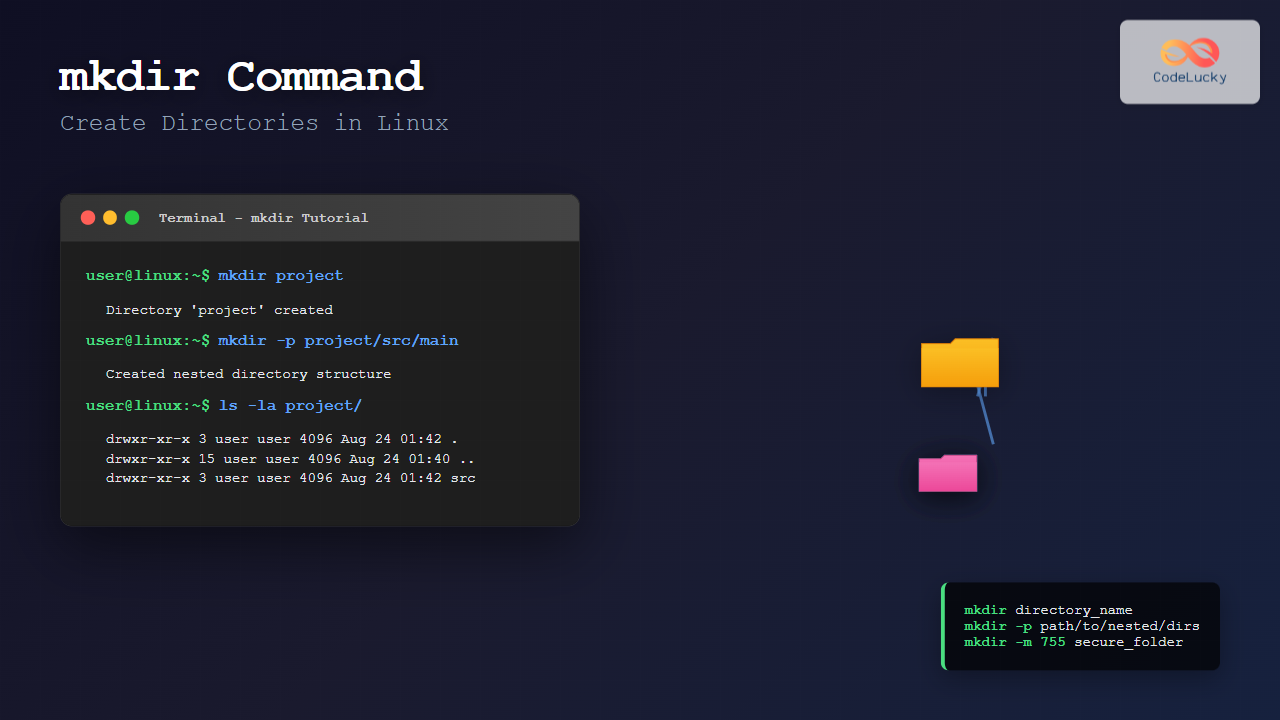
The mkdir command is one of the most fundamental and frequently used commands in Linux for creating directories. Whether you’re a beginner learning Linux basics or an experienced system administrator managing complex directory structures, understanding mkdir is essential for effective file system management.
What is the mkdir Command?
The mkdir command stands for “make directory” and is used to create one or more directories in Linux and Unix-like operating systems. It’s a built-in command that allows users to organize files by creating new folders in the file system hierarchy.
Basic Syntax
mkdir [OPTIONS] DIRECTORY_NAME...The basic syntax is straightforward – you simply type mkdir followed by the name of the directory you want to create.
Basic mkdir Usage Examples
Creating a Single Directory
The simplest use of mkdir is creating a single directory:
mkdir documentsOutput:
$ ls -la
total 12
drwxr-xr-x  3 user user 4096 Aug 24 01:42 .
drwxr-xr-x 15 user user 4096 Aug 24 01:40 ..
drwxr-xr-x  2 user user 4096 Aug 24 01:42 documents
Creating Multiple Directories
You can create multiple directories in a single command by separating them with spaces:
mkdir projects downloads music videosOutput:
$ ls -la
total 24
drwxr-xr-x  6 user user 4096 Aug 24 01:42 .
drwxr-xr-x 15 user user 4096 Aug 24 01:40 ..
drwxr-xr-x  2 user user 4096 Aug 24 01:42 documents
drwxr-xr-x  2 user user 4096 Aug 24 01:42 downloads
drwxr-xr-x  2 user user 4096 Aug 24 01:42 music
drwxr-xr-x  2 user user 4096 Aug 24 01:42 projects
drwxr-xr-x  2 user user 4096 Aug 24 01:42 videos
Important mkdir Options and Flags
-p (–parents) Option
The -p option is one of the most useful flags for mkdir. It creates parent directories as needed and doesn’t produce an error if the directory already exists.
mkdir -p project/src/main/java/com/exampleThis command creates the entire directory path even if intermediate directories don’t exist.
Output:
$ tree project
project
└── src
    └── main
        └── java
            └── com
                └── example

5 directories, 0 files
-m (–mode) Option
The -m option allows you to set specific permissions when creating a directory:
mkdir -m 755 public_folder
mkdir -m 700 private_folder
Output:
$ ls -la
drwxr-xr-x  2 user user 4096 Aug 24 01:42 public_folder
drwx------  2 user user 4096 Aug 24 01:42 private_folder
-v (–verbose) Option
The -v option provides verbose output, showing what directories are being created:
mkdir -v test1 test2 test3Output:
mkdir: created directory 'test1'
mkdir: created directory 'test2'
mkdir: created directory 'test3'
Creating Complex Directory Structures
Nested Directory Creation
Create complex nested structures in one command:
mkdir -p website/{css,js,images,pages/{home,about,contact}}This uses brace expansion to create multiple directories at once.
Output:
$ tree website
website
├── css
├── images
├── js
└── pages
    ├── about
    ├── contact
    └── home

7 directories, 0 files
Creating Directories with Spaces
When creating directories with spaces in their names, use quotes or escape characters:
mkdir "My Documents"
mkdir My\ Photos
mkdir 'Project Files'
Output:
$ ls -la
drwxr-xr-x  2 user user 4096 Aug 24 01:42 'My Documents'
drwxr-xr-x  2 user user 4096 Aug 24 01:42 'My Photos'
drwxr-xr-x  2 user user 4096 Aug 24 01:42 'Project Files'
Advanced mkdir Techniques
Creating Directories with Date/Time Stamps
Use command substitution to create directories with timestamps:
mkdir "backup_$(date +%Y%m%d_%H%M%S)"
mkdir "log_$(date +%Y-%m-%d)"
Output:
$ ls -la
drwxr-xr-x  2 user user 4096 Aug 24 01:42 backup_20250824_014200
drwxr-xr-x  2 user user 4096 Aug 24 01:42 log_2025-08-24
Combining mkdir with Other Commands
Create directories and immediately navigate into them:
mkdir project && cd projectCreate multiple project directories with similar structures:
for project in webapp mobile api; do
  mkdir -p $project/{src,tests,docs,config}
done
Common mkdir Error Messages and Solutions
Permission Denied Error
When you don’t have write permissions:
$ mkdir /etc/myconfig
mkdir: cannot create directory '/etc/myconfig': Permission denied
Solution: Use sudo or choose a location where you have write permissions:
sudo mkdir /etc/myconfig
# or
mkdir ~/myconfig
File Exists Error
When trying to create a directory that already exists:
$ mkdir documents
mkdir: cannot create directory 'documents': File exists
Solution: Use the -p option to suppress this error:
mkdir -p documentsInvalid Directory Name
Some characters are not allowed in directory names:
$ mkdir "my/invalid/name"
mkdir: cannot create directory 'my/invalid/name': No such file or directory
Solution: Use the -p option to create the full path:
mkdir -p my/valid/namePractical Use Cases and Examples
Setting Up a Development Environment
# Create a typical web development structure
mkdir -p myapp/{frontend/{src/{components,pages,styles},public,tests},backend/{src/{controllers,models,routes},tests,config},docs,scripts}

# Set appropriate permissions
chmod 755 myapp
chmod 700 myapp/backend/config
Organizing Media Files
# Create media organization structure
mkdir -p media/{photos/{2023,2024,2025},videos/{tutorials,personal,work},audio/{music,podcasts,recordings}}
Backup Directory Structure
# Create backup directories with date organization
mkdir -p backups/{daily,weekly,monthly}/$(date +%Y)
mkdir -p backups/daily/$(date +%Y)/$(date +%m)
Best Practices for Using mkdir
1. Use Meaningful Directory Names
Choose descriptive names that clearly indicate the directory’s purpose:
# Good
mkdir user_documentation project_resources

# Avoid
mkdir dir1 temp_stuff
2. Plan Your Directory Structure
Design your directory hierarchy before creating it:
# Plan the structure first
mkdir -p company/{departments/{hr,finance,it},projects/{project_a,project_b},resources/{templates,policies}}
3. Use Consistent Naming Conventions
Maintain consistency in naming:
# Consistent lowercase with underscores
mkdir user_data system_logs error_reports

# Or consistent camelCase
mkdir userData systemLogs errorReports
4. Set Appropriate Permissions
Consider security when creating directories:
# Public directories
mkdir -m 755 public_html

# Private directories
mkdir -m 700 private_keys sensitive_data
Integration with Shell Scripts
Creating Directories in Scripts
#!/bin/bash
# Script to set up a new project structure

PROJECT_NAME="$1"

if [ -z "$PROJECT_NAME" ]; then
    echo "Usage: $0 "
    exit 1
fi

echo "Creating project structure for: $PROJECT_NAME"

mkdir -p "$PROJECT_NAME"/{src,tests,docs,build,config}
mkdir -p "$PROJECT_NAME"/src/{main,utils,components}

echo "Project structure created successfully!"
tree "$PROJECT_NAME"
Error Handling in Scripts
#!/bin/bash
# Script with error handling

create_directory() {
    local dir="$1"

    if mkdir -p "$dir" 2>/dev/null; then
        echo "✓ Created directory: $dir"
    else
        echo "✗ Failed to create directory: $dir"
        return 1
    fi
}

# Usage
create_directory "important_folder"
create_directory "/restricted_path"  # This might fail
Comparing mkdir with Related Commands
mkdir vs rmdir
- mkdir: Creates directories
- rmdir: Removes empty directories
mkdir vs touch
- mkdir: Creates directories
- touch: Creates empty files or updates timestamps
mkdir vs install
- mkdir: Simple directory creation
- install -d: Creates directories with specific ownership and permissions
Performance Considerations
Creating Many Directories Efficiently
When creating many directories, consider using:
# Efficient for many directories
echo -e "dir1\ndir2\ndir3\ndir4\ndir5" | xargs mkdir

# Or using brace expansion
mkdir dir{1..100}
Checking Directory Existence
In scripts, check if a directory exists before creating:
if [ ! -d "mydir" ]; then
    mkdir mydir
    echo "Directory created"
else
    echo "Directory already exists"
fi
Troubleshooting Common Issues
Long Path Names
Linux has path length limitations (typically 4096 characters). For very long paths:
# Check path length
echo "/very/long/path/to/directory" | wc -c

# Use shorter intermediate variables in scripts
BASE_PATH="/home/user/projects"
mkdir -p "$BASE_PATH/sub/path/here"
Special Characters in Directory Names
Handle special characters properly:
# Escape special characters
mkdir "directory with (special) characters"
mkdir directory\ with\ spaces

# Use quotes for safety
mkdir "directory-with-dashes"
Security Considerations
Directory Permissions
Always consider the security implications of directory permissions:
# Secure directory creation
mkdir -m 750 shared_directory    # Owner: rwx, Group: r-x, Others: ---
mkdir -m 700 private_directory   # Owner: rwx, Group: ---, Others: ---

# Check umask settings
umask
# Adjust if necessary
umask 022
Avoiding Directory Traversal
Be careful with user input in scripts:
#!/bin/bash
# Sanitize user input
sanitize_name() {
    echo "$1" | sed 's/[^a-zA-Z0-9._-]//g'
}

USER_INPUT="$1"
SAFE_NAME=$(sanitize_name "$USER_INPUT")
mkdir "$SAFE_NAME"
Conclusion
The mkdir command is an essential tool for Linux users and system administrators. From simple directory creation to complex nested structures, understanding its various options and best practices enables efficient file system organization. Whether you’re setting up development environments, organizing personal files, or automating system administration tasks, mkdir provides the flexibility and power needed for effective directory management.
Remember to use the -p option for creating parent directories, set appropriate permissions with -m, and always consider security implications when creating directories in production environments. With practice, mkdir becomes an invaluable part of your Linux command-line toolkit.
Related Posts
mkfs Command Linux: Complete Guide to Creating Filesystems on Partitions
The mkfs command in Linux is a fundamental tool for creating filesystems on disk partitions. Whether you're setting up a...
rmdir Command in Linux: Complete Guide to Remove Empty Directories Safely
The rmdir command is a fundamental Linux utility designed specifically for removing empty directories. Unlike the more powerful rm -r...
cd Command Linux: Complete Guide to Directory Navigation in Terminal
The cd command is one of the most fundamental and frequently used commands in Linux and Unix-like operating systems. Standing...
cp Command Linux: Copy Files and Directories with Examples and Best Practices
The cp command is one of the most fundamental and frequently used commands in Linux systems. It allows you to...
make Command Linux: Complete Guide to Building Programs from Source Code
The make command is one of the most essential tools in Linux for building and compiling software from source code....

ls Command in Linux: Complete Guide to List Files and Directories with Examples
The ls command is one of the most fundamental and frequently used commands in Linux and Unix-like operating systems. It...
Directory Structure: Single-level, Two-level, and Tree Structure in Operating Systems
Understanding Directory Structures in Operating Systems Directory structures are fundamental components of file systems that organize and manage files in...

Linux Commands Tutorial: Complete Beginner’s Guide to Terminal Basics
The Linux terminal is a powerful command-line interface that gives you direct control over your operating system. While it might...
mv Command in Linux: Complete Guide to Moving and Renaming Files
The mv command is one of the most fundamental and frequently used commands in Linux systems. Whether you're a system...

chown Command Linux: Master File and Directory Ownership Management
The chown command is one of the most fundamental tools in Linux system administration, allowing users to change file and...
rm Command in Linux: Complete Guide to Delete Files and Directories Safely
The rm command is one of the most powerful and potentially dangerous commands in Linux. It stands for "remove" and...
mount Command Linux: Complete Guide to Mount Filesystems and Drives
The mount command is one of the most fundamental tools in Linux system administration, allowing you to attach filesystems from...





